1. Introduction
This manual provides detailed instructions for the TMKB T63 Wireless Mechanical Gaming Keyboard. Please read this manual thoroughly before using the product to ensure proper operation and to maximize your user experience.
2. Product Features
- Compact 63-Key Layout: The T63 features a compact 63-key mechanical design, utilizing the "FN" combination key for full functionality while saving desk space.
- Mechanical Switches: Equipped with self-developed mechanical switches, offering a 60-million keystroke lifespan. Available with Blue switches for professional text editors and Red switches for office work and gaming.
- Triple Connection Modes: Supports 2.4G wireless, Bluetooth 5.0, and USB wired connections. Easily switch between laptops, PCs, tablets, and smartphones.
- Long-lasting Battery: Features a 3000 mAh battery, providing approximately 8 hours of use with full backlight brightness, 90 hours with backlight off, and up to 360 hours of standby time.
- Dynamic RGB Backlighting: Offers 18 different dynamic lighting modes and 16.8 million customizable RGB colors via software.

Image: The TMKB T63 keyboard showcasing its compact layout and vibrant RGB backlighting, with the 2.4G USB dongle visible.
3. Setup and Connection
3.1. Wired Connection
- Ensure the keyboard's power switch is turned off.
- Connect the provided USB Type-C cable to the keyboard and your computer's USB port.
- The keyboard will automatically be recognized and ready for use.
3.2. 2.4G Wireless Connection
- Locate the 2.4G USB dongle, usually stored in a compartment on the keyboard.
- Plug the USB dongle into an available USB port on your computer.
- Long press Fn + N until the indicator light flashes rapidly.
- The keyboard will connect automatically.
3.3. Bluetooth Connection
- Long press Fn + C, Fn + V, or Fn + B to select a Bluetooth channel (BT1, BT2, or BT3). The indicator light for the selected channel will flash rapidly.
- On your device (laptop, PC, tablet, smartphone), enable Bluetooth and search for "TMKB T63".
- Select the keyboard to pair. Once connected, the indicator light will stop flashing.
- To switch between paired Bluetooth devices, short press Fn + C, Fn + V, or Fn + B.
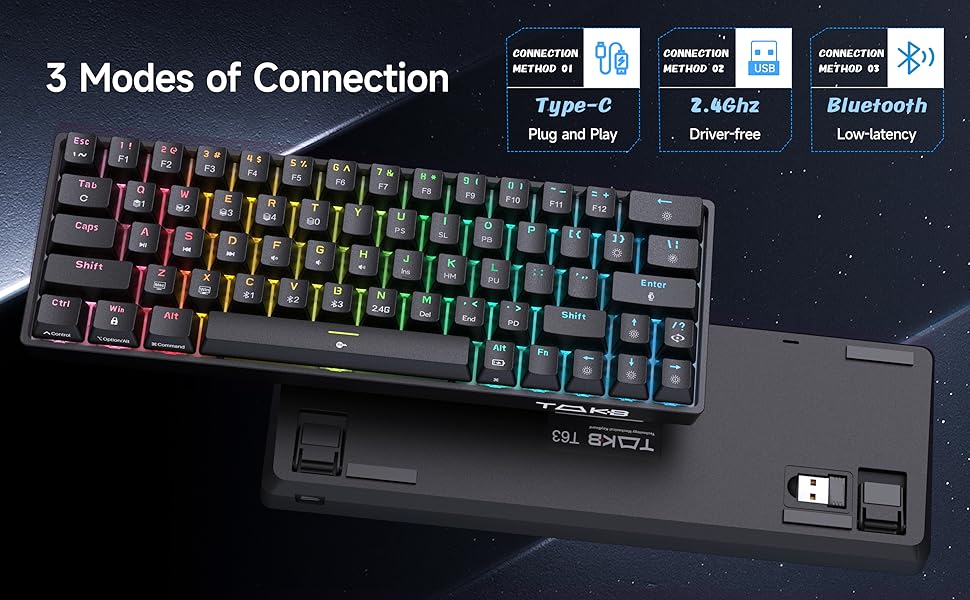
Image: Visual guide for connecting the TMKB T63 keyboard via Type-C cable, 2.4GHz dongle, and Bluetooth, highlighting the ease of switching between devices.
4. Operating Instructions
4.1. Function Keys (FN Combinations)
The T63 keyboard utilizes the Fn key to access secondary functions printed on the keycaps. Press and hold Fn, then press the desired key.
- Fn + ↑ / ↓: Adjust backlight brightness.
- Fn + ← / →: Adjust backlight speed.
- Fn + Enter: Switch backlight color.
- Fn + Backspace: Turn backlight on/off.
- Fn + /?: Switch backlight mode.
- Fn + [ {: Enter power-saving mode.
- Fn + ] }: Switches the driver software lighting effect.
- Fn + Tab: Restore to Factory Settings.

Image: A visual guide to the keyboard's RGB lighting controls using the Fn key combinations.
4.2. Battery Level Check (Wireless Mode)
To check the battery level while in wireless mode, press Fn + Right Alt. The indicator light will show:
- Red light: 0%-25% battery
- Yellow light: 25%-75% battery
- Green light: 75%-100% battery

Image: Instructions for checking the battery status of the TMKB T63 keyboard.
4.3. Software Customization
The TMKB T63 supports professional software for advanced customization, including key character remapping, multimedia shortcuts, RGB light effects, and macro settings. You can also save and switch between different profiles.
Image: An overview of the customization software for the TMKB T63, allowing users to personalize key functions, macros, and lighting.
5. Maintenance
- Keep the keyboard clean by regularly wiping it with a soft, dry cloth.
- Avoid exposing the keyboard to excessive moisture or extreme temperatures.
- Do not disassemble the keyboard, as this may void the warranty.
- For deep cleaning, use compressed air to remove dust and debris from between keycaps.
6. Troubleshooting
- Keyboard not responding: Ensure the keyboard is charged and properly connected (wired, 2.4G, or Bluetooth). Try restarting your computer or device.
- Wireless connection issues: Check if the 2.4G dongle is securely plugged in or if Bluetooth is enabled on your device. Re-pair the keyboard if necessary. Ensure the keyboard is within the 10m accessibility range.
- Backlight not working: Press Fn + Backspace to toggle the backlight. Check brightness settings with Fn + ↑ / ↓.
- Keys not registering: Clean around the affected keys. If using wireless, check battery level.
- Unexpected behavior: Try restoring to factory settings by pressing Fn + Tab.
7. Specifications
| Brand | TMKB Technology Mechanical KeyBoard |
| Model Number | T63 |
| Color | Black |
| Connectivity Technology | Bluetooth, 2.4G Wireless, USB Type-C Wired |
| Compatible Devices | Laptop, PC, Smartphone, Tablet |
| Special Features | Ergonomic, Portable, Backlit (RGB) |
| Battery Composition | Lithium-ion (3000 mAh) |
| Product Dimensions | 30L x 13.7W x 4.2H centimeters |
| Operating System | Windows 10 (and compatible with Mac) |
8. Warranty and Support
8.1. Warranty Information
TMKB offers a one-year warranty for every TMKB mechanical keyboard purchased. Please retain your proof of purchase for warranty claims.
8.2. Customer Support
If you have any questions or require assistance with your TMKB T63 keyboard, please contact our support team. You can typically find contact information by clicking on the seller's name on the product purchase page or by visiting the official TMKB website.
9. Safety Information
- Do not expose the product to water or other liquids.
- Avoid dropping or subjecting the keyboard to strong impacts.
- Keep out of reach of children.
- Dispose of the battery according to local regulations.