
Carpuride CA-PSC701
Contents
Carpuride W701 Pro Portable Car Stereo User Manual
Model: CA-PSC701
1. Product Overview
The Carpuride W701 Pro is a portable car stereo system designed to enhance your in-car entertainment and navigation experience. It features a 7-inch IPS touchscreen display with wireless Apple CarPlay and Android Auto compatibility, dual Bluetooth for enhanced audio, and support for various sound output methods. This manual provides detailed instructions for setup, operation, and maintenance of your device.

Image: Carpuride W701 Pro Portable Car Stereo displaying the CarPlay interface with various app icons.
Key Features:
- 7-inch IPS Smart Display: High-definition touchscreen for clear visuals and responsive interaction.
- Wireless CarPlay & Android Auto: Seamless integration with your smartphone for navigation, calls, messages, and music.
- Dual Bluetooth 5.0: Enables wireless hands-free calling and speaker phone listening, with a separate channel for audio transmission to car speakers.
- Voice Control: Supports Siri and Google Assistant for hands-free operation.
- Mirror Link: Compatible with Android and iOS devices for mirroring phone content.
- Backup Camera Support: Includes a rear view camera for enhanced safety during reversing.
- Sensor Light Design: Automatically adjusts display brightness based on ambient light to protect eyes.
- Multiple Sound Output Options: Built-in speaker, FM transmitter, and AUX connection.
- Flexible Mounting: Supports CD slot and suction cup mounting brackets.
2. What's in the Box
Please verify that all items listed below are included in your package:
- Carpuride W701 Pro Portable Car Stereo Unit
- Self-adhesive bracket
- Car charger
- 3.5mm AUX cable
- User manual (this document)
- Backup camera
- Remote control
- CD Slot Mounting Bracket
- Suction Cup Mounting Bracket

Image: Visual representation of the Carpuride W701 Pro unit and its accessories, including cables, mounts, and the backup camera.
3. Setup Guide
3.1 Mounting the Device
The W701 Pro offers two primary mounting options: the CD Slot Mount and the Suction Cup Bracket. Choose the option that best suits your vehicle and preference for optimal viewing and accessibility.

Image: Step-by-step diagrams showing how to attach the Carpuride W701 Pro to both the CD slot mount and the suction cup mount, highlighting the 360-degree angle adjustment.
- CD Slot Mount:
- Insert the CD slot mount into your vehicle's CD player slot. Ensure it is securely fastened.
- Attach the W701 Pro unit to the mount. The mount allows for 360-degree rotation and swivel for ideal viewing angles.
- Suction Cup Bracket:
- Clean the desired mounting surface (dashboard or windshield) thoroughly.
- Press the suction cup firmly onto the surface and engage the locking mechanism to create a strong vacuum seal.
- Attach the W701 Pro unit to the suction cup bracket. Adjust the angle as needed.
3.2 Power Connection
Connect the provided car charger to the W701 Pro unit and plug the other end into your vehicle's 12V/24V power outlet (cigarette lighter socket). The unit will power on automatically when the vehicle's ignition is turned on.
3.3 Backup Camera Installation (Optional)
The W701 Pro comes with a backup camera for enhanced reversing safety. For detailed installation, refer to the separate backup camera installation guide or consult a professional. Ensure the camera is mounted securely at the rear of your vehicle and connected to the appropriate input on the W701 Pro unit.

Image: The Carpuride W701 Pro is compatible with various vehicle types (cars, trucks, vans, campers) and features a 170-degree wide-angle, waterproof HD backup camera with night vision capabilities, displaying parking guidelines.
4. Operating Instructions
4.1 Wireless CarPlay & Android Auto
The W701 Pro supports wireless connection to Apple CarPlay and Android Auto, allowing you to access your phone's features safely while driving.
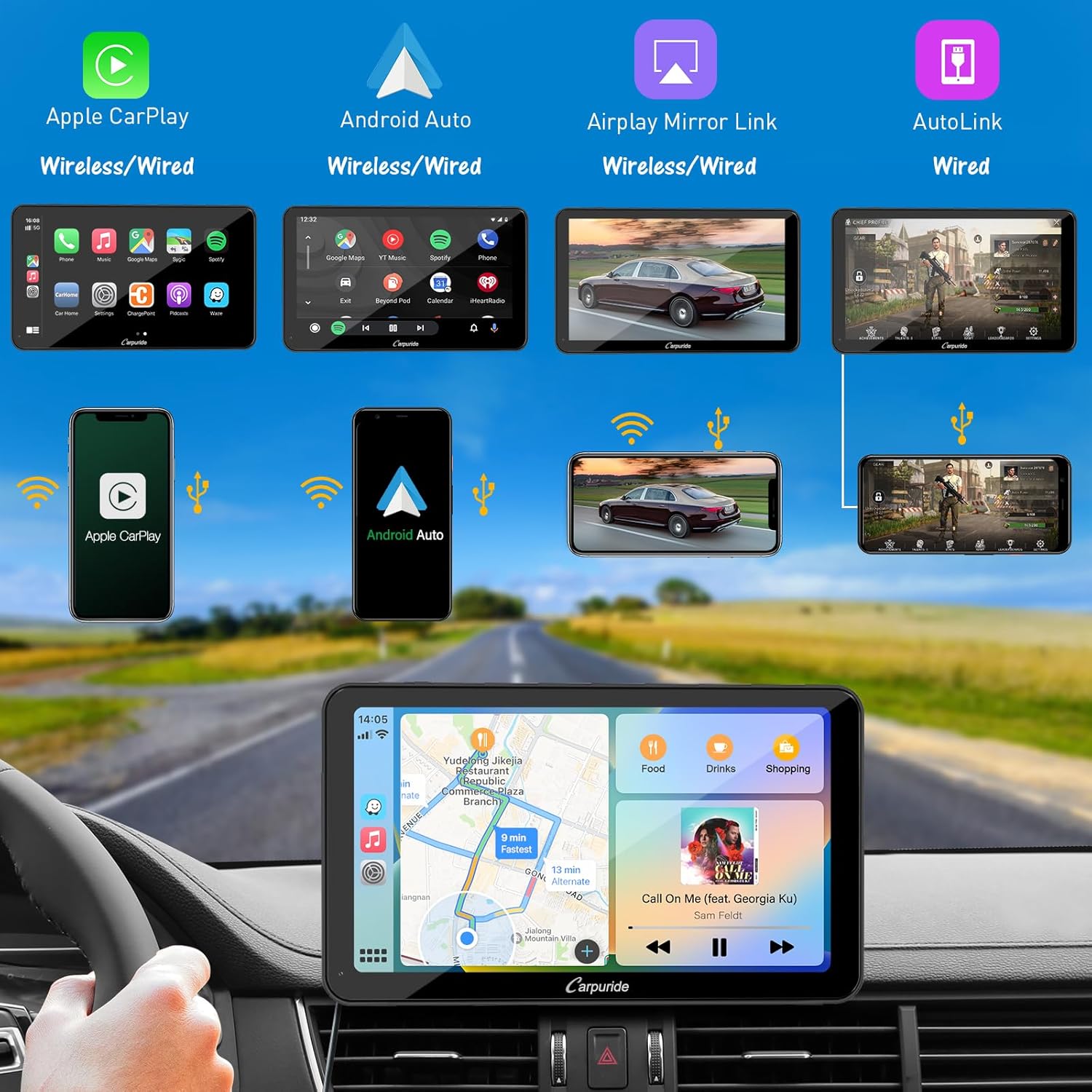
Image: This graphic illustrates the connectivity options: Wireless/Wired Apple CarPlay, Wireless/Wired Android Auto, Airplay Mirror Link (Wireless/Wired), and AutoLink (Wired), showing how a smartphone connects to the Carpuride unit.
For Wireless CarPlay:
- Ensure your iPhone is running iOS 6 or above.
- Enable Wi-Fi and Bluetooth on your iPhone.
- On the W701 Pro, select the CarPlay icon.
- Follow the on-screen prompts to pair your iPhone via Bluetooth. Once paired, CarPlay will connect wirelessly.
- Ensure Siri is enabled on your iPhone for voice commands.

Image: Detailed requirements for using Wireless CarPlay, including iOS version, CarPlay system, and Siri activation.
For Wireless Android Auto:
- Ensure your Android phone supports 5GHz Wi-Fi and is running Android 11 or above.
- Install and update the Android Auto app on your phone.
- Enable Wi-Fi and Bluetooth on your Android phone.
- On the W701 Pro, select the Android Auto icon.
- Follow the on-screen prompts to pair your Android phone via Bluetooth. Android Auto will then connect wirelessly.
For Wired Android Auto:
- Connect your Android phone (Android 11 or above) to the W701 Pro via a USB cable.
- Ensure the Android Auto app is installed and updated on your phone.
- Android Auto will launch automatically upon successful connection.

Image: Detailed requirements for using Wireless and Wired Android Auto, including Android version, 5GHz Wi-Fi support, and Android Auto app updates.
Note: i-Play (CarPlay) and Airplay connections cannot be used simultaneously. Please select one.
4.2 Mirror Link
The W701 Pro supports Mirror Link for both Android and iOS devices, allowing you to display your phone's screen directly on the unit. This is useful for apps not supported by CarPlay/Android Auto, such as video streaming services (note: Netflix is generally not supported).
- Select the "Mirror Link" icon on the W701 Pro.
- Follow the on-screen instructions to connect your phone via Wi-Fi or USB.
4.3 Bluetooth Connectivity (Dual BT)
The W701 Pro features a dual Bluetooth design (BT 5.0) for enhanced audio and calling capabilities.
- Hands-Free Calling: Pair your smartphone via Bluetooth for hands-free calls. Calls will be routed through the W701 Pro's built-in speaker.
- Audio Transmission: The second Bluetooth channel allows you to connect the W701 Pro to your car's existing Bluetooth system, enabling audio playback through your car speakers.

Image: This graphic highlights the Bluetooth 5.0 capabilities of the Carpuride W701 Pro, showing its ability to handle phone calls and music streaming with improved stability and range compared to older Bluetooth versions.
4.4 Voice Control (Siri & Google Assistant)
Utilize your device's voice assistant for safe, hands-free control of navigation, calls, messages, and music.
- Once connected to CarPlay or Android Auto, activate your voice assistant (Siri or Google Assistant) by saying the wake word ("Hey Siri" or "OK Google") or by pressing the voice command button on the unit or connected steering wheel controls.
- Issue commands such as "Navigate to [address]", "Call [contact name]", "Play [song/artist]", or "Send a message to [contact]".
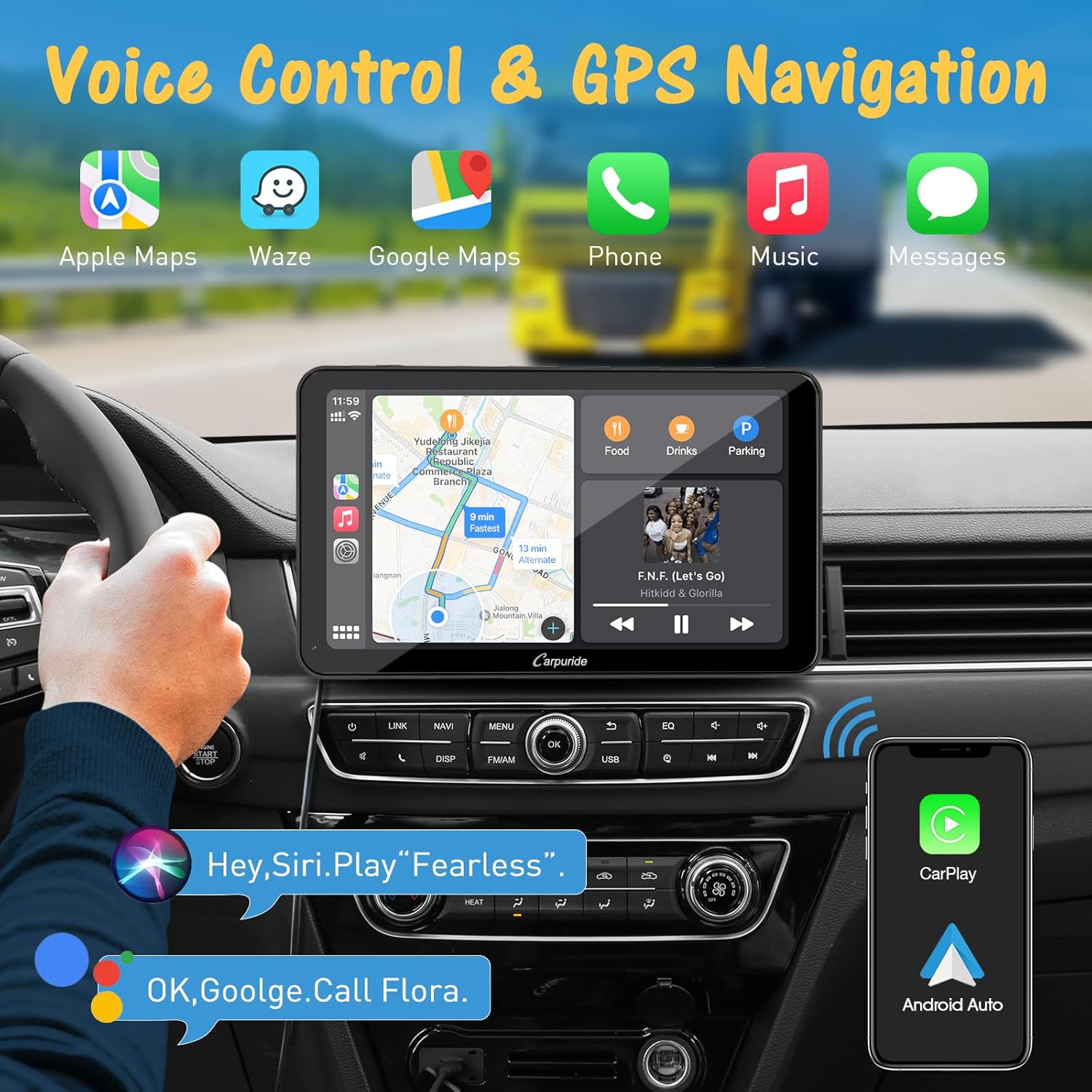
Image: The Carpuride W701 Pro supports voice control for navigation (Apple Maps, Waze, Google Maps), phone calls, music playback, and messaging, demonstrating hands-free interaction with Siri and Google Assistant.
4.5 Sound Output Options
The W701 Pro offers multiple ways to output audio:
- Built-in Speaker: The unit has an 8Ω2W speaker for direct audio output.
- FM Transmitter: Transmit audio wirelessly to your car's FM radio by tuning both devices to the same FM frequency.
- AUX Connection: Use the provided 3.5mm AUX cable to connect the W701 Pro to your car's AUX input for direct audio transfer.
- Bluetooth to Car Speakers: As mentioned in section 4.3, the dual Bluetooth feature allows audio to be sent to your car's Bluetooth system.

Image: This graphic illustrates the four primary sound output methods for the Carpuride W701 Pro: Dual Bluetooth for connecting to car speakers, the unit's Built-in Speaker, FM transmission to the car radio, and direct AUX cable connection.
4.6 Backup Camera Functionality
When the backup camera is properly installed and connected, the W701 Pro will automatically display the rear view when your vehicle is put into reverse gear. This provides a wide-angle, high-definition view behind your car, making reversing safer and easier.
4.7 Sensor Light Design
The W701 Pro features a sensor light that automatically adjusts the display brightness based on ambient light conditions. This helps prevent eye strain and ensures optimal visibility, especially when driving through tunnels or at night.

Image: This image highlights the Carpuride W701 Pro's unique light sensor, which automatically adjusts screen brightness for eye protection, and details about its HD IPS+2.5D curved touchscreen with 1024x600 resolution.
5. Maintenance
Proper maintenance ensures the longevity and optimal performance of your Carpuride W701 Pro.
- Cleaning the Screen: Use a soft, lint-free cloth to gently wipe the touchscreen. For stubborn smudges, slightly dampen the cloth with water or a screen-safe cleaner. Avoid harsh chemicals or abrasive materials.
- General Cleaning: Keep the unit free from dust and debris. Use a soft brush or compressed air to clean ports and crevices.
- Temperature: Avoid exposing the unit to extreme temperatures. Do not leave it in direct sunlight for extended periods in a hot car, as this can damage internal components.
- Cable Management: Ensure all cables are neatly routed and not pinched or strained to prevent damage.
6. Troubleshooting
If you encounter issues with your Carpuride W701 Pro, refer to the following common problems and solutions:
| Problem | Possible Cause | Solution |
|---|---|---|
| Unit does not power on. | No power from car charger; loose connection; vehicle's 12V outlet is off. | Check car charger connection. Ensure vehicle ignition is on. Test the 12V outlet with another device. |
| Wireless CarPlay/Android Auto not connecting. | Wi-Fi/Bluetooth off on phone; incorrect pairing; phone OS/app outdated; 5GHz Wi-Fi not supported (for Android Auto). | Ensure Wi-Fi and Bluetooth are enabled on your phone. Forget and re-pair the device. Update phone OS and CarPlay/Android Auto app. Verify phone compatibility for 5GHz Wi-Fi. |
| No sound or poor sound quality. | Incorrect sound output setting; low volume; loose AUX cable; FM interference. | Check sound output settings (Built-in Speaker, FM, AUX, Bluetooth). Adjust volume on both the unit and car stereo. Ensure AUX cable is fully inserted. Try a different FM frequency if using FM transmitter. |
| Screen is too bright/dim. | Sensor light adjustment; manual brightness setting. | The unit has an automatic sensor light. You can also manually adjust brightness in the settings menu. |
| Backup camera not displaying. | Camera not connected; faulty camera; vehicle not in reverse. | Check camera cable connection to the unit. Ensure vehicle is in reverse gear. Test camera connection. |
7. Specifications
| Feature | Detail |
|---|---|
| Model Number | CA-PSC701 |
| Display Size | 7 inches (18 cm) |
| Display Type | IPS Touchscreen (1024*600 resolution) |
| Connectivity | Bluetooth 5.0 (Dual BT), Wi-Fi (5GHz for Android Auto), USB |
| Compatible Systems | Wireless Apple CarPlay, Wireless/Wired Android Auto, Mirror Link (Android/iOS) |
| Audio Output Mode | Stereo |
| Built-in Speaker | 8Ω2W |
| Power Input | DC 12V-24V |
| Item Weight | 2.42 pounds (approx. 1.1 kg) |
| Package Dimensions | 8.74 x 5.91 x 4.02 inches |
8. Warranty and Support
Carpuride products are designed for reliability and performance. For specific warranty details, please refer to the warranty card included with your product or visit the official Carpuride website.
If you require technical assistance, troubleshooting beyond this manual, or have questions regarding your product, please contact Carpuride Customer Support:
- Online Support: Visit the Carpuride official website for FAQs, software updates, and contact information.
- Email Support: Refer to your product packaging or the official website for the customer service email address.
Please retain your purchase receipt for warranty claims.
Documents and downloads
Ask a question about this manual
Ask about setup, troubleshooting, compatibility, parts, safety, or missing instructions. Manuals+ will review the question and use this page’s manual context to help answer it.