
MEEBOOK M8
MEEBOOK M8 eReader User Manual
Comprehensive Guide for Your MEEBOOK M8 eReader
1. Product Overview
The MEEBOOK M8 is an advanced 7.8-inch eReader designed for an optimal reading experience. It features a high-definition 300 PPI E Ink Carta screen, an octa-core 2.2Ghz processor, 4GB RAM, and 64GB internal storage, expandable up to 1TB via a TF card slot. Running on Android 14, it supports various e-book applications including Kindle and Google Play. The device is equipped with dual microphones and speakers, G-sensor, and versatile connectivity options including WiFi (2.4gHz + 5gHz + 6gHz) and Bluetooth 5.2. Its lightweight design ensures comfortable use for extended periods.
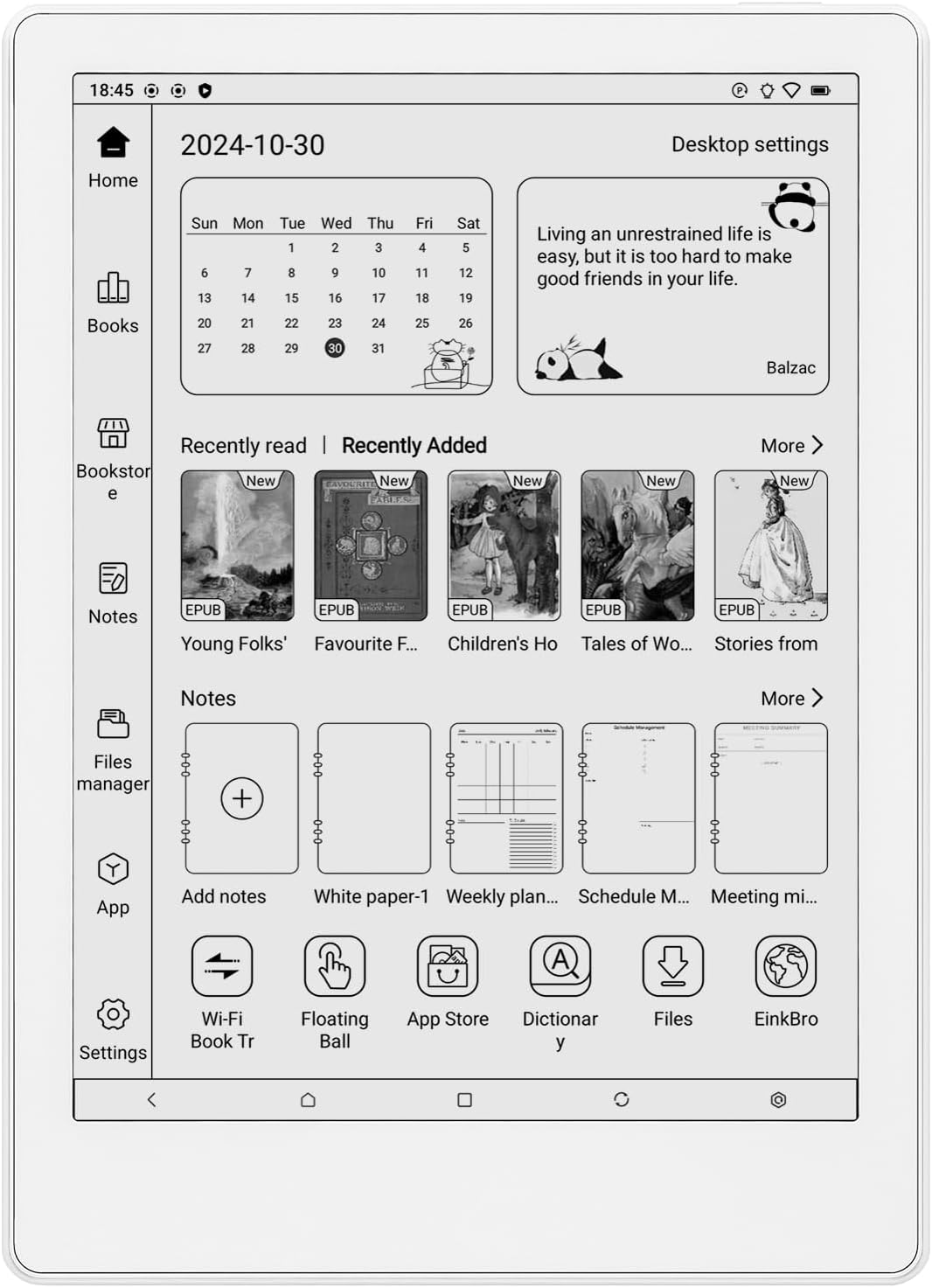
Figure 1.1: Front view of the MEEBOOK M8 eReader, showcasing its sleek design and E Ink display.
2. Getting Started: Setup
2.1. What's in the Box
- MEEBOOK M8 eReader Unit
- USB-C Charging Cable
- Quick Start Guide
2.2. Initial Charging
Before first use, fully charge your MEEBOOK M8 eReader. Connect the provided USB-C cable to the device's USB-C port and the other end to a compatible USB power adapter (DC 5V == 2A recommended, not included) or a computer's USB port. The charging indicator will show the charging status. A full charge typically takes a few hours.
2.3. Powering On/Off
To power on the device, press and hold the Power button located on the side until the screen illuminates. To power off, press and hold the Power button until a power-off menu appears, then select "Power Off". A short press of the Power button will put the device to sleep or wake it up.
2.4. Initial Setup
Upon first power-on, follow the on-screen prompts to complete the initial setup. This includes selecting your language, connecting to a Wi-Fi network (2.4gHz, 5gHz, or 6gHz supported), and optionally signing into your Google account to access the Google Play Store.
3. Operating Your MEEBOOK M8
3.1. User Interface Navigation
The MEEBOOK M8 features a capacitive touch screen for intuitive navigation. The main interface provides quick access to various functions:
- Home: Returns to the main desktop, displaying recent reads, notes, and quick access icons.
- Books: Your personal library, where all downloaded and transferred books are stored.
- Bookstore: Access to online bookstores (requires internet connection).
- Notes: Create and manage handwritten or typed notes.
- Files Manager: Browse and manage files stored on the device or microSD card.
- App: Access to all installed applications, including those from Google Play.
- Settings: Configure device settings such as Wi-Fi, Bluetooth, display, and system preferences.

Figure 3.1: The MEEBOOK M8 home screen, showing the calendar, recent reads, notes, and quick access icons for various functions.
3.2. Reading Experience with ZReader
The pre-installed ZReader app offers extensive customization for your reading comfort. You can adjust text size, font style, line spacing, and themes. Features like highlighting, annotations, and search functions are also available. The front light can be adjusted for both brightness and color temperature (warm and cool light) to suit different lighting conditions.
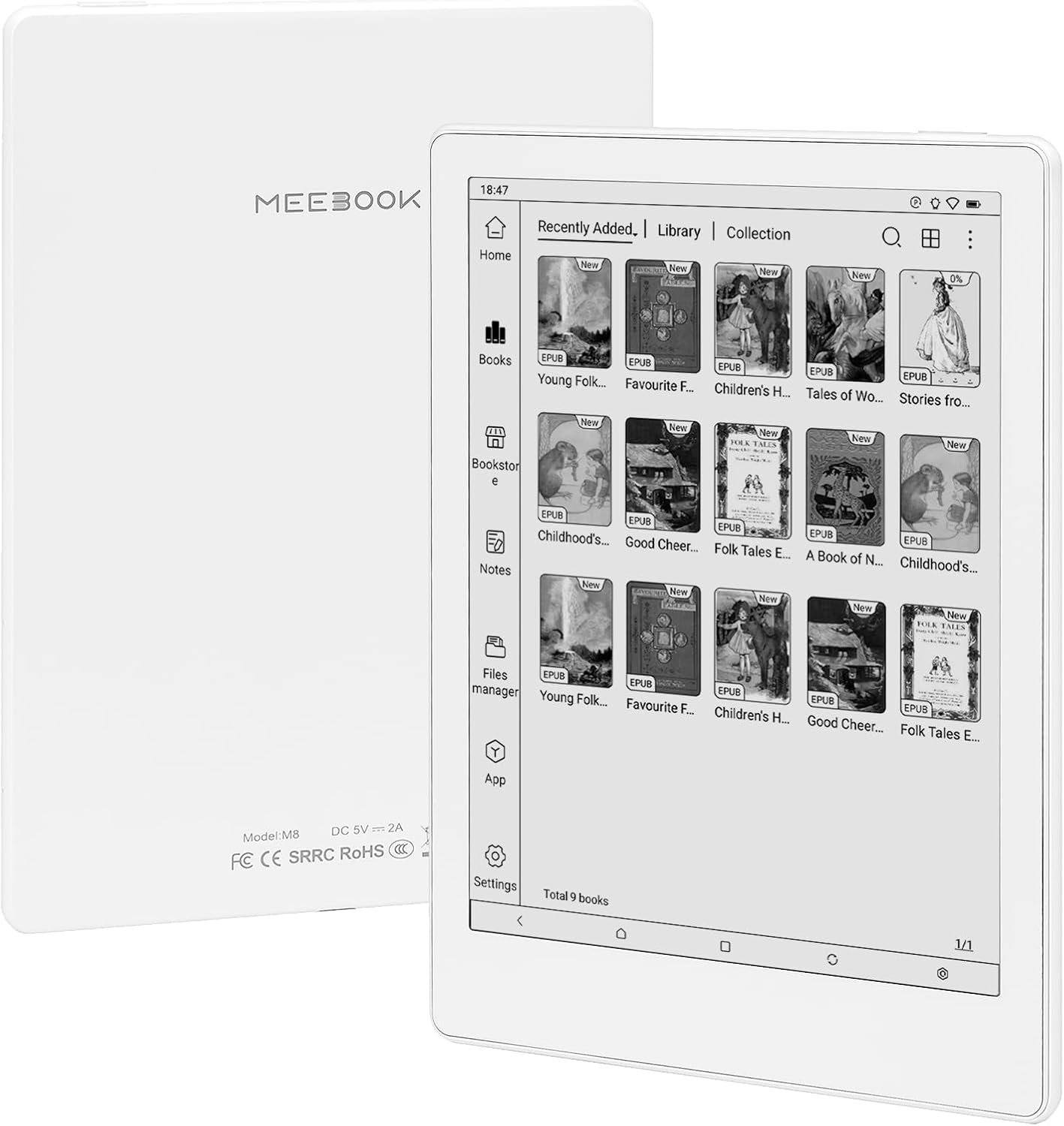
Figure 3.2: The MEEBOOK M8 displaying text within a book, demonstrating the clear E Ink display and readability.
3.3. App Installation and Cloud Support
Thanks to the Android 14 operating system and Google Play Store support, you can download and install various e-book applications such as Kindle, Kobo, Libby, and more. The device also supports sharing and accessing books stored in cloud disk services from other devices.
3.4. Connectivity and Multimedia
- Wi-Fi: Connect to 2.4gHz, 5gHz, or 6gHz Wi-Fi networks for internet access, downloading books, and syncing.
- Bluetooth 5.2: Connect wireless headphones or speakers for audiobooks or other audio content.
- USB-C: Use the USB-C port for charging, data transfer (OTG compatible), and connecting to a computer.
- MicroSD Card Slot: Expand storage up to 1TB for a vast library of books and files.
- Dual Speakers & Microphones: Enjoy audio content and utilize voice input features.
- G-Sensor: Automatically adjusts screen orientation based on how you hold the device.
4. Maintenance and Care
4.1. Cleaning the Device
To clean the screen, gently wipe it with a soft, lint-free cloth. For the device body, use a slightly damp cloth. Avoid using harsh chemicals, abrasive cleaners, or excessive moisture, as these can damage the screen or internal components.
4.2. Battery Care
The MEEBOOK M8 is equipped with a 3200mAh polymer lithium-ion battery. To prolong battery life, avoid exposing the device to extreme temperatures. It is recommended to fully charge the device before it completely drains. If storing the device for an extended period, charge it to about 50% and power it off.
4.3. Software Updates
Periodically check for software updates in the device settings. Updates can improve performance, add new features, and enhance security. Ensure your device is sufficiently charged and connected to Wi-Fi before initiating an update.
5. Troubleshooting
If you encounter issues with your MEEBOOK M8, refer to the following common troubleshooting steps:
- Device not turning on: Ensure the battery is charged. Connect the device to a power source for at least 30 minutes, then try powering on again.
- Screen unresponsive: Try restarting the device by holding the Power button for approximately 10-15 seconds until it reboots.
- Wi-Fi connection issues: Check if your Wi-Fi router is working correctly. Forget the network in settings and reconnect. Ensure the device is within range of the Wi-Fi signal.
- Apps crashing or freezing: Close and reopen the app. If the issue persists, clear the app's cache or data in the device settings (Settings > Apps > [App Name] > Storage > Clear Cache/Data).
- Slow performance: Close unnecessary background applications. Restart the device. Consider freeing up storage space if it's nearly full.
For persistent issues or problems not listed here, please contact MEEBOOK customer support.
6. Specifications
| Feature | Description |
|---|---|
| Model Name | M8 |
| Display Technology | E Ink Carta |
| Screen Size | 7.8 Inches |
| Display Resolution | 1404x1872 (300 PPI) |
| Processor | Octa-core 2.2Ghz |
| RAM | 4GB |
| Internal Storage | 64GB |
| Expandable Storage | microSD card slot, up to 1TB |
| Operating System | Android 14 |
| Connectivity | Wi-Fi (2.4gHz + 5gHz + 6gHz), Bluetooth 5.2, USB-C (OTG compatible) |
| Battery | 3200mAh Polymer Lithium Ion |
| Audio | Double Speakers, Double Microphones |
| Sensors | G-Sensor |
| Dimensions | 7.6 x 5.51 x 0.28 inches (19.3 x 14.0 x 0.7 cm) |
| Item Weight | 9.3 ounces (265g) |
| Color | White |

Figure 6.1: Back view of the MEEBOOK M8 eReader, showing the model number and regulatory markings.
7. Warranty and Support
7.1. Warranty Information
The MEEBOOK M8 eReader comes with a 1-year warranty from the date of purchase. This warranty covers manufacturing defects and malfunctions under normal use. Please note that physical damage, including cracked screens or panels, is excluded from this warranty and will incur repair charges even within the warranty period.
7.2. Customer Support
For technical assistance, warranty claims, or any other inquiries, please contact MEEBOOK customer support. Refer to the contact information provided in your Quick Start Guide or on the official MEEBOOK website.
Related documentsM8

Ask a question about this manual
Ask about setup, troubleshooting, compatibility, parts, safety, or missing instructions. Manuals+ will review the question and use this page’s manual context to help answer it.