
1. Product Overview
The EsaSam M150s is an advanced Android 12 car stereo system featuring a 9-inch capacitive multi-touch screen. It integrates GPS navigation, Bluetooth 4.0, FM/AM radio, and multimedia playback capabilities. Designed specifically for Fiat Bravo models from 2007 to 2012, this unit enhances your vehicle's infotainment system with modern connectivity and features like Carplay, Android Auto, and Mirror Link.
Key features include HD 1080P video support, a 1024x600 resolution display, dual-zone function, and support for external devices such as a backup camera and USB storage.
2. Package Contents
Verify that all items listed below are included in your package. If any items are missing or damaged, please contact customer support.
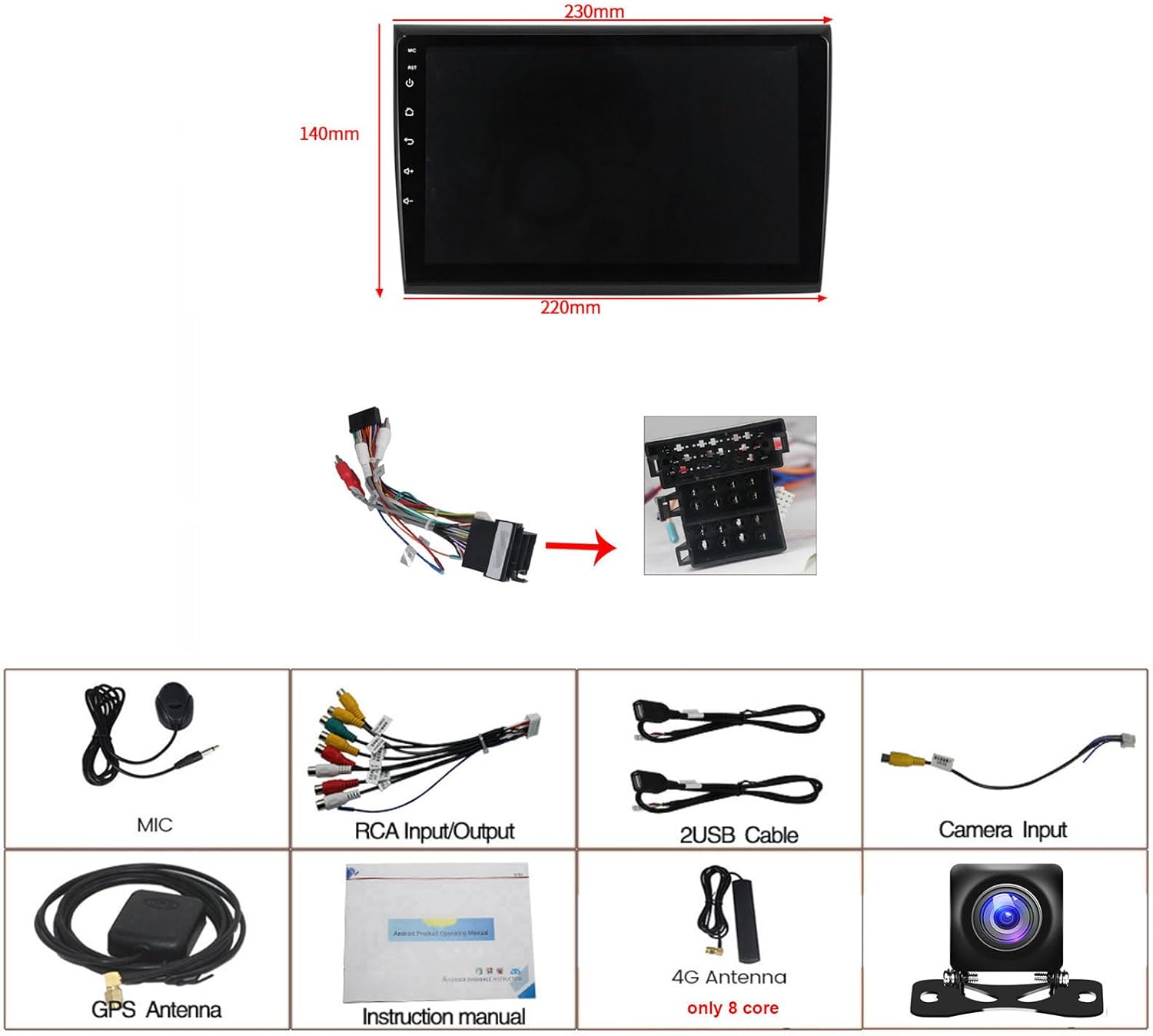
Image: Dimensions of the 9-inch car stereo unit (230mm top width, 220mm bottom width, 140mm height) and a visual representation of all included accessories.
- EsaSam M150s Car Stereo Unit
- Power Harness (specific for Fiat Bravo 2007-2012)
- External Microphone
- AHD Rear View Camera
- GPS Antenna
- RCA Input/Output Cables
- 2 x USB Cables
- Instruction Manual
- 4G Antenna (for 8-core models only, M150s is 4-core)
3. Compatibility
This car stereo is designed for direct fitment in the following vehicle models:
- Fiat Bravo: 2007, 2008, 2009, 2010, 2011, 2012
Before installation, ensure your vehicle's dashboard opening matches the dimensions of the stereo unit. If unsure, consult a professional installer or contact customer support with a picture of your car's center console.
4. Setup and Installation
Professional installation is recommended. Disconnect the vehicle's battery before beginning installation to prevent electrical damage.
4.1 Pre-Installation Check
Compare your original car stereo setup with the new unit. The image below illustrates a typical before and after installation scenario.

Image: Left panel shows the original Fiat Bravo dashboard with the factory radio. Right panel shows the same dashboard with the EsaSam 9-inch Android stereo installed, displaying its interface.
4.2 Wiring Connections
Connect the provided power harness to the car stereo and the vehicle's wiring loom. Ensure all connections are secure. Refer to the wiring diagram in the included instruction manual for detailed pin assignments.
- Power Harness: Connects to vehicle's power, ground, and speaker wires.
- GPS Antenna: Connect to the GPS port on the back of the unit and mount in a location with a clear view of the sky (e.g., dashboard).
- USB Cables: Connect to the USB ports on the unit and route to a convenient location for external storage or device charging.
- AHD Rear View Camera: Connect the camera's video output to the 'CAM IN' RCA port and its power to the vehicle's reverse light circuit.
- External Microphone: Connect to the dedicated microphone input for improved call quality.
4.3 Steering Wheel Control Setup
To enable steering wheel controls, navigate to the system settings on the stereo. Locate the 'Steering Wheel Control' or 'Canbus Protocol' learning function. Follow the on-screen prompts to assign functions to your vehicle's steering wheel buttons.
4.4 Factory Password
For accessing certain advanced settings or factory reset options, the factory password for M150s models is 8888.
5. Operating Instructions
5.1 Basic Interface and Navigation
Upon startup, the unit displays the main Android interface. Navigate through applications by touching the icons. Swipe gestures can be used for additional screens or menus.

Image: A collage demonstrating the Android operating system, Bluetooth connectivity, FM/AM radio interface, 1080P video playback, GPS navigation, Mirror Link functionality, and the reverse camera view.
5.2 FM/AM Radio
Access the 'Radio' application from the main menu. You can scan for stations, save presets, and switch between FM and AM bands. The radio supports frequencies: AM: 520-1700 Hz, FM: 87.5-108.5MHz.
5.3 Bluetooth Connectivity
Pair your smartphone via Bluetooth 4.0 for hands-free calling and audio streaming. Go to 'Settings' > 'Bluetooth', enable Bluetooth on your phone, search for the stereo's device name, and pair. You can synchronize your phone's contact list for easy dialing.
5.4 GPS Navigation
The unit has a built-in GPS module. It supports both online navigation apps (e.g., Google Maps, Waze) and offline maps. For offline maps, connect to Wi-Fi to download map data for your region. The dual-zone function allows you to listen to music while navigation instructions are active.
5.5 USB/SD Media Playback
Connect USB drives or SD cards (via adapter, if applicable) to play audio and video files. The unit supports various formats and allows you to manage files through the built-in file manager.
5.6 Mirror Link
The Mirror Link function allows you to display your smartphone's screen on the car stereo. This feature supports both Android and iOS devices. Follow the instructions within the 'Mirror Link' app on the stereo to establish a connection.
6. Advanced Features
6.1 CarPlay and Android Auto
The M150s supports both Wireless CarPlay and Wired Android Auto. Connect your iPhone via Bluetooth/Wi-Fi for CarPlay or your Android phone via USB for Android Auto to access compatible apps, navigation, and voice assistants directly from the stereo's screen.

Image: A collage illustrating the split-screen function, steering wheel control integration, the optional cooling fan (for M200s-M700s models), and the interfaces for Wireless CarPlay and USB Cable for Android Auto.
6.2 Split Screen Function
Utilize the split-screen feature to run two applications simultaneously, such as navigation and music playback. This improves multitasking and convenience while driving.
6.3 Reverse Camera Input
When the vehicle is shifted into reverse, the stereo automatically displays the feed from the connected AHD rear view camera, providing a clear view of the area behind your vehicle for safer parking and maneuvering.
6.4 ADAS DVR Support (Optional)
The unit supports an optional ADAS (Advanced Driver-Assistance Systems) DVR. When connected, this system can provide features like front vehicle distance prediction, anti-collision warnings, and lane departure warnings, enhancing driving safety.

Image: A collage displaying different UI interfaces (UI05, UI13, UI17, UI22), the ADAS DVR system with front collision and lane departure warnings, the DSP sound equalizer settings, and the 4G LTE connection with a SIM card slot.
6.5 DSP Processor (Digital Sound Processor)
The built-in DSP allows for advanced audio tuning, including equalizer settings, sound effects, and music styles (pop, rock, jazz, etc.), to optimize your in-car audio experience.
6.6 4G LTE Connectivity (Optional)
For models M200s, M300s, M400s, M500s, M600s, M700s, 4G LTE connectivity is supported via a SIM card. This enables online music streaming, video playback, and internet access directly from the stereo. The M150s model does not support 4G LTE.
6.7 5GHz WiFi Support
The unit supports 5GHz WiFi (802.11 b/g/n) for faster and more stable wireless connections, particularly beneficial for online navigation and app downloads.

Image: A collage illustrating the optional 360 panoramic camera system, 5GHz WiFi support, a comparison between 960x540 and 1280x720 resolutions, and a screenshot of the Android 11 system information.
6.8 360 Panoramic Camera (Optional)
The stereo supports an optional 360-degree panoramic camera system (requires additional purchase and installation of four cameras). This system provides a comprehensive view around the vehicle, significantly improving driving and parking safety.
7. Troubleshooting
- No Power: Check all power connections and vehicle fuses. Ensure the ignition is on.
- No Sound: Verify speaker connections. Check volume levels and audio output settings.
- GPS Signal Lost: Ensure the GPS antenna is properly connected and mounted in a location with a clear view of the sky.
- Bluetooth Connection Issues: Ensure Bluetooth is enabled on both the stereo and your phone. Try unpairing and re-pairing the devices.
- Steering Wheel Controls Not Working: Re-enter the steering wheel control learning menu in settings and re-assign functions. Check CANbus connections if applicable.
- System Slow or Unresponsive: Try restarting the unit. If issues persist, a factory reset may be necessary (Factory Password: 8888). Note that a factory reset will erase all user data and settings.
- Backup Camera Not Displaying: Check the camera's power and video connections. Ensure the camera is properly wired to the reverse light trigger.
8. Specifications
| Feature | Specification |
|---|---|
| Model | M150s |
| Operating System | Android 12 |
| Screen Size | 9 Inches |
| Screen Resolution | 1024 x 600 (supports 1920x1080 video playback) |
| Touch Screen Type | Capacitive Multi-Touch |
| Processor | Quad-core |
| RAM | 1GB / 2GB (depending on specific M150s variant) |
| ROM | 16GB / 32GB (depending on specific M150s variant) |
| Bluetooth Version | 4.0 |
| Wi-Fi | Built-in (supports 5GHz 802.11 b/g/n) |
| GPS | Built-in GPS module, supports online/offline maps |
| Radio Tuner | FM/AM (FM: 87.5-108.5MHz, AM: 520-1700 Hz) |
| Video Output | Full RCA Output |
| Audio Output | Subwoofer audio output, various sound effects |
| Connectivity | USB, AUX-IN, Camera Input, DVR Input |
| Included Components | External Microphone, AHD Rear View Camera, GPS Navigation System |
9. Warranty and Support
For warranty information, technical support, or service inquiries, please refer to the contact details provided with your purchase documentation or visit the official EsaSam website. Keep your proof of purchase for warranty claims.