
1. Introduction and Overview
The Akko 3098 mechanical keyboard is a wired gaming keyboard featuring a 98-key layout, also known as a "compact full-size keyboard." This design provides the functionality of a full-sized keyboard in a more space-efficient form factor. It is equipped with Akko V3 Cream Blue switches and durable PBT double-shot keycaps, offering a reliable and responsive typing experience for both Mac and Windows systems.
Key Features:
- 98-Key Layout: A compact full-size design that saves desk space while retaining essential keys.
- Anti-Ghosting (NKRO): N-key rollover ensures all simultaneous key presses are registered accurately, crucial for gaming.
- PBT Double Shot Keycaps: Highly durable keycaps resistant to wear and fading, with vibrant and sharp legends.
- Programmable Keys: Most keys can be re-mapped for custom action sequences, excluding Macro mode control keys (Esc/Win).
- Mac & Windows Compatibility: Easily switch between operating systems using a simple key combination.
- Adjustable Feet: Three levels of height adjustment for personalized typing comfort.

Figure 1.1: Full view of the Akko 3098 Mechanical Keyboard in Neon theme.
2. Setup
Package Contents:
- Akko Mechanical Keyboard 3098
- USB Cable (USB-C to USB-A)
- Additional Keycaps (if included with specific model variant)
- Keycap Puller (if included)
Connecting the Keyboard:
- Locate the USB-C port on the Akko 3098 keyboard, typically on the top edge.
- Connect one end of the provided USB-C cable to the keyboard's USB-C port.
- Connect the other end of the USB-A cable to an available USB-A port on your computer (laptop, tablet, or desktop PC).
- The keyboard should be automatically recognized by your operating system (Windows or Mac) and ready for use.

Figure 2.1: The Akko 3098 keyboard on a desk, illustrating its key features including wired Type-C connectivity.
3. Operating Instructions
Keyboard Layout and Key Functions:
The Akko 3098 features a 98-key layout, which includes a full alphanumeric section, function row, navigation cluster, and a numeric keypad, all arranged to optimize space without sacrificing functionality.
N-Key Rollover (NKRO):
This keyboard supports N-key rollover, meaning that every key press is registered independently, even when multiple keys are pressed simultaneously. This feature is particularly beneficial for fast-paced typing and gaming, preventing missed inputs.
PBT Double Shot Keycaps:
The keycaps are made from PBT plastic using a double-shot molding process. This ensures that the legends are part of the keycap material itself, preventing them from fading or wearing off over time, even with extensive use.

Figure 3.1: Detail of the durable PBT Double-shot keycaps.
ASA Profile Keycaps:
The keycaps feature an ASA profile, which is designed for ergonomic comfort and a unique typing feel. This profile typically has a spherical top and varying heights across rows to conform to natural finger movement.
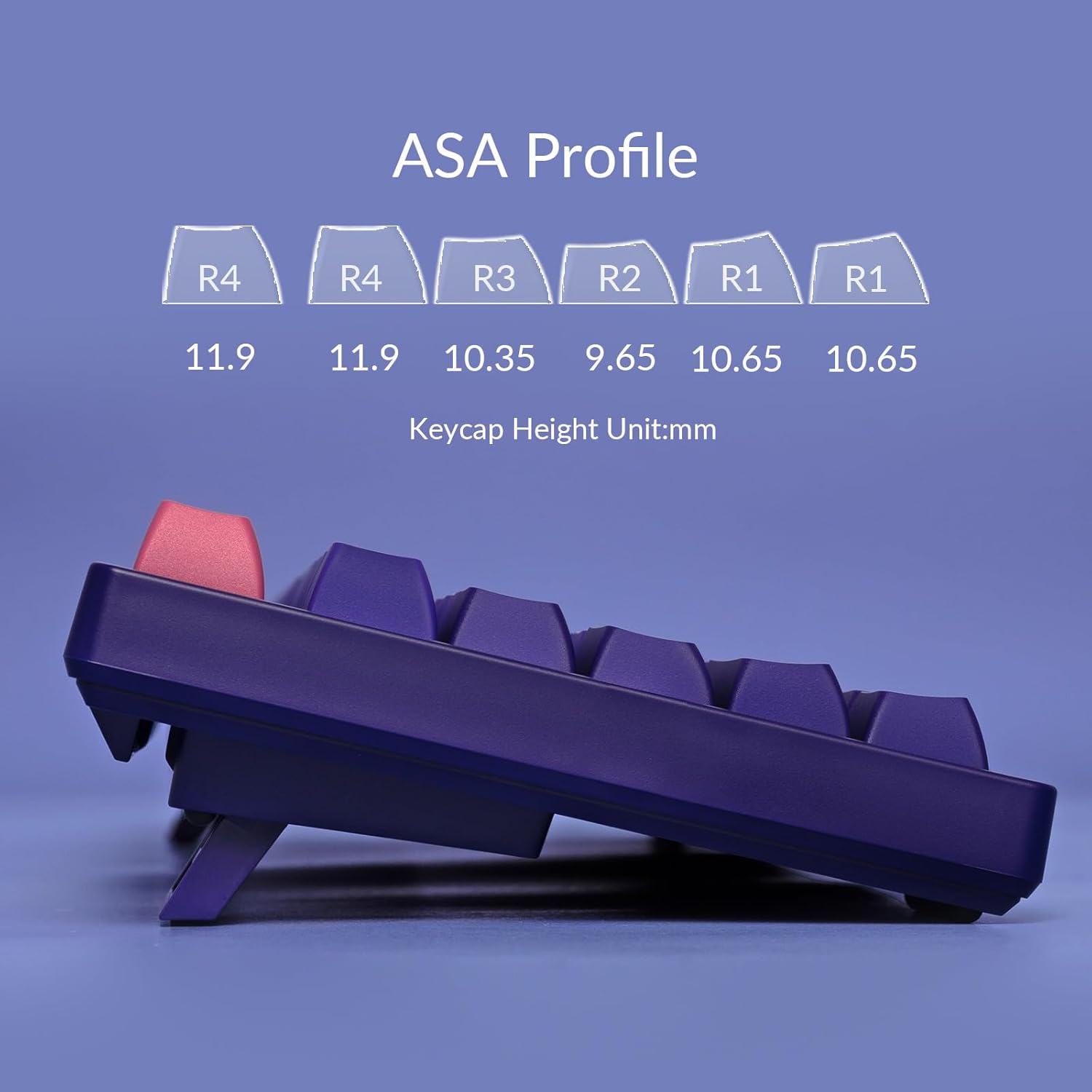
Figure 3.2: Diagram illustrating the ergonomic ASA Profile keycap heights.
Programmable Functionality:
All keys on the keyboard, except those used for controlling Macro mode (Esc/Win), can be re-mapped to perform custom actions or sequences. Refer to the official Akko software for detailed instructions on key remapping and macro creation. The keyboard does not feature built-in LED backlighting, but it has LED slots for modification by advanced users.
Operating System Switch:
To switch between Windows and Mac operating system modes, use the following key combinations:
- For Windows mode: Press and hold Fn + Q
- For Mac mode: Press and hold Fn + O
Adjustable Height:
The keyboard is equipped with two adjustable feet on its underside, allowing you to set the typing angle to three different levels for personalized comfort.

Figure 3.3: Demonstration of the keyboard's adjustable feet for ergonomic positioning.
4. Maintenance
Cleaning the Keyboard:
- General Cleaning: Use a soft, lint-free cloth slightly dampened with water or a mild cleaning solution to wipe down the keycaps and keyboard surface. Avoid excessive moisture.
- Dust Removal: Use compressed air to remove dust and debris from between the keycaps and switches.
- Keycap Cleaning: For deeper cleaning, keycaps can be carefully removed using a keycap puller. Wash them with mild soap and water, rinse thoroughly, and ensure they are completely dry before reattaching.
Keycap and Switch Handling:
When removing or reattaching keycaps, apply gentle, even pressure to avoid damaging the keycap or the switch stem. The Akko 3098 uses soldered switches, meaning they are permanently attached to the PCB and cannot be easily replaced without soldering equipment.
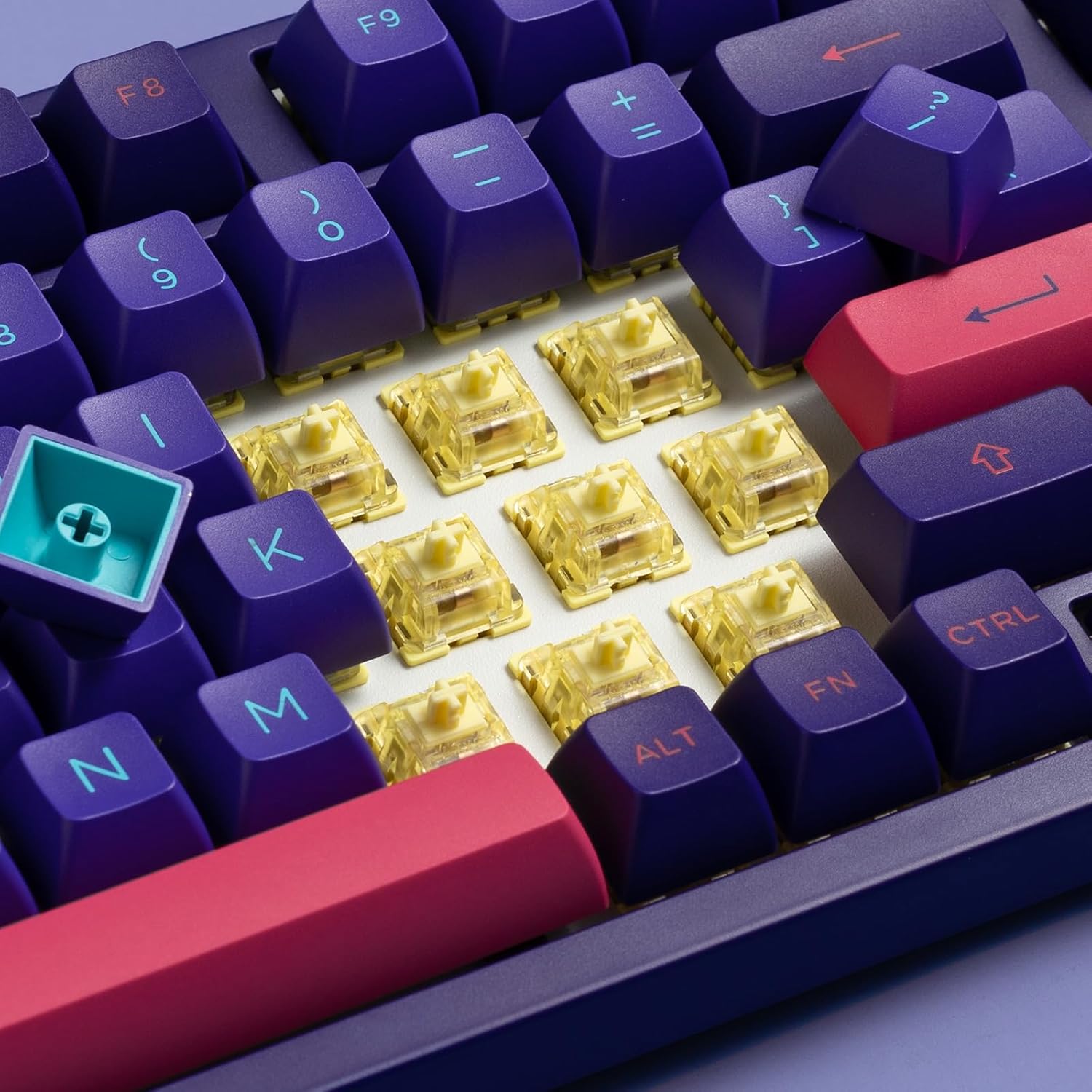
Figure 4.1: View of the Akko V3 Cream Blue switches beneath the keycaps.
5. Troubleshooting
Common Issues and Solutions:
- Keyboard Not Responding:
- Ensure the USB-C cable is securely connected to both the keyboard and the computer.
- Try connecting the keyboard to a different USB port on your computer.
- Test the keyboard on another computer to rule out system-specific issues.
- Restart your computer.
- Specific Keys Not Working:
- Check for any physical obstructions or debris under the keycap.
- If you have re-mapped keys, ensure the mapping is correct in the Akko software.
- Perform a factory reset if available (refer to Akko's official support for specific instructions).
- Incorrect Operating System Mode:
- Ensure you have switched to the correct mode for your operating system (Fn+Q for Windows, Fn+O for Mac).
- Software Issues (if applicable):
- If experiencing issues with key remapping or macros, ensure you are using the latest version of the Akko software.
- Run the software as an administrator.
For further assistance, please visit the official Akko support website or contact their customer service.
6. Specifications
| Feature | Detail |
|---|---|
| Product Dimensions | 2.6 x 8.4 x 16.6 inches |
| Item Weight | 3.19 pounds |
| Manufacturer | Akko |
| ASIN | B0CGLTYGNS |
| Item Model Number | 3098 |
| Date First Available | August 25, 2023 |
| Compatible Devices | Laptop, Tablet, Computer with USB-A Port |
| Connectivity Technology | USB-C (Wired) |
| Keyboard Description | 1800 Mechanical Gaming Keyboard (98-key layout) |
| Recommended Uses | Gaming |
| Special Feature | Rechargeable (Note: This model is wired, 'Rechargeable' may refer to internal components or be a general feature listed for other Akko products. For this wired model, it's not applicable for user charging.) |
| Color | Neon |
| Keyboard Backlighting | Single Color (Built-in LED slots for modding) |
| Style | Modern |
| Material | Metal |
7. Warranty and Support
For information regarding product warranty, returns, or technical support, please refer to the official Akko website or contact their customer service directly. Warranty terms and conditions may vary by region and retailer.
Akko Official Website: www.akkogear.com
Please retain your proof of purchase for any warranty claims.


