
1. Product Overview
This FINTIE Keyboard Case is designed to enhance your tablet experience by providing both protection and functionality. It features a magnetically detachable wireless Bluetooth keyboard, multiple viewing angles, and durable construction, transforming your tablet into a versatile laptop-like device.
2. Compatibility
This keyboard case is specifically designed for the following Samsung Galaxy Tab models:
- Samsung Galaxy Tab A11+ / A11 Plus 11 Inch Model (SM-X230/X236/X238) 2025 Release
- Samsung Galaxy Tab A9+ / A9 Plus 11 Inch Model (SM-X210/X216/X218) 2023 Release
It is not compatible with any other tablet models. To verify your tablet model, navigate to Settings > About tablet > Model name on your device.

Figure 2.1: Compatible tablet models and instructions for finding your tablet's model name.
3. Package Contents
The package includes:
- 1 x FINTIE Keyboard Case
- 1 x Wireless Bluetooth Keyboard
- 1 x Micro USB Charging Cable
- 1 x User Manual
4. Setup and Installation
4.1 Inserting Your Tablet into the Case
- Align your Samsung Galaxy Tab with the hard shell back cover of the case.
- Gently press the tablet into the case, ensuring all corners and edges are securely fitted.
- Confirm that all ports, buttons, and cameras are accessible and unobstructed.
4.2 Attaching and Detaching the Keyboard
The keyboard is magnetically detachable, allowing for flexible use.
- To attach: Place the keyboard onto the magnetic strip inside the case. It will snap into place.
- To detach: Gently pull the keyboard away from the magnetic strip.

Figure 4.1: Magnetic attachment of the keyboard to the case.
4.3 Bluetooth Pairing Instructions
- Ensure the keyboard is charged (refer to Section 5).
- Slide the keyboard's ON/OFF switch to the ON position. The power indicator light will illuminate briefly.
- Press the 'Connect' button on the keyboard. The Bluetooth indicator light will start blinking, indicating it's in pairing mode.
- On your Samsung Galaxy Tab, go to Settings > Connected devices > Bluetooth and turn Bluetooth ON.
- Your tablet will search for available devices. Select 'FINTIE Keyboard' (or similar name) from the list.
- Follow any on-screen prompts to complete the pairing process. Once paired, the Bluetooth indicator light on the keyboard will stop blinking.
Video 4.1: A demonstration of the FINTIE Keyboard Case, including tablet insertion, keyboard attachment, and Bluetooth pairing. This video is provided by the seller.
5. Charging Instructions
The keyboard features a built-in rechargeable battery.
- Connect the provided Micro USB charging cable to the keyboard's charging port.
- Connect the other end of the cable to a USB power adapter (not included) or a computer's USB port.
- The 'Charge' indicator light on the keyboard will illuminate during charging.
- A full charge typically takes approximately 2 hours. The 'Charge' indicator light will turn off or change color when charging is complete.
The keyboard automatically enters an energy-saving mode after 10 minutes of inactivity to extend battery life.
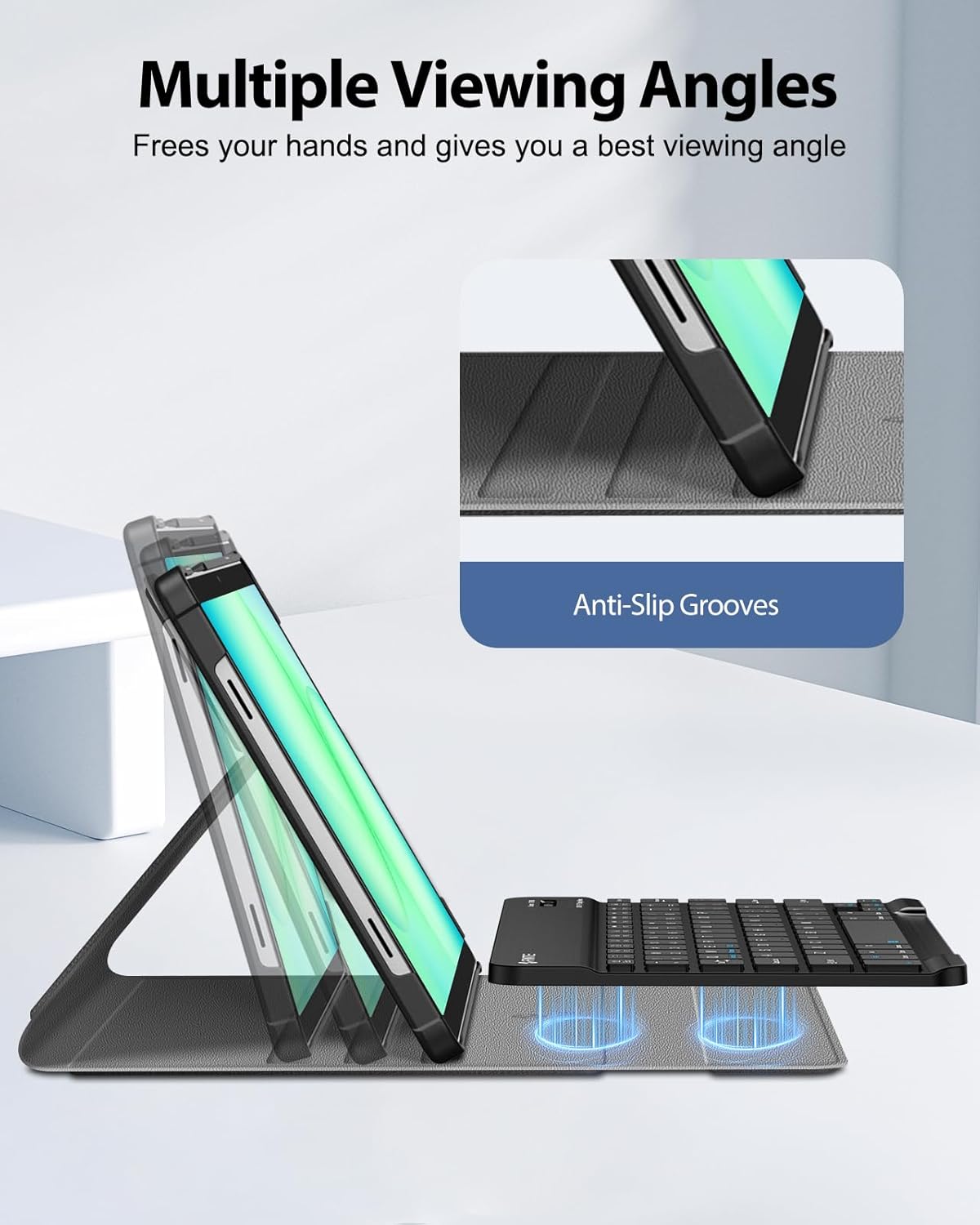
Figure 5.1: Keyboard charging port and indicator lights.
6. Operating Instructions
6.1 Using the Keyboard
Once paired, the keyboard functions like a standard computer keyboard. It is compatible with both iOS and Android operating systems, allowing for seamless switching between devices if needed.

Figure 6.1: User typing on the FINTIE keyboard case.
6.2 Adjusting Viewing Angles
The case offers multiple viewing angles for comfortable use. The removable keyboard can be positioned to support the tablet. Adjust the keyboard's position along the case cover to achieve your preferred viewing angle. Built-in anti-slip grooves help secure the tablet in place.

Figure 6.2: Multiple viewing angles supported by the case.
7. Key Features
- Magnetically Detachable Keyboard: The super slim 7mm lightweight Bluetooth keyboard can be easily attached or detached, offering flexibility for typing or tablet-only use. It has a 10-meter operating range.
- Ergonomic Scissor-Switch Keys: Designed for a smoother, quieter typing experience with tactile feedback, reducing noise and providing comfort during extended use.
- Dual Protection: Constructed with a durable PU leather cover, anti-slip rubber-lined interior, and a premium polycarbonate shell. This design provides comprehensive protection against drops and bumps while maintaining a slim profile. The case supports auto sleep/wake function when the keyboard is detached.

Figure 7.1: Scissor-switch keyboard mechanism.

Figure 7.2: Case material and craftsmanship for dual protection.
8. Specifications
| Brand | FINTIE |
| Model Number | CSBJ002 |
| Compatible Devices | Samsung Galaxy Tab A11 Plus 11'' 2025 (SM-X230/X236/X238), Samsung Galaxy Tab A9 Plus 11'' 2023 (SM-X210/X216/X218) |
| Connectivity Technology | Bluetooth |
| Keyboard Description | Ergonomic Keyboard |
| Special Feature | Magnetically Removable Keyboard, Multiple Viewing Angles |
| Color | Black |
| Product Dimensions | 11.42"L x 8.07"W x 1.57"H |
| Material | PU Leather, Anti-Slip Rubber, Polycarbonate |
| Number of Batteries Required | 1 |
| Power Source | Battery Powered |
| Keyboard Layout | QWERTY |
| Number of Keys | 78 |
| Minimum Required Operating System Version | Android 13.0 |
| UPC | 840173964354 |
9. Maintenance
To ensure the longevity and optimal performance of your FINTIE Keyboard Case, follow these maintenance guidelines:
- Cleaning the Case: Wipe the exterior of the case with a soft, damp cloth. Avoid harsh chemicals or abrasive cleaners.
- Cleaning the Keyboard: Use a soft, dry cloth to clean the keyboard. For dust between keys, use compressed air. Do not immerse the keyboard in water or any liquids.
- Storage: When not in use for extended periods, store the keyboard case in a cool, dry place. Ensure the keyboard is turned off to preserve battery life.
- Avoid Extreme Temperatures: Do not expose the product to extreme heat or cold, as this can damage the battery and electronic components.
10. Troubleshooting
If you encounter issues with your FINTIE Keyboard Case, please refer to the following common solutions:
- Keyboard Not Connecting:
- Ensure the keyboard is turned ON and fully charged.
- Verify that Bluetooth is enabled on your tablet.
- Make sure the keyboard is in pairing mode (Bluetooth indicator blinking).
- Forget the device from your tablet's Bluetooth settings and attempt to re-pair.
- Restart both your tablet and the keyboard.
- Keys Not Responding:
- Check if the keyboard is connected via Bluetooth.
- Ensure the keyboard battery is not depleted.
- If specific keys are not working, try cleaning around them.
- Tablet Not Entering Sleep/Wake Mode:
- Ensure the case cover is properly aligned and closed.
- Note that the auto sleep/wake function typically works in 'CASE ONLY' mode, meaning the keyboard might need to be detached or positioned correctly for optimal function.
11. Warranty and Support
FINTIE stands behind its products. This product is covered by a 90-day warranty from the initial purchase date. For any questions or support regarding your purchase, please contact FINTIE customer service.
For more information, you may visit the official FINTIE store: FINTIE Store on Amazon


