
NIIMBOT D11
NIIMBOT D11 Label Maker User Manual
Model: D11 | Brand: NIIMBOT
1. Introduction
This manual provides detailed instructions for the setup, operation, and maintenance of your NIIMBOT D11 Portable Bluetooth Thermal Label Printer. Please read this manual thoroughly before using the device to ensure proper function and longevity.

Image: The NIIMBOT D11 Label Maker, a compact and portable thermal printer.
2. Package Contents
Verify that all items are present in the package:
- 1 × NIIMBOT D11 Label Maker
- 1 × USB Cable
- 1 × Roll of 0.6×1.6 inch (160 pcs) label tape (pre-installed inside the machine)
- 1 × User Manual
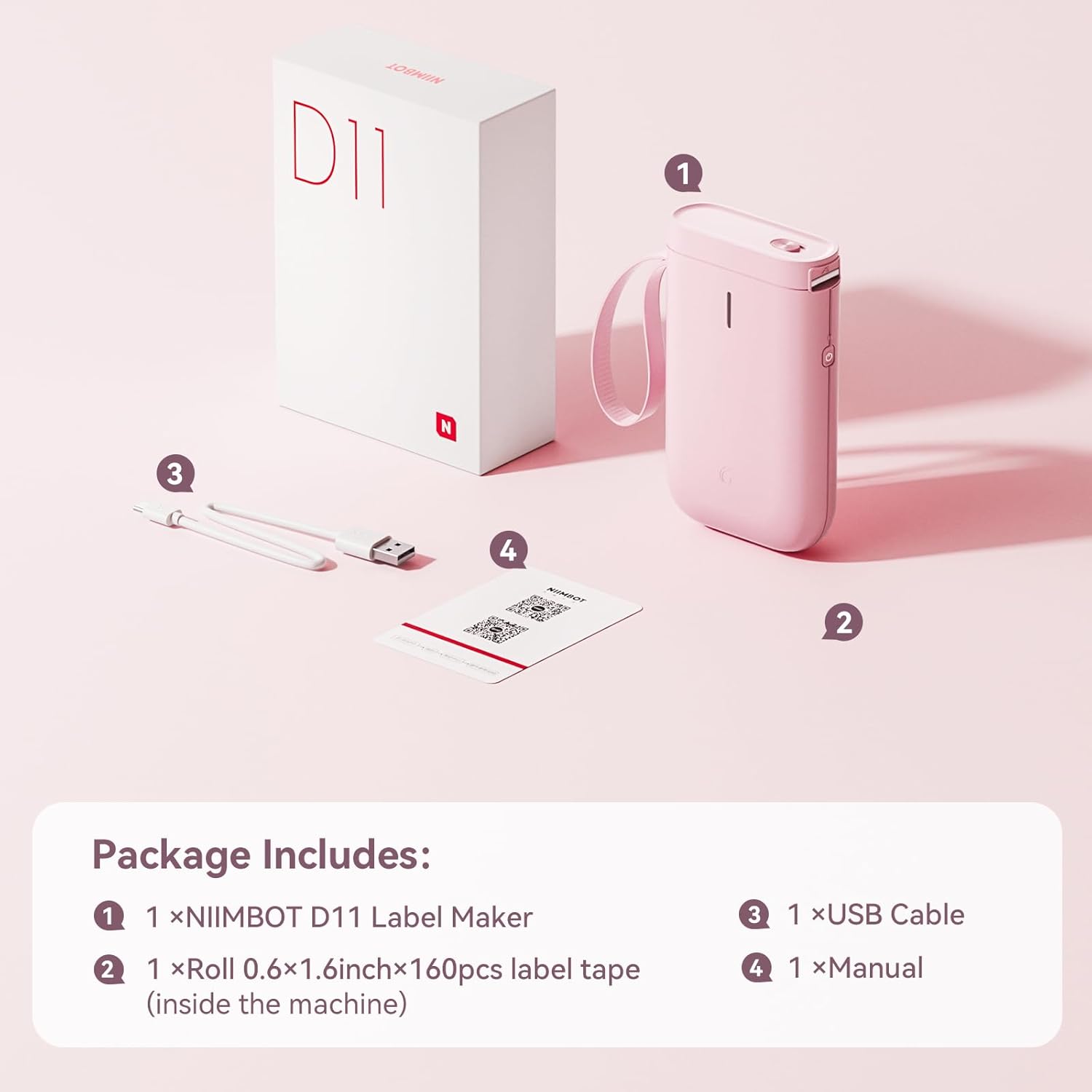
Image: Visual representation of the NIIMBOT D11 Label Maker package contents, including the device, USB cable, label roll, and manual.
3. Setup
3.1 Charging the Device
Before first use, fully charge the NIIMBOT D11 Label Maker using the provided USB cable. Connect the USB cable to the charging port on the device and a compatible USB power source. The LED indicator will show charging status. A full charge may take several hours.
3.2 Loading Label Paper
- Locate the paper cover switch on the top of the device.
- Slide the switch to open the paper cover.
- Ensure the label roll is inserted correctly. The tip of the label tape should face towards the power button.
- Close the paper cover securely.
- Press and hold the power button for 0.5 seconds to allow the machine to automatically align the label paper.
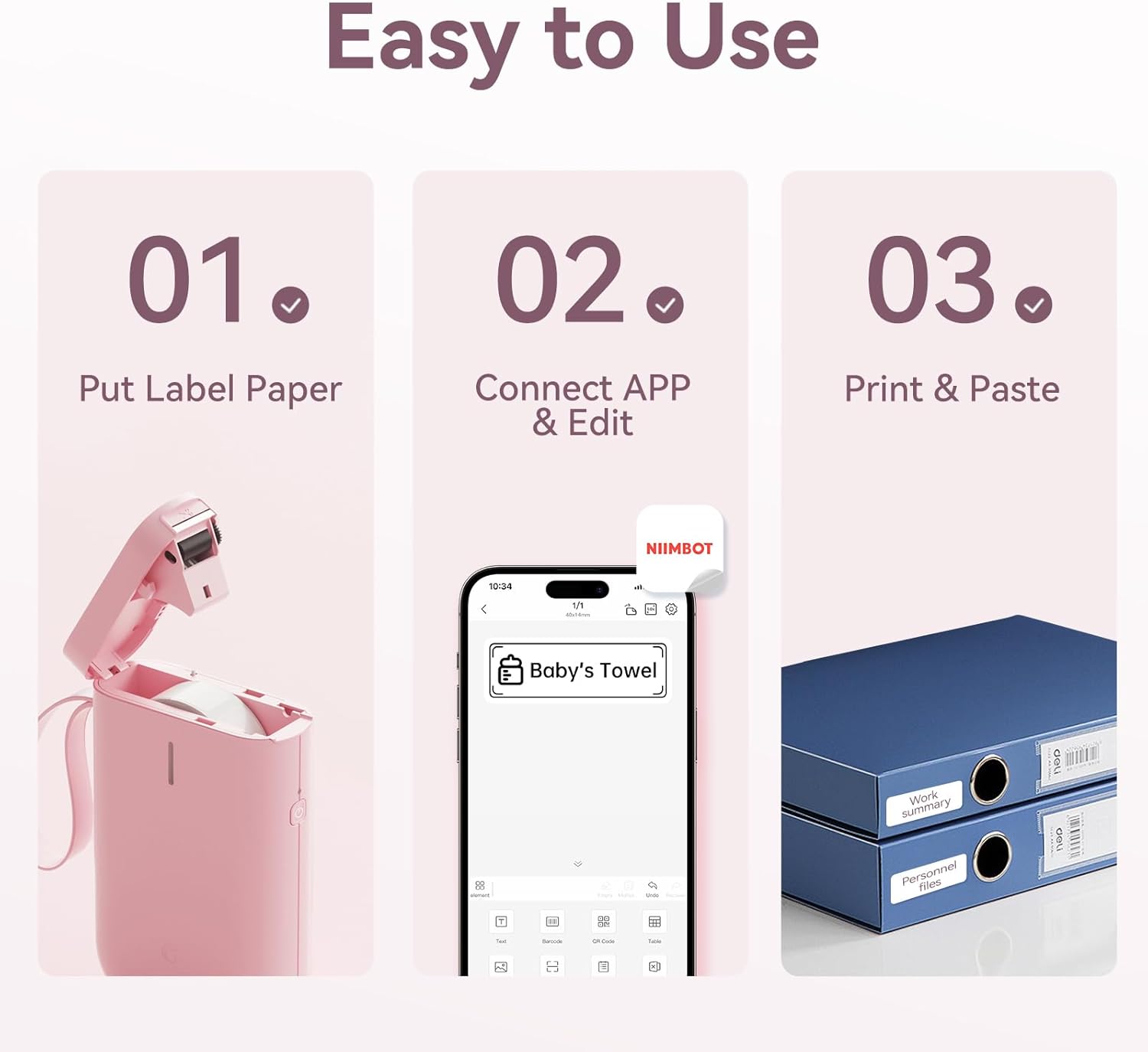
Image: Visual guide showing the three steps to load label paper, connect to the app, and print/paste labels.
Video: Detailed operation guide for the D11 Label Maker, including paper loading and basic functions.
3.3 App Download and Installation
The NIIMBOT D11 operates via the NIIMBOT mobile application. Download the app from your device's app store:
- For iOS devices: Search "NIIMBOT" in the Apple App Store.
- For Android devices: Search "NIIMBOT" in the Google Play Store.
Install the application on your smartphone.
3.4 Pairing with Your Mobile Device
- Turn on the NIIMBOT D11 Label Maker by pressing the power button for 3 seconds. The blue light will flash.
- Enable Bluetooth on your mobile device.
- Open the NIIMBOT application.
- In the app, search for nearby devices and select "D11" from the list to connect.
- Once connected, the app will automatically identify the label paper template.
4. Operating Instructions
4.1 Creating Labels
The NIIMBOT app offers various features for label creation:
- Text: Enter custom text, adjust font, size, and style.
- Icons: Choose from a library of icons to enhance your labels.
- Barcodes/QR Codes: Generate and print barcodes or QR codes for product identification or information.
- Templates: Utilize pre-designed templates for common labeling needs (e.g., home organization, price tags).
- Images: Insert simple images onto your labels.
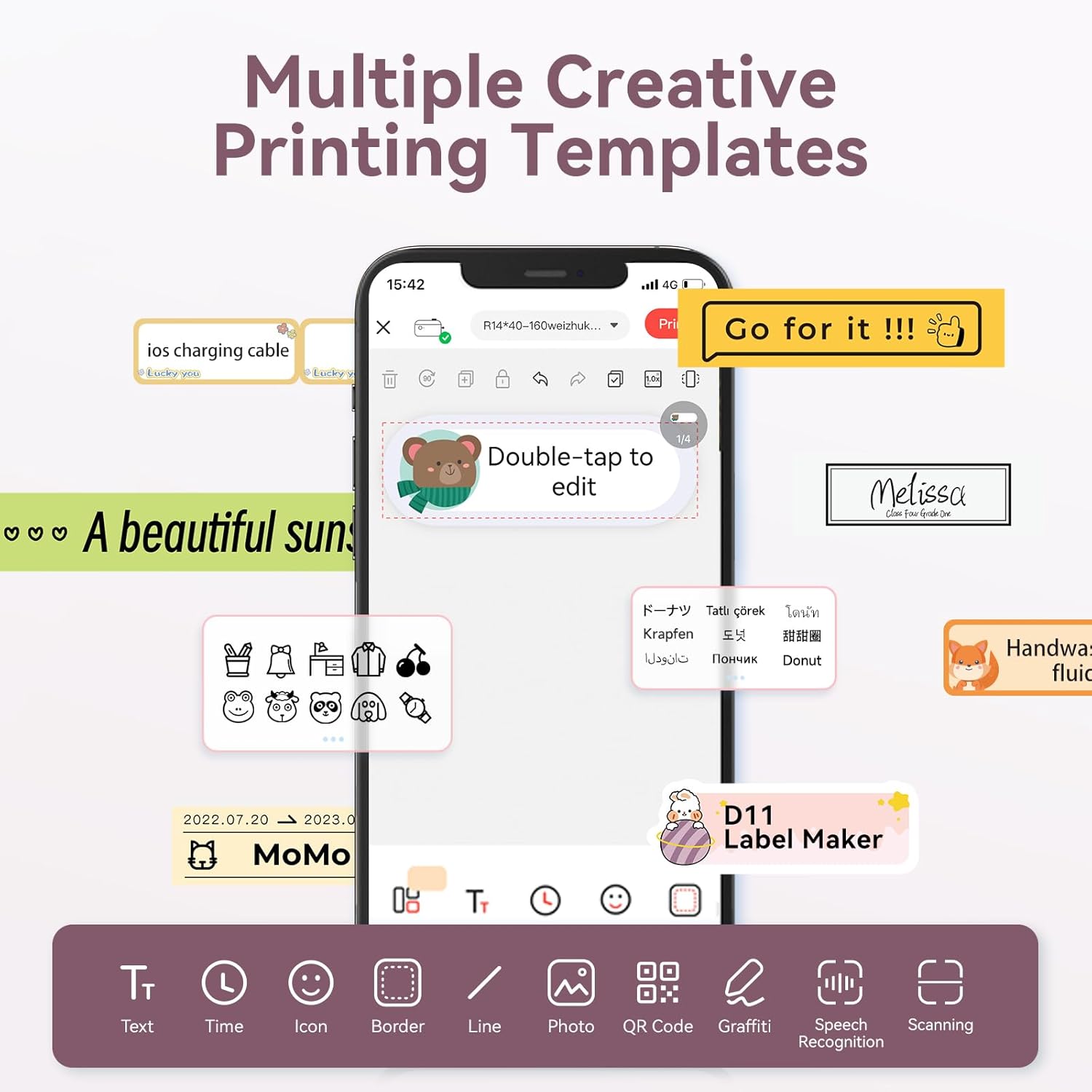
Image: The NIIMBOT app interface displaying various creative templates and editing options for labels.
4.2 Printing Labels
After designing your label in the app:
- Review the label preview in the app.
- Adjust the number of copies and print density as needed.
- Click the "Print" button in the app. The label maker will print the labels.
- Gently tear off the printed labels from the machine.
Video: A demonstration of the D11 Label Maker in various scene applications, showcasing its ease of use and versatility.
Video: An overview of the D Series Label Maker with tape, highlighting its features and applications.
5. Applications
The NIIMBOT D11 Label Maker is versatile and suitable for various labeling needs:
- Home Organization: Labeling containers, storage bins, pantry items, and personal belongings.
- Office & School: Organizing files, documents, stationery, and school supplies.
- Small Business: Creating price tags, product labels, and inventory identification.
- Specialty Labels: Cable identification, jewelry tags, and food date marking.

Image: Collage showing labels used for home organization (medicine box), office files, business products (sweater with barcode), and school items (notebook).

Image: Examples of labels demonstrating features like waterproof properties, food date marking, data cable organization, and personal item identification.
6. Maintenance
6.1 Cleaning
To maintain optimal printing quality, regularly clean the print head. Use a soft, lint-free cloth lightly dampened with isopropyl alcohol. Gently wipe the print head. Ensure the device is powered off before cleaning.
6.2 Storage
Store the label maker in a cool, dry place away from direct sunlight and extreme temperatures. Remove any label rolls if storing for extended periods.
7. Troubleshooting
| Problem | Possible Cause | Solution |
|---|---|---|
| Device not powering on | Low battery | Charge the device fully. |
| Cannot connect via Bluetooth | Bluetooth is off on phone; device not discoverable | Ensure phone's Bluetooth is on. Restart both device and phone. Re-pair in the app. |
| Poor print quality | Dirty print head; incorrect label roll insertion; low print density setting | Clean the print head. Re-insert label roll correctly. Increase print density in app. |
| Labels not feeding correctly | Label roll jammed or incorrectly inserted | Open cover, check for jams, re-insert label roll, and perform auto-alignment. |
8. Specifications
- Model Name: D11
- Printing Technology: Thermal
- Connectivity: Bluetooth
- Max Print Speed (Monochrome): 20 ppm
- Maximum Black and White Print Resolution: 203 dpi
- Battery: 1 Lithium Ion battery (1200mAh)
- Product Dimensions: 4.2 x 2.9 x 1.2 inches
- Item Weight: 12.6 ounces
- Compatible Devices: Smartphones (iPhone, iOS & Android)
- Control Method: App
- Special Features: Portable, Easy to Use, Clear Printing, Rechargeable
- Max Media Size: Smaller than A3
- Sheet Size Options: 0.47''X1.57'', 0.55''x1.18'', 0.55''X1.57'', 0.47''X1.18'', 0.59''X1.18'' Inches
9. Warranty and Support
For warranty information and customer support, please refer to the official NIIMBOT website or contact their customer service directly. The user manual included in your package may also contain specific warranty details and contact information.
For additional resources and product information, visit the NIIMBOT Store on Amazon.
Ask a question about this manual
Ask about setup, troubleshooting, compatibility, parts, safety, or missing instructions. Manuals+ will review the question and use this page’s manual context to help answer it.