Introduction
This manual provides instructions for the FINTIE Keyboard Case, designed for specific Samsung Galaxy Tab models. It covers setup, operation, maintenance, and troubleshooting to ensure optimal use of your device.
Package Contents:
- 1 x FINTIE Ultra-Thin Case
- 1 x Bluetooth Keyboard
- 1 x USB-C Charging Cable
- 1 x User Manual (this document)
Compatibility
This keyboard case is specifically designed for the following Samsung Galaxy Tab models:
- Samsung Galaxy Tab S10 Lite 10.9 inch 2025 (Models: SM-X400/X406)
- Samsung Galaxy Tab S10 FE 10.9 inch 2025 (Models: SM-X520/X526)
- Samsung Galaxy Tab S9 FE 10.9 inch 2023 (Models: SM-X510/X516/X518)
- Samsung Galaxy Tab S9 11 inch 2023 (Models: SM-X710/X716/X718)
Important: Please verify your tablet's model number before use. This case is not compatible with other Samsung Galaxy tablet models.

Figure 1: Compatible Tablet Models and Model Number Location
This image illustrates the specific Samsung Galaxy Tab models compatible with the FINTIE Keyboard Case, including the S10 Lite 10.9", S10 FE 10.9", S9 FE 10.9", and S9 11". It also provides a visual guide on how to locate your tablet's model number through the device settings (Settings > About tablet > Model name).
Setup Instructions
Insert Tablet into Case:
Carefully place your compatible Samsung Galaxy Tab into the protective case. Ensure all ports and buttons align with the case cutouts.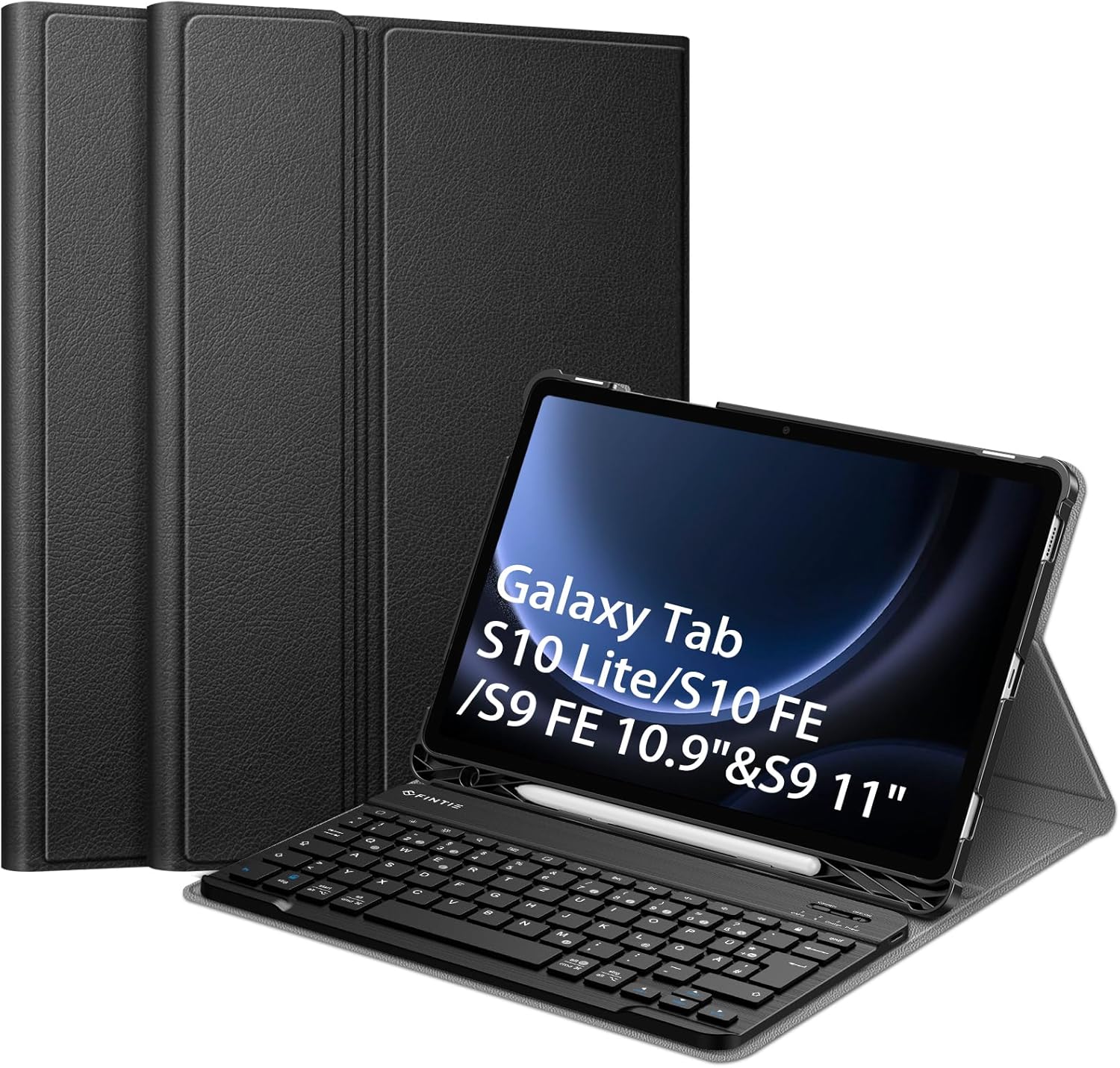
Figure 2: Tablet inserted into the FINTIE Keyboard Case
This image displays the FINTIE Keyboard Case with a Samsung Galaxy Tab securely placed inside, demonstrating the overall appearance and fit of the product.
Attach Keyboard:
The Bluetooth keyboard is magnetically integrated. Simply place the keyboard onto the designated area within the case. It will securely attach.
Figure 3: Magnetic Keyboard Attachment
This image highlights the magnetic integration of the keyboard with the case, showing how it securely connects for use.
Charge the Keyboard:
Before first use, fully charge the Bluetooth keyboard using the provided USB-C charging cable. Connect the cable to the keyboard's charging port and a suitable USB power source.Pairing the Bluetooth Keyboard:
- Turn on the keyboard by sliding the power switch to the "ON" position.
- Press the "Connect" button on the keyboard (usually indicated by a Bluetooth icon or "Connect" text). The Bluetooth indicator light will start blinking.
- On your Samsung Galaxy Tab, go to "Settings" > "Connected devices" or "Bluetooth".
- Ensure Bluetooth is enabled on your tablet.
- Select "FINTIE Keyboard" (or similar name) from the list of available devices.
- Follow any on-screen prompts to complete the pairing process. A successful connection will be indicated by the Bluetooth light on the keyboard turning solid or off.
Operating Instructions
Using the Keyboard
The keyboard features a QWERTZ layout, providing tactile feedback for efficient typing. It connects wirelessly via Bluetooth with a transmission distance of up to 10 meters.

Figure 4: Keyboard in Use with Tablet
This image shows a user actively typing on the FINTIE Bluetooth keyboard, demonstrating its wireless functionality and the tablet positioned in the case's stand.
Adjustable Stand Functionality
The back cover of the case can be folded to create a stand, offering three adjustable viewing angles for comfortable use. Anti-slip grooves ensure stability.

Figure 5: Multiple Viewing Angles
This image illustrates the versatility of the case's stand feature, showcasing three different viewing angles and the anti-slip grooves designed for stability.
S Pen Holder
An integrated S Pen holder allows for secure storage and easy access to your S Pen.
Auto Sleep/Wake Function
The case supports an auto sleep/wake function for your tablet. This feature operates only when the keyboard is removed from the case.
Maintenance
Cleaning the Case:
Wipe the faux leather exterior and non-slip interior with a soft, damp cloth. Avoid harsh chemicals or abrasive cleaners.
Figure 6: Case Material Details
This image provides a detailed view of the FINTIE case's construction, highlighting the anti-slip soft interior, durable wear-resistant exterior material, and the sturdy PC back shell.
Cleaning the Keyboard:
Use a soft, dry cloth to clean the keyboard. For stubborn dirt, a slightly damp cloth can be used, ensuring no moisture enters the keys or ports.Battery Care:
To prolong battery life, avoid fully discharging the keyboard battery frequently. Charge it regularly, especially if not used for extended periods.
Figure 7: Keyboard Battery Life
This image presents the battery life specifications for the keyboard, differentiating between Bluetooth Low Energy (BLE) and Classic Bluetooth, showing up to 230 hours of continuous use and 180 days of standby time for BLE.
Storage:
When not in use, store the case and keyboard in a cool, dry place away from direct sunlight and extreme temperatures.
Troubleshooting
Keyboard not connecting:
- Ensure the keyboard is charged and turned on.
- Verify Bluetooth is enabled on your tablet.
- Try unpairing and re-pairing the keyboard from your tablet's Bluetooth settings.
- Ensure the keyboard is within the 10-meter Bluetooth range.
Keys not responding:
- Check if the keyboard is properly connected via Bluetooth.
- Recharge the keyboard battery.
- Restart your tablet and try again.
Tablet not entering sleep/wake mode:
- Ensure the keyboard is removed from the case for the auto sleep/wake function to work.
- Check your tablet's settings for sleep/wake functionality.
Specifications
| Feature | Detail |
|---|---|
| Model Number | CDE0838 |
| Connectivity | Bluetooth |
| Keyboard Layout | QWERTZ (German) |
| Material | Faux Leather (case), ABS Plastic (keyboard) |
| Special Features | Portable, Rechargeable, Magnetic Removable Keyboard, Adjustable Stand, S Pen Holder |
| Battery Type | 1 Lithium Polymer battery (included) |
| Package Dimensions | 29.1 x 20.8 x 3.9 cm |
| Weight | 810 g |
Safety Information
Please observe the following safety warnings:
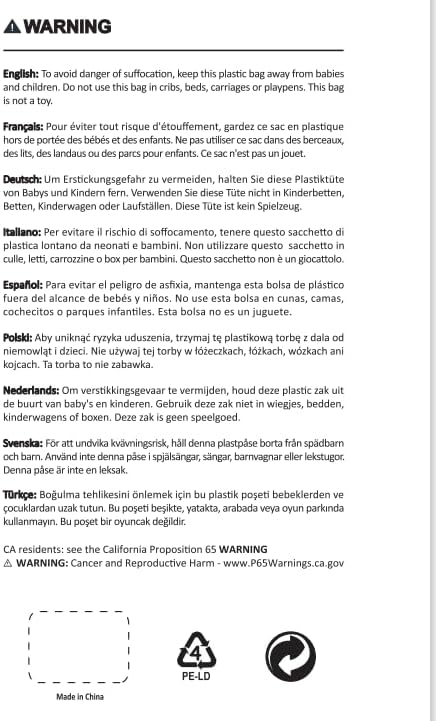
Figure 8: Safety Warning
This image displays a multi-language warning regarding the suffocation hazard of plastic bags, advising to keep them away from babies and children. It also includes a California Proposition 65 warning.
- To avoid danger of suffocation, keep plastic bags away from babies and children. Do not use this bag in cribs, beds, carriages or playpens. This bag is not a toy.
- California residents: See the California Proposition 65 warning.
Warranty and Support
Specific warranty information for this FINTIE product is not provided in the available documentation. For warranty details or technical support, please refer to the official FINTIE website or contact their customer service directly.


