
1. Product Overview
The ECOPAD 10.1 Inch Android 15 Tablet is designed for versatile use, offering a balance of performance and portability. It features a quad-core processor, the Android 15 operating system, and a 10.1-inch IPS HD touchscreen for clear visuals. With ample storage and expansion options, dual cameras, and robust connectivity, this tablet is suitable for various tasks from entertainment to productivity.
- Operating System: Android 15
- Display: 10.1-inch IPS HD (1280x800 pixels)
- Processor: Quad-core ARM RK3562
- Memory: 12GB RAM (4GB physical + 8GB virtual)
- Storage: 64GB ROM, expandable up to 1TB via SD card (sold separately)
- Cameras: 2.0MP Front, 8.0MP Rear
- Battery: 6000mAh Lithium Battery (up to 8 hours video playback)
- Connectivity: Dual Band Wi-Fi (2.4/5GHz), Bluetooth 5.0
- Certification: GMS Certified for full Google Play access
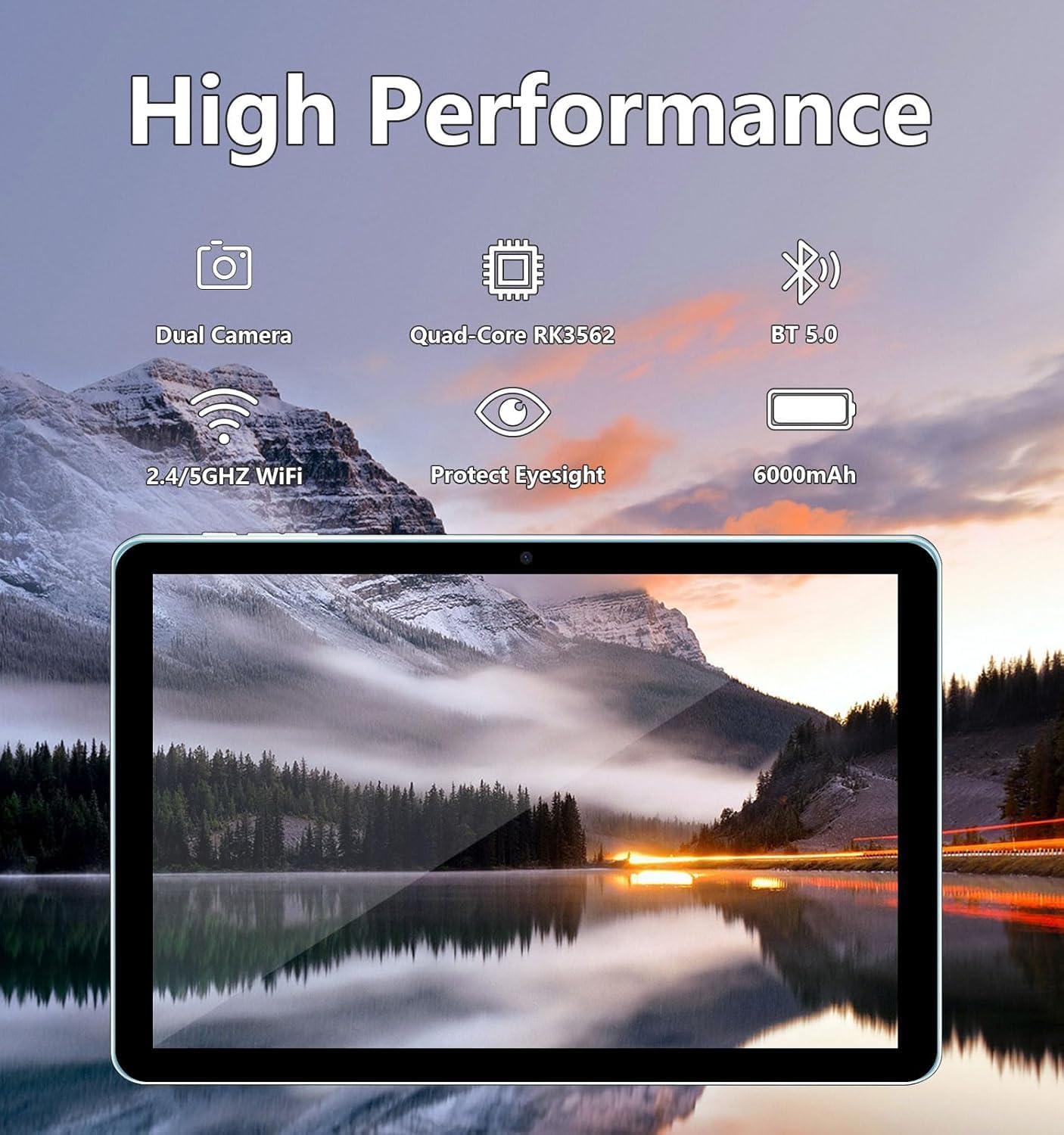
Image: The ECOPAD tablet showcasing its high-performance features including dual cameras, quad-core processor, Bluetooth 5.0, dual-band Wi-Fi, and 6000mAh battery.
2. Getting Started
2.1 Unboxing Your Tablet
Carefully remove all items from the packaging. The box should contain the ECOPAD 10.1 Inch Tablet, a protective case, a USB-C charging cable, and a screen protector. Please check for any damage during transit.
2.2 Physical Features
Familiarize yourself with the tablet's ports and buttons:

Image: A detailed diagram illustrating the location of the USB-C Port, SD Card Slot, Volume buttons, Power On/Off button, Reset button, Microphone, Front Camera, Headphone Jack, Speakers, Rear Camera, and Flash on the ECOPAD tablet.
- USB-C Port: For charging and data transfer.
- SD Card Slot: Insert a Micro SD card for expanded storage.
- Volume - / Volume +: Adjust the audio volume.
- Power On/Off: Press and hold to power on or off. Short press to sleep/wake.
- Reset (Reboot): A small pinhole for force restarting the device if unresponsive.
- Microphone: For audio input during calls or recordings.
- Front Camera: For video calls and selfies.
- Headphone Jack: Connect 3.5mm headphones.
- Speakers: For audio output.
- Rear Camera: For taking photos and videos.
- Flash: Provides illumination for the rear camera.
2.3 Charging the Tablet
Before first use, fully charge your tablet. Connect the provided USB-C cable to the tablet's USB-C port and the other end to a compatible USB power adapter (not always included) or a computer's USB port. The battery indicator on the screen will show charging status.
2.4 Powering On/Off
- To Power On: Press and hold the Power On/Off button until the ECOPAD logo appears on the screen.
- To Power Off: Press and hold the Power On/Off button until a power menu appears. Select 'Power Off' and confirm.
- To Sleep/Wake: Briefly press the Power On/Off button.
2.5 Initial Setup
Upon first power-on, the tablet will guide you through the initial setup process. This typically includes:
- Selecting your language.
- Connecting to a Wi-Fi network.
- Signing in with your Google account or creating a new one.
- Setting up screen lock (PIN, pattern, password).
- Reviewing and accepting Google services terms.
3. Operating Your Tablet
3.1 Touchscreen Navigation
The tablet's 10.1-inch IPS HD touchscreen supports multi-touch gestures:
- Tap: Select an item or open an app.
- Touch & Hold: Access contextual menus or move items.
- Swipe: Navigate through screens, scroll lists, or dismiss notifications.
- Pinch-to-Zoom: Zoom in or out on images and web pages.
3.2 Connecting to Wi-Fi
To connect to the internet:
- Go to Settings > Network & internet > Wi-Fi.
- Toggle Wi-Fi On.
- Select your desired network from the list.
- Enter the password if prompted and tap Connect.
3.3 Google Play Store
As a GMS Certified device, your tablet has full access to the Google Play Store. You can download a wide variety of applications, games, movies, and books.
- Tap the Play Store icon on your home screen or app drawer.
- Browse or search for apps.
- Tap Install to download and install an app.

Image: The tablet display featuring the Google Play Store icon and other Google Mobile Services (GMS) applications, indicating full access to the Android ecosystem.
3.4 Storage Management
The tablet comes with 64GB of internal storage (ROM) and 12GB of RAM (4GB physical + 8GB virtual for enhanced performance). You can expand storage further:
- Micro SD Card: Insert a Micro SD card (up to 1TB, sold separately) into the SD card slot to store additional photos, videos, and files.
- To manage storage, go to Settings > Storage.

Image: The tablet screen displaying its storage capabilities, including 12GB RAM, 64GB ROM, and the option for 1TB SD card expansion, allowing users to store a large volume of data.
3.5 Camera Usage
The tablet is equipped with a 2.0MP front camera and an 8.0MP rear camera.
- Open the Camera app.
- Tap the camera icon to switch between front and rear cameras.
- Tap the shutter button to take a photo or start/stop video recording.

Image: The tablet screen showing a video conference with four participants, demonstrating the clarity of the 10.1-inch 1280x800 HD display for communication.
3.6 Bluetooth Connectivity
Connect your tablet to Bluetooth devices like headphones, speakers, or keyboards.
- Go to Settings > Connected devices > Bluetooth.
- Toggle Bluetooth On.
- The tablet will scan for available devices. Select your device from the list to pair.
4. Maintenance
4.1 Battery Care
To maximize your tablet's battery life and longevity:
- Avoid extreme temperatures.
- Do not let the battery completely drain frequently.
- Unplug the charger once the tablet is fully charged.
- Reduce screen brightness and disable unnecessary features (e.g., Bluetooth, Wi-Fi) when not in use.
4.2 Cleaning Your Tablet
Use a soft, lint-free cloth to clean the screen and body of the tablet. For stubborn smudges, slightly dampen the cloth with water or a screen-cleaning solution. Avoid harsh chemicals or abrasive materials.
5. Troubleshooting
If you encounter issues with your ECOPAD tablet, try the following common solutions:
- Tablet is unresponsive: Press and hold the Power On/Off button for about 10-15 seconds to force a restart. If this doesn't work, locate the small 'Reset' pinhole and use a thin object (like a paperclip) to press it gently.
- Apps are crashing or running slowly: Close unused apps, clear app caches (Settings > Apps > [App Name] > Storage & cache > Clear cache), or restart the tablet. Ensure your apps are updated.
- Wi-Fi connection issues: Ensure Wi-Fi is enabled. Try restarting your router and the tablet. Forget the network and reconnect.
- Battery drains quickly: Reduce screen brightness, disable background app refresh, turn off GPS, Bluetooth, and Wi-Fi when not needed. Check battery usage in Settings to identify power-hungry apps.
- Screen is not responding to touch: Restart the tablet. If the issue persists, ensure the screen is clean and free of debris.
If these steps do not resolve your issue, please refer to the Warranty and Support section for further assistance.
6. Specifications
| Feature | Specification |
|---|---|
| Standing screen display size | 10.1 Inches |
| Screen Resolution | 1280 x 800 pixels |
| Max Screen Resolution | 1280*800 Pixels |
| Wireless Type | Bluetooth |
| Average Battery Life (in hours) | Up to 8 hours (video playback) |
| Brand | ECOPAD |
| Series | THTH-K12C |
| Item model number | THTH-K12C |
| Operating System | Android 15 |
| Item Weight | 2.02 pounds |
| Product Dimensions | 9.5 x 6.2 x 0.28 inches |
| Item Dimensions LxWxH | 9.5 x 6.2 x 0.28 inches |
| Color | Blue |
| Rear Webcam Resolution | 8 MP |
| Processor Brand | ARM |
| Batteries | 1 Lithium Polymer batteries required. (included) |
| Memory Storage Capacity | 64 GB (expandable to 1TB) |
7. Warranty and Support
ECOPAD offers comprehensive support for your product.
- Warranty: Your ECOPAD tablet comes with a 1-year warranty. This warranty covers product failures due to manufacturing defects.
- Contact Support: If you have any questions, encounter issues, or require technical assistance, please do not hesitate to contact ECOPAD customer service. Most questions are answered within 24 hours.
ECOPAD is committed to providing high-quality products and excellent customer service, continuously improving products and services through sharing and communication.