
Emerson ET-3200
Emerson ET-3200 32" Class HD LED TV User Manual
Model: ET-3200
Introduction
This user manual provides comprehensive instructions for the setup, operation, and maintenance of your Emerson ET-3200 32" Class HD LED TV. Please read this manual thoroughly before operating your television to ensure proper use and to maximize your viewing experience.
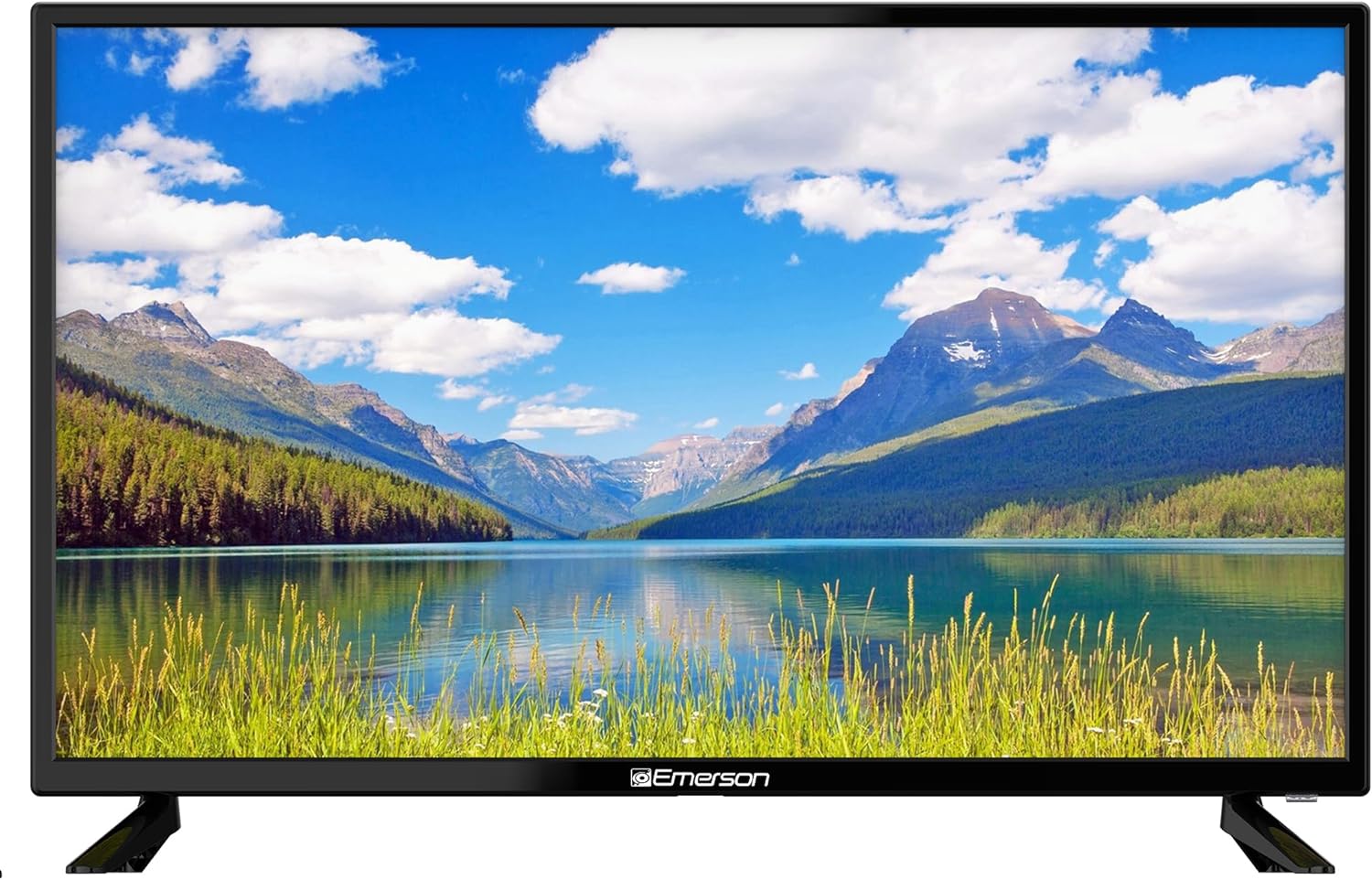
Image Description: A front view of the Emerson ET-3200 32-inch HD LED TV, showcasing a vivid landscape with mountains, a lake, and green foliage. The TV has a slim black bezel and is positioned on a flat surface.
Safety Information
To ensure safe operation and prevent damage, please observe the following safety precautions:
- Do not expose the TV to rain or moisture.
- Do not block ventilation openings. Ensure adequate space around the TV for proper airflow.
- Use only attachments/accessories specified by the manufacturer.
- Protect the power cord from being walked on or pinched.
- Unplug the TV during lightning storms or when unused for long periods.
- Refer all servicing to qualified service personnel.
What's in the Box
Upon unpacking your Emerson ET-3200 TV, please verify that all the following components are included:
- Emerson ET-3200 32" Class HD LED TV
- Full-function Remote Control (requires 2 AAA batteries, included)
- TV Stand (2 pieces)
- AC Power Adapter
- User Manual (this document)
- Warranty Card

Image Description: The Emerson ET-3200 TV displayed alongside its remote control, set against a light blue background with subtle Emerson branding. This image illustrates the main components included with the television.
Setup
1. Attaching the TV Stand
- Carefully place the TV face down on a soft, clean surface to prevent screen damage.
- Align the stand pieces with the corresponding screw holes on the bottom of the TV.
- Secure the stand using the provided screws. Do not overtighten.

Image Description: The Emerson ET-3200 TV is shown resting on its included stand, positioned on a wooden media console. This demonstrates the TV's appearance when set up with its optional stand.
2. Wall Mounting (Optional)
The Emerson ET-3200 TV is VESA 200 wall mount compatible. For wall mounting, you will need a compatible wall mount bracket (sold separately). Follow the instructions provided with your wall mount bracket.

Image Description: The Emerson ET-3200 TV is shown mounted on a white wall in a modern living space, demonstrating its sleek profile when wall-mounted.
3. Connecting Devices
Your TV features multiple input ports for connecting various devices.

Image Description: A detailed view of the back panel of the Emerson ET-3200 TV, highlighting the arrangement of its input ports, including HDMI, USB, and RF antenna connections.
HDMI Connections
Connect Blu-ray players, gaming consoles, cable/satellite boxes, or other HDMI-enabled devices to the HDMI ports (HDMI 1, HDMI 2, HDMI 3).

Image Description: A close-up shot of a hand inserting an HDMI cable into one of the HDMI input ports on the back of the Emerson ET-3200 TV, illustrating the ease of connection.
USB Connection
Insert a USB drive into the USB port to view photos, play music, or watch videos.

Image Description: A hand is shown inserting a USB flash drive into the USB port located on the back of the Emerson ET-3200 TV, demonstrating media playback connectivity.
Antenna/Cable Connection (RF)
Connect an antenna or cable TV coaxial cable to the RF input for over-the-air broadcasts or basic cable service.
Audio Output (3.5mm Headphone Jack)
Connect headphones or external audio systems to the 3.5mm headphone jack for private listening or enhanced sound.

Image Description: A person is shown wearing headphones while watching the Emerson ET-3200 TV, which displays an image of a bird. This illustrates the use of the 3.5mm headphone jack for private audio.
4. Power Connection
Connect the AC power adapter to the TV's power input, then plug the adapter into a standard electrical outlet.
Operating Your TV
Remote Control Functions
The included full-function remote control allows you to access all TV features. Ensure the included AAA batteries are correctly inserted.

Image Description: A hand holds the Emerson TV remote control, pointing it towards the television which is displaying a soccer match. This highlights the primary method of interacting with the TV.
- Power Button: Turns the TV on or off.
- Input/Source: Cycles through available input sources (HDMI 1, HDMI 2, HDMI 3, USB, AV, TV).
- Volume Up/Down: Adjusts the sound level.
- Channel Up/Down: Changes TV channels.
- Mute: Silences the TV sound.
- Menu: Accesses the on-screen display (OSD) menu for settings.
- Navigation Buttons (Up/Down/Left/Right/OK): Navigate through menus and confirm selections.
- Exit: Exits the current menu.
- Number Buttons: Directly select channels.
Initial Setup and Channel Scan
- After connecting the power, press the Power button on the remote or TV.
- The first-time setup wizard will guide you through language selection and channel scanning.
- Select "Antenna" or "Cable" for the input source and initiate the auto-scan to find available channels.
Changing Input Sources
Press the Input or Source button on your remote control to cycle through the connected devices (e.g., HDMI 1, USB, TV).

Image Description: A person is comfortably seated on a couch, watching the Emerson ET-3200 TV which displays vibrant fish. This image illustrates the typical use case of the television for home entertainment.
Maintenance
- Cleaning the Screen: Gently wipe the screen with a soft, lint-free cloth. For stubborn marks, dampen the cloth with a small amount of screen cleaner specifically designed for electronics. Do not spray cleaner directly onto the screen.
- Cleaning the Cabinet: Use a soft, dry cloth to wipe the TV cabinet. Avoid using abrasive cleaners or solvents.
- Ventilation: Ensure the ventilation openings on the back of the TV are not blocked to prevent overheating.
- Power Cord: Regularly check the power cord for any damage. If damaged, replace it immediately with an authorized replacement.
Troubleshooting
| Problem | Possible Cause | Solution |
|---|---|---|
| No power | Power cord not connected; outlet not working. | Ensure power cord is securely plugged in. Test outlet with another device. |
| No picture, but sound is present | Incorrect input source selected; external device off or disconnected. | Press the Input/Source button to select the correct input. Check external device power and connections. |
| No sound, but picture is present | Volume is muted or too low; audio cables loose. | Press the Mute button or increase volume. Check audio cable connections. |
| Remote control not working | Batteries are dead or incorrectly inserted; obstruction between remote and TV. | Replace batteries (2 AAA). Ensure no obstructions and point remote directly at the TV's IR sensor. |
| Poor picture quality (TV channels) | Weak antenna signal; antenna not positioned correctly. | Adjust antenna position. Perform a channel re-scan. |
Specifications
| Feature | Detail |
|---|---|
| Brand | Emerson |
| Model Number | ET-3200 |
| Screen Size | 32 Inches |
| Display Technology | LED |
| Resolution | 720p |
| Refresh Rate | 60 Hz |
| Aspect Ratio | 16:9 |
| Product Dimensions (L x W x H) | 28.7 x 18.6 x 7.8 inches |
| Item Weight | 7.4 Pounds |
| Connectivity Technology | USB, HDMI |
| Special Feature | Flat Screen |
| Included Components | TV, Remote Control, TV Stand, AC Power Adapter, User Manual, Warranty Card |

Image Description: A diagram illustrating the physical dimensions (length, height, depth) and weight of the Emerson ET-3200 TV, providing a clear visual reference for its size.
Warranty and Support
Your Emerson ET-3200 TV comes with a warranty. Please refer to the included Warranty Card for detailed terms and conditions, including coverage period and how to make a claim.
For technical support, troubleshooting assistance, or service inquiries, please contact Emerson Customer Service. Contact information can typically be found on the Warranty Card or on the official Emerson website.
Online Resources: For additional support and frequently asked questions, visit the official Emerson website.
Related documentsET-3200


Ask a question about this manual
Ask about setup, troubleshooting, compatibility, parts, safety, or missing instructions. Manuals+ will review the question and use this page’s manual context to help answer it.