
1. Introduction
The AZDOME M580 is a high-performance 3-channel dash camera designed to provide comprehensive video surveillance for your vehicle. It features advanced recording capabilities, including 5K resolution for the front camera and simultaneous 4K+1080P+1080P recording for front, cabin, and rear views. Equipped with a 4-inch touchscreen, built-in 5G WiFi, GPS, IR night vision, G-sensor, and 24-hour parking monitoring, the M580 ensures detailed and reliable footage for your safety and peace of mind.

Figure 1.1: AZDOME M580 Dash Cam with its accompanying mobile application interface.
2. What's in the Box
Before installation, please verify that all components are present in the package:
- Front Dash Camera (x1)
- Cabin Camera (x1)
- Rear Camera (x1)
- Type-C USB Power Cable (3.5M/12ft) (x1)
- Car Charger (x1)
- Connection Cable for Rear and Cabin Camera (x1)
- 64GB Storage Card (x1)
- Installation Tools (Cable Clips x5, Pry Tool x1)
- Electrostatic Films for Front (x2)
- Electrostatic Films for Rear and Cabin (x4)
- User Manual (x1)
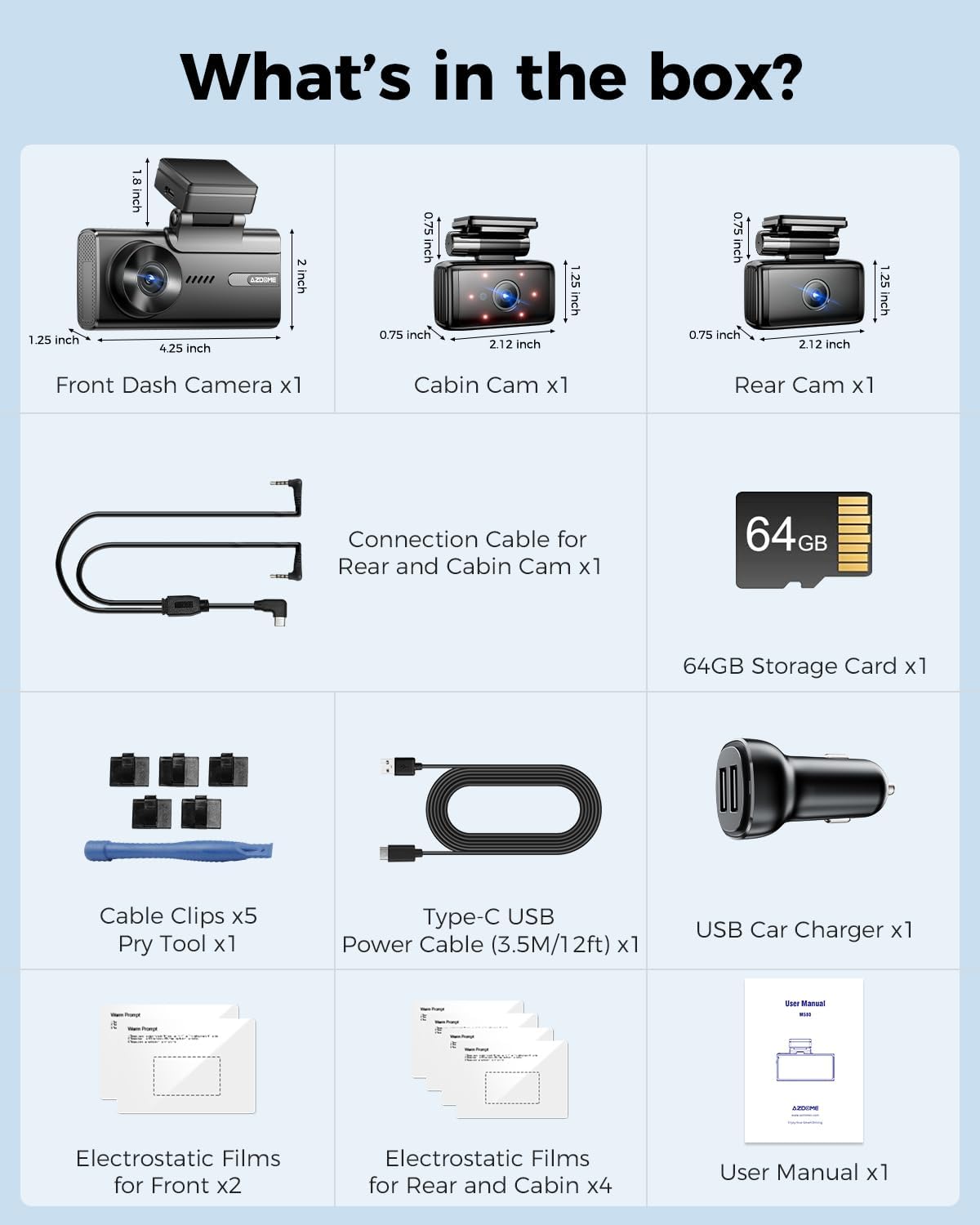
Figure 2.1: All items included in the AZDOME M580 package.
3. Setup and Installation
Follow these steps to properly install your AZDOME M580 dash cam system in your vehicle.
3.1 Mounting the Cameras
- Front Dash Camera: Clean the windshield area where you intend to mount the front camera. Apply an electrostatic film to the windshield first, then attach the front dash camera using its windshield mount. Ensure it does not obstruct your view.
- Cabin Camera: The cabin camera is integrated with the front unit or connects via a dedicated cable. Position it to capture the interior of the vehicle.
- Rear Camera: Mount the rear camera on the rear windshield, ensuring a clear view of the road behind. Use an electrostatic film before attaching.
3.2 Connecting Power and Cables
- Insert SD Card: Insert the provided 64GB storage card into the designated slot on the main dash camera unit.
- Connect Cameras: Connect the cabin and rear cameras to the main front dash camera unit using the provided connection cables. Route cables neatly along the vehicle's trim using the included cable clips and pry tool.
- Power Connection: Connect the Type-C USB Power Cable to the dash cam and plug the car charger into your vehicle's 12V power outlet.

Figure 3.1: Recommended cable routing for a clean and secure installation.
4. Operating Instructions
This section details the various functions and modes of your AZDOME M580 dash cam.
4.1 Powering On/Off
The dash cam will automatically power on and begin recording when your vehicle's ignition is turned on (and power is supplied to the 12V outlet). It will power off automatically when the ignition is turned off.
4.2 Touch Screen Operation
The 4-inch touchscreen allows for easy navigation through menus and settings. Tap icons to select options, swipe to scroll, and use the back button to return to previous screens.
4.3 Recording Modes
- 3-Channel Recording: The M580 can record simultaneously from the front (4K), cabin (1080P), and rear (1080P) cameras, providing comprehensive coverage.
- Single Front Recording: When only the front camera is used, it records in 5K (5160x2160P) resolution.
- Loop Recording: When the storage card is full, the dash cam will automatically overwrite the oldest unlocked footage to continue recording.
- Emergency Lock (G-Sensor): The built-in G-sensor detects sudden impacts or collisions. When triggered, it automatically locks and saves the current video segment, preventing it from being overwritten by loop recording. You can also manually lock footage via the touchscreen.
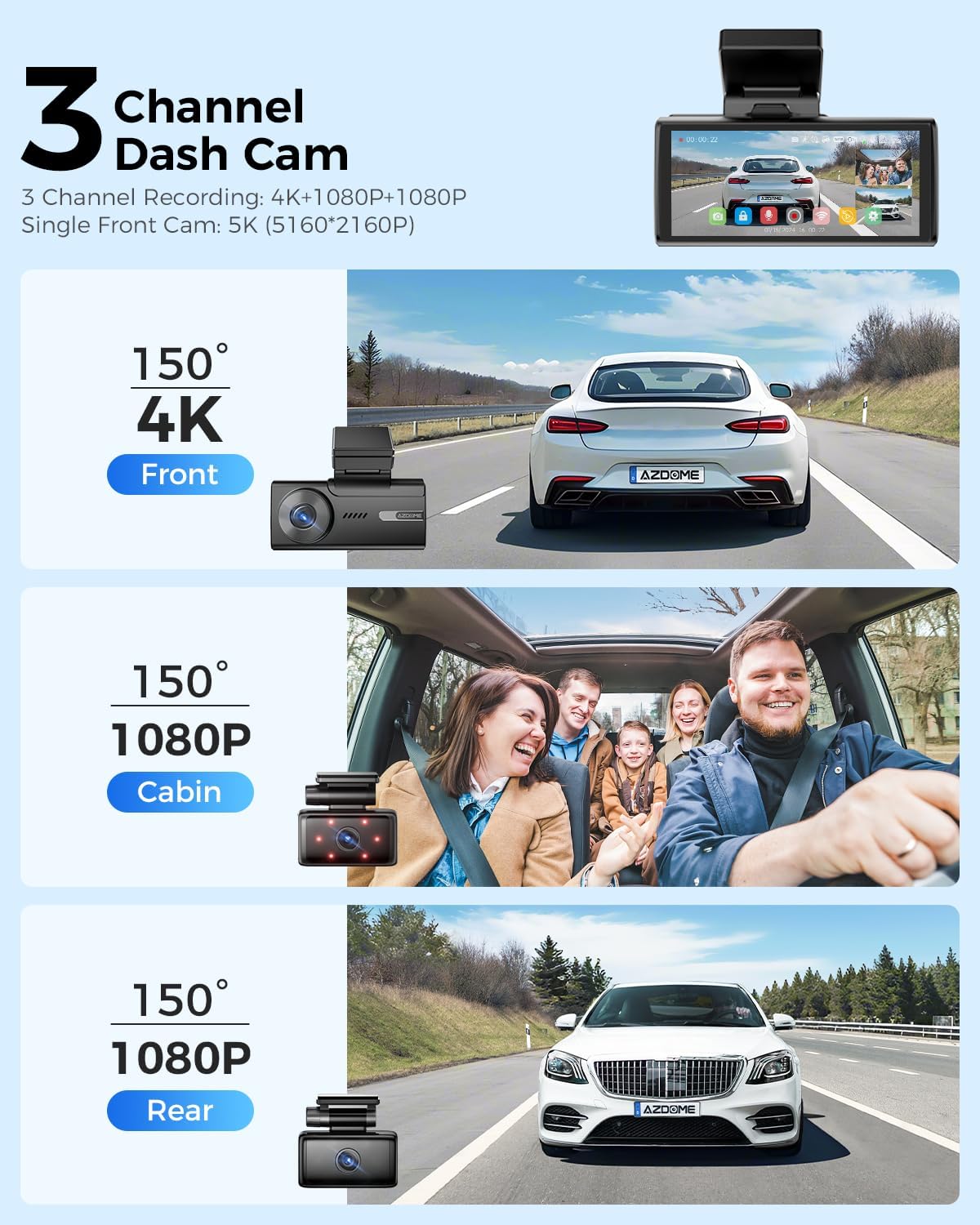
Figure 4.1: Visual representation of the 3-channel recording capabilities.

Figure 4.2: How loop recording manages storage and how emergency locked files are protected.
4.4 Parking Monitor
The M580 offers two parking monitoring modes (requires a 3-lead hardwire kit, sold separately):
- Collision Detection Parking Mode: The G-sensor detects impacts while parked and automatically records and locks the video.
- Time-Lapse Parking Mode: The dash cam records continuously at a low frame rate (e.g., 1fps) for 24 hours, compressing long periods into short videos.

Figure 4.3: Explanation of the 24-hour parking monitoring features.
4.5 Built-in 5G WiFi & App Connectivity
The M580 features built-in 5.8G WiFi, offering faster data transmission speeds (4-6 times faster than 2.4GHz). This allows for quick viewing, playback, downloading, and sharing of videos via the AZDOME mobile application.
- Download the AZDOME APP from the App Store or Google Play.
- Connect your smartphone to the dash cam's WiFi network (SSID and password found on the device).
- Open the AZDOME APP and add your dash cam model.
- You can now view live footage, access recorded videos, and adjust settings directly from your phone.

Figure 4.4: Part 1 of the APP WiFi Connection Guide for M580.

Figure 4.5: Part 2 of the APP WiFi Connection Guide for M580.
4.6 Built-in GPS
The integrated GPS module records your driving route, speed, latitude, and longitude data. This information can be viewed and played back using the AZDOME GPS Player software on your computer, providing crucial evidence in case of an incident.
4.7 Night Vision
The M580 features enhanced night vision capabilities with an F/1.8 aperture, 6-glass lens, and 6 hidden IR LED lights for the cabin camera. This technology ensures clear and detailed image capture even in low-light conditions, automatically optimizing image quality for nighttime driving.

Figure 4.6: Enhanced Night Vision performance with WDR (Wide Dynamic Range).
5. Maintenance
Proper maintenance ensures the longevity and optimal performance of your dash cam.
- SD Card Formatting: It is recommended to format the SD card regularly (e.g., once a month) to prevent data corruption and ensure smooth recording. This can typically be done through the dash cam's settings menu or the mobile app.
- Cleaning: Gently wipe the camera lenses and touchscreen with a soft, lint-free cloth. Avoid using abrasive cleaners or solvents.
- Super Capacitor: The M580 utilizes a super capacitor instead of a traditional battery, providing enhanced durability and reliability, especially in extreme temperatures ranging from -4°F (-20°C) to 158°F (70°C). This eliminates concerns about battery degradation in hot or cold climates.

Figure 5.1: The super capacitor ensures reliable operation across a wide temperature range.
6. Troubleshooting
If you encounter issues with your AZDOME M580, refer to the following common problems and solutions:
| Problem | Possible Cause | Solution |
|---|---|---|
| Dash cam does not power on. | No power supply; faulty cable. | Check car charger connection and vehicle's 12V outlet. Ensure the power cable is securely connected to the dash cam. |
| Recording stops or footage is corrupted. | SD card issue (full, corrupted, incompatible). | Format the SD card. If the issue persists, try a new high-quality SD card (U3, Class 10 recommended). |
| WiFi connection issues with app. | Incorrect WiFi password; distance from device; app glitch. | Ensure correct WiFi password. Stay within 10 feet of the dash cam. Restart the app and the dash cam. |
| Mounting adhesive fails in hot weather. | High temperatures affecting adhesive. | Ensure the windshield is clean and dry before applying. Consider alternative mounting solutions if persistent issues occur in extreme heat. |
| Voice control not responding. | Environmental noise; incorrect commands. | Speak clearly and directly to the dash cam. Reduce background noise. Refer to the manual for specific voice commands. |
For further assistance, please contact AZDOME customer support.
7. Specifications
Detailed technical specifications for the AZDOME M580 dash cam:
- Model Name: M580-3CH
- Brand: AZDOME
- Product Dimensions: 1.18 x 4.06 x 1.75 inches
- Item Weight: 0.634 ounces
- Video Capture Resolution: 2160p (5K Front), 4K+1080P+1080P (3-Channel)
- Orientation: Front, Rear, and Inside
- Display: 4" Touch Screen
- Connectivity Technology: 5.8G WiFi, GPS
- Special Features: Automatic Incident Detection (G-Sensor), Built-In Supercapacitor, IR Night Vision
- Mounting Type: Windshield Mount
- Power Source: Car Charger (Type-C USB Power Cable)
- Included Storage: 64GB Storage Card
- Operating Temperature: -4°F (-20°C) to 158°F (70°C)
8. Warranty and Support
AZDOME is committed to providing high-quality products and excellent customer service.
- Warranty: The AZDOME M580 car dash camera comes with a 12-month warranty from the date of purchase.
- Return Policy: A 30-day return policy is available. Returns are accepted for defects.
- Technical Support: AZDOME provides 24/7 technical support.
Contact Information:
Email: service@azdomevip.com
Phone: (833) 667-5545
Please email us when facing any problems with after-sales service. The AZDOME R&D team will endeavor to provide feedback within 24 working hours.

Figure 8.1: AZDOME Warranty and Customer Support details.


