
1. Introduction
This manual provides detailed instructions for the Microdigit MD225WM 2.4GHz Wireless Optical Mouse. It covers setup, operation, maintenance, and troubleshooting to ensure optimal performance and a seamless user experience.
The Microdigit MD225WM mouse features 1600 DPI precision, 2.4GHz wireless connectivity with a 10-meter range, an ambidextrous ergonomic design, and an average battery life of 12 months.
2. Product Overview
The Microdigit MD225WM is a 3-button wireless optical mouse designed for comfort and efficiency. Familiarize yourself with its components:
- Left Button: Primary click function.
- Right Button: Secondary click function (context menu).
- Scroll Wheel: For vertical scrolling and middle-click function.
- Optical Sensor: Located on the underside, for tracking movement.
- Battery Compartment: Located on the underside, for inserting the AA battery.
- USB Receiver Storage: Located within the battery compartment or adjacent slot, for storing the 2.4GHz USB dongle.
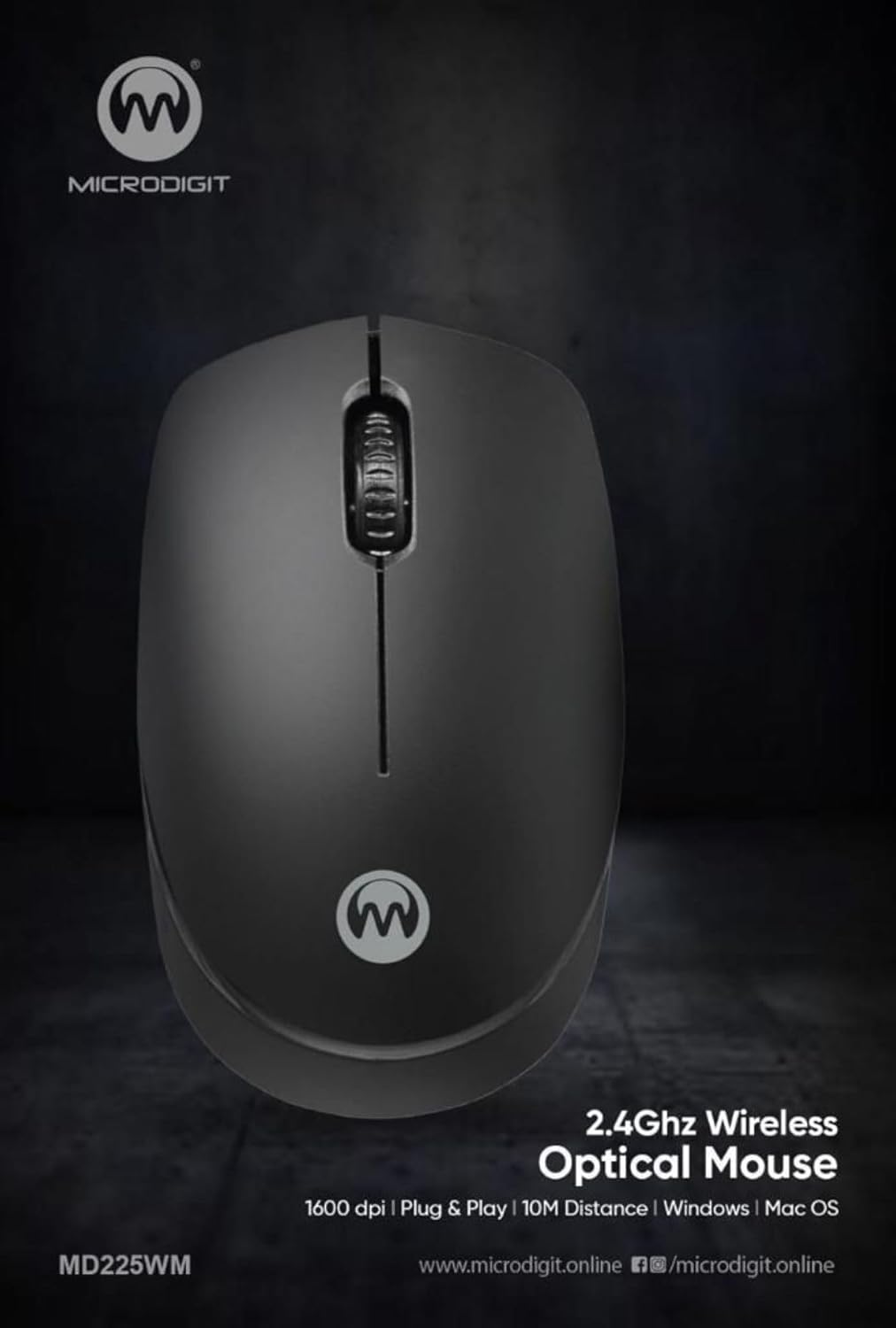
Image 1: Top view of the Microdigit MD225WM Wireless Mouse, showing the left button, right button, and scroll wheel.

Image 2: Angled view of the Microdigit MD225WM Wireless Mouse, highlighting its ergonomic design.
3. Setup Instructions
Follow these steps to set up your Microdigit MD225WM Wireless Mouse:
- Insert Battery: Locate the battery compartment on the underside of the mouse. Open the cover and insert one AA battery, ensuring correct polarity (+/-). Close the battery cover securely.
- Retrieve USB Receiver: The small USB receiver (dongle) is typically stored inside the battery compartment or an adjacent slot for safekeeping. Carefully remove it.
- Connect USB Receiver: Plug the USB receiver into an available USB port on your computer (desktop or laptop).
- Automatic Connection: The mouse should automatically connect to your computer within a few seconds. No additional drivers are usually required for basic functionality.
- Test Functionality: Move the mouse and click the buttons to confirm it is working correctly.
4. Operating Instructions
The Microdigit MD225WM Wireless Mouse is designed for straightforward operation:
- Basic Navigation: Move the mouse on a flat surface to control the cursor on your screen.
- Clicking: Use the left button for primary actions (e.g., selecting items, opening links) and the right button for secondary actions (e.g., opening context menus).
- Scrolling: Rotate the scroll wheel to move up or down through documents and web pages. The scroll wheel can also function as a middle button when pressed.
- DPI Setting: The mouse operates at a fixed 1600 DPI (Dots Per Inch) resolution, providing precise and responsive cursor control.
- Wireless Range: Maintain operation within approximately 10 meters (33 feet) of the USB receiver for optimal performance.
- Compatibility: Compatible with operating systems such as Linux and Windows XP, and generally with newer versions of Windows and Mac OS.
5. Maintenance
Proper maintenance ensures the longevity and optimal performance of your mouse:
- Battery Replacement: When the mouse performance degrades or stops responding, it is time to replace the AA battery. Open the battery compartment, remove the old battery, and insert a new AA battery with correct polarity.
- Cleaning: Use a soft, dry, lint-free cloth to clean the exterior of the mouse. For the optical sensor on the underside, use a cotton swab lightly dampened with isopropyl alcohol, ensuring no liquid enters the mouse's interior.
- Storage: When not in use for extended periods, remove the battery to prevent leakage. Store the mouse and USB receiver in a cool, dry place.
- USB Receiver Care: Avoid bending or damaging the USB receiver. When transporting the mouse, store the receiver in its designated slot within the mouse.
6. Troubleshooting
If you encounter issues with your Microdigit MD225WM mouse, refer to the following common solutions:
- Mouse Not Responding:
- Check if the battery is correctly inserted and has sufficient charge. Replace if necessary.
- Ensure the USB receiver is securely plugged into a working USB port on your computer.
- Try plugging the USB receiver into a different USB port.
- Restart your computer.
- Erratic Cursor Movement:
- Clean the optical sensor on the underside of the mouse.
- Ensure you are using the mouse on a clean, non-reflective, and uniform surface (e.g., a mouse pad). Avoid glass or highly reflective surfaces.
- Connection Issues / Lag:
- Move the mouse closer to the USB receiver.
- Ensure there are no large metal objects or other wireless devices (like Wi-Fi routers, cordless phones) operating very close to the mouse or receiver that could cause interference.
- Try pairing the mouse again if your system has a re-pairing utility (though typically not needed for plug-and-play devices).
7. Specifications
| Feature | Detail |
|---|---|
| Brand | Microdigit |
| Model | MD225WM |
| Connectivity Technology | 2.4GHz Wireless (USB Receiver) |
| Movement Detection | Optical |
| DPI Resolution | 1600 DPI |
| Tracking Speed | 14 inches per second |
| Wireless Range | Up to 10 meters |
| Number of Buttons | 3 (Left, Right, Scroll Wheel) |
| Hand Orientation | Ambidextrous |
| Battery Type | 1 x AA (Included) |
| Battery Average Life | 12 Months |
| Compatible Devices | Personal Computer, Laptop |
| Compatible Operating Systems | Linux, Windows XP (and newer versions) |
| Product Dimensions (LxWxH) | 10 x 6 x 4 cm |
| Item Weight | 0.7 g |
8. Warranty and Support
The Microdigit MD225WM Wireless Mouse comes with a 3-Year Warranty from the date of purchase, covering manufacturing defects under normal use. Please retain your proof of purchase for warranty claims.
For technical support, warranty claims, or further inquiries, please contact the manufacturer, ASHTEL GROUP, or your retailer. Refer to the product packaging or the manufacturer's official website for specific contact details.