
1. Introduction
The Bamboosang X3 Portable Document Scanner is a versatile device designed for high-definition document capture and projection. Featuring an 8-megapixel camera and 4 LED fill lights, it supports scanning up to A3 size documents. Its advanced software includes intelligent continuous shooting, Optical Character Recognition (OCR), automatic correction, and edge filling for broken pages. This scanner is suitable for various applications such as creating art books, live streaming, classroom education, and remote work meetings.
Important Note: The software for this document scanner is not compatible with Apple Mac OS. It supports Windows operating systems only.
2. Setup
- Unpack the Device: Carefully remove the scanner and all accessories from its packaging.
- Position the Scanner: Place the scanner on a stable, flat surface. Ensure the base is secure. The scanner features a small, foldable, and lightweight design with a stable base. The arm height is fixed, and the camera head is not adjustable.
- Connect to Computer: Connect the scanner to your Windows computer using the provided USB cable.
- Software Installation:
- Insert the provided CD-ROM or USB drive into your computer to install the scanner software.
- If your computer lacks a CD-ROM drive, download the scanner software from the official Bamboosang website.
- Follow the on-screen instructions to complete the installation.
- Initial Test: After installation, launch the software and perform a test scan to ensure proper functionality.

Figure 2.1: User operating the Bamboosang X3 scanner. The device supports automatic picture taking, eliminating the need for continuous manual clicks on the computer screen by allowing users to set the shooting frequency.
3. Operating Instructions
3.1 Document Scanning
- Place Document: Position the document or object you wish to scan directly under the scanner camera. Ensure it is flat and within the A3 capture area.
- Adjust Lighting: The scanner features 4 LED lights with 3 light settings. Adjust these lights within the software or on the device to ensure optimal illumination for your document. This helps achieve clear scanning even in dark environments.
- Initiate Scan: Use the scanner software interface to initiate the scanning process. The device supports high-definition scanning with its 8-megapixel camera.
- Automatic Features: The software includes features such as automatic correction, filling the edges of broken pages, finger-free cropping (to remove fingers from the final scan), multifile scanning, and background purification.

Figure 3.1: Scanner head with 4 LED lights and an 8-megapixel camera. These features enable clear, high-definition scanning and stable performance in various lighting conditions.

Figure 3.2: Overview of professional scanning features. These include automatic filling of scanned file edges, synthesis of scanned images, automatic correction, finger-free cropping, multifile scanning, and background purification, making it easy to operate for office use and fast file processing.
3.2 Optical Character Recognition (OCR)
The Bamboosang X3 scanner features powerful OCR technology. After scanning a document, the software can recognize text in multiple languages and convert the scanned pages into editable document formats such as Word, Excel, or PDF.
- Scan Document: Follow the steps in Section 3.1 to scan your document.
- Activate OCR: Within the scanner software, locate and activate the OCR function.
- Convert and Save: Select the desired output format (e.g., Word, Excel, PDF) and save the editable document to your computer.
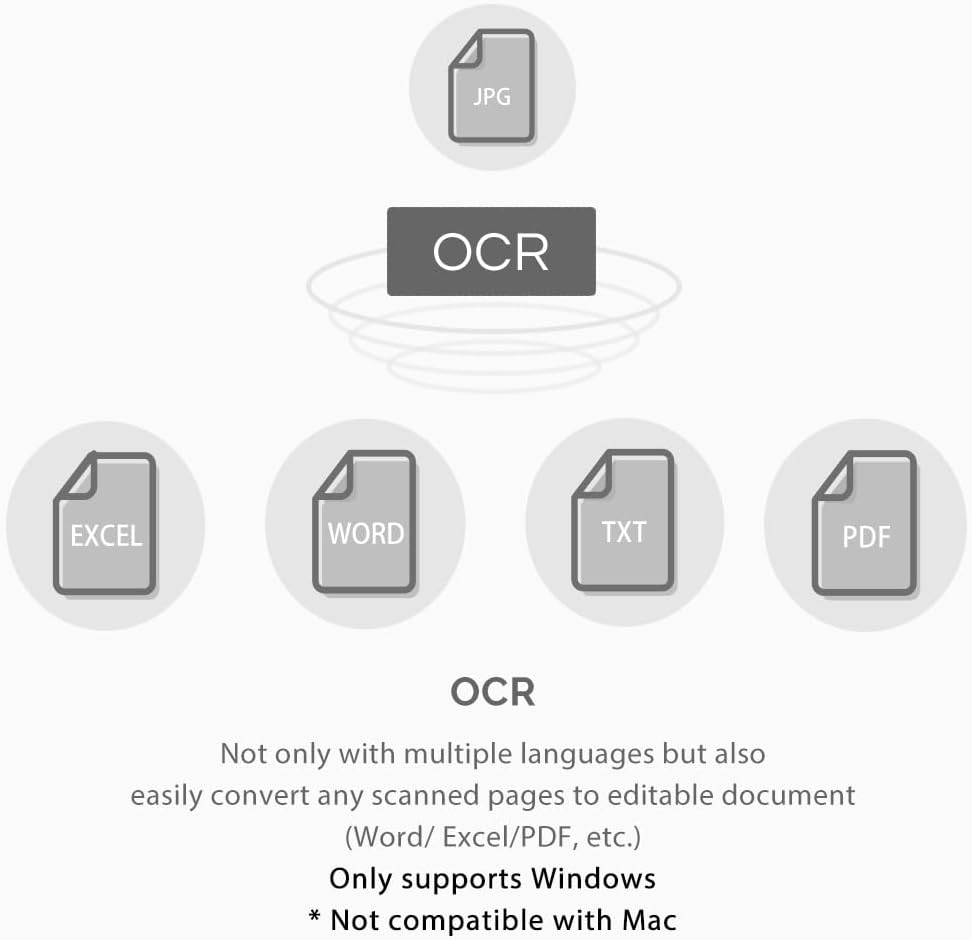
Figure 3.3: OCR capability. This feature allows conversion of scanned pages into editable documents (Word, Excel, PDF, TXT) and supports multiple languages. Please note, this function is only compatible with Windows and not with Mac operating systems.
3.3 Video Recording and Real-time Projection
The scanner can also function as a document camera, allowing for real-time video recording and projection, which is useful for presentations, online teaching, or meetings.
- Position Object: Place the object or document under the camera.
- Start Video Mode: In the software, select the video recording or real-time projection mode.
- Record/Project: Begin recording or project the live feed onto a screen. This feature helps improve office efficiency by enabling real-time visual sharing.

Figure 3.4: Real-time shooting and video recording. The scanner can record video in real-time, enhancing efficiency in various settings such as meetings or educational environments.
4. Maintenance
- Cleaning: Regularly wipe the scanner's exterior with a soft, dry cloth. For the camera lens, use a specialized lens cleaning cloth to avoid scratches.
- Storage: When not in use, fold the scanner for compact storage. Store it in a cool, dry place away from direct sunlight and extreme temperatures.
- Software Updates: Periodically check the Bamboosang website for software updates to ensure optimal performance and access to new features.
5. Troubleshooting
- Software Installation Issues: If you encounter problems during software installation, ensure your computer meets the minimum system requirements (Windows OS). If you do not have a CD-ROM drive, download the software from the official website.
- Scanner Not Detected: Verify that the USB cable is securely connected to both the scanner and your computer. Try connecting to a different USB port.
- Poor Scan Quality: Ensure the document is flat and well-lit. Adjust the LED lights if necessary. Clean the camera lens if smudges are visible.
- Mac OS Incompatibility: The Bamboosang X3 scanner software is exclusively designed for Windows operating systems and is not compatible with Apple Mac OS.
6. Specifications
| Feature | Specification |
|---|---|
| Brand | bamboosang |
| Model Name | X3 |
| Item Model Number | X3-new |
| Color | Grey |
| Scanner Type | Document |
| Connectivity Technology | USB |
| Optical Sensor Technology | CMOS |
| Resolution | Circa 635 dpi |
| Color Depth | 24-bit |
| Sheet Size | A3 |
| Minimum System Requirements | Windows (version not specified) |
| UPC | 727196121011 |

Figure 6.1: Dimensions of the Bamboosang X3 Portable Document Scanner.
7. Warranty and Support
For any questions regarding software installation or product usage, please refer to the label on the device for contact information. You may also send an email with your order number and a detailed description of your issue. Our technical support team will assist you as soon as possible.
Information regarding spare parts availability and guaranteed software updates is not available at this time.
