
Introduction
Thank you for purchasing the SANSUI 24 Inch Gaming Monitor, model ES-G24F4. This manual provides essential information for the proper setup, operation, and maintenance of your monitor. Please read this manual thoroughly before using the product and retain it for future reference.
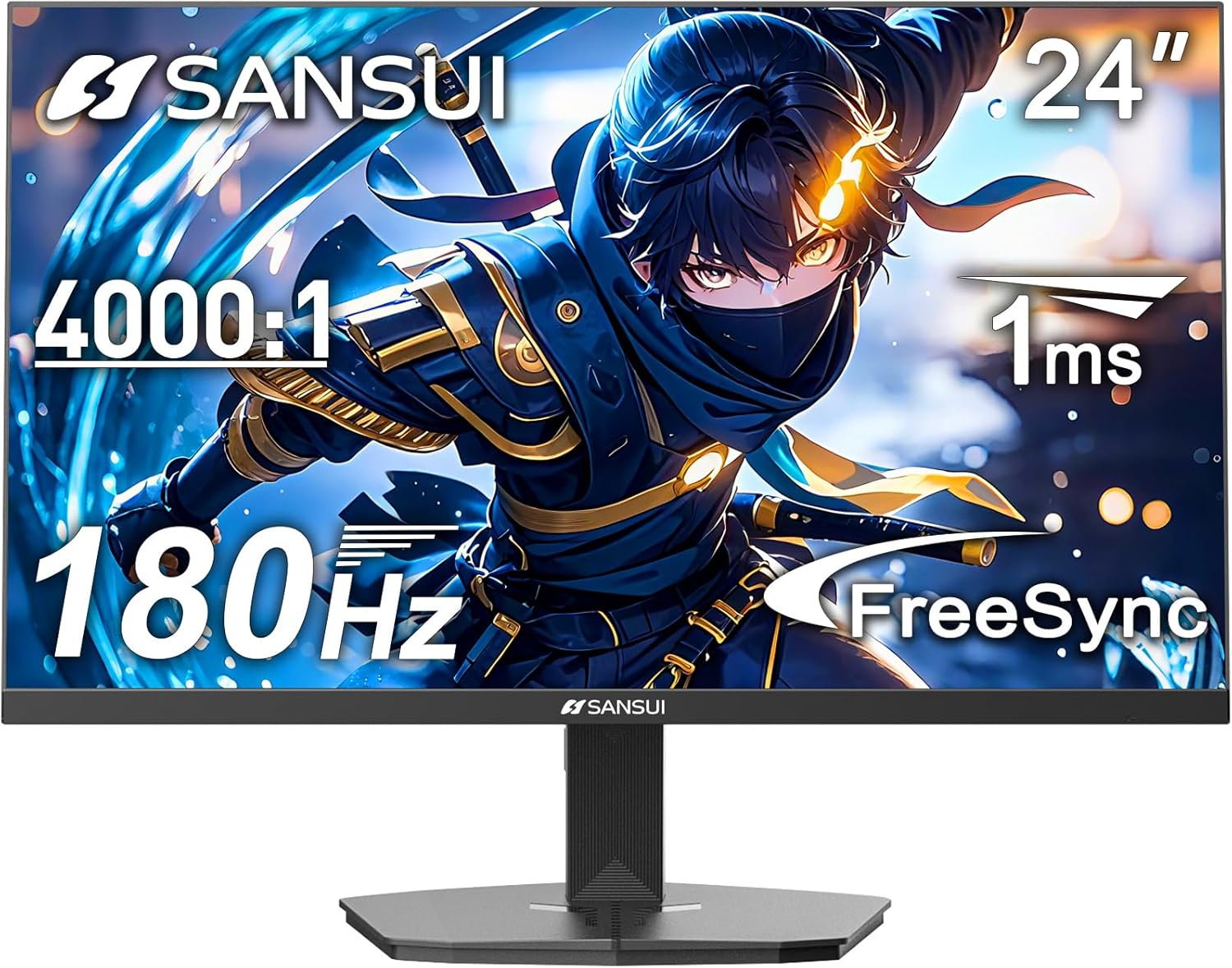
Image: Front view of the SANSUI 24 Inch Gaming Monitor (ES-G24F4).
Safety Information
- Ensure the monitor is placed on a stable, flat surface to prevent accidental falls.
- Use only the power adapter supplied with the monitor.
- Do not expose the monitor to rain or moisture to avoid electric shock.
- Avoid blocking ventilation openings to prevent overheating.
- Do not attempt to repair the monitor yourself. Refer all servicing to qualified personnel.
- Unplug the monitor from the power outlet during lightning storms or when unused for extended periods.
Package Contents
Verify that all items are present in the package:
- SANSUI 24 Inch Gaming Monitor (ES-G24F4)
- Monitor Stand (Base and Neck)
- Power Adapter
- HDMI Cable (1.5m)
- User Manual (this document)
Monitor Features
The SANSUI ES-G24F4 monitor is designed with features to enhance your viewing and gaming experience:
- 24 Inch Full HD (1920x1080) Display: Provides clear and detailed visuals.
- 180Hz Refresh Rate: Delivers smooth motion for gaming and fast-paced content.
- 1ms MPRT Response Time: Reduces motion blur and ghosting.
- Adaptive Sync Technology: Synchronizes the monitor's refresh rate with your graphics card to eliminate screen tearing.
- 110% sRGB Color Gamut: Offers vibrant and accurate color reproduction.
- DP 1.4 and HDMI 2.0 Ports: Multiple connectivity options for various devices.
- 75x75mm VESA Mount Compatibility: Allows for alternative mounting solutions.
- Ergonomic Design: Features eye care technology and a tilt-adjustable stand (-5° to 15°).
- Exclusive Gaming Modes: Pre-set modes for Racing, FPS, and RTS games.

Image: Overview of key features including HDMI+DP Ports, 180Hz Refresh Rate, 1ms Response Time, VESA 75*75mm, FreeSync, FHD 1920*1080, HDR10+, and Eye Care.
Setup
1. Assembling the Stand
- Carefully remove the monitor and stand components from the packaging.
- Attach the stand neck to the monitor panel. Ensure it clicks securely into place or is fastened with screws if provided.
- Connect the stand base to the stand neck, securing it with the thumb screw or screws from the bottom.
- Place the assembled monitor on a stable desk or surface.
2. Connecting Cables
Refer to the image below for port locations:
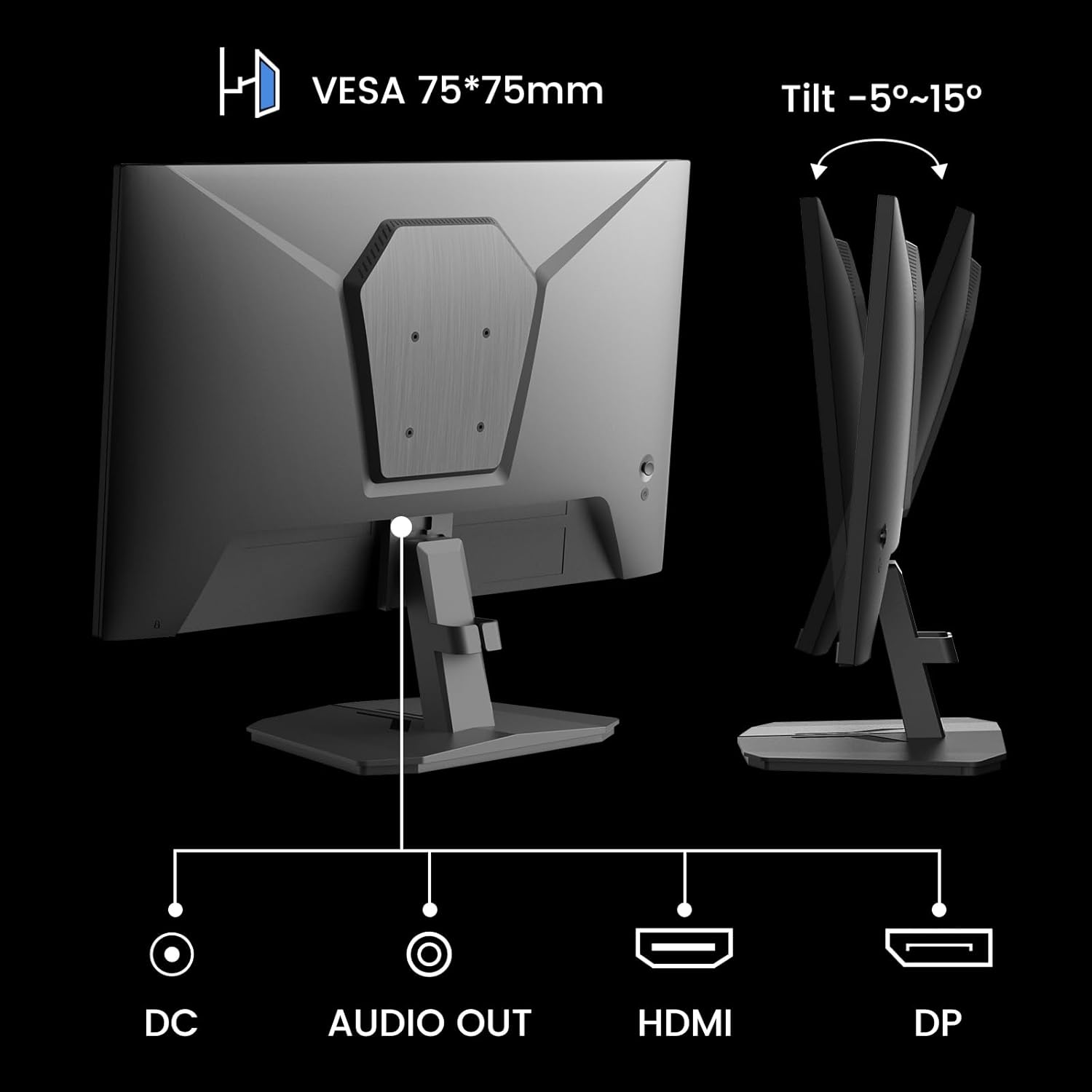
Image: Rear view of the monitor showing DC power input, Audio Out, HDMI, and DisplayPort (DP) connections.
- Power Connection: Connect the power adapter to the DC input port on the monitor, then plug the adapter into a power outlet.
- Video Connection:
- For optimal performance, use the included HDMI cable or a DisplayPort (DP) cable to connect your computer's graphics card to the corresponding port on the monitor.
- Ensure the cable is securely connected at both ends.
- Audio Output: If desired, connect external speakers or headphones to the Audio Out port.
3. VESA Mounting (Optional)
The monitor supports a 75x75mm VESA mount. If you wish to use a wall mount or an alternative monitor arm:
- Remove the stand from the monitor by pressing the release button or unscrewing the attachment points.
- Attach your VESA-compatible mount to the four screw holes on the back of the monitor using appropriate screws (typically M4 screws, not included with the monitor).
- Follow the instructions provided with your VESA mount for installation.
Operating the Monitor
1. Power On/Off
Press the power button, usually located on the back or bottom right of the monitor, to turn it on or off. The power indicator light will illuminate when the monitor is on.
2. On-Screen Display (OSD) Menu
The OSD menu allows you to adjust various monitor settings. Typically, buttons on the back or bottom of the monitor are used to navigate the OSD. Common controls include:
- Menu Button: Opens the OSD menu.
- Navigation Buttons: Used to move up, down, left, or right within the menu.
- Enter/Select Button: Confirms a selection.
- Exit Button: Closes the OSD menu.
3. Adjusting Settings
Key settings you can adjust via the OSD menu include:
- Picture Settings: Brightness, Contrast, Sharpness, Gamma.
- Color Settings: Color Temperature, Hue, Saturation.
- Input Source: Manually select between HDMI and DisplayPort inputs.
- Gaming Modes: Select pre-optimized modes for different game types.
- FreeSync/Adaptive Sync: Enable or disable adaptive synchronization.
- HDR: Enable or disable High Dynamic Range.
- Response Time (MPRT): Adjust the monitor's response time setting. Note that higher settings might introduce artifacts as mentioned in customer reviews. It is recommended to use the default setting if artifacts appear.
- Eye Care: Activate features designed to reduce eye strain.

Image: Examples of the monitor's various picture modes, including Game, Photo, Movie, and Standard.
4. Gaming Features
The ES-G24F4 monitor includes several features optimized for gaming:
- 180Hz Refresh Rate & 1ms Response Time: These specifications ensure fluid visuals and minimal input lag, crucial for competitive gaming.
- Adaptive Sync: This technology synchronizes the monitor's refresh rate with your GPU's frame rate, eliminating screen tearing and stuttering for a smoother gaming experience.
- HDR10 Support: Provides a wider range of colors and contrast for a more immersive visual experience in compatible content.
- Exclusive Gaming Modes: Access pre-calibrated display settings for specific game genres:
- Racing Mode: Optimized for racing games.
- FPS Mode: Optimized for First-Person Shooter games.
- RTS Mode: Optimized for Real-Time Strategy games.

Image: Visual comparison demonstrating the effect of FreeSync (Adaptive Sync) being ON versus OFF, showing reduced screen tearing when active.

Image: Visual comparison of HDR (High Dynamic Range) being ON versus OFF, illustrating enhanced clarity and color depth when active.

Image: Examples of the monitor's exclusive gaming modes: Racing, FPS (First-Person Shooter), and RTS (Real-Time Strategy).
Maintenance
- Cleaning the Screen: Gently wipe the screen with a soft, lint-free cloth. For stubborn marks, dampen the cloth with a small amount of screen cleaner specifically designed for monitors. Do not spray cleaner directly onto the screen.
- Cleaning the Casing: Use a soft, dry cloth to wipe the monitor casing. Avoid abrasive cleaners or solvents.
- Ventilation: Ensure the monitor's ventilation holes are clear of dust and obstructions to prevent overheating.
- Power Off: Always turn off and unplug the monitor before cleaning or when not in use for extended periods.
Troubleshooting
If you encounter issues with your monitor, refer to the following common problems and solutions:
| Problem | Possible Cause | Solution |
|---|---|---|
| No image on screen | Monitor not powered on; Incorrect input source; Loose video cable. | Ensure power cable is connected and monitor is on. Select correct input source (HDMI/DP). Check video cable connections. |
| Image is blurry or distorted | Incorrect resolution; Graphics card driver issues; Faulty cable. | Set display resolution to 1920x1080. Update graphics drivers. Try a different video cable. |
| Screen tearing or stuttering | Adaptive Sync not enabled; Graphics card not compatible or drivers outdated. | Enable Adaptive Sync in the OSD menu and your graphics card control panel. Ensure graphics drivers are up to date. |
| No sound from Audio Out | External speakers/headphones not connected; Volume too low; Audio output not selected on PC. | Check connections. Adjust volume. Ensure monitor is selected as audio output device in PC settings. |
| Monitor flickering | Faulty cable; Graphics card issue; Monitor settings. | Try a different video cable. Update graphics drivers. Reset monitor settings to factory defaults. |
If the problem persists after trying these solutions, please contact SANSUI customer support.
Specifications
| Feature | Detail |
|---|---|
| Model | ES-G24F4 |
| Screen Size | 24 Inches |
| Resolution | 1920 x 1080 (Full HD) |
| Refresh Rate | 180Hz |
| Response Time | 1ms MPRT |
| Brightness | 300 Nits |
| Color Gamut | 110% sRGB |
| Aspect Ratio | 16:9 |
| Viewing Angle | 178° (Horizontal/Vertical) |
| Connectivity | 1x DisplayPort 1.4, 1x HDMI 2.0, 1x Audio Out, 1x DC Power Input |
| VESA Compatibility | 75 x 75mm |
| Tilt Adjustment | -5° to 15° |
| Speakers | No |
| Item Weight | 5.94 pounds |

Image: Diagram illustrating the product dimensions of the SANSUI 24 Inch Gaming Monitor.

Image: Visual representation of the monitor's color depth and gamut, showing 72% NTSC, 8-bit color depth, and 16.7 million color support.
Warranty and Support
SANSUI provides the following support for your monitor:
- Warranty: A 30-day money-back and free replacement warranty from the order date.
- Technical Support: Lifetime technical support is available.
- Contact: For warranty claims or technical assistance, please refer to the contact information provided on the SANSUI official website or your purchase documentation.

Image: Information regarding SANSUI's lifetime technical support, 12-month warranty, and free one-month back and replacement policy.


