
Tesvor S5
Tesvor S5 Robot Vacuum and Mop User Manual
Model: S5
Brand: Tesvor
1. Introduction
Welcome to the Tesvor S5 Robot Vacuum and Mop user manual. This guide provides essential information for setting up, operating, and maintaining your Tesvor S5 to ensure optimal performance and a clean home. The Tesvor S5 is designed for efficient cleaning with its powerful suction, intelligent navigation, and versatile vacuuming and mopping capabilities.

Figure 1.1: Tesvor S5 Robot Vacuum and Mop
2. Included Components
The Tesvor S5 package includes the following items:
- 1 x S5 Robot Vacuum with One Lateral Brush
- 1 x Charging Dock
- 1 x Power Adapter
- 1 x 350 mL Water Tank (with 2 washable mopping cloths)
- 1 x 600 mL Dustbin
- 1 x High-efficiency Filter/Sponge
- 1 x Side Brushes
- 1 x User Manual
- 1 x Networking Guide
3. Setup Guide
3.1 Unboxing and Initial Placement
- Carefully remove all components from the packaging.
- Choose a suitable location for the charging dock. Ensure it is against a wall, with at least 0.5 meters (1.6 feet) of clear space on either side and 1.5 meters (4.9 feet) in front.
- Connect the power adapter to the charging dock and plug it into a power outlet. Ensure the power cord is neatly arranged to prevent entanglement.
3.2 First Use and Charging
- Place the Tesvor S5 robot vacuum onto the charging dock. Ensure the charging contacts on the robot align with those on the dock. The robot will begin charging automatically.
- For the first use, fully charge the robot vacuum. This may take several hours.
3.3 App Connection and Mapping
- Download the "Tesvor Home" App from your smartphone's app store (available for iOS and Android).
- Follow the in-app instructions to connect your Tesvor S5 to your home Wi-Fi network (supports 2.4Ghz WiFi only).
- Initiate the first cleaning cycle via the app. The robot will use its 360° LiDAR navigation to scan and create a precise map of your home. This map is crucial for efficient cleaning and setting up advanced features like No-Go Zones.
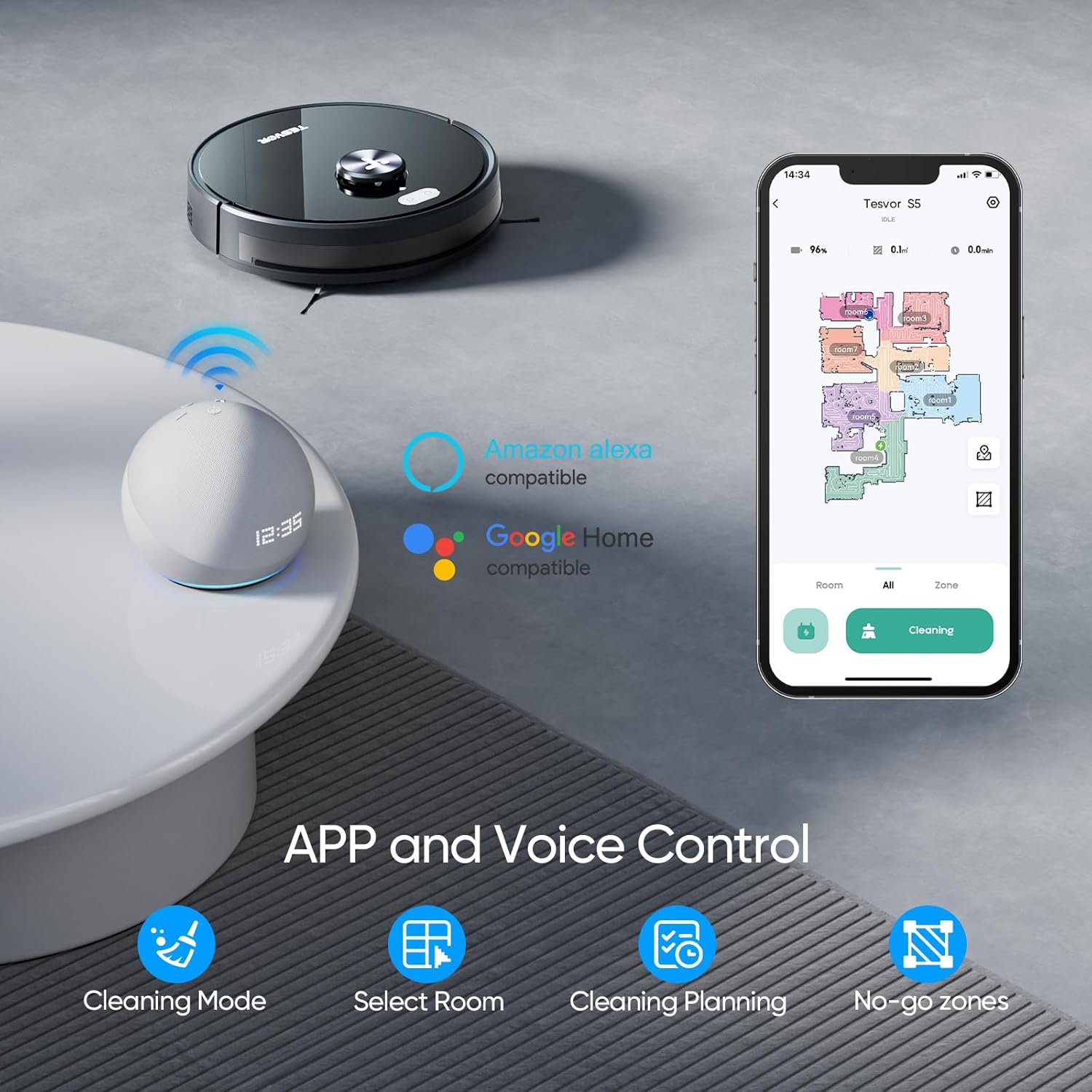
Figure 3.1: Tesvor S5 App and Voice Control Setup
4. Operating Instructions
4.1 Cleaning Modes
The Tesvor S5 offers flexible cleaning modes for various needs:
- Sweeping Modes: 3 adjustable sweeping modes for different debris levels.
- Mopping Modes: 3 adjustable mopping modes to control water output via the app.

Figure 4.1: Tesvor S5 2-in-1 Vacuum & Mop Functionality

Figure 4.2: One Machine with Sweeping and Mopping Functions
4.2 Suction Power
The Tesvor S5 features up to 3000Pa strong suction, ideal for pet hair, carpets, and hard floors. The suction power can be adjusted via the app.

Figure 4.3: Tesvor S5 3000Pa Strong Suction

Figure 4.4: Adjustable Suction Power (Silent, Normal, Powerful)
4.3 Navigation and Mapping
Equipped with 360° Advanced LiDAR Navigation, the S5 scans your environment to create high-precision maps for intelligent navigation and route planning. It can build a map in minutes and store up to 5 maps.

Figure 4.5: Tesvor S5 360° LiDAR Navigation

Figure 4.6: Comprehensive Application Functionality for Mapping and Control
4.4 No-Go Zones and Virtual Walls
Set up to 10 No-Go Zones and virtual walls via the Tesvor Home App to restrict the robot from entering specific areas (e.g., carpets during mopping, pet areas, children's play areas).

Figure 4.7: Setting No-Go Zones and Virtual Walls

Figure 4.8: Defining Inaccessible Zones
4.5 Smart Features
- Breakpoint Cleaning: If the battery runs low during cleaning, the robot will return to the charging dock, recharge, and then resume cleaning from where it left off.
- Self-Charging: The robot automatically returns to its charging dock when cleaning is complete or the battery is low.
- Voice Control: Compatible with Amazon Alexa and Google Home for convenient voice commands.
- Anti-Collision & Anti-Drop: Built-in sensors prevent collisions with obstacles and falls from stairs.
- Carpet Detection: Automatically switches to maximum suction mode when on carpets.

Figure 4.9: Breakpoint Cleaning Feature

Figure 4.10: Sweeping Area, Running Time, and Self-Charging

Figure 4.11: Safety and Navigation Features
4.6 Official Product Videos
Video 4.1: Tesvor S5 Robot Vacuum Overview. This video provides a comprehensive look at the Tesvor S5's features and operation.
Video 4.2: Product Comparison - LIDAR Robot Vacuum. This video highlights the LiDAR navigation capabilities of the Tesvor S5.
5. Maintenance
Regular maintenance ensures the longevity and optimal performance of your Tesvor S5.
5.1 Dustbin and Filter Cleaning
- Empty the 600 mL dustbin after each cleaning cycle or when full.
- Clean the high-efficiency filter and sponge regularly to maintain strong suction. Tap off loose debris and rinse if necessary (ensure completely dry before re-installing).
5.2 Water Tank Maintenance
- Fill the 350 mL electric water tank with clean water before mopping.
- Remove and clean the washable mopping cloths after each mopping session.
- Empty any remaining water from the tank after use to prevent mildew and odors.

Figure 5.1: Water Tank and Dust Bin Capacities
5.3 Brush and Sensor Cleaning
- Regularly check and clean the main rolling brush and side brushes for tangled hair or debris.
- Wipe the sensors (LiDAR, anti-drop, anti-collision) with a soft, dry cloth to ensure accurate navigation.
6. Troubleshooting
If you encounter issues with your Tesvor S5, refer to the following common solutions:
- Robot not charging: Ensure the charging dock is powered on and the robot's charging contacts are clean and properly aligned with the dock.
- Robot stuck or lost: Clear obstacles from the robot's path. If it's lost, manually place it back on the charging dock or use the app to guide it.
- Poor suction: Empty the dustbin, clean or replace the filter, and check the main brush for blockages.
- Mopping not effective: Ensure the water tank is filled, the mopping cloth is clean and properly attached, and the water output level is set correctly in the app.
- App connectivity issues: Ensure your Wi-Fi is 2.4Ghz, the robot is within Wi-Fi range, and try restarting both the robot and your router.
For more detailed troubleshooting or persistent issues, please consult the full User Manual PDF available online or contact Tesvor customer support.
7. Specifications
| Feature | Detail |
|---|---|
| Brand | Tesvor |
| Model Name | S5 |
| Special Feature | Bagless |
| Product Dimensions | 13.3"L x 13.3"W x 3.97"H |
| Filter Type | Foam |
| Battery Life | 180 minutes |
| Dustbin Capacity | 600 Milliliters |
| Water Tank Capacity | 350 Milliliters |
| Power Source | Battery Powered |
| Compatible Devices | Amazon Echo, Google Home |
| Item Weight | 10.64 pounds |
8. Warranty and Support
For warranty information, product registration, or technical support, please refer to the official Tesvor website or the full User Manual PDF provided with your product. You can also find additional resources and FAQs on the Tesvor brand store on Amazon.
User Manual (PDF): Download Here
Related documentsS5


Ask a question about this manual
Ask about setup, troubleshooting, compatibility, parts, safety, or missing instructions. Manuals+ will review the question and use this page’s manual context to help answer it.