
Codnida LC323
Codnida Camera LC323 U Instruction Manual
Model: LC323
1. Introduction
This instruction manual provides comprehensive guidance for the installation, operation, and maintenance of your Codnida Camera LC323 U. Please read this manual thoroughly before using the device to ensure proper functionality and safety. Keep this manual for future reference.
2. Product Overview and Components
The Codnida Camera LC323 U is a wireless security camera designed for surveillance. It features an E27 base for easy installation into standard light bulb sockets, offering a discreet and convenient monitoring solution.

Figure 2.1: Camera Components
This image displays the Codnida Camera LC323 U with its key components labeled, including the E27 Base, TF card slot, Reset button, Loudspeaker, Working indicator light, Lens, and Microphone.
Key Components:
- E27 Base: Standard screw-in base for power and mounting.
- TF Card Slot: For local storage of recordings (MicroSD card not included).
- Reset Button: Used to restore factory settings.
- Loudspeaker: For two-way audio communication and alarm sounds.
- Working Indicator: LED light indicating camera status.
- Lens: Captures video footage.
- Microphone: For audio input during two-way communication.
3. Setup
3.1. Installation
The Codnida Camera LC323 U is designed for simple, wire-free installation into a standard E27 light bulb socket. Ensure the power to the socket is turned off before installation.
- Locate an E27 light bulb socket in your desired monitoring area.
- Ensure the power supply to the socket is disconnected at the main switch.
- Carefully screw the camera into the E27 socket until it is secure.
- Restore power to the socket. The camera will power on and its indicator light will activate.

Figure 3.1: Easy Installation
This image illustrates the straightforward installation process of screwing the Codnida Camera LC323 U into an existing E27 light fixture, highlighting its wire-free setup.
3.2. App Download and Account Registration
The camera operates via the CloudEdge application. Download the app from your device's app store (iOS or Android).
- Search for "CloudEdge" in the App Store or Google Play Store.
- Download and install the application.
- Open the CloudEdge app and follow the on-screen instructions to register a new account or log in if you already have one.
3.3. Connecting the Camera to Wi-Fi
After installing the camera and setting up your CloudEdge account, proceed with connecting the camera to your Wi-Fi network.
- In the CloudEdge app, tap the "+" icon to add a new device.
- Select the appropriate camera model (LC323 U) from the list.
- Follow the in-app prompts to connect the camera to your 2.4GHz Wi-Fi network. Ensure your mobile device is connected to the same Wi-Fi network during setup.
- The app will guide you through scanning a QR code with the camera's lens or listening for a connection tone.
- Once connected, you can name your camera and begin monitoring.
4. Operating Instructions
The CloudEdge app provides full control and access to your Codnida Camera LC323 U's features.

Figure 4.1: CloudEdge App Interface
This image displays the CloudEdge mobile application interface, showing a live camera feed and various control options such as screenshot, two-way talk, record, motion detection settings, PTZ control, and lens switch.
4.1. Live View and Recording
Access the live feed of your camera through the CloudEdge app. From the live view screen, you can:
- Screenshot: Capture still images from the live feed.
- Record: Manually start and stop video recording.
- Playback: Review recorded footage stored on the TF card or cloud storage.
4.2. Motion Detection and Auto Tracking
The camera features intelligent motion detection and auto-tracking capabilities.

Figure 4.2: Motion Detection & Auto Tracking
This image illustrates the camera's ability to detect motion and automatically track moving subjects, such as pets, within its 355-degree horizontal and 50-degree vertical range.
- Motion Detection: The camera can detect movement and send instant alerts to your mobile device.
- Auto Tracking: When motion is detected, the camera can automatically pan and tilt to follow the moving object.
- Sensitivity Settings: Adjust motion detection sensitivity in the app settings to minimize false alarms.
4.3. Two-Way Audio
Communicate with individuals near the camera using the two-way audio feature.

Figure 4.3: Two-Way Audio Communication
This image demonstrates the two-way audio functionality, allowing users to speak and listen through the camera via the mobile app, useful for interacting with visitors or deterring unwanted guests.
Tap the microphone icon in the live view to speak through the camera's loudspeaker. You can also hear audio from the camera's microphone.
4.4. Night Vision
The camera provides clear surveillance even in low-light conditions with its color night vision capabilities.

Figure 4.4: 2K HD Quality with Color Night Vision
This image compares a scene captured in daylight with a vibrant color image to the same scene captured at night using the camera's color night vision, demonstrating its ability to provide detailed, colored footage in low-light environments.
The camera automatically switches between day and night modes. Infrared (IR) LEDs provide black and white night vision, while integrated white lights enable color night vision when activated.
4.5. Intelligent Sound & White Light Alarm
Enhance security with customizable alarm options.
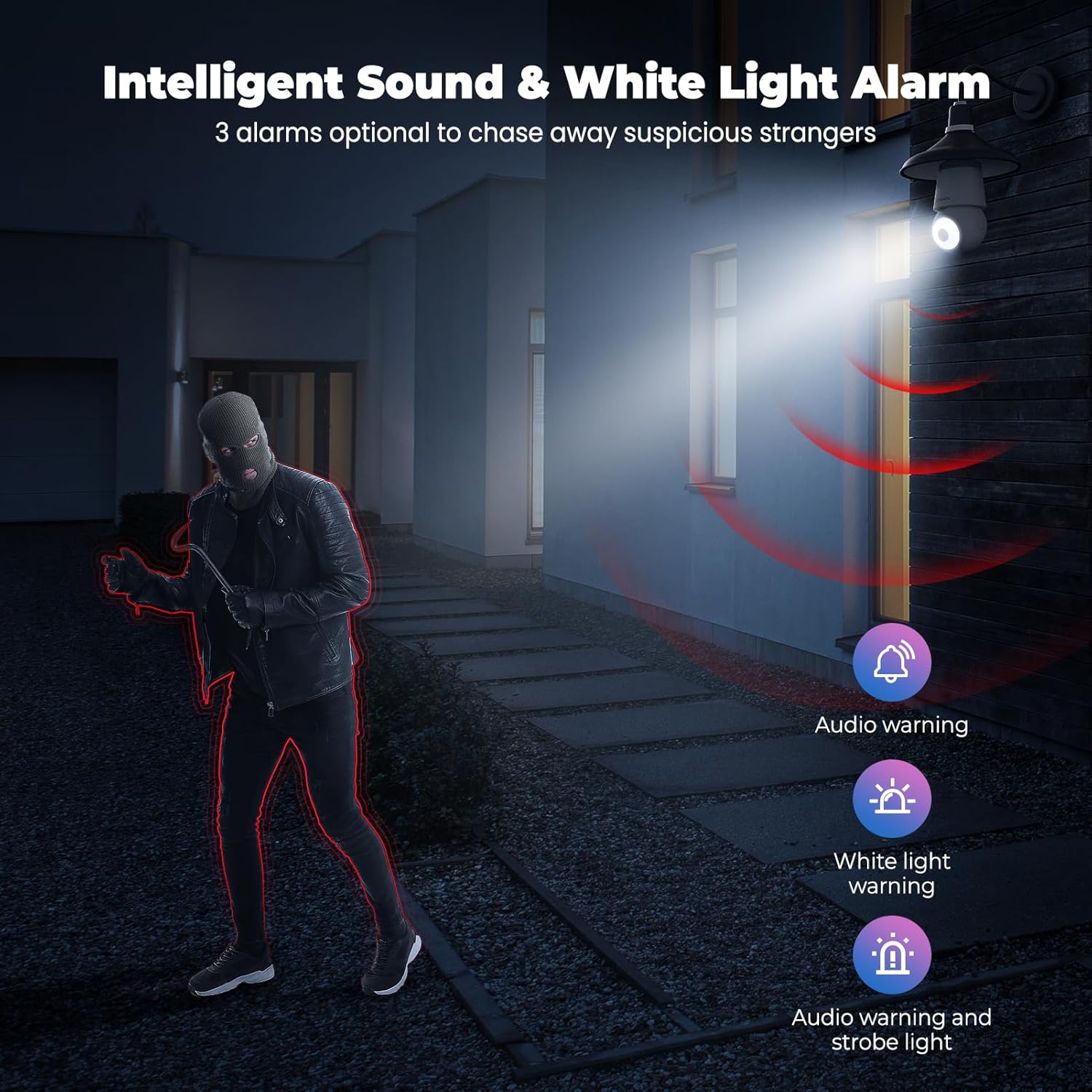
Figure 4.5: Intelligent Sound & White Light Alarm
This image illustrates the camera's alarm features, offering three optional responses to suspicious activity: an audio warning, a white light warning, or a combination of audio and strobe light to deter intruders.
In the app settings, you can configure the camera to trigger an alarm upon motion detection. Options include an audible warning, a bright white light, or a combination of both.
4.6. Human AI Intelligent Analytics
The camera utilizes AI for advanced object recognition.

Figure 4.6: Human AI Intelligent Analytics
This image demonstrates the camera's AI capabilities, which can differentiate and label various objects such as people, cars, animals, and packages within the surveillance area. Note that person analytics are typically free, while other object analytics may require a subscription.
The camera can distinguish between different types of objects (e.g., people, vehicles, animals, packages) to provide more accurate alerts. Person detection is typically a standard feature, while other specific object analytics may require a subscription service.
4.7. 24/7 Recording and Storage
The camera supports continuous recording and flexible storage options.
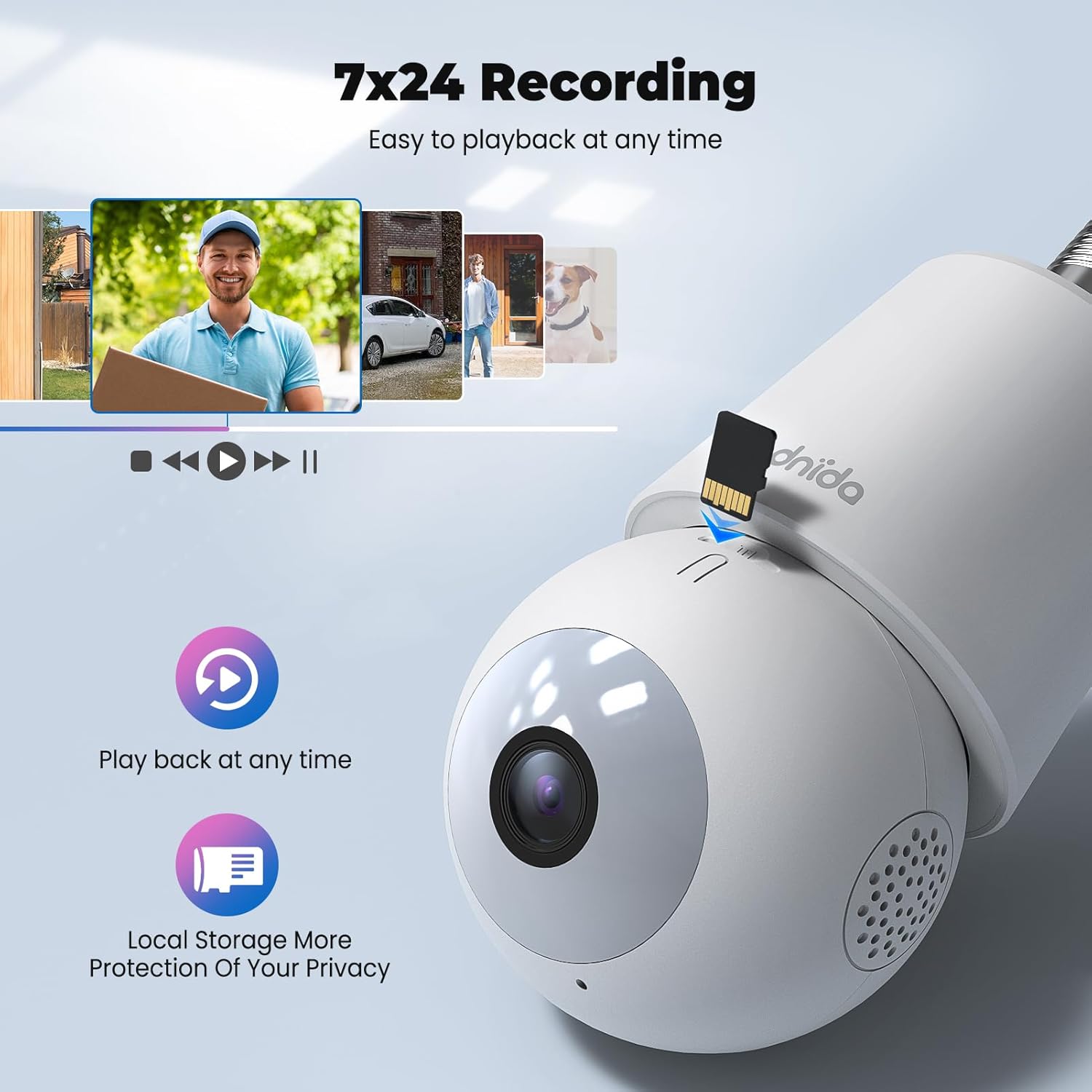
Figure 4.7: 24/7 Recording and Local Storage
This image highlights the camera's ability to record continuously (24/7) and store footage locally on a MicroSD card, ensuring privacy and easy playback of events at any time.
- Local Storage: Insert a MicroSD card (up to 128GB, not included) into the TF card slot for continuous 24/7 recording.
- Cloud Storage: Optional cloud storage services are available through the CloudEdge app for secure off-site storage and easy access to recorded events.
- Playback: Easily review recorded footage directly from the app's history or cloud sections.
5. Maintenance
Regular maintenance ensures optimal performance and longevity of your Codnida Camera LC323 U.
- Cleaning: Gently wipe the camera lens and body with a soft, dry cloth to remove dust and smudges. Avoid using harsh chemicals or abrasive materials.
- Firmware Updates: Periodically check the CloudEdge app for available firmware updates. Keeping the firmware updated ensures access to the latest features and security enhancements.
- Power Cycle: If the camera experiences issues, try power cycling it by turning off the power to the E27 socket, waiting a few seconds, and then turning it back on.
6. Troubleshooting
If you encounter issues with your camera, refer to the following common troubleshooting steps:
| Problem | Possible Cause | Solution |
|---|---|---|
| Camera not powering on | No power to the E27 socket; camera not screwed in properly. | Ensure the E27 socket has power and the camera is securely screwed in. |
| Unable to connect to Wi-Fi | Incorrect Wi-Fi password; camera too far from router; 5GHz Wi-Fi network used. | Verify Wi-Fi password; move camera closer to router; ensure you are connecting to a 2.4GHz Wi-Fi network. Reset the camera and try again. |
| Frequent disconnections | Weak Wi-Fi signal; network interference. | Improve Wi-Fi signal strength (e.g., use a Wi-Fi extender); reduce interference from other devices. |
| Motion detection not working or too sensitive | Incorrect settings; environmental factors. | Adjust motion detection sensitivity and detection zones in the CloudEdge app. Ensure the camera lens is clean. |
| No recording to TF card | TF card not inserted or faulty; card full; recording settings incorrect. | Ensure TF card is correctly inserted and formatted (if prompted by app); check recording settings in the app. Replace card if faulty. |
If the problem persists, please contact Codnida customer support for further assistance.
7. Specifications
Detailed technical specifications for the Codnida Camera LC323 U:
- Model Name: LC323
- Manufacturer: Codnida
- Connectivity Protocol: Wi-Fi (2.4GHz)
- Wireless Communication Technology: Wi-Fi
- Video Capture Resolution: 1296p (2K HD)
- Indoor/Outdoor Usage: Outdoor
- Mounting Type: Wall Mount (via E27 socket)
- Controller Type: CloudEdge App
- Light Source: Infrared (for night vision)
- Material: Plastic
- Wattage: 10 watts
- Item Dimensions (L x W x H): 50 x 50 x 50 mm
- Product Dimensions: 5 x 5 x 5 cm; 410 g
- Batteries Required: No
- Included Components: Camera
8. Warranty and Support
The Codnida Camera LC323 U typically comes with a manufacturer's warranty. Please refer to the product packaging or the official Codnida website for specific warranty terms and conditions.
For technical support, troubleshooting assistance, or warranty claims, please contact Codnida customer service through their official channels. Contact information can usually be found on the product packaging or their website.
Related documentsLC323


Ask a question about this manual
Ask about setup, troubleshooting, compatibility, parts, safety, or missing instructions. Manuals+ will review the question and use this page’s manual context to help answer it.