
YABER L1w
YABER Android Projector L1 User Manual
Model: L1w
Introduction
About Your YABER L1 Projector
The YABER Android Projector L1 is a compact smart entertainment projector designed for easy access to your favorite movies, TV shows, and games through its built-in Android OS. This manual provides essential information for setting up, operating, and maintaining your projector.

Image: The YABER Android Projector L1, showcasing its compact design and front lens.

Image: The YABER L1 Projector projecting a vibrant Android TV interface, highlighting its smart capabilities.

Image: The YABER L1 Projector being easily placed into a bag alongside a laptop, illustrating its portability and compact size for travel or storage.
Product Overview
Package Contents
- YABER Android Projector L1
- Remote Control
- Power Adapter
- HDMI Cable
- User Manual
Projector Components
Familiarize yourself with the key components of your YABER L1 projector:

Image: A detailed breakdown of the YABER L1 Projector's key components, including the projection lens, the top control panel with buttons, and the chamfered edge design.
- Lens: The projection lens, responsible for displaying the image.
- Control Panel: Buttons on the top of the projector for basic navigation and control.
- Chamfer: The distinct design element on the projector's casing.
- Ports: Various input/output ports (HDMI, USB, Audio Out) located on the rear or side.
- Ventilation Grilles: Located on the sides and rear to ensure proper airflow and prevent overheating.
Setup Guide
Placement
Place the projector on a stable, flat surface. Ensure there is adequate space around the projector for ventilation. The distance from the screen or wall will determine the image size.
Power Connection
- Connect the power adapter to the projector's power input port.
- Plug the power adapter into a wall outlet.
- Press the power button on the projector or remote control to turn it on.
Initial Setup and Network Connection
Upon first power-on, the projector will guide you through the initial Android OS setup, including language selection and Wi-Fi network connection. A stable Wi-Fi connection is essential for accessing online content and apps.
Focus and Keystone Correction
The YABER L1 features automatic focus. If the image appears blurry, the projector will automatically adjust. Manual adjustments can also be made via the settings menu. Keystone correction helps to square the image if the projector is not perfectly perpendicular to the screen.
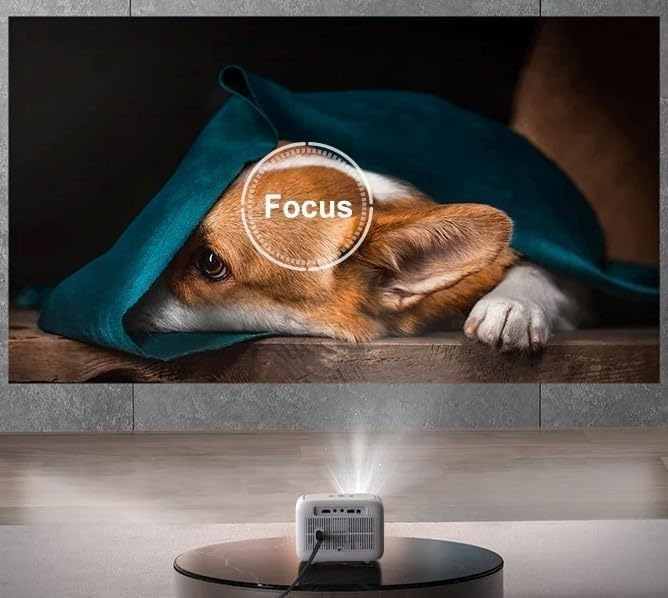
Image: The YABER L1 Projector actively performing an automatic focus adjustment, indicated by a circular 'Focus' overlay on the projected image of a dog, ensuring a clear picture.

Image: A visual guide illustrating the optimal projection distances for the YABER L1 Projector, showing how different distances (5.9ft, 9.8ft, 11.3ft) correspond to various screen sizes (60", 100", 120").
Operating Instructions
Navigating the Android OS
Use the provided remote control to navigate the Android TV interface. The remote allows you to select apps, adjust settings, and control media playback. Basic navigation buttons are also available on the projector itself.
Connecting External Devices (HDMI, USB)
- HDMI: Connect gaming consoles, Blu-ray players, or laptops using an HDMI cable. Select the corresponding HDMI input from the projector's source menu.
- USB: Insert USB drives to play media files (photos, videos, music) directly from the drive. Use the file manager app within the Android OS to browse content.
Screen Mirroring / Casting
The YABER L1 supports screen mirroring from compatible smartphones and tablets. Ensure both your device and the projector are connected to the same Wi-Fi network. Refer to your device's casting instructions or the projector's mirroring app for detailed steps.

Image: A person holding a smartphone, demonstrating the screen mirroring capability of the YABER L1 Projector as content from the phone is displayed on the large projected screen.
Bluetooth Audio Connection
Connect external Bluetooth speakers or soundbars for enhanced audio experience. Navigate to the Bluetooth settings in the Android OS, enable Bluetooth, and pair with your desired audio device.

Image: The YABER L1 Projector wirelessly connected to a soundbar via Bluetooth, illustrating its ability to output audio to external speakers for an immersive sound experience.
Maintenance
Cleaning the Lens
Gently wipe the projector lens with a soft, lint-free cloth specifically designed for optical surfaces. Do not use abrasive cleaners or excessive force, as this can scratch the lens.
Ensuring Proper Ventilation
Keep the projector's ventilation grilles clear of obstructions to ensure proper airflow. Blocked vents can lead to overheating and affect performance and lifespan. Do not place the projector on soft surfaces like blankets that can block vents.
Storage
When not in use for extended periods, store the projector in a cool, dry place, away from direct sunlight and excessive dust. Consider using the original packaging or a protective case.
Troubleshooting
This section addresses common issues you might encounter with your YABER L1 Projector.
- No Power:
Ensure the power adapter is securely connected to both the projector and a working power outlet. Try a different outlet. - No Image:
Check if the projector is powered on. Verify the input source is correctly selected (e.g., HDMI1, USB). Ensure the lens cap is removed. - Blurry Image:
Allow the auto-focus to adjust. If still blurry, check for smudges on the lens and clean it gently. Ensure the projection surface is flat. - No Sound:
Check the volume level on the projector and any connected external audio devices. If using an external device (e.g., HDMI source), ensure its audio output is enabled. If using Bluetooth, ensure it's correctly paired. - Wi-Fi Connection Issues:
Ensure the projector is within range of your Wi-Fi router. Restart both the projector and your router. Re-enter the Wi-Fi password to ensure it's correct.
Specifications
| Feature | Detail |
|---|---|
| Package Dimensions | 8.82 x 7.76 x 6.34 inches |
| Item Weight | 3.3 pounds |
| Manufacturer | Yaber |
| ASIN | B0CG9RY23Q |
| Item model number | L1w |
| Date First Available | August 27, 2023 |
Warranty and Support
For warranty information and technical support, please refer to the warranty card included with your product or visit the official YABER website. You may also contact YABER customer service directly for assistance with product issues or inquiries.
Related documentsL1w

Ask a question about this manual
Ask about setup, troubleshooting, compatibility, parts, safety, or missing instructions. Manuals+ will review the question and use this page’s manual context to help answer it.