
DOOGEE T10 Pro
DOOGEE T10 Pro Android Tablet User Manual
Model: T10 Pro | Brand: DOOGEE
1. Introduction
Welcome to the user manual for your new DOOGEE T10 Pro Android Tablet. This guide provides essential information on setting up, operating, and maintaining your device. Please read this manual thoroughly before using your tablet to ensure proper function and longevity.
Safety Information
- Do not expose the tablet to extreme temperatures, direct sunlight, or high humidity.
- Avoid dropping or subjecting the tablet to strong impacts.
- Use only approved chargers and accessories.
- Do not attempt to disassemble or repair the tablet yourself. Contact authorized service personnel.
- Keep the tablet away from children and pets.

Figure 1.1: The DOOGEE T10 Pro tablet in use, showcasing its versatility for different users and activities.
2. Package Contents
Please check the package contents upon unboxing. If any items are missing or damaged, contact your retailer.
- DOOGEE T10 Pro Tablet
- Power Adapter (18W Fast Charge compatible)
- USB-C Cable
- SIM Eject Tool
- Quick Start Guide
- Warranty Card
3. Device Overview
Familiarize yourself with the physical components of your DOOGEE T10 Pro tablet.
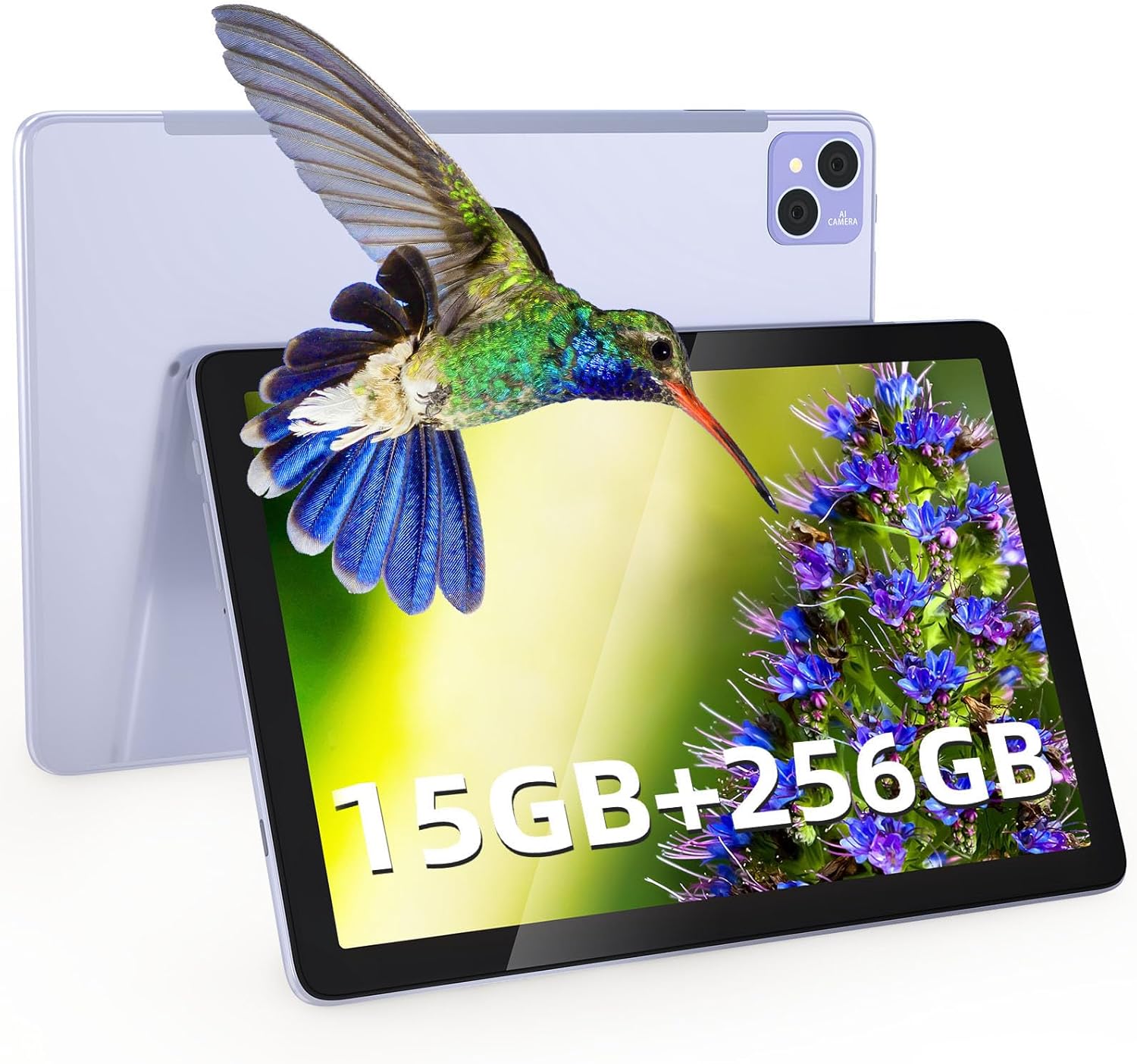
Figure 3.1: Front and rear view of the DOOGEE T10 Pro tablet, showcasing its overall design and the rear camera setup.
Physical Components
- Power Button: Located on the side, used to power on/off or wake/sleep the device.
- Volume Buttons: Adjust audio volume.
- USB-C Port: For charging and data transfer.
- SIM/TF Card Slot: Insert Nano SIM cards for 4G connectivity and a TF (microSD) card for expanded storage.
- Front Camera (8MP): Located on the display side, for video calls and selfies.
- Rear Camera (13MP): Located on the back, for taking photos and videos.
- Speakers: Dual stereo speakers for immersive audio.
- Microphone: For voice input.

Figure 3.2: The slim profile (8.5mm) and lightweight design (568g) of the DOOGEE T10 Pro, highlighting its portability and large 8580 mAh battery with 18W fast charging capability.
4. Setup
4.1 Charging the Tablet
Before first use, fully charge your tablet. Connect the USB-C cable to the tablet's USB-C port and the other end to the 18W power adapter. Plug the adapter into a power outlet. The battery indicator on the screen will show charging status.
4.2 Power On/Off
- To Power On: Press and hold the Power button until the DOOGEE logo appears.
- To Power Off: Press and hold the Power button until the power options menu appears, then select "Power off".
- To Sleep/Wake: Briefly press the Power button.
4.3 SIM and TF Card Installation
The DOOGEE T10 Pro supports dual Nano SIM cards for 4G LTE connectivity and a TF (microSD) card for storage expansion up to 1TB.
- Locate the SIM/TF card slot on the side of the tablet.
- Insert the SIM eject tool into the small hole next to the tray to pop it open.
- Carefully pull out the tray.
- Place your Nano SIM card(s) and/or TF card into the designated slots on the tray, ensuring correct orientation.
- Gently push the tray back into the slot until it clicks into place.
5. Operating Your Tablet
5.1 Basic Navigation (Android 12)
Your tablet runs on Android 12, offering an intuitive user experience. Common gestures include:
- Tap: Select an item or open an app.
- Swipe: Scroll through screens or lists.
- Pinch-to-Zoom: Zoom in or out on images and web pages.
- Long Press: Access contextual menus or move icons.
- Split Screen: Utilize the multi-screen connection feature to run two apps side-by-side.
- Floating Window: Open apps in a resizable floating window for multitasking.
5.2 Connectivity
- Wi-Fi: Go to Settings > Network & internet > Wi-Fi to connect to available Wi-Fi networks (supports 2.4G/5G).
- Mobile Data (4G LTE): Ensure a SIM card is inserted. Go to Settings > Network & internet > Mobile network to enable mobile data.
- Bluetooth: Go to Settings > Connected devices > Connection preferences > Bluetooth to pair with Bluetooth devices like headphones or speakers.
5.3 Display and Visual Experience
The DOOGEE T10 Pro features a 10.1-inch 2K IPS display with a resolution of 1920 x 1200 pixels, providing clear and vibrant visuals. It also supports Google Widevine L1 for high-definition streaming content.
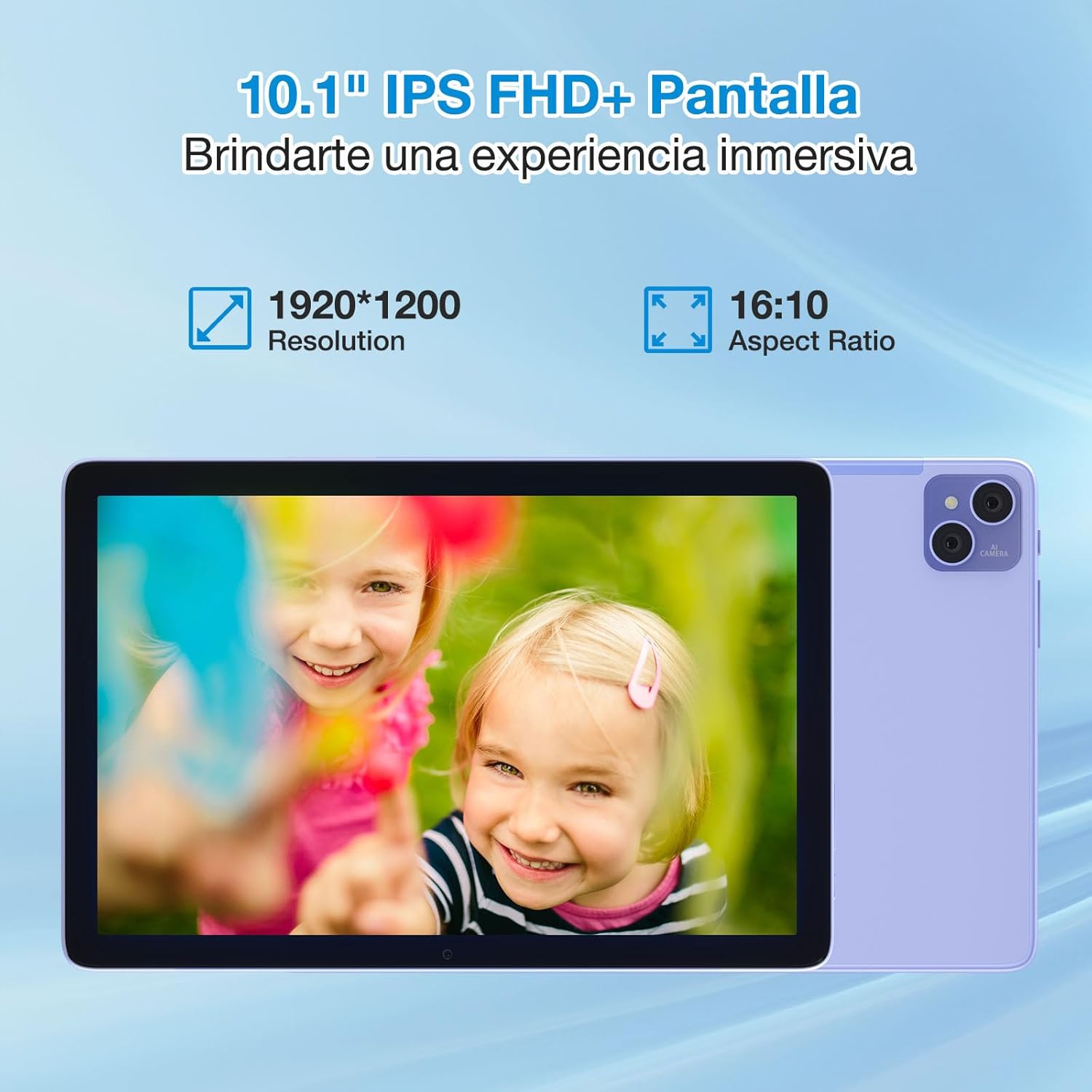
Figure 5.1: The 10.1-inch IPS FHD+ display of the DOOGEE T10 Pro, featuring a 1920x1200 resolution and 16:10 aspect ratio for an immersive viewing experience.
The tablet is TÜV SÜD Blue Light certified, which helps reduce harmful blue light emissions, minimizing eye strain during prolonged use. You can adjust display settings in Settings > Display.

Figure 5.2: The DOOGEE T10 Pro's TÜV SÜD Blue Light certified display, designed to protect eyes and provide a comfortable viewing experience, especially for children.
5.4 Camera Usage
Your tablet is equipped with a 13MP rear camera and an 8MP front camera.
- Open the "Camera" app from your home screen or app drawer.
- Switch between front and rear cameras using the camera icon.
- Tap the shutter button to take a photo or start/stop video recording.

Figure 5.3: The 13MP main camera and 8MP front camera of the DOOGEE T10 Pro, capable of capturing clear images and supporting video calls.
5.5 Storage and Performance
The DOOGEE T10 Pro comes with 15GB of RAM (8GB physical + 7GB extended) and 256GB of internal storage. Storage can be expanded up to 1TB using a TF card. The Unisoc T606 Octa Core processor ensures smooth performance for various applications and games.
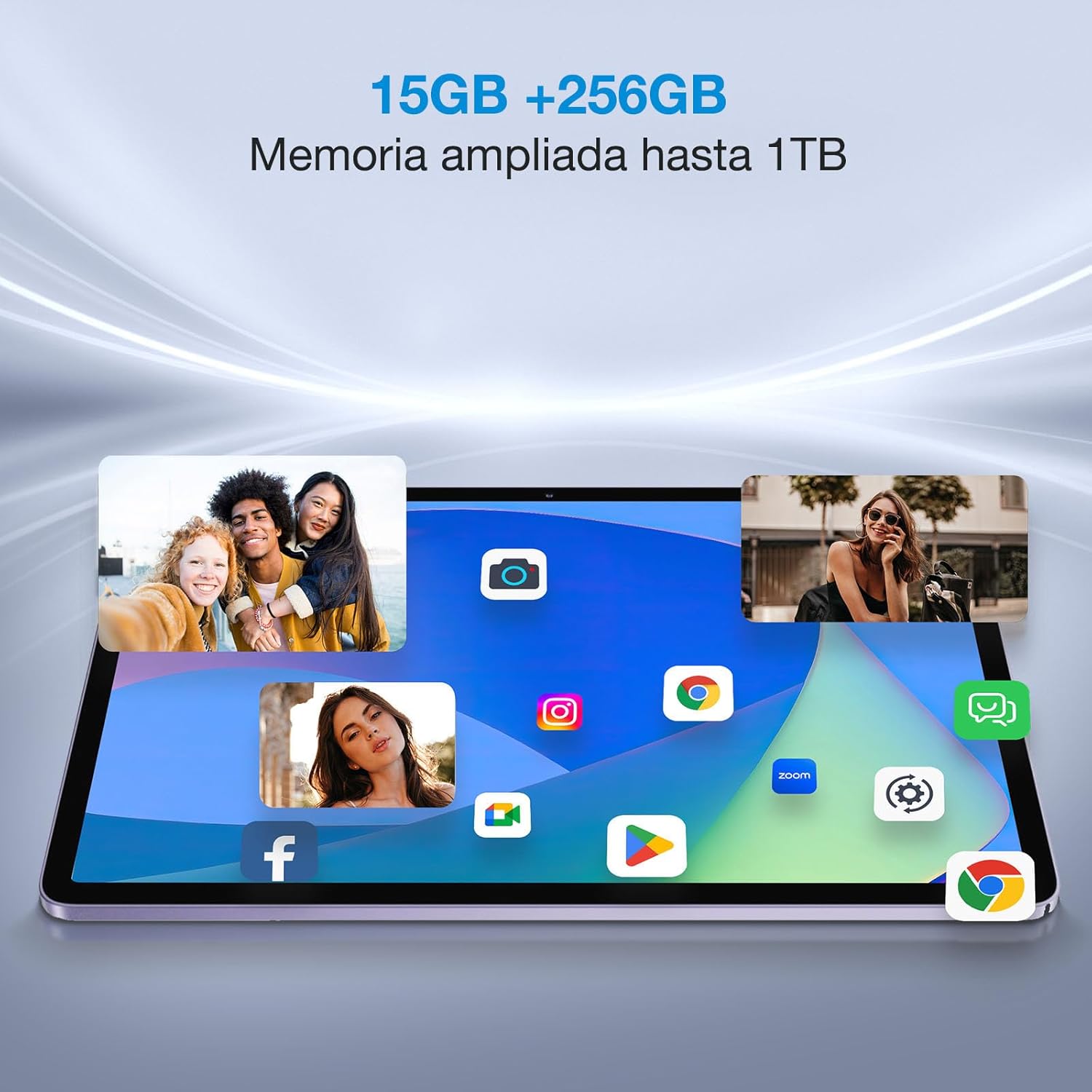
Figure 5.4: The DOOGEE T10 Pro's ample 15GB RAM and 256GB internal storage, expandable to 1TB, allowing for smooth multitasking and extensive app installation.
6. Maintenance
6.1 Cleaning Your Tablet
Use a soft, lint-free cloth to clean the screen and body of the tablet. For stubborn smudges, slightly dampen the cloth with water or a screen cleaner. Avoid using harsh chemicals or abrasive materials.
6.2 Software Updates
Regularly check for system updates to ensure your tablet has the latest features, security patches, and performance improvements. Go to Settings > System > System update.
6.3 Battery Care
- Avoid completely draining the battery frequently.
- Do not leave the tablet charging for excessively long periods after it's full.
- Store the tablet in a cool, dry place if not used for extended periods.
7. Troubleshooting
| Problem | Possible Solution |
|---|---|
| Tablet won't turn on. | Ensure the battery is charged. Connect to the charger for at least 30 minutes. Try holding the Power button for 10-15 seconds. |
| Screen is unresponsive. | Restart the tablet. If unresponsive, force restart by holding the Power button for about 10 seconds. Clean the screen. |
| Cannot connect to Wi-Fi. | Ensure Wi-Fi is enabled. Restart your router. Forget the network and reconnect. |
| Apps are crashing or running slow. | Close background apps. Clear app cache (Settings > Apps > [App Name] > Storage & cache). Restart the tablet. Ensure sufficient storage space. |
| Tablet not charging. | Check the cable and adapter for damage. Try a different outlet. Ensure the USB-C port is clean. |
If the problem persists, please contact DOOGEE customer support.
8. Specifications
| Feature | Detail |
|---|---|
| Brand | DOOGEE |
| Model | T10 Pro |
| Operating System | Android 12 |
| Processor | Unisoc T606 Octa Core |
| RAM | 15 GB (8GB + 7GB extended) |
| Internal Storage | 256 GB |
| Expandable Storage | Up to 1 TB via TF card |
| Display Size | 10.1 inches |
| Display Type | 2K IPS |
| Display Resolution | 1920 x 1200 pixels |
| Eye Protection | TÜV SÜD Blue Light Certified |
| Battery Capacity | 8580 mAh |
| Charging | 18W Fast Charge |
| Rear Camera | 13 MP |
| Front Camera | 8 MP |
| Connectivity | Dual 4G LTE, 2.4G/5G WiFi, Bluetooth |
| Weight | 568 grams |
| Thickness | 8.5 mm |
| Other Features | Google Widevine L1, Dual Stereo Speakers, Multi-screen connection, Split touch, Floating window |
9. Warranty and Support
9.1 Warranty Information
Your DOOGEE T10 Pro tablet comes with a standard manufacturer's warranty. Please refer to the warranty card included in your package for specific terms, conditions, and duration. Keep your proof of purchase for warranty claims.
9.2 Customer Support
For technical assistance, troubleshooting beyond this manual, or warranty inquiries, please contact DOOGEE customer support through their official website or the contact information provided on your warranty card.
DOOGEE Official Website: www.doogee.cc
Related documentsT10 Pro


Ask a question about this manual
Ask about setup, troubleshooting, compatibility, parts, safety, or missing instructions. Manuals+ will review the question and use this page’s manual context to help answer it.