
Codnida LC323
Codnida 2K WiFi Bulb Surveillance Camera User Manual
Model: LC323
Brand: Codnida
1. Introduction
Welcome to your new Codnida 2K WiFi Bulb Surveillance Camera. This manual provides detailed instructions for installation, operation, and maintenance to ensure optimal performance and security for your home or office. Please read this manual carefully before using the product and keep it for future reference.
2. Product Overview
2.1 Key Features
- 2K HD Resolution & Color Night Vision: Offers stunning 3MP (2304 x 1296) resolution for clear details day and night, with color, intelligent, or infrared night vision up to 30 feet.
- Wireless & Easy Installation: Installs easily into a standard E27 bulb base (100-240V). Connects via 2.4GHz WiFi (5GHz WiFi not supported).
- Two-Way Audio & Alarm Siren: Communicate with visitors or deter intruders using the built-in microphone and speaker. Set a loud alarm to activate upon motion detection.
- Smart Motion Detection & Tracking: Advanced detection and tracking technology covers a 355° range up to 20 feet, sending timely alerts and recording moving objects.
- Multi-User Sharing & Free Local Storage: Supports up to 5 simultaneous users and a micro SD card up to 128GB for free local storage (SD card not included).
2.2 Component Identification

Figure 1: Codnida Bulb Camera Components
- E27 Socket: Standard screw-in base for power and mounting.
- TF Card Slot: Insert a Micro SD card for local video storage.
- RESET Button: Used to reset the camera to factory settings.
- Speaker: For two-way audio communication and alarm sound output.
- Indicator Light: Shows camera status (e.g., power, network connection).
- Lens: Captures video footage.
- Microphone: For two-way audio communication and sound detection.
3. Setup
3.1 Before Installation
- Ensure you have a standard E27 lamp socket available.
- Confirm your WiFi network is 2.4GHz. The camera is not compatible with 5GHz WiFi.
- Download the "CloudEdge" app from your mobile phone's app store (iOS or Android).
3.2 Installation Steps
- Mount the Camera: Screw the Codnida camera into a standard E27 lamp socket. Ensure the socket is powered on.
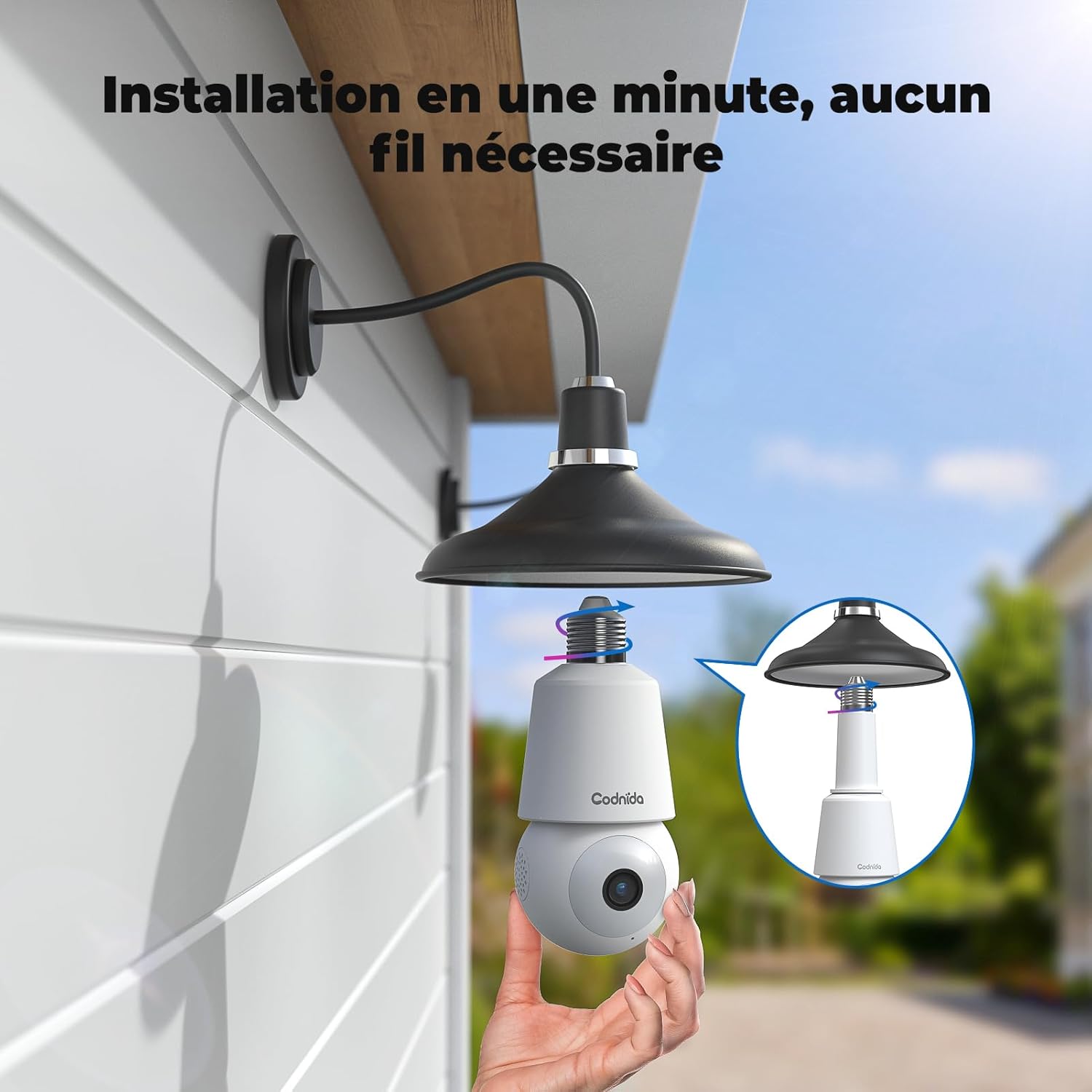
Easy installation into an E27 socket.
- Power On: Once screwed in, the camera will power on and begin its startup sequence. The indicator light will flash.
- Open CloudEdge App: Launch the CloudEdge app on your smartphone. If you are a new user, register an account.
- Add Device: Tap the "+" icon in the app to add a new device. Select the appropriate camera type.
- Connect to WiFi: Follow the in-app instructions to connect the camera to your 2.4GHz WiFi network. You will be prompted to enter your WiFi password.
- Scan QR Code: The app will generate a QR code. Hold your phone with the QR code in front of the camera lens (approximately 15-20 cm or 6-8 inches away) until you hear a confirmation sound from the camera.

Scan the QR code generated by the app.
- Setup Complete: Once connected, the camera will appear in your app's device list. You can now access the live view and configure settings.

Camera and CloudEdge app interface.
4. Operating Instructions
4.1 CloudEdge App Interface
The CloudEdge app provides full control over your camera. Key functions include:
- Live View: Watch real-time video feed from your camera.
- Playback: Review recorded footage stored on the Micro SD card or cloud.
- Settings: Adjust camera parameters, including motion detection sensitivity, alarm settings, and night vision modes.
- Screenshot/Record: Manually capture images or record video clips from the live view.
4.2 Motion Detection & Tracking
The camera features intelligent motion detection and automatic tracking to keep an eye on important areas.

Figure 2: Motion Detection & Automatic Tracking
- Enable/Disable: Navigate to camera settings in the app to enable or disable motion detection.
- Sensitivity: Adjust the detection sensitivity to minimize false alarms.
- Alerts: Receive real-time notifications on your phone when motion is detected.
- Tracking: The camera will automatically pan and tilt to follow detected motion within its 355° horizontal and 90° vertical range.
4.3 Two-Way Audio
Communicate directly through the camera using the two-way audio feature.

Figure 3: Two-Way Audio Communication
- From the live view, tap the microphone icon to speak through the camera's speaker.
- The camera's built-in microphone allows you to hear audio from the camera's location.
4.4 Siren and Light Alarm
Deter unwanted visitors with the integrated siren and bright light alarm.

Figure 4: Siren and Light Alarm in action
- Configure the alarm to activate automatically upon motion detection or manually trigger it from the app.
- Choose between audible warning, white light warning, or a combination of sound and strobe light.
4.5 Night Vision Modes
The camera offers versatile night vision options for clear monitoring in low-light conditions.

Figure 5: Color Night Vision vs. Infrared Night Vision
- Color Night Vision: Utilizes built-in spotlights to provide full-color video even in complete darkness.
- Infrared Night Vision: Standard black and white night vision using infrared LEDs.
- Smart Night Vision: Automatically switches between infrared and color night vision based on detected motion or light conditions.
4.6 Recording and Storage
Your camera supports both local and cloud storage options for recorded footage.
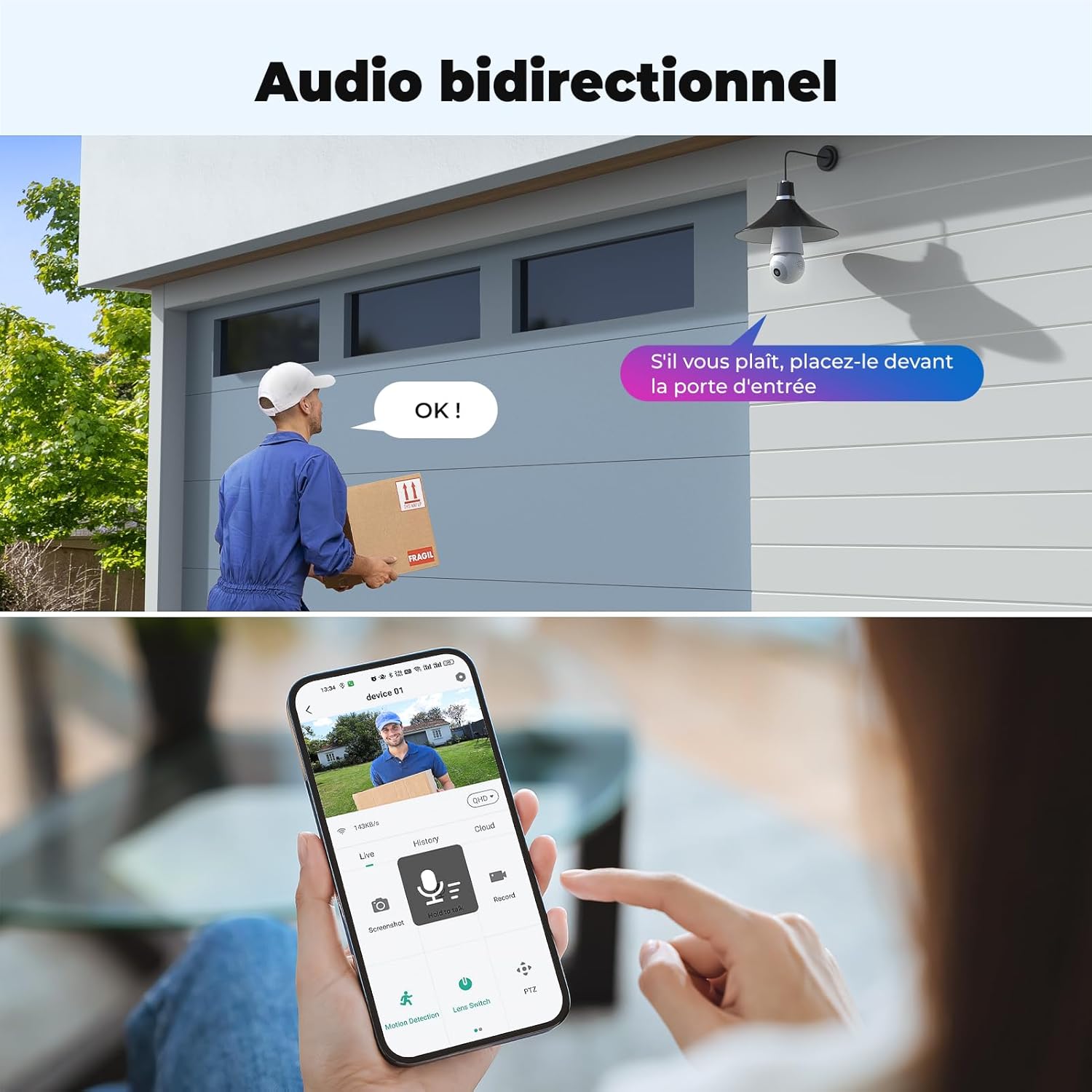
Figure 6: 7x24 Recording and Local Storage
- Local Storage: Insert a Micro SD card (up to 128GB, not included) into the TF card slot for continuous or event-triggered recording.
- Cloud Storage: Optional cloud storage plans are available through the CloudEdge app for secure off-site backup of your recordings.
4.7 Multi-User Sharing
Share access to your camera's live feed and recordings with family and friends.
Figure 7: Multi-User Sharing via QR Code
- In the CloudEdge app, go to the camera settings and find the sharing option.
- You can share access by generating a QR code for others to scan or by entering their registered CloudEdge account.
- Up to 5 users can view the video simultaneously.
5. Maintenance
- Cleaning: Gently wipe the camera lens and body with a soft, dry cloth. Do not use harsh chemicals or abrasive cleaners.
- Firmware Updates: Regularly check the CloudEdge app for available firmware updates to ensure optimal performance and security.
- Power Cycle: If the camera becomes unresponsive, try unscrewing it from the E27 socket, waiting a few seconds, and then screwing it back in to power cycle.
6. Troubleshooting
| Problem | Possible Cause | Solution |
|---|---|---|
| Camera fails to connect to WiFi. | Incorrect WiFi password; 5GHz WiFi network; camera too far from router. | Ensure correct 2.4GHz WiFi password. Move camera closer to router. Reset camera and try setup again. |
| Poor image quality. | Dirty lens; insufficient lighting; weak WiFi signal. | Clean the lens. Ensure adequate lighting. Improve WiFi signal strength. |
| No recording to SD card or unreadable files. | SD card not inserted correctly; incompatible SD card; corrupted SD card. | Ensure SD card is properly inserted. Use a compatible Micro SD card (up to 128GB). Format the SD card via the app or try a different card. |
| Alarm sound or light is too weak. | Volume settings; environmental factors. | Check alarm settings in the app. Note that the light output is primarily for deterrence and night vision, not general illumination. |
| Frequent false motion alerts. | High sensitivity; environmental movement (trees, shadows). | Adjust motion detection sensitivity in the app. Define specific detection zones to exclude irrelevant areas. |
7. Specifications
| Feature | Detail |
|---|---|
| Model Name | LC323 |
| Brand | Codnida |
| Connectivity Technology | Wireless (Wi-Fi) |
| Wireless Communication Technology | Wi-Fi (2.4GHz only) |
| Controller Type | CloudEdge App |
| Video Recording Resolution | 3MP (2304 x 1296) |
| Effective Video Resolution | 2K |
| Night Vision Range | 8 Meters (approx. 26 feet) |
| Special Features | Two-way audio, HD resolution, Night vision (color/infrared) |
| Usage | Outdoor, Indoor (Amateur, Professional) |
| Power Source | Electric Cable (E27 Bulb Socket) |
| Voltage | 240 Volts |
| Power | 3 Watts |
| Material | Plastic |
| Dimensions (L x W x H) | 10.16 x 10.16 x 12.7 cm |
| Weight | 370 grams |
| Recommended Uses | Baby monitoring, Outdoor security, Indoor security |
| Compatible Devices | Smartphone, Tablet |
8. Warranty and Support
Codnida offers a 30-day money-back guarantee for any reason from the date of purchase. If you are not satisfied with your Codnida surveillance camera, you may return the undamaged product for a full refund within 30 days.
For further assistance, technical support, or warranty claims, please refer to the contact information provided with your product packaging or visit the official Codnida website. Ensure you have your model number (LC323) and purchase details ready when contacting support.
Ask a question about this manual
Ask about setup, troubleshooting, compatibility, parts, safety, or missing instructions. Manuals+ will review the question and use this page’s manual context to help answer it.