
1. Introduction
The HEIMAN WiFi Smart Motion Sensor is a wireless PIR (Passive Infrared) motion detector designed to enhance your home security and automation. It connects directly to your 2.4 GHz Wi-Fi network, providing real-time notifications and enabling smart linkages with other compatible devices via the Tuya or Smart Life app. This manual provides detailed instructions for setup, operation, and maintenance of your motion sensor.

Image: HEIMAN WiFi Smart Motion Sensor alongside its mobile application interface.
2. Key Features
- Built-in Wi-Fi Connection: Seamless integration into your smart home security system without additional hubs or gateways. Connects to 2.4 GHz Wi-Fi networks.
- Instant Mobile Alerts: Utilizes PIR infrared technology for accurate movement detection, sending immediate alerts to your mobile phone. Includes alarm recording and device sharing functions.
- Smart Linkage: Capable of automatically activating compatible smart lights or other devices upon motion detection, offering convenient and energy-efficient automation. (Requires compatible smart products.)
- Extended Battery Life: Designed for up to 5 years of battery life under normal use, with low battery alerts sent via the app.
- Comprehensive Coverage: Automatically adjusts detection threshold to prevent false alarms from temperature changes. Offers a detection range of up to 9 meters and a 90° detection angle.
- Pet Immunity: Suitable for homes with pets, minimizing false alarms for animals weighing less than 11 kg.
3. Package Contents
Verify that all items are present in the package:
- HEIMAN WiFi Smart Motion Sensor (1 unit)
- CR123A Battery (1 included)
- User Manual
- Mounting Accessories (e.g., 3M adhesive tape, reset pin)
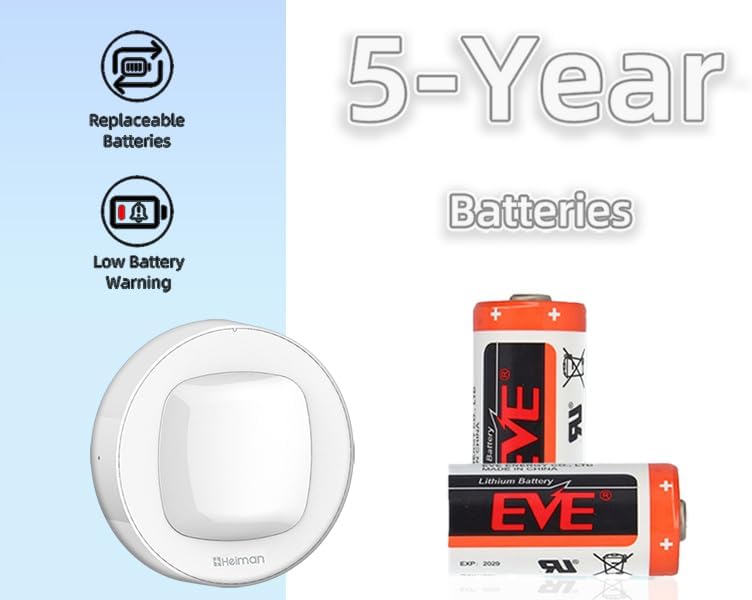
Image: Contents of the HEIMAN Smart Motion Sensor package, including the sensor, manual, and accessories.
4. Product Overview
The HEIMAN WiFi Smart Motion Sensor features a compact, circular design with a central detection lens. Key components include:
- LED Indicator: Displays device status (e.g., pairing mode, motion detected).
- Networking Button: Used for pairing and resetting the device.
- Anti-tamper Button: Triggers an alert if the sensor is removed from its mounting bracket.
- Battery Compartment: Located on the rear for CR123A battery.
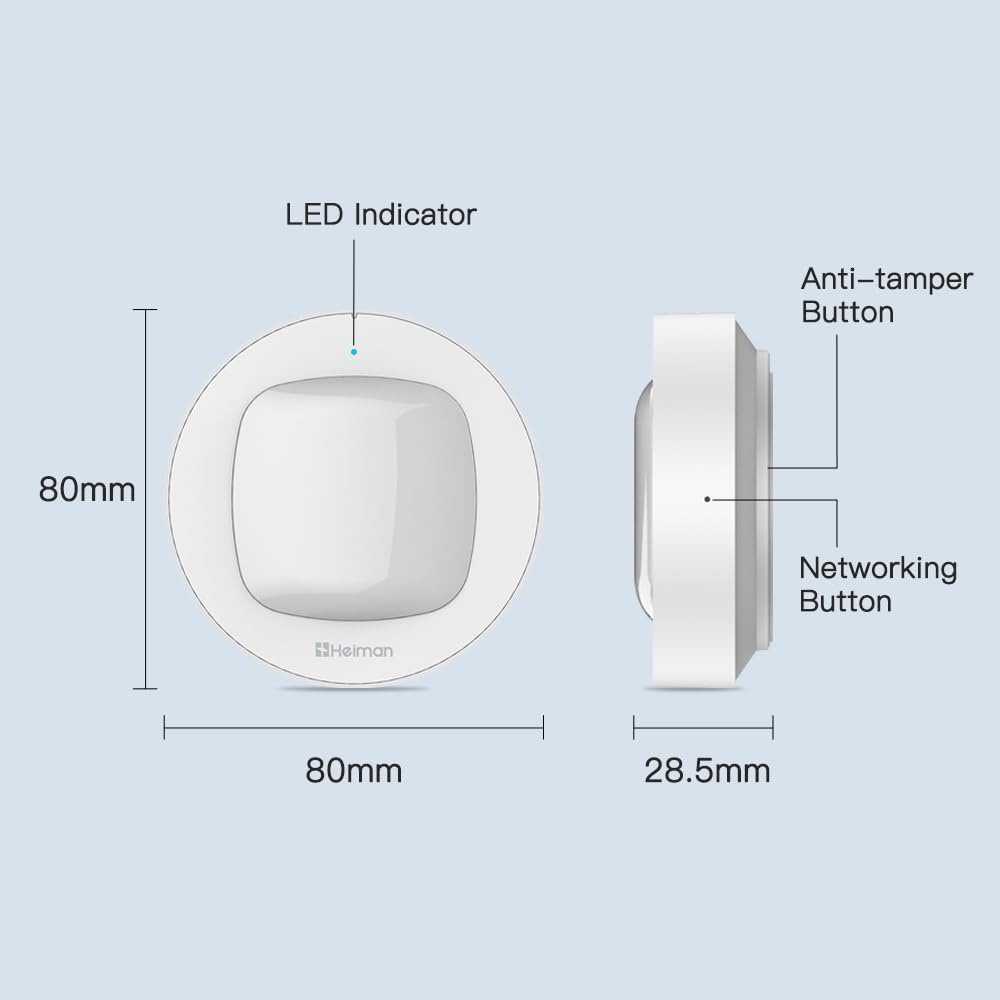
Image: Detailed diagram showing the LED indicator, anti-tamper button, networking button, and overall dimensions of the sensor.
5. Setup
5.1. Battery Installation
- Gently push the bracket of the sensor in the direction of the arrow to separate it from the main unit.
- Locate the battery compartment.
- Remove the insulating film from the pre-installed CR123A battery. This will power on the motion sensor, and the device will enter a warm-up state.
- Close the battery compartment cover and reattach the main unit to the bracket.

Image: Steps for opening the sensor's back cover and removing the battery's insulating film to activate the device.
5.2. App Download and Pairing
The HEIMAN WiFi Smart Motion Sensor operates with the Tuya Smart or Smart Life app. Ensure your Wi-Fi network is 2.4 GHz, as 5 GHz networks are not supported for direct connection.
- Download the "Tuya Smart" or "Smart Life" app from your mobile device's app store (Google Play Store for Android, Apple App Store for iOS).
- Register or log in to your account.
- Open the app and tap "Add Device" or the "+" icon.
- Navigate to the "Sensors" category and select "Motion Detector (Wi-Fi)".
- Enter your 2.4 GHz Wi-Fi network password.
- On the motion sensor, long-press the networking button for 5 seconds until the blue LED flashes quickly (approximately 2 times per second). This indicates the device is in pairing mode.
- Confirm the indicator is blinking quickly in the app and proceed with the pairing process.
- Once successfully added, you can rename the device and test its functionality.
Video: A comprehensive guide demonstrating the unboxing, battery installation, and step-by-step pairing process of the HEIMAN WiFi Smart Motion Sensor with the Tuya Smart app.
5.3. Mounting the Sensor
The sensor can be easily mounted using the included 3M adhesive tape. Choose a location that provides optimal coverage for the area you wish to monitor.
- Ensure the mounting surface is clean and dry.
- Peel off the protective backing from the 3M adhesive tape on the sensor's bracket.
- Press the sensor firmly onto the desired wall or surface.
- Consider mounting locations that allow for the 9-meter detection range and 90° angle to cover entry points or high-traffic areas.
- For pet immunity, mount the sensor at a height that positions the detection zone above the typical height of your pets (recommended for pets under 11 kg).

Image: The motion sensor's back with 3M adhesive tape, ready for convenient, drill-free installation.

Image: Visual representation of the sensor's detection capabilities, showing a maximum range of 9 meters and a 90-degree field of view.
6. Operating Instructions
6.1. Motion Detection and Notifications
Once set up, the sensor continuously monitors its detection area. When motion is detected, it will:
- Send an instant push notification to your linked Tuya Smart/Smart Life app.
- Record the event in the app's history log.
- The LED indicator on the sensor may briefly illuminate upon detection (behavior can vary based on app settings).
Image: A smartphone screen showing a "Someone moves" notification, indicating real-time motion detection by the sensor.
6.2. Smart Linkage and Automation
Leverage the smart linkage features within the Tuya Smart or Smart Life app to create automated routines:
- Lighting Control: Set up a scene where motion detection automatically turns on compatible smart lights in a room.
- Appliance Control: Link the sensor to smart plugs to activate appliances (e.g., a fan or humidifier) when motion is detected.
- Security Scenes: Integrate with other security devices (e.g., smart cameras) to trigger recording or alarms upon motion.
To set up smart linkages:
- In the Tuya Smart/Smart Life app, go to the "Smart" or "Automation" section.
- Create a new automation.
- Set the condition: "When device status changes" -> select your motion sensor -> "Motion detected".
- Set the task: "Run the device" -> select your smart light/plug/camera -> define the action (e.g., "Turn On").
- Save the automation.

Image: Illustration of the motion sensor triggering smart bulbs, demonstrating automated lighting control.

Image: Example of the motion sensor linked with smart plugs to control other appliances, such as a humidifier.
7. Maintenance
7.1. Battery Replacement
The sensor is designed for long battery life (up to 5 years). When the battery level is low, you will receive a notification via the app.
- Separate the sensor from its mounting bracket.
- Open the battery compartment.
- Remove the old CR123A battery.
- Insert a new CR123A battery, ensuring correct polarity.
- Close the battery compartment and reattach the sensor to its bracket.

Image: Visual highlighting the sensor's long battery life and the ease of replacing the CR123A battery.
7.2. Cleaning
To ensure optimal performance, periodically clean the sensor's lens and body.
- Use a soft, dry cloth to wipe the exterior of the sensor.
- Do not use liquid cleaners or abrasive materials, as these can damage the device.
8. Troubleshooting
| Problem | Possible Cause | Solution |
|---|---|---|
| Sensor not pairing with app. | Incorrect Wi-Fi band (5 GHz), incorrect password, sensor not in pairing mode, weak Wi-Fi signal. |
|
| Frequent disconnections. | Weak Wi-Fi signal, network interference. |
|
| False alarms or missed detections. | Improper mounting height, environmental factors (e.g., direct sunlight, drafts), pet movement. |
|
| Battery drains quickly. | High frequency of detections, extreme temperatures. |
|
9. Specifications
| Attribute | Detail |
|---|---|
| Brand | HEIMAN |
| Model Number | WIFI-WS3MS |
| Color | 1Pack |
| Power Source | Battery Powered |
| Battery Type | 1 CR123A batteries required (included) |
| Battery Life | Up to 5 years |
| Maximum Range | 9 Meters |
| Detection Angle | 90° |
| Mounting Type | Wall Mount |
| Product Dimensions | 3.14"D x 1.1"W x 3.14"H |
| Item Weight | 3.2 ounces |
| Compatible Devices | Tuya/Smart life APP |
| Recommended Uses | Indoor |
| Upper Temperature Rating | 50 Degrees Celsius |
10. Warranty and Support
For warranty information and technical support, please refer to the official HEIMAN website or contact their customer service directly. Keep your purchase receipt as proof of purchase for warranty claims.
Official HEIMAN Store: Visit HEIMAN Store on Amazon