Introduction
This manual provides detailed instructions for the setup, operation, and maintenance of your JXJHOVV 2.4Ghz WiFi Atomic Clock. This device offers precise timekeeping through automatic WiFi synchronization, along with temperature and humidity monitoring, dual alarms, and adjustable brightness. Please read this manual thoroughly before using the product to ensure optimal performance and longevity.
Safety Information
- Keep the product in a safe place to prevent accidental ingestion by children.
- When using this product, ensure the ambient temperature is between 16°F (-9°C) and 140°F (60°C) and the humidity is between 0% and 99%.
- This product is not fireproof, so do not expose it to dry fire or any other heat source.
- This product is not waterproof; do not immerse it in water to avoid damaging the unit.
- The clock requires plug-in power and comes with a 3-meter cord (adapter not included).
- The backup battery (2xAA, not included) ensures your time and alarm settings are saved during power outages.
Product Overview
The JXJHOVV 2.4Ghz WiFi Atomic Clock features a large 7.48-inch display with illuminated LED digits for easy readability. It integrates multiple functions including time, date, day of the week, temperature, and humidity display.

Figure 1: Front view of the JXJHOVV 2.4Ghz WiFi Atomic Clock, showing its large, colorful digital display with time, date, day of the week, temperature, and humidity. A Wi-Fi signal icon is visible in the top right corner.
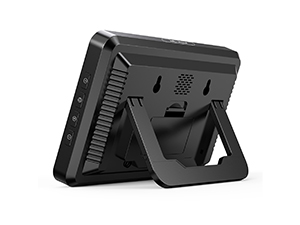
Figure 2: Rear view of the clock, highlighting the foldable stand for tabletop use and two hanging holes for wall mounting. The power input port is also visible.
Key Features:
- WiFi Time Sync: Automatically synchronizes with current time via WiFi for precise timekeeping.
- Temperature and Humidity Monitoring: Displays indoor temperature and humidity. Remote monitoring and alerts available via app.
- Adjustable Brightness: 5 adjustable brightness levels to suit various lighting conditions.
- Dual Alarm with Snooze: Set two independent alarms with a 5-minute snooze function.
- Versatile Placement: Features a folding shelf and two hanging holes for tabletop or wall mounting.
Setup
1. Power Connection
Connect the provided 3-meter power cord to the clock's power input port. Plug the other end into a suitable USB power adapter (not included). The clock will power on and display initial settings.
Video 1: A tutorial demonstrating the initial power connection and setup of the JXJHOVV 2.4Ghz WiFi Atomic Clock, including how to unfold the stand and plug in the power supply. This video also covers the WiFi connection process.
2. App Download & Installation
To utilize the full features of your clock, including remote monitoring and advanced settings, download the "Smart Life" app. You can find it on Apple's App Store or other major app stores, or scan the QR code below.

Figure 3: Step-by-step guide for downloading the Smart Life app via QR code or app stores, and the initial steps for connecting the clock to your 2.4GHz WiFi network.
Download the Smart Life App: https://smartapp.tuya.com/smartlife
3. WiFi Connection/Pairing
- Ensure your phone's Bluetooth is turned on.
- Connect your phone to your home's 2.4GHz WiFi network. (5GHz networks are not supported).
- Open the Smart Life app. Click the "+" icon in the upper right corner to add a new device.
- On the clock, long press the WiFi button on the side for 3 seconds. You will hear two "DI DI" tones, and the WiFi icon on the screen will start blinking, indicating pairing mode.
- In the app, select "Add Device" or allow it to discover the device. Follow the on-screen prompts to enter your 2.4GHz WiFi account and password.
- Once connected, the clock's time will automatically synchronize with your phone's time, and the WiFi icon will become solid.
Note: If the clock does not connect, ensure your router is broadcasting a 2.4GHz signal and that your phone is connected to it. Some routers may have a "smart connect" or "combined" mode; you may need to disable this to see separate 2.4GHz and 5GHz networks.
Operating Instructions
Time Synchronization
The clock automatically synchronizes its time with the network time once successfully connected to WiFi. This ensures accurate timekeeping without manual adjustments.
Temperature and Humidity Monitoring
The clock displays real-time indoor temperature and humidity. You can monitor these levels remotely via the Smart Life app. The app also allows you to set thresholds and receive alerts if levels exceed or fall below your set parameters, for example, to detect potential fire hazards based on temperature spikes.

Figure 4: The clock displaying temperature and humidity, with corresponding app screenshots showing historical data and alert settings for environmental monitoring.
Brightness Adjustment
The digital alarm clock offers 5 adjustable brightness levels. To adjust the brightness, tap the [Snooze/Light] button located on the top of the clock. Each tap cycles through the brightness levels, allowing you to select the most comfortable setting for any time of day or night.

Figure 5: Adjusting the display brightness using the top button. The clock offers five distinct brightness settings to optimize visibility and comfort.
Dual Alarm with Snooze
The clock supports two independent alarms. To set or adjust alarms, use the dedicated alarm buttons on the side of the clock. When an alarm rings, tap the top [Snooze/Light] button to activate a 5-minute snooze. Pressing any other button will turn off the alarm.

Figure 6: Illustration of the dual alarm feature, showing two distinct alarm icons on the display and explaining how to activate the snooze function.
Maintenance
To maintain your JXJHOVV WiFi Atomic Clock, regularly wipe the display and casing with a soft, dry cloth. Avoid using abrasive cleaners or solvents, as these can damage the surface. Ensure the clock is placed in a well-ventilated area, away from direct sunlight and extreme temperatures, to prevent overheating and ensure accurate sensor readings.
Troubleshooting
| Issue | Possible Cause | Solution |
|---|---|---|
| Clock not connecting to WiFi. | Incorrect WiFi band (5GHz), wrong password, or router settings. | Ensure your phone and clock are connected to a 2.4GHz WiFi network. Verify the password. Check router settings for "smart connect" or combined bands and disable if necessary to see separate 2.4GHz and 5GHz networks. |
| Time is incorrect after WiFi connection. | Initial synchronization issue or temporary network disruption. | Ensure a stable WiFi connection. If the issue persists, try re-pairing the device with the app. |
| Brightness adjustment not working as expected (e.g., no auto-dimming). | Misunderstanding of feature or product limitation. | The clock features 5 manual brightness levels adjustable via the top [Snooze/Light] button. It does not have an automatic dimming feature based on ambient light. |
| Temperature/Humidity readings seem inaccurate. | Placement near heat/cold sources, or sensor obstruction. | Relocate the clock away from direct sunlight, vents, or other sources of extreme temperature/humidity. Allow time for readings to stabilize. |
Specifications
- Model: 2868-Black Shell Orange Lights
- Display Type: Digital LED
- Display Size: 7.48 inches (W) x 4.8 inches (H)
- Power Source: Corded Electric (USB adapter not included)
- Backup Battery: 2xAA (not included)
- Connectivity: 2.4Ghz WiFi
- Special Features: Automatic time calibration, 5 adjustable brightness levels, indoor temperature and humidity display, dual alarms.
- Material: Plastic
- Mounting Type: Tabletop (with foldable stand) / Wall Mount (with hanging holes)
- Item Weight: 10.7 ounces

Figure 7: Detailed dimensions of the clock, indicating a width of 7.48 inches and a height of 4.8 inches.
Warranty and Support
The JXJHOVV 2.4Ghz WiFi Atomic Clock comes with a 1-year warranty. For any questions or support needs, please contact JXJHOVV customer service via Amazon. We aim to respond as soon as possible to assist you with any product-related inquiries.
You can also refer to the official JXJHOVV store on Amazon for more information and product updates: JXJHOVV Amazon Store.


