
1. Introduction
This manual provides essential information for setting up, operating, and maintaining your ECOPAD Android 15 Tablet. Please read this guide thoroughly to ensure optimal performance and longevity of your device.

Image 1.1: The ECOPAD Android 15 Tablet shown with its accompanying keyboard, mouse, stylus, charger, and USB-C cable.
2. What's in the Box
Verify that all items are present in the package:
- 1x ECOPAD K12 Tablet
- 1x Wireless Keyboard
- 1x Mouse
- 1x Stylus
- 1x Screen Protector
- 1x Power Adapter
- 1x Type-C Cable
- 1x Tablet Case (Stand Folio Protective Cover)
- 1x User Manual (this document)

Image 2.1: Visual representation of the items included in the ECOPAD tablet package, including the tablet, keyboard, mouse, stylus, and charging accessories.
3. Product Overview
3.1 Key Features
- Operating System: Android 15 with GMS Certification
- Display: 10.1-inch HD IPS Touch Screen (1280x800 resolution)
- Processor: Quad-Core ARM Processor (Mali-Gxx MPx Graphics Coprocessor)
- Memory: 12GB RAM (4GB+8GB)
- Storage: 64GB ROM, expandable up to 1TB via Micro SD card
- Cameras: 2MP Front Camera, 8MP Rear Camera
- Connectivity: WiFi 6 (802.11ax), Bluetooth 5.0
- Battery: 6000mAh Lithium Battery (up to 6 hours average life)
- Functionality: 2-in-1 Tablet with Keyboard and Mouse support, Smart Split-Screen
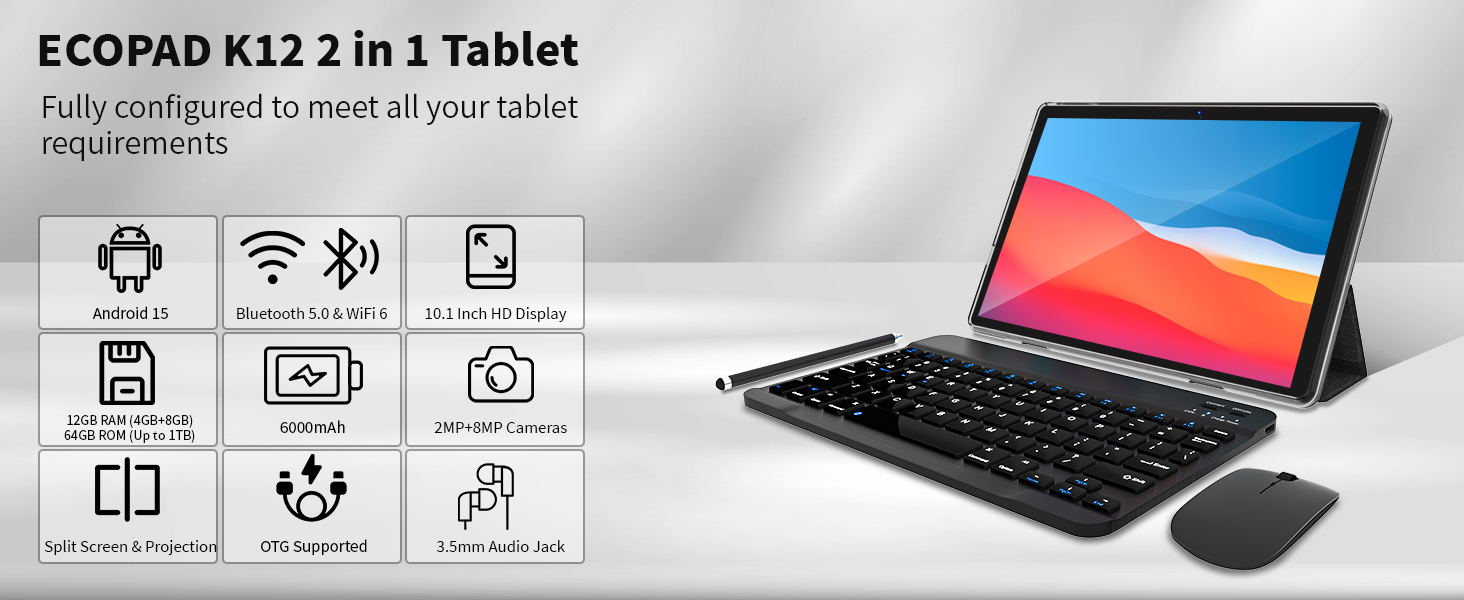
Image 3.1: An overview graphic highlighting the ECOPAD K12 tablet's key features, including Android 15, Bluetooth 5.0 & WiFi 6, 10.1-inch HD Display, 12GB RAM, 64GB ROM, 6000mAh battery, and 2MP+8MP cameras.
4. Setup
4.1 Initial Power On
- Press and hold the Power button located on the side of the tablet until the ECOPAD logo appears.
- Follow the on-screen prompts to select your language, region, and accept the terms of service.
4.2 Connecting to Wi-Fi
- From the home screen, swipe down from the top to open the Quick Settings panel.
- Tap the Wi-Fi icon to enable it.
- Tap and hold the Wi-Fi icon to go to Wi-Fi settings.
- Select your desired network from the list and enter the password if prompted.
- Tap 'Connect'.

Image 4.1: The tablet screen showcasing its WiFi 6 connectivity, indicating faster and smoother wireless performance compared to 5GHz WiFi.
4.3 Google Account Setup
To access the Google Play Store and other Google services, you will need to sign in with your Google account during the initial setup or later via the Settings app.
- During initial setup, select 'Sign in' when prompted.
- Enter your Google email or phone number and password.
- Follow any additional verification steps.
- If setting up later, go to Settings > Accounts > Add account > Google.
4.4 Connecting Keyboard and Mouse
The included wireless keyboard and mouse connect via Bluetooth.
- Ensure the keyboard and mouse are charged and powered on.
- On your tablet, go to Settings > Connected devices > Bluetooth.
- Enable Bluetooth. The tablet will scan for available devices.
- Put your keyboard and mouse into pairing mode (refer to their individual manuals if needed).
- Select the keyboard and mouse from the list of available devices on your tablet to pair them.
5. Operating the Tablet
5.1 Basic Navigation
- Touch Gestures: Tap to select, swipe to scroll, pinch to zoom.
- Home Screen: Access apps and widgets.
- App Drawer: Swipe up from the bottom of the screen to view all installed applications.
- Notifications & Quick Settings: Swipe down from the top of the screen.
5.2 2-in-1 Functionality
The ECOPAD tablet can be used in two primary modes:
- Tablet Mode: Use the touchscreen for direct interaction. Ideal for media consumption, reading, and casual browsing.
- Laptop Mode: Attach the keyboard and use the mouse for a more traditional computing experience. Suitable for productivity tasks like typing documents or managing spreadsheets.
5.3 Smart Split-Screen
The split-screen feature allows you to run two applications simultaneously, enhancing multitasking efficiency.
- Open the first application you wish to use.
- Tap the recent apps button (usually a square icon) to view open applications.
- Tap and hold the icon of the first app at the top of its card, then select 'Split screen'.
- Choose the second application from your recent apps or app drawer to fill the other half of the screen.

Image 5.1: The 10.1-inch HD display demonstrating the split-screen feature, allowing two applications to be viewed and used simultaneously for improved productivity.
5.4 Installing Applications
The tablet is GMS certified, providing full access to the Google Play Store.
- Open the 'Play Store' app from your home screen or app drawer.
- Search for the desired application.
- Tap 'Install' to download and install the app.
5.5 Storage Expansion
The tablet supports Micro SD cards up to 1TB for additional storage.
- Locate the Micro SD card slot on the side of the tablet.
- Carefully insert the Micro SD card until it clicks into place.
- Follow any on-screen prompts to format the card if necessary.
5.6 Camera Usage
The tablet features a 2MP front camera and an 8MP rear camera.
- Open the 'Camera' app.
- Tap the shutter button to take photos.
- Switch between front and rear cameras using the camera toggle icon.
- Select video mode to record videos.

Image 5.2: The tablet displaying a video conference call, demonstrating the clarity of the 10.1-inch Full HD IPS screen and the functionality of the dual cameras for communication.
6. Maintenance
6.1 Battery Care
- Avoid extreme temperatures, as they can degrade battery life.
- Charge the tablet using the provided Type-C cable and power adapter.
- Do not let the battery completely drain frequently.

Image 6.1: Information regarding the 6000mAh Lithium Battery, including Type-C 10W Charging, 480H Standby, 20H Music playback, and 7H Video playback.
6.2 Cleaning the Device
- Use a soft, lint-free cloth to clean the screen and body.
- Avoid using harsh chemicals or abrasive materials.
- Ensure the tablet is powered off before cleaning.
6.3 Software Updates
Regularly check for and install software updates to ensure your tablet has the latest features and security patches.
- Go to Settings > System > System update.
- Tap 'Check for update' and follow the on-screen instructions.
7. Troubleshooting
7.1 Tablet Not Turning On
- Ensure the tablet is charged. Connect it to the charger for at least 30 minutes.
- Press and hold the Power button for 10-15 seconds to perform a forced restart.
7.2 Wi-Fi Connectivity Issues
- Restart your Wi-Fi router.
- Forget the network in Wi-Fi settings and reconnect.
- Ensure the tablet is within range of the Wi-Fi signal.
7.3 Keyboard/Mouse Not Connecting
- Ensure both devices are charged and powered on.
- Verify Bluetooth is enabled on the tablet.
- Unpair and re-pair the devices in Bluetooth settings.
- Check the individual manuals for the keyboard and mouse for specific pairing instructions.
7.4 Apps Crashing or Freezing
- Close and reopen the app.
- Clear the app's cache and data via Settings > Apps > [App Name] > Storage > Clear cache/Clear data.
- Uninstall and reinstall the app.
- Ensure your tablet's software is up to date.
8. Specifications
| Feature | Specification |
|---|---|
| Brand | ECOPAD |
| Model Number | 2025-2023 |
| Operating System | Android 15 |
| Screen Size | 10.1 Inches |
| Screen Resolution | 1280 x 800 Pixels (HD IPS) |
| Processor Brand | ARM Quad-Core |
| Graphics Coprocessor | Mali-Gxx MPx |
| RAM | 12 GB |
| Flash Memory Size | 64 GB |
| Expandable Storage | Up to 1 TB (Micro SD) |
| Rear Webcam Resolution | 8 MP |
| Front Webcam Resolution | 2 MP |
| Wireless Type | 802.11ax (WiFi 6) |
| Bluetooth | 5.0 |
| Battery Capacity | 6000mAh Lithium Polymer |
| Average Battery Life | 6 Hours |
| Item Weight | 2.75 pounds |
| Product Dimensions | 9.7 x 6 x 0.3 inches |
9. Warranty and Support
ECOPAD is committed to product quality and customer satisfaction. If you encounter any issues with your product, please do not hesitate to contact customer support.
- Most questions are answered within 24 hours.
- All products undergo strict quality testing before leaving the factory.
For further assistance, please refer to the contact information provided with your purchase or visit the official ECOPAD support website.