
COCONISE M6-P
COCONISE 128GB MP3 Player User Manual
Model: M6-P | Brand: COCONISE
1. Introduction
Thank you for choosing the COCONISE 128GB MP3 Player. This device is designed to provide a high-quality audio experience with versatile features including Bluetooth 5.2 connectivity, Hi-Fi lossless sound, FM radio, voice recording, e-book reading, and picture viewing. Its compact and lightweight design makes it ideal for on-the-go use. Please read this manual carefully to understand how to operate your new MP3 player and ensure optimal performance.
2. Package Contents
Please check the package for the following items:
- COCONISE 128GB MP3 Player (Model: M6-P)
- USB Charging Cable
- User Manual
- 128GB Micro SD Card (pre-installed or included separately)
3. Product Overview and Features
The COCONISE MP3 Player combines advanced technology with user-friendly design to deliver an exceptional portable audio experience.

Front and back view of the COCONISE 128GB MP3 Player, showcasing its sleek design and control buttons.
3.1. Large Capacity Memory
Equipped with 128GB of internal memory, the player can store approximately 10,000 lossless music tracks, ensuring you have ample space for your entire music library.
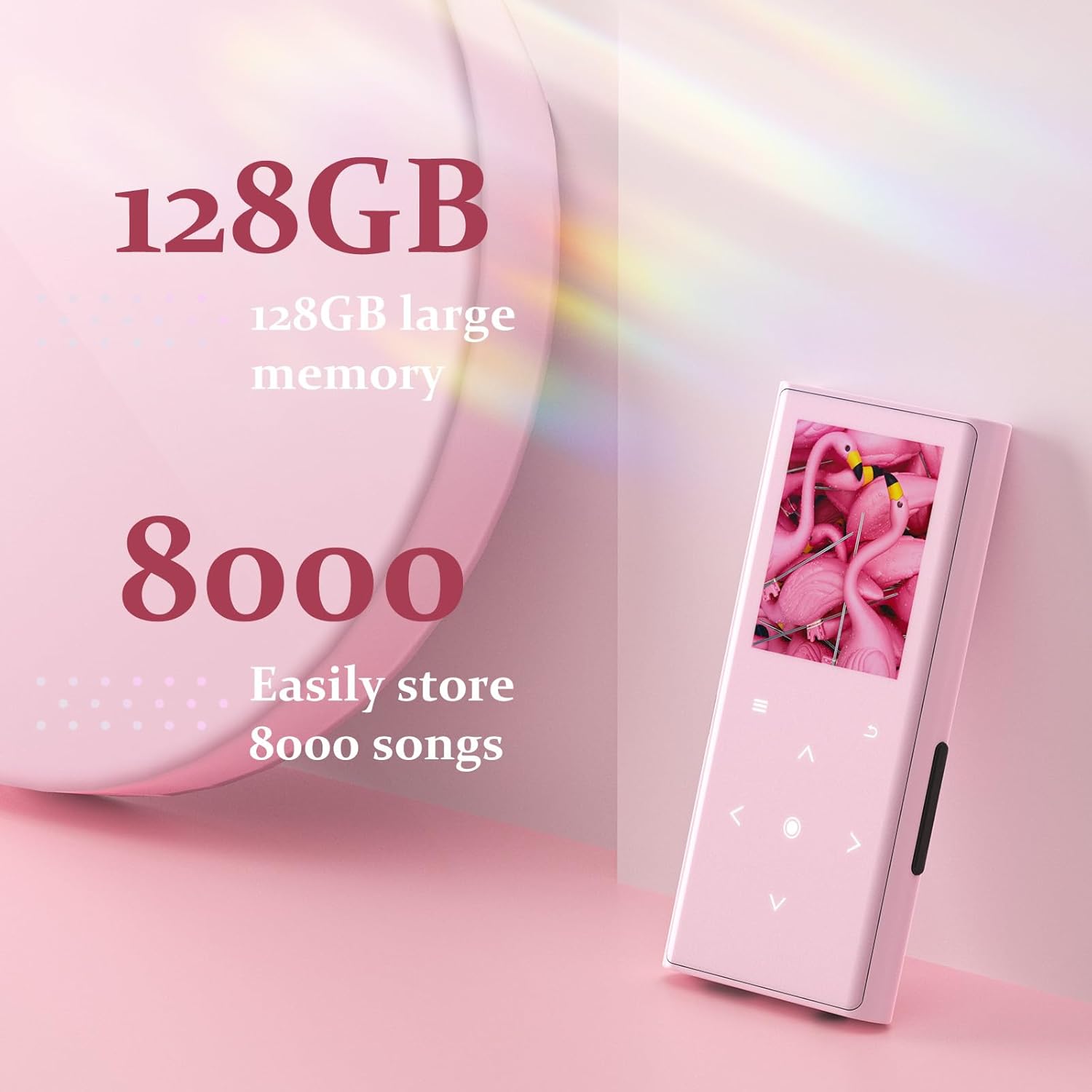
Visual representation of the 128GB large memory capacity, capable of storing thousands of songs.
3.2. Upgraded Bluetooth 5.2
Experience faster and more stable data transmission with Bluetooth 5.2. This advanced chip reduces signal interference, extends transmission distance, and optimizes power consumption for longer battery life. It supports various audio formats including APE, FLAC, WAV, WMA, and MP3.

An image illustrating the Bluetooth 5.2 connectivity, enabling wireless audio streaming.
3.3. Hi-Fi Lossless Sound Quality
An intelligent DSP chip ensures high-fidelity (Hi-Fi) sound quality, accurately restoring original audio. Enjoy clear treble, precise midrange, and deep bass for a superior auditory experience.

Depiction of the MP3 player's Hi-Fi sound capabilities, emphasizing high audio resolution.
3.4. Built-in High-Definition Speakers
The integrated dual-magnet speakers allow you to share music without the need for earphones. Enjoy loud, clear sound without distortion.

An illustration highlighting the internal speaker components of the MP3 player.
3.5. Multifunctional Capabilities
Beyond music playback, the device supports FM radio, voice recording, e-book reading (TXT format), and picture viewing. Its color display and 7 high-sensitivity touch buttons with backlight ensure easy navigation.

The MP3 player interface showing its various functions: Recording, E-book, Radio, and Picture.
3.6. Lightweight and Stylish Design
Crafted from durable zinc alloy, the player is super light at only 67 grams, measuring 3.54 inches long and 1.65 inches wide. Its dynamic orange style and color display offer a visually appealing experience.

The MP3 player positioned with audio accessories, highlighting its portability and audio output options.
4. Setup
4.1. Charging the Device
Before first use, fully charge the MP3 player. Connect the included USB cable to the player's USB-C port and the other end to a USB power adapter (not included) or a computer's USB port. The battery indicator on the screen will show charging status.
4.2. Transferring Music and Files
To transfer files, connect the MP3 player to your computer using the USB cable. The player will appear as a removable disk drive. You can then drag and drop music files (MP3, WMA, WAV, FLAC, APE), e-books (TXT), and pictures into the respective folders on the player's storage.
4.3. Connecting Bluetooth Devices
To pair with Bluetooth headphones or speakers:
- Turn on the MP3 player and navigate to the 'Bluetooth' menu.
- Enable Bluetooth on the player.
- Put your Bluetooth device (headphones, speaker) into pairing mode.
- On the MP3 player, select 'Search Device' to find available devices.
- Select your device from the list to connect. Once paired, the Bluetooth icon will indicate a successful connection.
5. Operating Instructions
5.1. Basic Navigation
The MP3 player features a color display and touch-sensitive buttons for navigation:
- Menu Button: Access the main menu or options within an application.
- Back Button: Return to the previous screen.
- Up/Down Arrows: Scroll through lists or adjust settings.
- Left/Right Arrows: Navigate between options or skip tracks.
- Center Button: Confirm selection or play/pause.
5.2. Music Playback
- From the main menu, select 'Music'.
- Browse by Artist, Album, Song, or Folder.
- Select a song to begin playback.
- Use the Left/Right arrows to skip tracks, and the Center button to play/pause.
- Adjust volume using the dedicated volume buttons on the side of the device (if applicable, otherwise use Up/Down arrows in playback screen).
5.3. FM Radio
To use the FM Radio, ensure wired headphones are connected as they act as the antenna.
- Select 'FM Radio' from the main menu.
- Use the navigation buttons to scan for stations or manually tune.
5.4. Voice Recording
- Select 'Recorder' from the main menu.
- Press the Center button to start recording.
- Press the Center button again to stop and save the recording.
5.5. E-Book Function
The player supports TXT format e-books.
- Select 'E-book' from the main menu.
- Choose a TXT file to open.
- Use the navigation buttons to scroll through pages.
5.6. Picture Viewing
- Select 'Pictures' from the main menu.
- Browse and select an image file to view.
- Use the navigation buttons to view the next or previous image.
6. Maintenance
- Keep the device dry. Avoid exposure to moisture or liquids.
- Clean the screen and body with a soft, dry cloth. Do not use abrasive cleaners or solvents.
- Store the player in a cool, dry place away from direct sunlight and extreme temperatures.
- Avoid dropping or subjecting the device to strong impacts.
7. Troubleshooting
| Problem | Possible Cause | Solution |
|---|---|---|
| Device does not turn on | Low battery; System crash | Charge the device; Press and hold the power button for 10-15 seconds to force restart. |
| No sound from headphones/speakers | Volume too low; Incorrect output selected; Faulty headphones/speakers | Increase volume; Check audio output settings; Test with different headphones/speakers. |
| Bluetooth connection issues | Device not in pairing mode; Out of range; Interference | Ensure both devices are in pairing mode; Move devices closer; Restart both devices. |
| Cannot transfer files | Loose USB connection; Driver issue; Full storage | Ensure USB cable is securely connected; Try a different USB port or cable; Check available storage space. |
8. Specifications
| Feature | Detail |
|---|---|
| Model Number | M6-P |
| Memory Storage Capacity | 128 GB |
| Connectivity Technology | USB, Bluetooth 5.2 |
| Screen Size | 3.54 Inches |
| Display Technology | LCD |
| Special Features | FM Radio, Voice Recorder, E-Book Function, Built-in Speaker |
| Item Weight | 5.3 ounces (approx. 150 grams) |
| Dimensions | 3.54" (L) x 1.65" (W) (approx. 90mm x 42mm) |
| Battery | 1 Lithium Polymer battery (included) |
| Supported Audio Formats | APE, FLAC, WAV, WMA, MP3 |
9. Warranty and Support
For warranty information and technical support, please refer to the contact details provided on the product packaging or visit the official COCONISE website. Keep your purchase receipt for warranty claims.
Ask a question about this manual
Ask about setup, troubleshooting, compatibility, parts, safety, or missing instructions. Manuals+ will review the question and use this page’s manual context to help answer it.