
1. Introduction and Overview
This manual provides essential information for setting up, operating, maintaining, and troubleshooting your Thermaltake LCGS View 460 Gaming Desktop. The LCGS View 460 is designed for high-performance computing, featuring an AMD Ryzen™ 5 7600X processor, 32GB of 5600MT/s DDR5 RGB Memory, and an NVIDIA® GeForce RTX™ 4060 graphics card. It includes a 240mm AIO liquid cooler and 7 ARGB fans for efficient cooling and customizable aesthetics. The system comes pre-installed with Windows 11.

Figure 1: Front view of the Thermaltake LCGS View 460 Gaming Desktop, showcasing its illuminated fans.
2. Product Features
The Thermaltake LCGS View 460 Gaming Desktop offers a range of features designed for optimal performance and user experience:
- Processor: AMD Ryzen™ 5 7600X CPU with AMD B650 Chipset.
- Memory: 32GB 5600MT/s RGB DDR5 RAM.
- Storage: 1TB NVMe M.2 Solid State Drive.
- Graphics: NVIDIA® GeForce RTX™ 4060 with 3x Display Port and 1x HDMI output.
- Cooling: Closed Loop Liquid Cooling with a 240mm Radiator for efficient thermal management.
- Connectivity: Integrated WiFi, 1x Type C USB, 2x USB 3.0, 1x Headphone jack, 1x Microphone jack.
- Chassis Design: PSU Power cover with Filtered Ventilated Vertical Side mount Radiator support, complemented by 7 vivid ARGB fans.
- Operating System: Pre-installed Windows 11.

Figure 2: Interior view of the desktop, highlighting the liquid cooling system and RGB components.
3. Setup Guide
Follow these steps to set up your new gaming desktop:
- Unpack the System: Carefully remove the desktop from its packaging. Ensure all accessories, including power cables and documentation, are present.
- Position the Desktop: Place the desktop on a stable, flat surface with adequate ventilation around all sides. Avoid placing it directly against a wall or in an enclosed space.
- Connect Peripherals:
- Connect your monitor(s) to the graphics card ports (DisplayPort or HDMI) on the back of the PC.
- Connect your keyboard and mouse to the available USB ports.
- If using wired internet, connect an Ethernet cable to the LAN port. For wireless, ensure antennas are attached (if external).
- Connect speakers or headphones to the audio jacks.
- Connect Power: Plug the power cable into the desktop's power supply unit (PSU) and then into a grounded electrical outlet.
- Initial Boot-up: Press the power button on the front of the desktop. The system will guide you through the initial Windows 11 setup process. Follow the on-screen instructions to configure your operating system, network, and user accounts.

Figure 3: Rear view of the desktop, illustrating the various connectivity ports for peripherals and power.
4. Operating Instructions
This section covers basic operation of your Thermaltake LCGS View 460 Gaming Desktop.
4.1 Powering On/Off
- To Power On: Press the power button located on the front panel of the desktop.
- To Shut Down: In Windows 11, click the Start button, then the Power icon, and select "Shut down."
- To Restart: In Windows 11, click the Start button, then the Power icon, and select "Restart."
- Sleep Mode: In Windows 11, click the Start button, then the Power icon, and select "Sleep."
4.2 Windows 11 Navigation
Your desktop comes with Windows 11 pre-installed. Familiarize yourself with the operating system's interface for optimal use. Online resources and Microsoft's official documentation provide comprehensive guides for Windows 11 navigation and features.
4.3 RGB Lighting Control
The desktop features customizable ARGB lighting for its fans and other components. Specific software provided by Thermaltake or your motherboard manufacturer (e.g., MSI Mystic Light, ASUS Aura Sync, Gigabyte RGB Fusion) can be used to customize lighting effects and colors. Refer to the software's documentation for detailed instructions.
5. Maintenance
Regular maintenance helps ensure the longevity and performance of your gaming desktop.
5.1 Dust Cleaning
- Exterior: Use a soft, dry cloth to wipe down the exterior surfaces.
- Interior: Periodically (every 3-6 months, depending on environment) power off and unplug the PC. Open the side panel and use compressed air to gently remove dust from fans, heatsinks, and other components. Pay special attention to the radiator of the liquid cooler and the GPU heatsink.

Figure 4: Close-up of the 240mm AIO liquid cooler and RGB RAM modules, critical areas for dust accumulation.
5.2 Software Updates
- Windows Updates: Regularly check for and install Windows updates via "Settings > Windows Update."
- Driver Updates: Keep your graphics card drivers (NVIDIA GeForce Experience) and motherboard drivers updated for optimal performance and stability.
6. Troubleshooting
This section addresses common issues you might encounter.
6.1 No Power
- Ensure the power cable is securely connected to both the PC and the wall outlet.
- Verify the power switch on the back of the PSU is in the 'ON' position.
- Try a different power outlet or power cable.
6.2 No Display on Monitor
- Check that the monitor is powered on and the correct input source is selected.
- Ensure the video cable (HDMI/DisplayPort) is securely connected to the graphics card on the PC and the monitor.
- If you have multiple monitors, try connecting only one.
6.3 System Running Slowly or Freezing
- Close unnecessary applications running in the background.
- Check for and install any pending Windows or driver updates.
- Ensure adequate airflow and clean any dust buildup inside the case. Overheating can cause performance issues.
- Run a malware scan using reputable antivirus software.
7. Specifications
Detailed technical specifications for your Thermaltake LCGS View 460 Gaming Desktop:
| Component | Specification |
|---|---|
| Model Name | LCGS View 460 |
| Item Model Number | V35S-B650-460-LCS |
| Processor (CPU) | AMD Ryzen™ 5 7600X (4.7 GHz) |
| Graphics Card (GPU) | NVIDIA® GeForce RTX™ 4060 (8 GB GDDR6) |
| RAM Memory | 32 GB DDR5 (5600 MT/s) |
| Storage | 1 TB NVMe M.2 SSD |
| Operating System | Windows 11 |
| Cooling System | 240mm Closed Loop Liquid Cooler |
| Connectivity | Wi-Fi (802.11bgn), Ethernet |
| Video Output | 3x DisplayPort, 1x HDMI |
| USB Ports | 1x Type C USB, 2x USB 3.0 |
| Audio Ports | 1x Headphone, 1x Microphone |
| Color | Black |
| Item Weight | 17.24 Kilograms |
| Dimensions | 58.5 x 54.5 x 35 cm |
8. Warranty and Support
Your Thermaltake LCGS View 460 Gaming Desktop comes with a 1 Year Manufacturer Warranty. This warranty covers parts and repairs for free if needed, provided they are original components and fall under warranty conditions. For any technical issues or questions, Thermaltake offers lifetime technical support. Please refer to the official Thermaltake website or contact their customer service for detailed warranty terms and support options.
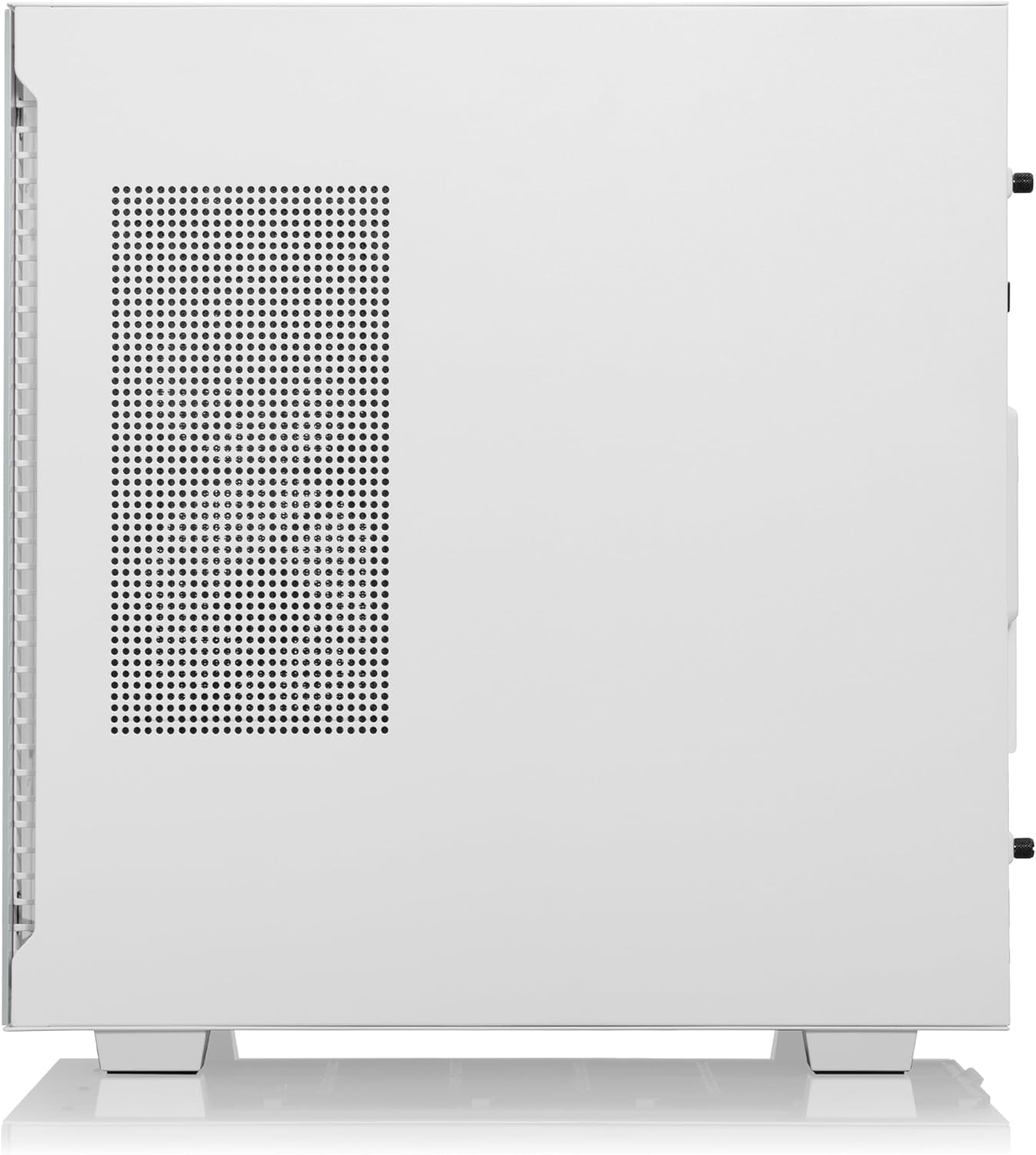
Figure 5: Side panel of the desktop, providing access for maintenance and upgrades.


