
1. Introduction
This manual provides essential instructions for setting up, operating, maintaining, and troubleshooting your Cuifati 5G Mobile Router. This portable device offers high-speed 5G connectivity and Wi-Fi 6 (802.11ac) dual-band support (2.4GHz and 5.8GHz), allowing up to 16 users to connect simultaneously. It features a 2.4-inch TFT MIPI LCD display for status information and is powered by a built-in 4000mAh Li-ion battery.
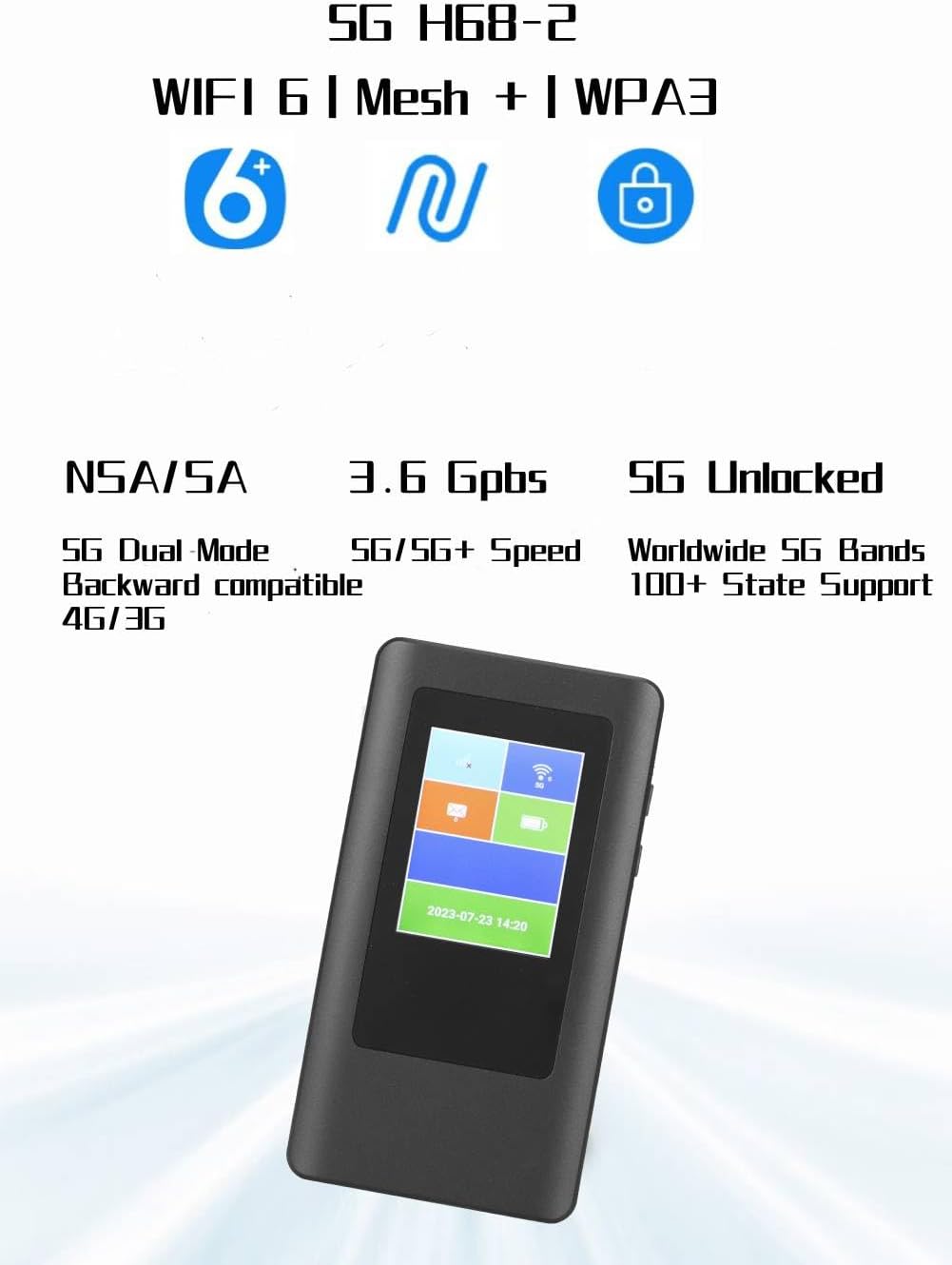
Figure 1: Front view of the Cuifati 5G Mobile Router.
2. Package Contents
Verify that all items are present in your package:
- 1 x Cuifati 5G Mobile Router
- 1 x Charging Cable
- 1 x Instruction Manual
3. Setup
3.1 SIM Card Installation
The device uses a Nano SIM card (not included). Ensure the device is powered off before inserting or removing the SIM card.
- Locate the SIM card slot on the side of the router.
- Gently insert the Nano SIM card into the slot with the gold contacts facing down and the notched corner aligned correctly. Push until it clicks into place.
- To remove, gently push the SIM card inward until it springs out.

Figure 2: Side view of the router, indicating the SIM card slot location.
3.2 Powering On/Off
- To Power On: Press and hold the power button (usually located on the side) for a few seconds until the display screen illuminates.
- To Power Off: Press and hold the power button until a power-off option appears on the screen, then confirm. Alternatively, continue holding the button until the device shuts down.
3.3 Initial Configuration
Upon first power-on or after a factory reset, the device may guide you through an initial setup process on its 2.4-inch TFT display. This typically involves setting up Wi-Fi network name (SSID) and password. Refer to the on-screen prompts for detailed steps.
4. Operation
4.1 Connecting Devices via Wi-Fi
The router supports up to 16 simultaneous connections. To connect your devices:
- Ensure the 5G Mobile Router is powered on.
- On your Wi-Fi enabled device (smartphone, laptop, tablet), open the Wi-Fi settings.
- Search for available networks. The router's default SSID (network name) can be found on the device's display or on a label inside the battery compartment.
- Select the router's SSID and enter the Wi-Fi password (also found on the device's display or label).
- Once connected, your device will have internet access through the 5G Mobile Router.
4.2 Understanding the Display
The 2.4-inch TFT MIPI LCD display provides real-time information about the device's status, including:
- Signal strength (5G/4G/3G)
- Battery level
- Connected users
- Data usage
- Wi-Fi SSID and password
- Current time and date

Figure 3: Router display showing various status indicators.
4.3 Network Bands and Compatibility
The router supports a wide range of 5G, 4G, and 3G bands, making it suitable for use in various regions including the Americas, Europe, Australia, Asia, Southeast Asia, Africa, and the Middle East. For optimal performance, ensure your Nano SIM card's network provider operates on the supported frequency bands.
5. Maintenance
5.1 Charging the Device
The router is equipped with a 4000mAh Li-ion battery. Use the provided charging cable to connect the device to a compatible USB power adapter (not included) or a computer's USB port. The display will indicate charging status.
5.2 General Care and Storage
- Keep the device away from water, moisture, and extreme temperatures.
- Avoid dropping or subjecting the device to strong impacts.
- Clean the device with a soft, dry cloth. Do not use liquid cleaners.
- When storing for extended periods, ensure the battery is partially charged (around 50%) to prolong its lifespan.
6. Troubleshooting
6.1 No Internet Connection
- Check SIM Card: Ensure the Nano SIM card is correctly inserted and active with a data plan.
- Network Signal: Verify that the device has a sufficient 5G/4G/3G signal. Move to an area with better reception if needed.
- APN Settings: In some cases, you may need to manually configure the Access Point Name (APN) settings. Refer to your mobile network provider for the correct APN details.
- Restart Device: Power off the router, wait a few seconds, then power it back on.
6.2 Slow Connection Speed
- Signal Strength: A weak signal can lead to slower speeds.
- Number of Users: Too many connected devices can reduce individual speeds.
- Network Congestion: Performance can be affected by network traffic from your service provider.
- Frequency Band Compatibility: Ensure your SIM card's network supports the router's bands for optimal speed.
6.3 Device Not Powering On
- Battery Level: Ensure the battery is charged. Connect the device to a power source.
- Charging Cable/Adapter: Try a different charging cable or power adapter to rule out faulty accessories.
6.4 Frequency Band Verification
Before purchasing or if experiencing connectivity issues, it is recommended to verify the frequency bands supported by your local network operators. You can often find this information on your operator's website or through resources like Wikipedia's List of LTE networks (note: this link is for LTE, but similar resources exist for 5G bands).
7. Specifications
| Feature | Detail |
|---|---|
| Model Number | CUIFATIx13eym7fuc |
| Chipset | MTK MT6833 |
| Memory | LPDDR4X 2GB, EMMC 16GB ROM |
| Screen Size | 2.4 Inch TFT MIPI LCD |
| SIM Type | Nano SIM (Not Included) |
| 5G Bands | N2, N5, N12, N25, N66, N71, N41, N48, N77, N78 |
| 4G Bands | B2, B4, B5, B7, B12, B13, B14, B17, B25, B26, B29, B30, B41, B46, B48, B66, B71 |
| 3G Bands | B1, B2, B4, B5, B8 |
| Wi-Fi Standard | 802.11 A/B/G/N/Ac (Wi-Fi 6) |
| Wi-Fi Frequency | 2.4GHz, 5.8GHz (Dual-Band) |
| Supported Users | Up to 16 simultaneous users |
| Battery Type | Built-in 4000mAh Li-ion Battery |
| Download Speed (Max) | 2.77Gbps |
| Upload Speed (Max) | 1.25Gbps |
| Item Weight | 10.4 ounces |
| Dimensions | 6.69 x 4.72 x 2.36 inches (Package) |
| Operating System | RouterOS |
| Special Feature | WPS |
| Antenna Type | Internal |
8. Warranty Information
The Cuifati 5G Mobile Router is covered by a 90-day warranty from the date of purchase. This warranty covers manufacturing defects and malfunctions under normal use. Please retain your proof of purchase for warranty claims. The warranty does not cover damage caused by misuse, accidents, unauthorized modifications, or external factors.
9. Customer Support
If you encounter any issues not covered in this manual or require further assistance, please contact Cuifati customer support through the retailer's platform where the product was purchased. Provide your model number (CUIFATIx13eym7fuc) and a detailed description of the problem for efficient support.
Video: Detailed overview and usage guide for the 5G Mobile Router. This video provides visual instructions and demonstrations of the device's features and functions.