User Manual: 54 Inch Indoor Digital Signage Touchscreen Kiosk
Model: MWE-CS54BCT401
Brand: QIXZOCV
Product Overview
The QIXZOCV 54 Inch Indoor Digital Signage Touchscreen Kiosk is a versatile floor-standing advertising display designed for various indoor environments. It features an interactive LCD totem with an Android system and auto media player, providing a high-quality visual experience for advertising, brand display, information communication, and wayfinding.

A full view of the QIXZOCV 54 Inch Indoor Digital Signage Touchscreen Kiosk, showcasing its sleek design and large display.
This video provides an overview of the QIXZOCV Digital Kiosks and Interactive Displays, highlighting their versatility in different commercial environments.
What's in the Box
- Floor Standing Digital Signage
- Complete Accessories
- Installation Tools
- Free USB flash disk (16GB)

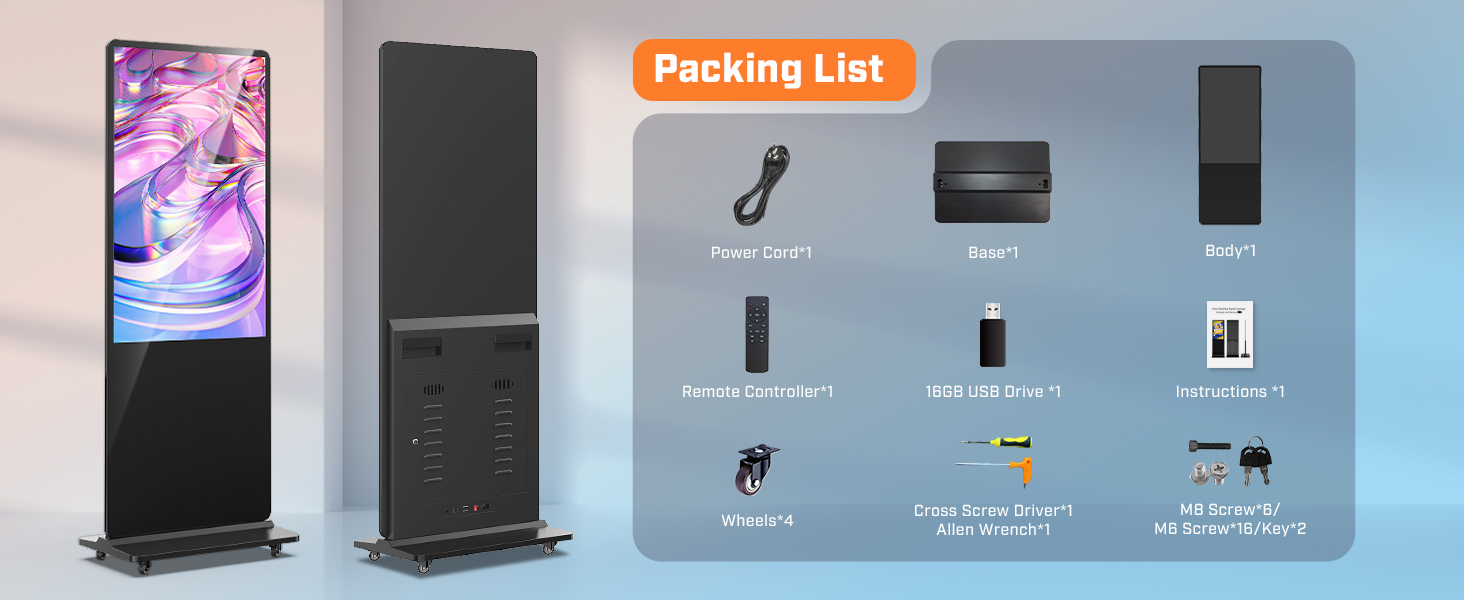
The image displays all components included in the product packaging: the main display unit, base, power cord, remote controller, 16GB USB drive, installation tools (cross screw driver, Allen wrench, MB screws/keys), and user instructions.
Safety Information
Do not splash liquid on the digital signage. Do not put the digital signage under sunlight directly.
Setup Guide
1. Attaching the Base and Wheels
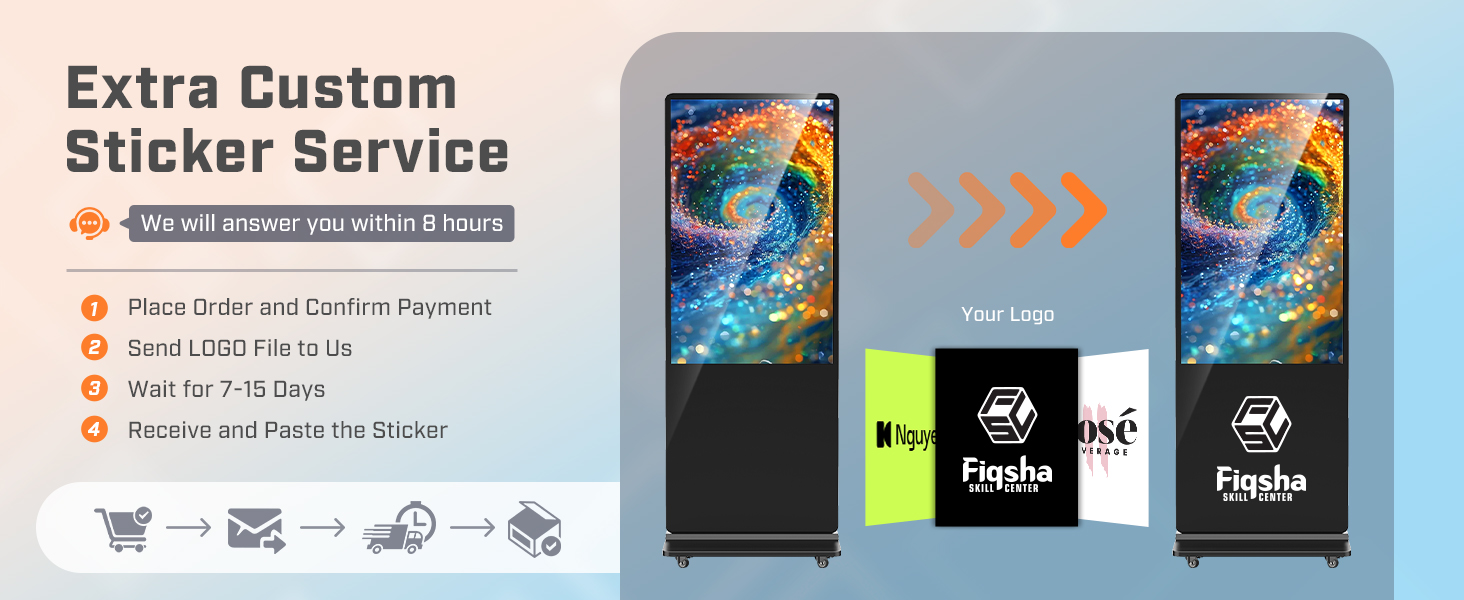
Carefully unpack all components. Attach the base to the main display unit using the provided screws and tools. Securely fasten the four wheels to the base for easy mobility.
This video guides users through the initial assembly of the digital signage display, showing how to securely attach the floor-standing base and the included wheels for mobility.
2. Powering On
Connect the power cord to the designated port on the display and then plug it into a standard power outlet. The display will automatically power on and boot up the Android system.
Operating Instructions
1. Basic Operation with Remote Control
Use the provided remote control to navigate the display's interface. Insert the AAA batteries into the remote. You can use the remote to turn the display on/off, adjust volume, and select input sources.
This video demonstrates basic operation of the QIXZOCV Digital Signage Display using the remote control, including power on/off and navigation.
2. Automatic Media Playback via USB
To play media content automatically, copy your desired pictures and videos into the root directory of the provided USB flash disk. Plug the USB disk into the display's USB port. The display's default autoplay application will automatically detect and play the content in a loop.
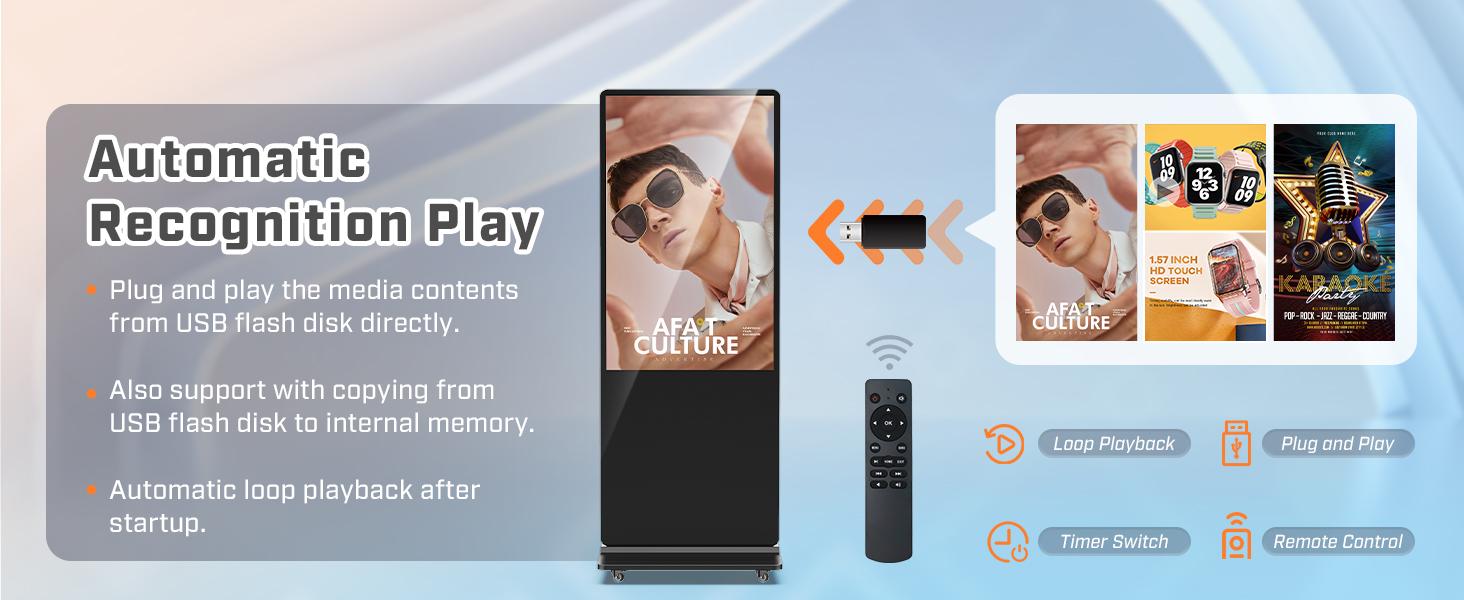
The diagram shows the process of automatic content playback: plug in a USB flash disk, and the display will automatically loop playback of media content after startup.
3. Copying Content to Internal Memory
For content to play without the USB disk, you can copy files to the internal memory. First, create a folder named 'AutoPlayFile' on your USB disk and place your media content inside. Then, plug the USB disk into the display. The display will automatically copy the contents from the 'AutoPlayFile' folder to its internal memory. Once the copy process is complete, you can remove the USB disk.
4. Using External Media Players (HDMI Input)
The kiosk supports external media players or PCs via HDMI input. Open the back door of the display to access the internal compartment. Connect your external player to the HDMI input port and plug its power adapter into the internal power plug. Close the door. Use the remote control to select the HDMI input source to display content from your external device.
The diagram highlights the multiple input options available, such as WiFi, Ethernet cable, HDMI, and USB, allowing connection to computers, HD players, TV boxes, gaming consoles, and more.
5. Smart Split-Screen Function
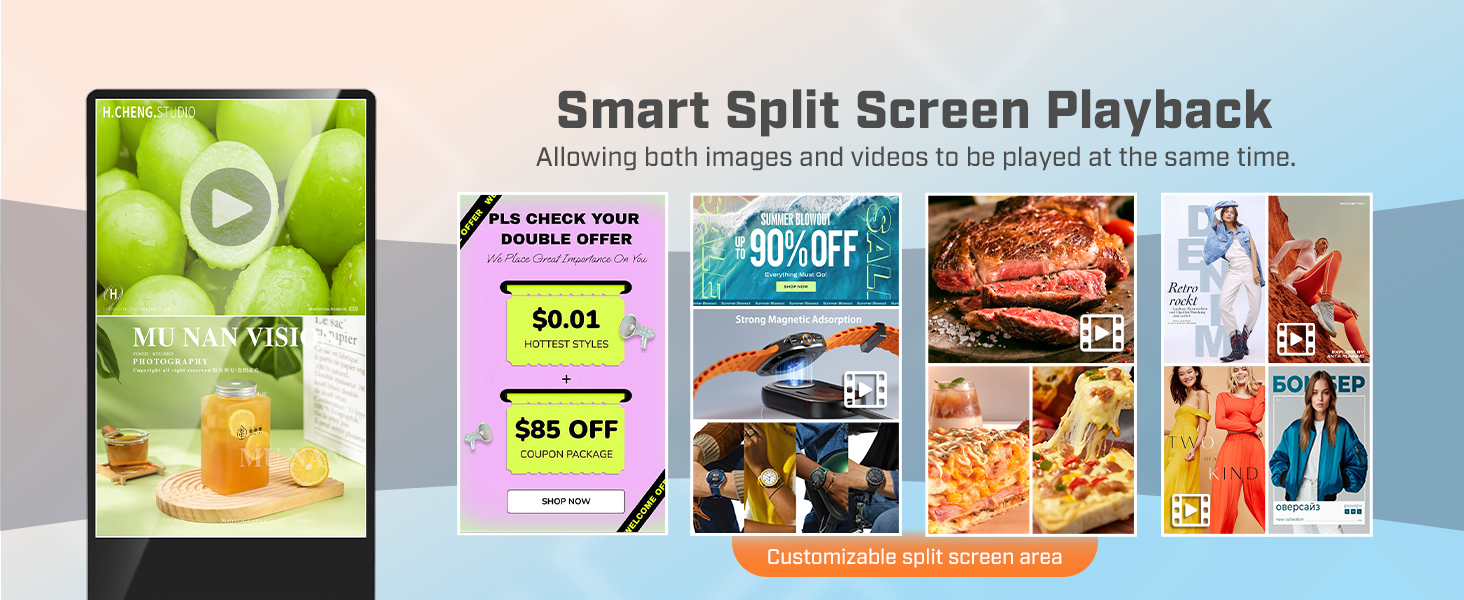
Utilize the smart split-screen function to showcase a variety of content formats simultaneously. This feature allows you to customize the size, position, and orientation of each content zone for precise control over the layout, perfect for displaying multiple advertisements or branding messages side by side.
This video showcases the smart split-screen feature, allowing simultaneous display of various content formats like images and videos in customizable layouts.
The illustration demonstrates how the smart split-screen function enables playing both images and videos at the same time, with customizable split-screen areas for dynamic content presentation.
6. Timed Power On/Off Settings
The display features a built-in timer app for time-saving and efficient operation. You can set specific times for the display to automatically power on and off, ensuring continuous playback during operational hours and saving energy when not in use.
The diagram shows the built-in timer app for scheduling different content for various times of the day (e.g., breakfast, lunch, dinner menus) and setting automatic boot and shutdown times for efficient operation.
Features Overview
- Ideal for Advertising and Promotion: Designed with durability and sturdiness, suitable for diverse indoor locations.
- Multifunctional Display Equipment: Showcase advertisements, brand logos, product information, and promotional campaigns.
- QIXZOCV Intelligent Solutions: Convey various types of information, provide wayfinding, and guide people to their destinations.
- Advantage Features: Slim design, stable Open Cell technology for low power consumption, compatibility with other media player box installation, and user-friendly Android system.
- High-Quality Visual Experience: FHD IPS display screen with crisp and vibrant visuals, wide 178° viewing angle, and customizable display settings.
- Versatile Playback Options: Supports plug-and-play via USB, automatic playback, remote control, timing on/off, HDMI input, built-in media player, Wi-Fi, and network connectivity.
- Dynamic Multi-Screen Layouts: Smart split-screen function to showcase various content formats, including images, videos, and animations.

The display features an ultra-slim bezel, contributing to a modern and sleek appearance, making it lighter and more aesthetically pleasing than traditional kiosks.

The diagram shows the Content Management System (CMS) in action, allowing real-time updates and adjustments of content from a computer or tablet to multiple digital signage units.
Maintenance
To ensure the longevity and optimal performance of your QIXZOCV Digital Signage Kiosk, regular maintenance is recommended. Keep the screen clean by gently wiping it with a soft, lint-free cloth. Avoid using harsh chemicals or abrasive materials that could damage the display. Ensure proper ventilation around the unit to prevent overheating. Periodically check all cable connections for security.
Troubleshooting
Common Issues and Solutions
- No Display/Black Screen: Ensure the power cord is securely connected and the power switch is on. If using an external player, verify the HDMI cable connection and correct input source selection.
- Content Not Playing: Check if the USB flash drive is properly inserted and contains compatible media files in the correct root directory or 'AutoPlayFile' folder. If copying to internal memory, ensure the copy process completed successfully.
- Touchscreen Unresponsive: Restart the device. Ensure the screen is clean and free from obstructions.
- Display Freezes/Slow Performance: Restart the device. If using many applications, consider closing unused ones or clearing cache.
- No Sound: Check the volume settings on the display and any connected external media players. Ensure audio cables are properly connected if external speakers are used.
Specifications
| Feature | Detail |
|---|
| Standing screen display size | 54 Inches |
| Screen Resolution | 1920x1080 |
| Max Screen Resolution | 1920 x 1080 Pixels |
| Brand | QIXZOCV |
| Series | MWE-CS54BCT401 |
| Item model number | 43"-NonTouch (Note: This manual is for the 54-inch model) |
| Item Weight | 145.2 pounds |
| Product Dimensions | 17.72 x 29.92 x 77.17 inches |
| Color | Black |
| Power Source | DC |
Warranty and Support
Enjoy peace of mind with a 3-year warranty for products with quality defects. Installation and usage videos are available on the product page, and the user manual is included in the packaging for easy setup and use. Professional technical team provides online support, ensuring prompt assistance and solutions for any queries or issues.
For further assistance or technical support, please visit the official QIXZOCV Direct Store.

