
1. Introduction
This manual provides detailed instructions for the setup, operation, maintenance, and troubleshooting of your QIXZOCV MWE 43 Inch Indoor Floor Standing Digital Signage Display Kiosk. Please read this manual thoroughly before using the product to ensure proper function and longevity.
2. What's in the Box
Verify that all components are present in the packaging:
- Floor Standing Digital Signage Display (Main Unit)
- Complete Accessories (Screws, screwdriver, keys)
- Installation Tools
- USB Flash Disk (16GB)
- Power Cord
- Base
- Remote Controller with Batteries
- User Manual
3. Setup & Installation
Follow these steps to assemble and prepare your digital signage display for use.
3.1 Unpacking and Component Identification
Carefully remove all components from the packaging. Identify the screen body, screen bracket, power cable, remote controller, USB flash disk, and installation tools.

Video: Unboxing the QIXZOCV Digital Signage Display. This video demonstrates the unpacking process and identifies all included components.
3.2 Stand Assembly
Attach the screen bracket to the main display unit using the provided screws and screwdriver. Ensure the holes align correctly for a secure fit. The display is designed with a handle and wheels for easy mobility.

Image: All components of the digital signage display laid out for assembly, including the screen, stand, and accessories.

Video: Installation guide for the QIXZOCV Digital Signage Display, showing how to assemble the stand and attach the screen.
3.3 Power Connection
Connect the power cable to the display unit and then to a power outlet. Turn on the power switch located on the unit. The display will power on automatically.
4. Operating Instructions
The display operates on an Android system, offering various content management and playback options.
4.1 Media Playback via USB
Copy your media content (images, videos) to the provided USB flash disk. Insert the USB disk into the display's USB port. The content will be displayed automatically. The recommended resolution for content is 1080x1920 pixels.
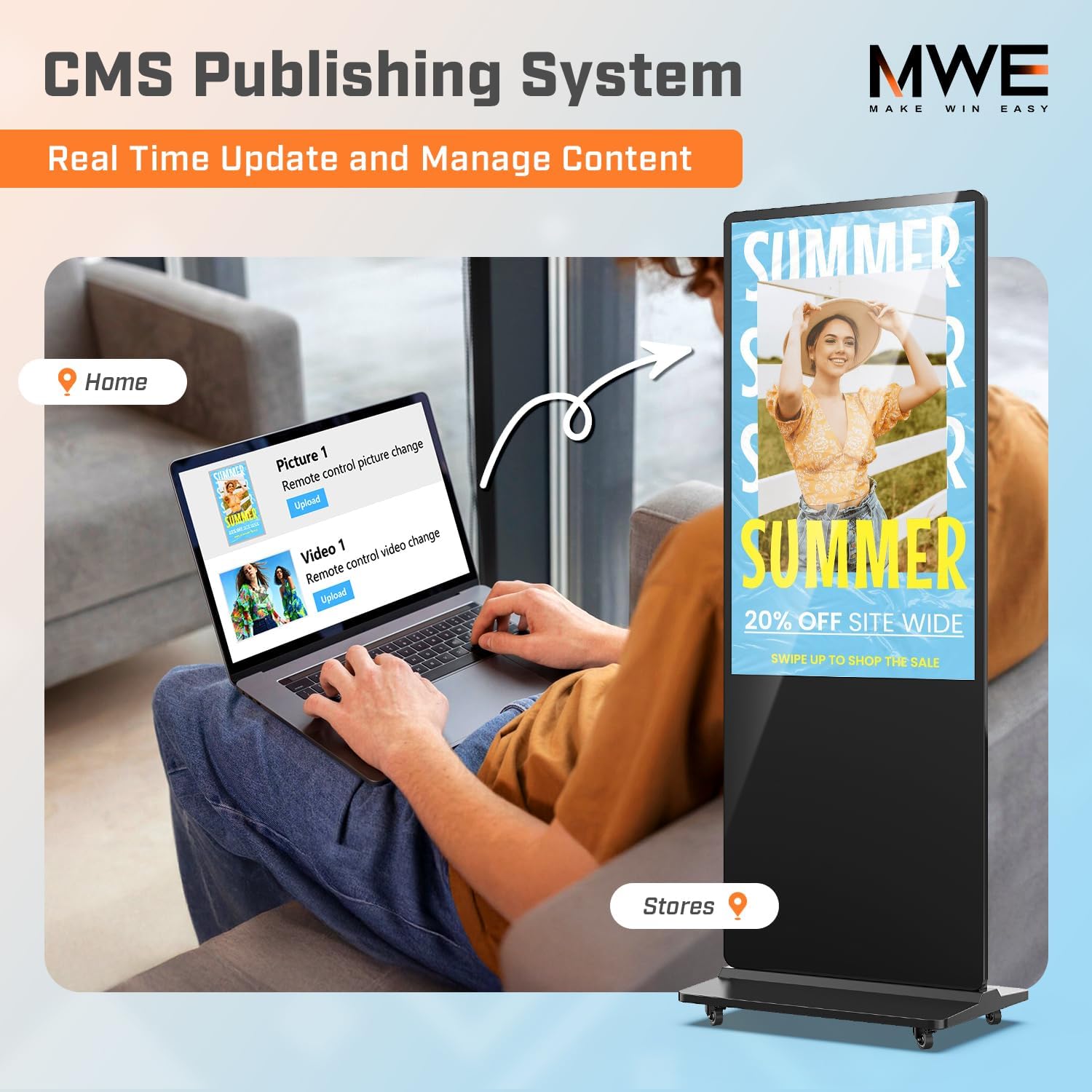
Image: The display showcasing automatic recognition play features, including loop playback, plug and play, timer switch, and remote control.
Video: Usage Guidance Video of QIXZOCV Digital Signage Displays, demonstrating how to load and play media content.
4.2 Remote Control Operation
Use the remote controller to navigate the Android system. Click the home button to access applications. Select the 'Autoplay' app to manage playback settings. You can choose between 'Plug and Play Mode' (direct playback from USB/SD card) or 'Copy Mode' (copy content to internal memory). You can also adjust screen direction (vertical/horizontal) and select various display modes.
4.3 CMS Publishing System
The display supports a CMS (Content Management System) for real-time content updates and management. This allows for flexible content scheduling and remote control.

Image: The display interface for the CMS Publishing System, illustrating how content can be updated and managed.
4.4 Smart Split-Screen Function
Utilize the smart split-screen function to display multiple content formats (images, videos, animations) simultaneously. Customize the size, position, and orientation of each content zone for precise layout control.
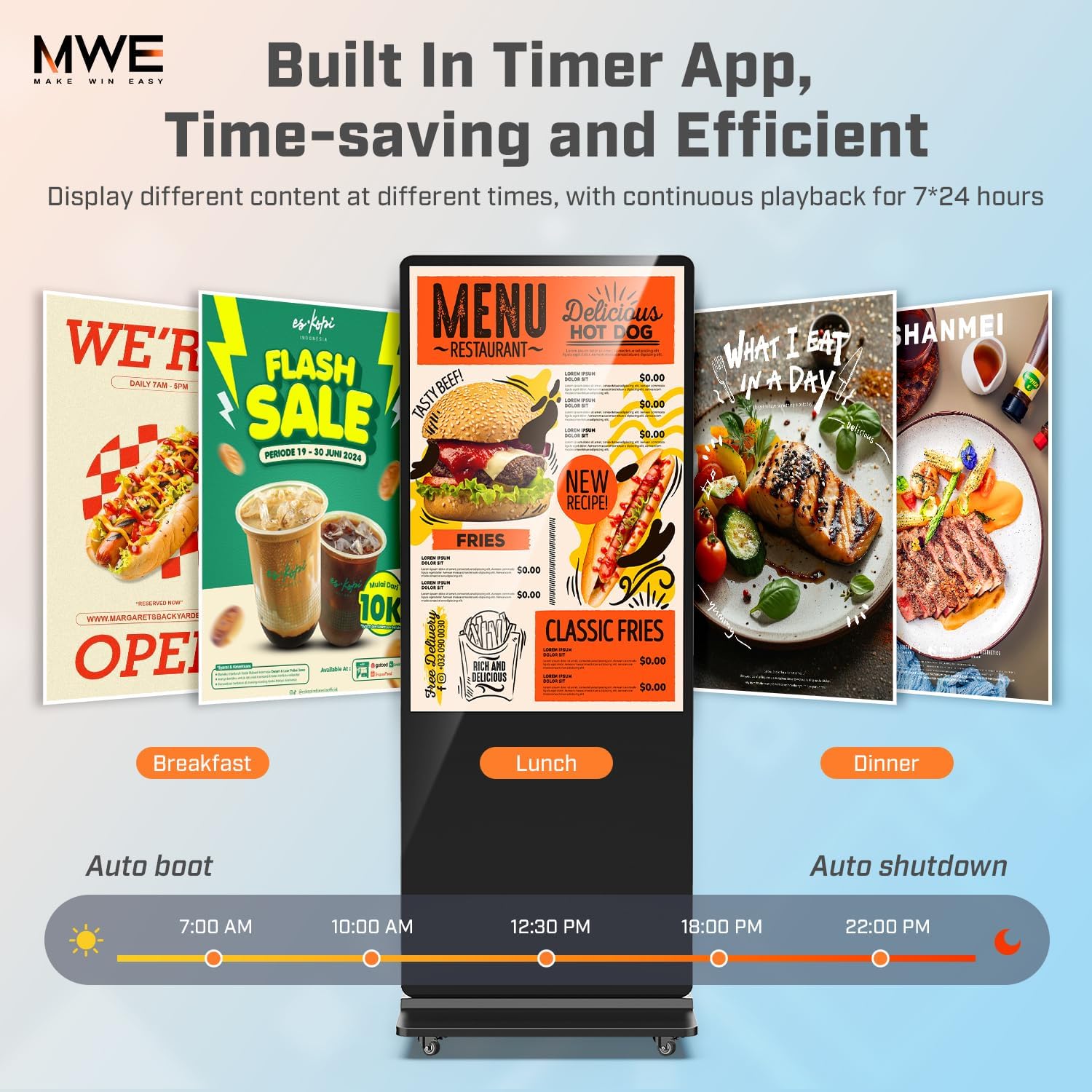
Image: The display demonstrating various smart split-screen playback options, allowing multiple images and videos to be shown concurrently.
Video: Smart Split-screen Function of QIXZOCV Digital Signage, illustrating how to configure and use the split-screen feature.
4.5 Timed Playback
Set up timed power on/off schedules and continuous playback for 24/7 operation. This feature allows the display to show different content at various times of the day.

Image: The display illustrating the built-in timer app, allowing for time-saving and efficient content scheduling throughout the day.
5. Specifications
| Standing screen display size | 43 Inches |
| Screen Resolution | 1920x1080 |
| Max Screen Resolution | 1920 x 1080 Pixels |
| Number of USB 2.0 Ports | 2 |
| Brand | QIXZOCV |
| Series | MWE-CS43BCN201 |
| Item model number | 43"-NonTouch |
| Item Weight | 105.8 pounds |
| Product Dimensions | 17.72 x 24.02 x 71.26 inches |
| Color | Black |
| Power Source | DC |
| Screen Surface Description | Glossy |
6. Maintenance & Care
To ensure the longevity and optimal performance of your digital signage display, follow these maintenance guidelines:
- Do not splash liquid on the digital signage.
- Do not place the digital signage under direct sunlight.
- Clean the screen regularly with a soft, dry, lint-free cloth. Avoid abrasive cleaners.
- Ensure proper ventilation around the unit to prevent overheating.
7. Troubleshooting
If you encounter issues with your digital signage display, refer to the following common troubleshooting tips:
- No Power: Check if the power cable is securely connected and the power switch is in the 'ON' position.
- No Display: Ensure the correct input source is selected if using an external media player. Verify media content is correctly loaded onto the USB disk or internal memory.
- Content Not Playing: Check that media files are in a supported format and the resolution is 1080x1920 pixels. Ensure the 'Autoplay' app settings are configured correctly.
- Remote Control Not Responding: Check if the batteries in the remote controller are correctly inserted and charged.
For further assistance, please contact customer support.
8. Warranty & Support
Your QIXZOCV MWE Digital Signage Display comes with a 3-year warranty for products with quality defects. Installation and usage videos are available on the product page, and a user manual is included in the packaging for easy setup and use. Professional technical support is available online to assist with any queries or issues.
For support, please visit the QIXZOCV Direct store on Amazon.