
1. Introduction
This manual provides instructions for the ECOPAD Android 15 10-Inch Tablet. Please read this manual thoroughly before using your device to ensure proper operation and to maximize its lifespan. Keep this manual for future reference.
2. What's in the Box
Verify that all items are present in the package:
- 1* ECOPAD K12 Tablet
- 1* Wireless Keyboard
- 1* Mouse
- 1* Stylus
- 1* Screen Protector
- 1* Power Adapter
- 1* Type-C Cable
- 1* Tablet Case
- 1* User Manual (this document)

Image: Package contents for the ECOPAD Android 15 10-Inch Tablet.
3. Product Overview
The ECOPAD Android 15 10-Inch Tablet is a versatile device designed for various tasks, from productivity to entertainment. It operates on Android 15 and features a 10.1-inch HD IPS display.
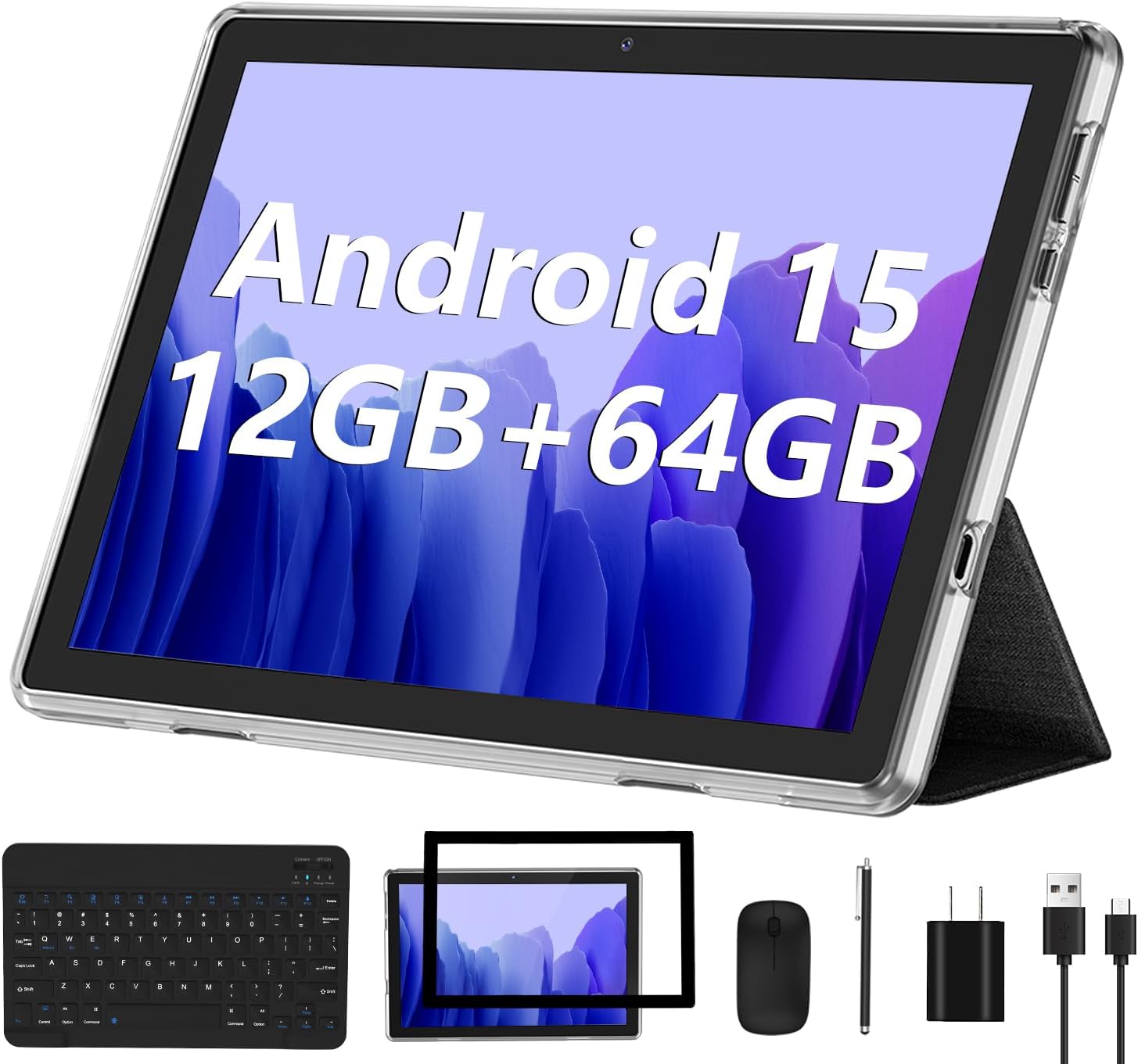
Image: The ECOPAD Android 15 10-Inch Tablet with its included accessories.
Key Features:
- Operating System: Android 15 with GMS Certification
- Display: 10.1-inch HD IPS Touch Screen (1280*800 resolution)
- Processor: Quad-Core ARM Processor
- Memory: 12GB RAM (4GB physical + 8GB virtual)
- Storage: 64GB ROM, expandable up to 1TB via Micro SD card
- Cameras: 2MP Front Camera, 8MP Rear Camera
- Connectivity: 2.4GHz/5GHz WiFi 6, Bluetooth 5.0
- Battery: 6000mAh Lithium Battery
- Accessories: Includes wireless keyboard, mouse, and stylus for 2-in-1 functionality
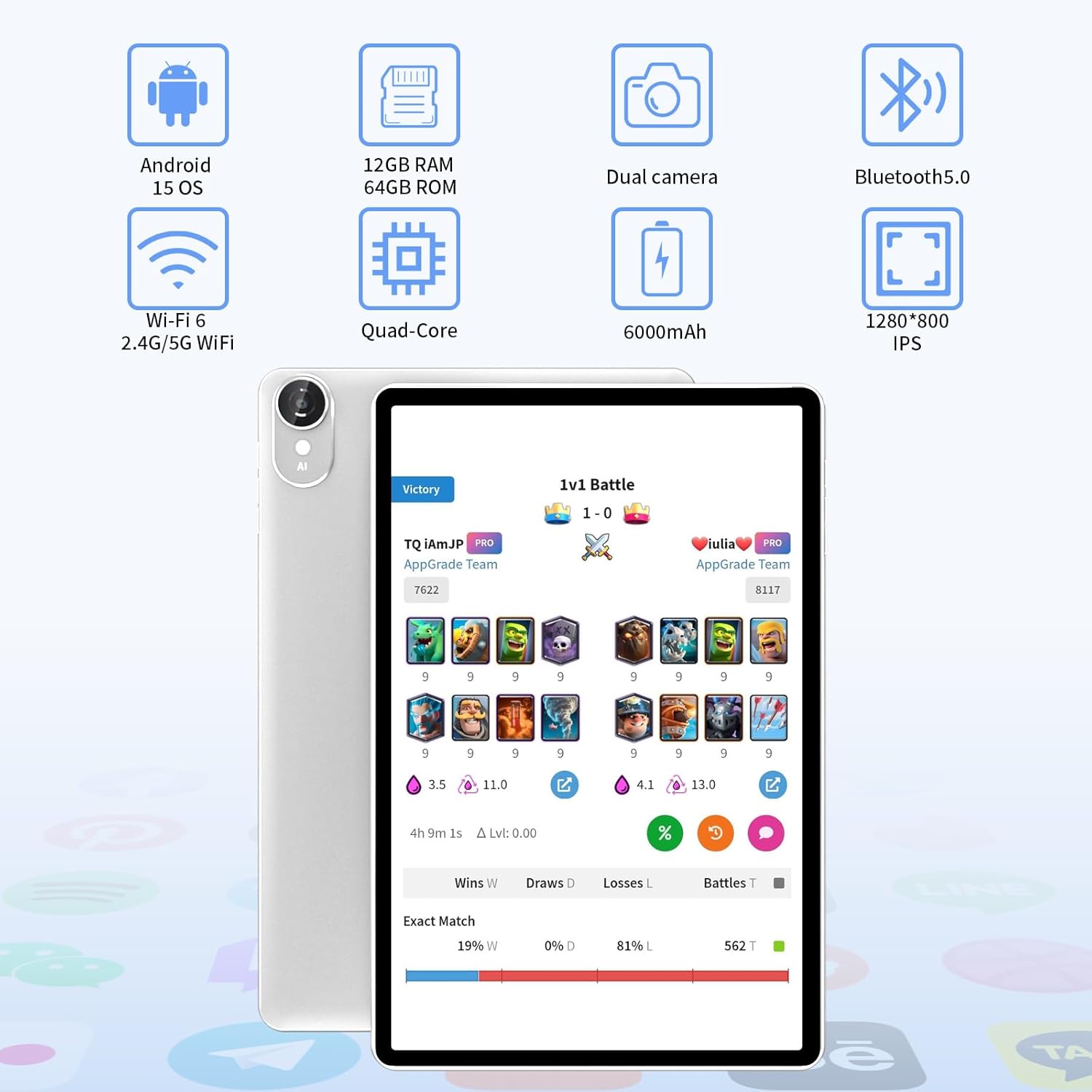
Image: Visual representation of the tablet's core features.
4. Setup
4.1 Initial Power On and Charging
- Connect the tablet to the power adapter using the provided Type-C cable.
- Plug the power adapter into a wall outlet.
- Press and hold the power button on the tablet until the screen lights up.
- Follow the on-screen prompts to complete the initial setup, including language selection and basic settings.
4.2 Connecting to Wi-Fi
- Go to Settings > Network & internet > Wi-Fi.
- Toggle Wi-Fi On.
- Select your desired Wi-Fi network from the list.
- Enter the network password if prompted, then tap Connect.

Image: The tablet's Wi-Fi 6 capability for faster connectivity.
4.3 Bluetooth Keyboard and Mouse Pairing
- Ensure the keyboard and mouse are charged and powered on.
- On your tablet, go to Settings > Connected devices > Bluetooth.
- Toggle Bluetooth On.
- The tablet will scan for available devices. Select the keyboard and mouse from the list to pair them. Follow any on-screen instructions or enter a pairing code if required.
4.4 Google Account Setup
To access the Google Play Store, Gmail, and other Google services, you will need to sign in with your Google account during the initial setup or later via Settings > Accounts > Add account > Google.
4.5 Storage Expansion
The tablet supports Micro SD cards up to 1TB. Insert the Micro SD card into the designated slot on the tablet. You can then use it for additional storage for apps, photos, and videos.
5. Operating Instructions
5.1 Basic Navigation
- Touch: Tap an icon to open an app or select an item.
- Swipe: Move your finger across the screen to scroll through pages or content.
- Pinch: Use two fingers to zoom in or out on images and web pages.
- Home Button: Returns to the home screen.
- Back Button: Returns to the previous screen.
- Recent Apps Button: Displays recently used applications.
5.2 2-in-1 Functionality
The tablet can be used in two modes: tablet mode and laptop mode. Attach the wireless keyboard and mouse for a laptop-like experience, ideal for typing and productivity. Detach them for a portable tablet experience.

Image: Tablet used in laptop mode with keyboard.
5.3 Split-Screen Functionality
Android 15 allows for split-screen multitasking. To activate:
- Open the first app you want to use.
- Tap the Recent Apps button (usually a square icon).
- Tap the app icon at the top of the first app's card, then select Split screen.
- Choose the second app from the recent apps list or app drawer to fill the other half of the screen.

Image: Tablet displaying smart split-screen functionality.
5.4 Camera Usage
The tablet features a 2MP front camera and an 8MP rear camera. Open the Camera app to take photos or record videos. Tap the screen to focus and press the shutter button to capture.

Image: Tablet demonstrating dual camera use for video calls.
5.5 App Management
Download and install applications from the Google Play Store. To uninstall an app, long-press its icon on the home screen or app drawer, then drag it to the 'Uninstall' option, or go to Settings > Apps > See all apps, select the app, and tap Uninstall.
5.6 Battery Management
The 6000mAh battery provides extended usage. To optimize battery life:
- Adjust screen brightness.
- Disable Wi-Fi or Bluetooth when not in use.
- Close unused background applications.
- Enable battery saver mode in Settings > Battery.

Image: Battery specifications and usage times.
6. Maintenance
6.1 Cleaning the Device
Use a soft, lint-free cloth to clean the screen and body of the tablet. Avoid using harsh chemicals or abrasive materials that could damage the surfaces.
6.2 Software Updates
Regularly check for system updates to ensure your tablet has the latest features and security patches. Go to Settings > System > System update.
6.3 Battery Care
To prolong battery life, avoid exposing the tablet to extreme temperatures. Do not let the battery completely drain frequently, and avoid overcharging for extended periods.
7. Troubleshooting
7.1 Tablet Not Turning On
Ensure the tablet is sufficiently charged. Connect it to the charger and wait a few minutes before attempting to power it on again. If the issue persists, perform a forced restart by holding the power button for 10-15 seconds.
7.2 Wi-Fi Connectivity Issues
Check if Wi-Fi is enabled in settings. Restart your router and the tablet. If the problem continues, forget the network in Wi-Fi settings and reconnect.
7.3 Keyboard/Mouse Not Connecting
Ensure Bluetooth is enabled on the tablet and the accessories are in pairing mode. Check battery levels of the keyboard and mouse. Try re-pairing the devices.
7.4 Apps Crashing or Freezing
Clear the cache and data for the problematic app via Settings > Apps > See all apps > [App Name] > Storage & cache. If the issue persists, uninstall and reinstall the app. Ensure the tablet's software is up to date.
8. Specifications
| Feature | Specification |
|---|---|
| Brand | ECOPAD |
| Model Name | ECOPAD 2025 10-Inch Tablet |
| Operating System | Android 15 |
| Screen Size | 10.1 Inches |
| Screen Resolution | 1280 x 800 Pixels (HD IPS) |
| Processor | Quad-Core ARM |
| RAM | 12GB (4GB physical + 8GB virtual) |
| Internal Storage (ROM) | 64GB |
| Expandable Storage | Up to 1TB via Micro SD Card |
| Rear Camera | 8 MP |
| Front Camera | 2 MP |
| Wireless Type | 802.11ax (Wi-Fi 6) |
| Bluetooth | Bluetooth 5.0 |
| Battery Capacity | 6000mAh Lithium Polymer |
| Average Battery Life | 6 Hours (usage dependent) |
| Item Weight | 2.77 pounds |
| Product Dimensions | 10.5 x 7 x 0.3 inches |
9. Warranty and Support
9.1 Technical Support
For technical assistance or if you encounter any issues with your ECOPAD tablet, please contact our customer support. Most questions are answered within 24 hours.
9.2 Quality Assurance
All ECOPAD products undergo strict quality testing before leaving the factory to ensure reliability and performance.
9.3 Protection Plans
Additional protection plans may be available for purchase. Please refer to your retailer for details on available plans, such as 2-Year Protection Plans or Complete Protect options.