
XTRONS 4G+64G 1PC
XTRONS 14-Inch 4K Video Player User Manual
Model: 4G+64G 1PC | Brand: XTRONS
This manual provides essential information for the setup, operation, and maintenance of your XTRONS 14-Inch 4K Video Player.
Product Overview
The XTRONS 14-Inch 4K Video Player is an advanced car TV headrest monitor tablet designed for back seat entertainment. Featuring the latest Android 11 OS, 4GB RAM, and 64GB ROM, it delivers fast performance and supports a wide range of applications. Its 14-inch QHD (2160*1440) IPS touch screen with G+G technology ensures a highly sensitive and immersive viewing experience with UHD 4K video decoding. The ergonomic swivel mounting bracket and built-in Gyro sensor allow for 90° rotation between portrait and landscape orientations. Connectivity options include Wi-Fi, Bluetooth, HDMI In/Out, RCA In, and USB, enabling versatile media sharing and control from mobile devices.

Figure 1: XTRONS 14-Inch 4K Video Player, showcasing its large screen and app icons.
Setup and Installation
Mounting the Device
The XTRONS headrest monitor is designed for universal fit, supporting most car seats with round poles. Ensure your car seat has round poles for proper installation. The maximum pole diameter supported is 0.59 inches (15mm). The adjustable bracket distance (A->B) ranges from 4.33 inches (110mm) to 7.48 inches (190mm). The maximum distance between the player and the bracket (C->D) is 3.54 inches (90mm).

Figure 2: Diagram illustrating the universal fit for car seats with round poles, including maximum dimensions.
- Choose a way to assemble the mounting base (Option 1 or Option 2).
- Attach the mounting base onto the two headrest poles and secure it with screws.
- Assemble the monitor to the desired position of the mounting base and secure the monitor by using the toggle clamp.
- The monitor can rotate 90° for portrait or landscape orientation.
- If needed, adjust the monitor to your desired tilt position (up to 70°).

Figure 3: Step-by-step guide for mounting the headrest monitor and adjusting its rotation and tilt.
Power Connection
The unit can be powered via a cigarette lighter cable or through a direct wiring harness connection. Ensure proper polarity when connecting to avoid damage.

Figure 4: Illustration of the two power connection methods: cigarette lighter adapter and direct wiring harness.
Operating Instructions
Initial Setup and Wi-Fi Connection
To access online features and app downloads, connect the device to a Wi-Fi network. The device supports 2.4G/5GHz Wi-Fi or a car hotspot.
- Navigate to Settings > Android Settings > Enter Android.
- Select Network & Internet > Wi-Fi.
- Choose your desired Wi-Fi network and enter the password if required.
Video 1: Guide on how to connect the XTRONS Android Headrest Monitor to a Wi-Fi network. This is the first step for enabling smart control features.
App Installation and Smart Control (AutoCast)
The AutoCast app enables seamless control of the headrest monitor from your Android or iOS mobile device. This is particularly useful for parents to manage content for children in the back seat.
- Download and install the "AutoCast" app on your mobile device from Google Play Store/APP Store. For Android car stereos, you can also download the APK file and install it directly.
- Launch the "AutoCast" app from the car stereo and press "Casting Control".
- Ensure both the headrest monitor and your mobile device are connected to the same Wi-Fi/hotspot network.
- Once connected, you can operate the Android Car TV headrest monitor from your car stereo or mobile phone, including sliding the screen and playing videos.
Video 2: Demonstrates how to download and install the AutoCast app, set up casting control, and operate the headrest monitor from a car stereo or mobile device.

Figure 5: Image showing a user operating the headrest monitor from a smartphone, highlighting the convenience of remote control.

Figure 6: Visual representation of the mutual control feature between the headrest monitor and a mobile device using the AutoCast app.
Screen Mirroring
The device supports AirPlay and general screen mirroring for both iOS and Android devices. This allows you to display content from your phone directly onto the headrest monitor.
Note: Screen mirroring may not support encrypted paid video apps like Netflix, Amazon Video, Hulu, Comcast TV, and DIRECTV due to unauthorized sharing restrictions.

Figure 7: Image demonstrating wireless screen mirroring from a smartphone (iOS and Android) to the headrest monitor.
Media Playback and Customization
- 4K Video Playback: The 14-inch QHD screen (2160*1440) supports UHD 4K video decoding for a high-quality viewing experience.
- Audio Options: Play sound directly from the built-in speakers, transmit to vehicle speakers via FM, connect wirelessly via Bluetooth, or use wired earphones with the built-in 3.5mm jack.
- UI Themes: Customize the unit's interface with multiple built-in UI themes to suit your preference.
- Rotatable Screen: The 90° rotatable IPS touch screen allows for both portrait and landscape orientation, though not all apps support portrait mode.
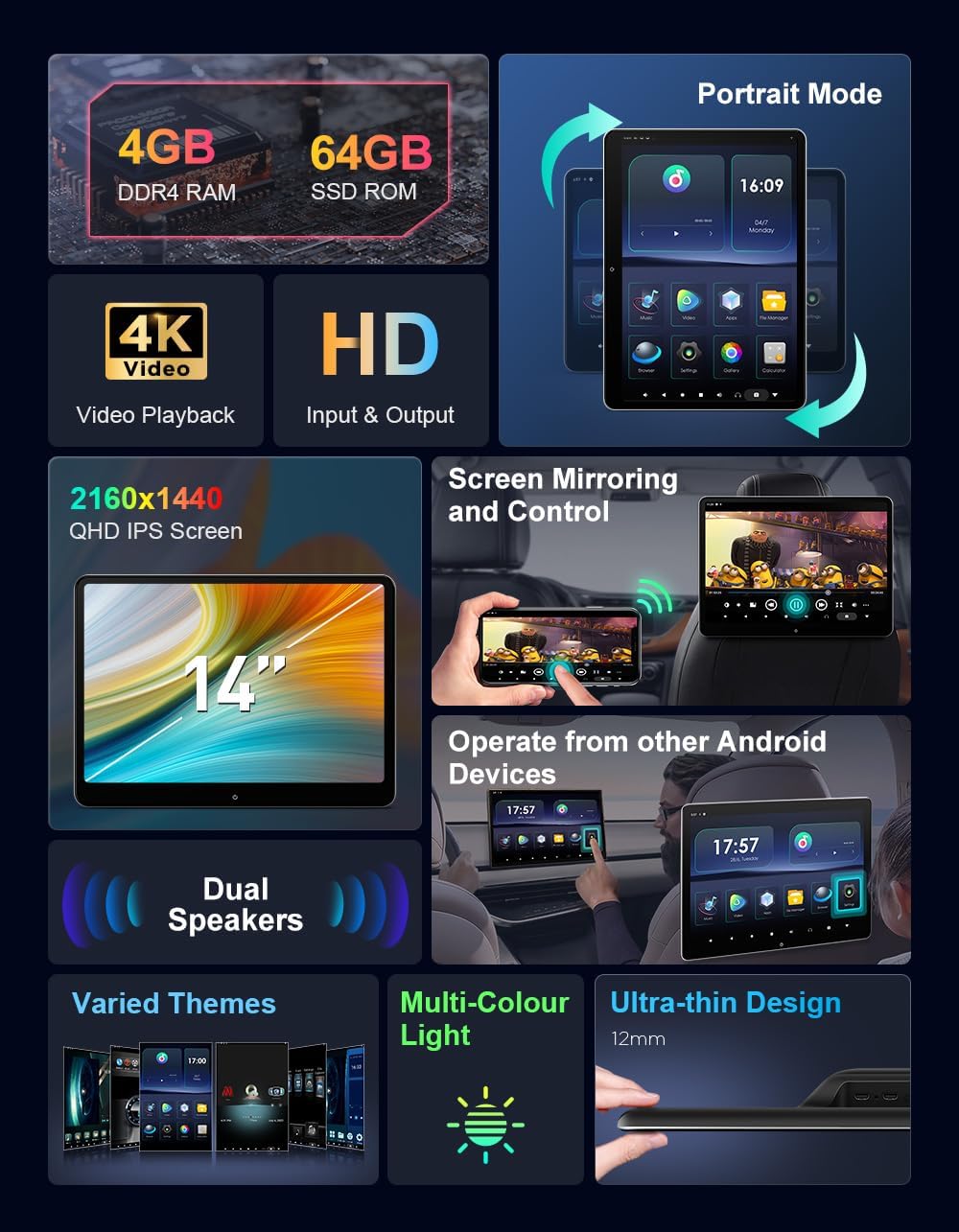
Figure 8: Overview of key product features including 4GB DDR4 RAM, 64GB SSD ROM, 4K video playback, HD input/output, 2160x1440 QHD IPS screen, dual speakers, varied themes, multi-color light, and ultra-thin design.

Figure 9: Depiction of various audio output options: built-in speakers, FM transmission to car radio, Bluetooth headphone connection, and 3.5mm headset jack.

Figure 10: Examples of the 28 available UI themes, including 6 vertical themes, for personalized user interface customization.

Figure 11: View of the headrest monitors installed in a car, demonstrating the 90° rotation capability for both landscape and portrait viewing modes.
Connectivity
The XTRONS 14-Inch 4K Video Player offers extensive connectivity options for various external devices:
- Micro HDMI: Supports both input and output, allowing connection to game consoles, laptops, or other displays.
- USB Type-C: For data transfer and connecting USB devices.
- 3.5mm Audio Out: For connecting wired headphones or external audio systems.
- RCA In: For connecting external video sources like mini DVD players or older gaming consoles.
- DC 12V: Power input.

Figure 12: Detailed view of the various connectivity ports on the side of the unit, including Micro HD Out, USB Type-C, Reset, 3.5mm Audio Out, Micro HD In, and DC 12V.

Figure 13: Examples of external devices that can be connected via HDMI In or RCA In, such as in-car TV boxes, mini DVD players, video game consoles, laptops, and DSLR cameras.
Specifications
| Feature | Detail |
|---|---|
| Model Number | 4G+64G 1PC |
| Screen Size | 14 Inches (36 cm diagonal) |
| Display Type | Fully Laminated Screen, QHD G+G IPS Screen |
| Resolution | 2160x1440 (2K) |
| Operating System | Android 11 |
| RAM | 4GB DDR4 |
| ROM | 64GB SSD |
| Wi-Fi Support | 2.4G/5GHz |
| Bluetooth | Yes |
| Item Weight | 6.61 pounds |
| Package Dimensions | 14.96 x 11.02 x 4.73 inches |
Figure 14: Image displaying the product dimensions (316mm x 230mm x 12mm) and included accessories.
Maintenance
- Cleaning: Use a soft, dry cloth to clean the screen and exterior. Avoid abrasive cleaners or solvents.
- Software Updates: Periodically check for system updates via the device's settings to ensure optimal performance and access to the latest features.
- Storage Management: Regularly clear unnecessary files and apps to maintain sufficient storage space and system speed.
- Temperature: Avoid exposing the device to extreme temperatures, direct sunlight for prolonged periods, or high humidity.
Troubleshooting
| Problem | Possible Cause / Solution |
|---|---|
| Device does not power on. | Check power connections. Ensure the power adapter is securely plugged in and the car's power outlet is functional. |
| No Wi-Fi connection. | Verify Wi-Fi is enabled in settings. Ensure you are within range of a strong Wi-Fi signal. Re-enter password if necessary. |
| Screen mirroring not working. | Ensure both devices are on the same Wi-Fi network. Check app compatibility (some streaming services may block mirroring). Restart both devices. |
| Slow performance or app crashes. | Close background apps. Clear cache. Check for system updates. If issues persist, consider a factory reset (backup data first). |
| No sound. | Check volume levels on the device and connected audio systems. Ensure correct audio output is selected (built-in speaker, Bluetooth, FM, 3.5mm jack). |
For persistent issues, please refer to the warranty and support section for contact information.
Warranty and Support
XTRONS provides a 1-year warranty for this unit. We are committed to providing professional technical support to ensure your satisfaction.
For any technical assistance, warranty claims, or inquiries, please do not hesitate to contact us via Amazon email. We will reply as soon as possible to address your concerns and ensure your rights and interests are protected at all times.
For more information and updates, you may visit the official XTRONS Store on Amazon: XTRONS Store.
Included Accessories
The following accessories are included with your XTRONS 14-Inch 4K Video Player:
- 1 x ISO Wiring Harness
- 1 x Mounting Base
- 1 x Extension Cable
- 1 x Screwdriver Tool
- 1 x USB Type-C to USB Adapter (0.2m)
- 1 x Micro HDMI Adapter (1.5m)
- 1 x Cigarette Lighter Cable
- 1 x User Manual (this document)
Figure 15: Visual representation of all accessories included in the product package.
Related documents4G+64G 1PC


Ask a question about this manual
Ask about setup, troubleshooting, compatibility, parts, safety, or missing instructions. Manuals+ will review the question and use this page’s manual context to help answer it.