
1. Introduction
This manual provides detailed instructions for the installation, operation, and maintenance of your XTRONS 14 Inch 4K Video Player. Designed for in-car entertainment, this device features a 14-inch QHD IPS touch screen, Android 11 operating system, 4GB RAM, and 64GB ROM, offering a versatile multimedia experience for back seat passengers. Please read this manual thoroughly before using the product to ensure proper function and safety.

Image 1.1: XTRONS 14 Inch 4K Video Player, showcasing its sleek design and display capabilities.
2. Safety Information
Observe the following safety precautions to prevent damage to the device or injury to yourself and others:
- Do not attempt to disassemble or modify the unit. Unauthorized modifications can lead to electric shock, fire, or damage to the product.
- Ensure the unit is securely mounted to prevent it from dislodging during vehicle movement.
- Keep the unit away from water, moisture, and extreme temperatures.
- Use only the provided power adapter and cables. Using incompatible accessories may cause damage.
- Avoid blocking ventilation openings to prevent overheating.
- Clean the screen with a soft, dry cloth. Do not use liquid cleaners or abrasive materials.
3. Product Overview
The XTRONS 14 Inch 4K Video Player is designed to provide a rich entertainment experience in your vehicle. Key features include:
- Operating System: Android 11
- Memory: 4GB RAM + 64GB ROM
- Display: 14-inch QHD (2160*1440) IPS Touch Screen with G+G technology
- Video Support: UHD 4K video decoding
- Connectivity: Wi-Fi (2.4G/5GHz), Bluetooth, Micro HDMI In/Out, USB Type-C, 3.5mm Audio Out, RCA In
- Features: 90° Rotatable Screen, Gravity Sensing, Screen Mirroring (AirPlay, AutoCast), Built-in Dual Speakers
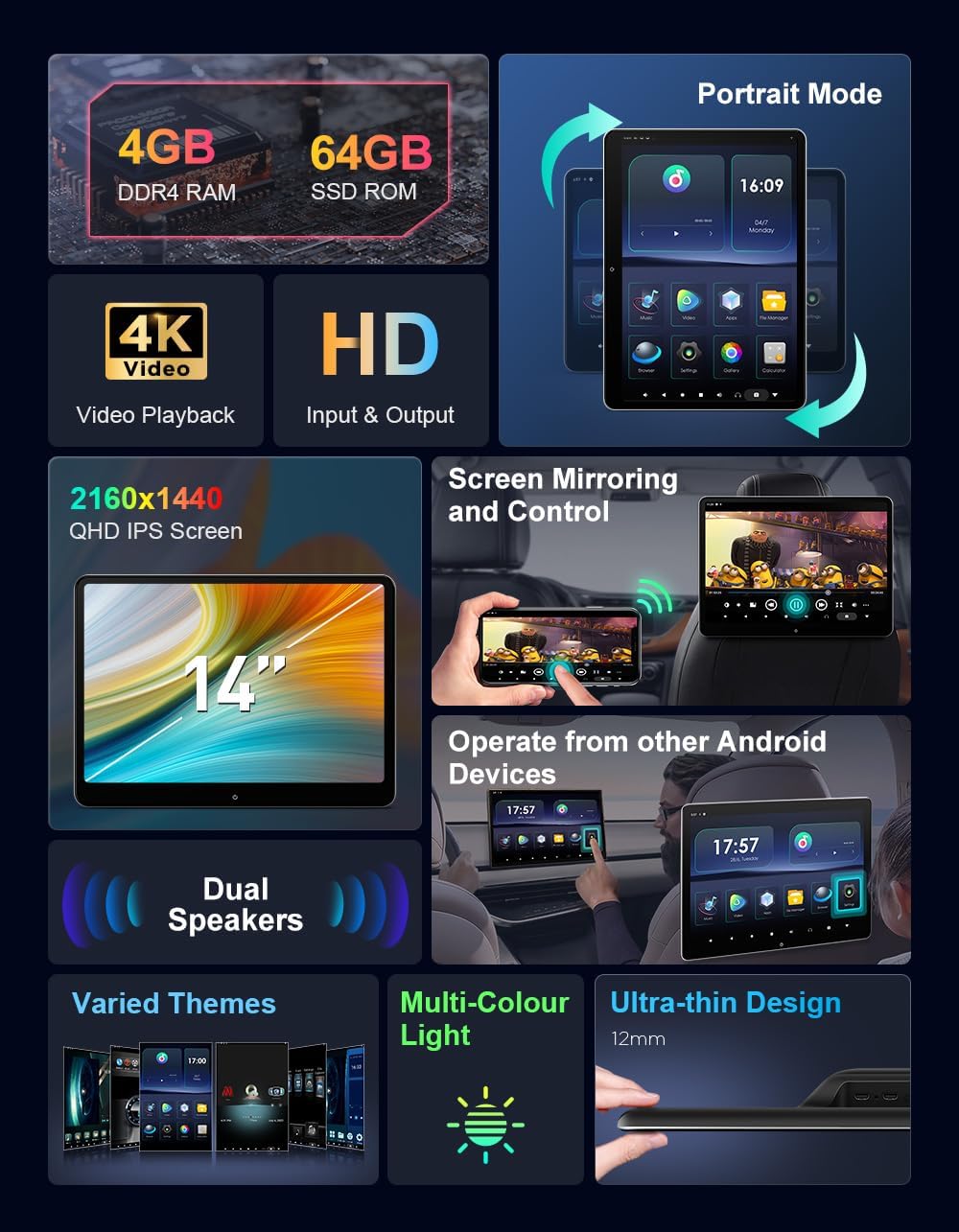
Image 3.1: Visual representation of the product's core features and specifications.
3.1. Ports and Connections
The device offers various ports for external connectivity:
- Micro HD OUT: For connecting to an external display.
- USB Type-C: For data transfer and charging.
- RESET: Small pinhole for factory reset.
- 3.5mm AUDIO OUT: For wired headphones or external audio systems.
- Micro HD IN: For connecting external video sources (e.g., game console, laptop).
- DC 12V: Power input.

Image 3.2: Detailed view of the device's connectivity ports.
4. Setup
4.1. Mounting the Device
The XTRONS 14 Inch 4K Video Player is designed for universal fit on most car seats with round headrest poles. Ensure your headrest poles meet the following criteria:
- Maximum pole diameter: 0.59 inches (15mm)
- Adjustable bracket distance (A->B): 4.33 inches (110mm) – 7.48 inches (190mm)
- Maximum distance between the player and the bracket (C->D): 3.54 inches (90mm)

Image 4.1: Headrest compatibility and dimensions for mounting.
Installation Steps:
- Choose a way to assemble the mounting base (Option 1 or Option 2).
- Attach the mounting base onto the two headrest poles and secure it with screws.
- Assemble the monitor to the desired position of the mounting base and secure the monitor by using the toggle clamp.
- The monitor can be rotated 90° for portrait or landscape orientation.
- If needed, adjust the monitor to your desired tilt position.

Image 4.2: Visual guide for mounting the headrest monitor.
4.2. Power Connection
The device can be powered via a cigarette lighter adapter or by hardwiring to your vehicle's electrical system.
- Option 1: Cigarette Lighter Adapter: Plug the provided adapter into your vehicle's 12V cigarette lighter socket. Note that settings may not be saved when power is cut.
- Option 2: Hardwiring: For a permanent installation and to retain settings, connect the power cables directly to your car's battery/fuse box. Consult a professional for hardwiring if you are unsure.

Image 4.3: Power connection options for the device.
4.3. Initial Setup
- Power on the device.
- Follow the on-screen prompts to select your language and region.
- Connect to a Wi-Fi network (2.4G/5GHz) or a mobile hotspot to access online features and download apps.
- Log in with your Google account to access the Google Play Store.

Image 4.4: Wi-Fi connectivity for accessing online content.
5. Operating Instructions
5.1. Basic Navigation and Apps
The device runs on Android 11, providing a familiar interface. Navigate using the touch screen. You can download various apps from the Google Play Store, including streaming services like Netflix, YouTube, Disney+, Prime Video, HBO-MAX, Tiktok, Amazon Music, and Spotify.

Image 5.1: Android 11 interface with popular streaming applications.
5.2. Screen Mirroring and Mutual Control
The device supports AirPlay for iOS devices and general screen mirroring for Android phones. The AutoCast app allows for mutual control between your mobile phone and the car TV, enabling convenient operation from the driver's seat.
- AirPlay: For mirroring content from iOS devices.
- Screen Mirroring: For mirroring content from Android devices.
- AutoCast (Mutual Control): Sync and control the car TV from your mobile phone. Both devices must be connected to the same Wi-Fi/Hotspot.
Note: Screen mirroring may not support encrypted paid video apps like Netflix, Amazon Video, Hulu, or DIRECTV due to content protection policies.

Image 5.2: Wireless screen mirroring functionality.

Image 5.3: Mutual control feature via smartphone.
5.3. External Device Connectivity
Connect external devices such as game consoles, laptops, or DSLR cameras using the Micro HDMI IN or RCA IN ports to share media with passengers.

Image 5.4: Examples of external devices connected to the monitor.
5.4. Audio Options
The device offers multiple audio output options:
- Built-in Speakers: Direct audio playback from the unit.
- Transmit to Car Radio: Use the built-in FM transmitter to send audio to your vehicle's radio.
- Bluetooth Headphone: Connect wireless Bluetooth headphones for private listening.
- Headset Jack: Use wired earphones via the 3.5mm audio out port.

Image 5.5: Available audio output methods.
5.5. Portrait Mode and UI Themes
The device features a 90° rotatable screen with a built-in Gyro sensor, allowing automatic adjustment between portrait and landscape modes. You can also customize the user interface with multiple built-in UI themes.
Note: Not all applications support portrait mode.

Image 5.6: Portrait and landscape mode functionality.

Image 5.7: Customizable UI themes.
6. Maintenance
6.1. Cleaning
- Screen: Gently wipe the screen with a soft, lint-free, dry cloth. Do not use alcohol, ammonia-based cleaners, or abrasive materials, as these can damage the screen coating.
- Body: Wipe the device body with a soft, slightly damp cloth. Ensure no moisture enters the ports.
6.2. Storage
When not in use for extended periods, store the device in a cool, dry place away from direct sunlight and extreme temperatures.
7. Troubleshooting
| Problem | Possible Cause | Solution |
|---|---|---|
| Device does not power on. | No power supply; loose connection. | Check power cable connection to the device and vehicle's power source. Ensure vehicle's ignition is on if using cigarette lighter. |
| Apps do not work or download. | No Wi-Fi connection; app incompatibility; insufficient storage. | Verify Wi-Fi connection. Check app compatibility with Android 11. Clear cache or free up storage. |
| Settings are not saved after turning off the car. | Powered via cigarette lighter that cuts power with ignition. | This is expected behavior for some power configurations. For persistent settings, consider hardwiring the device to a constant 12V power source (professional installation recommended). |
| Screen mirroring does not work for certain apps. | Content protection (DRM) on streaming apps. | Some paid streaming services restrict screen mirroring. Use the app directly on the device if available. |
| Random noise from one monitor. | Loose audio connection; interference; hardware issue. | Check all audio connections. If using FM transmitter, try a different frequency. If problem persists, contact customer support. |
| Device randomly shuts off. | Unstable power supply; overheating. | Ensure power connection is stable. Check for proper ventilation around the device. |
8. Specifications
| Feature | Detail |
|---|---|
| Model Number | 4G+64G 2PCS |
| Operating System | Android 11 |
| RAM | 4GB |
| ROM | 64GB |
| Screen Size | 14 Inches (36 cm visible diagonal) |
| Display Type | Fully Laminated Screen, QHD G+G IPS Touch Screen |
| Resolution | 2160*1440 |
| Connectivity | Wi-Fi (2.4G/5GHz), Bluetooth |
| Ports | Micro HDMI In/Out, USB Type-C, 3.5mm Audio Out, DC 12V, RCA In |
| Supported Media Types | MP3, APE, FLAC, WAV, WMA, AAC, MP4, AVI, 3GP, DAT, DIVX, FLV, RMVB, VOB, XVID |
| Item Weight | 12.32 pounds (for 2PCS) |
| Package Dimensions | 15.07 x 11.26 x 7.72 inches |
9. Warranty and Support
9.1. Warranty Information
XTRONS provides a 1-year warranty for this unit. This warranty covers manufacturing defects and ensures your rights and interests are protected.
9.2. Customer Support
For technical support, warranty claims, or any inquiries regarding your XTRONS 14 Inch 4K Video Player, please contact XTRONS customer service via Amazon email. They aim to reply promptly to assist you.


