
1. Introduction
This manual provides comprehensive instructions for the setup, operation, and maintenance of your BPXX Portable Wireless Thermal Printer, Model XP-P81. This innovative inkless printer is designed for portability and efficiency, supporting US Letter, Legal, A4, and A5 thermal paper sizes. It offers versatile connectivity options including Bluetooth for iOS and Android devices, and USB for laptops and computers, making it an ideal solution for on-the-go printing needs in various professional and personal settings.
2. What's in the Box
Upon unboxing, please verify that all the following items are included:
- BPXX XP-P81 Portable Printer
- Thermal Paper Roll (30 sheets, 8.26 x 11.69 inches)
- USB Cable
- USB Stick (likely containing drivers/software)
- Storage Bag
- Instruction Manual (this document)
3. Product Features
3.1 Cost-Effective Thermal Printing
The BPXX XP-P81 utilizes advanced thermal printing technology, eliminating the need for ink, toner, or ribbons. This significantly reduces ongoing printing costs and contributes to environmental sustainability. The printer comes with an initial supply of thermal paper.

Image: The BPXX portable printer shown with a roll of thermal paper, illustrating the inkless printing method that saves on consumables.
3.2 Lightweight and Portable Design
Weighing only 1.65 pounds and measuring 10.24 inches in length, the printer's compact and lightweight design ensures easy transport. It fits conveniently into bags or briefcases, making it suitable for business travelers, field professionals, and students.

Image: A user operating the portable printer on a desk, emphasizing its ease of use and portability for various environments.
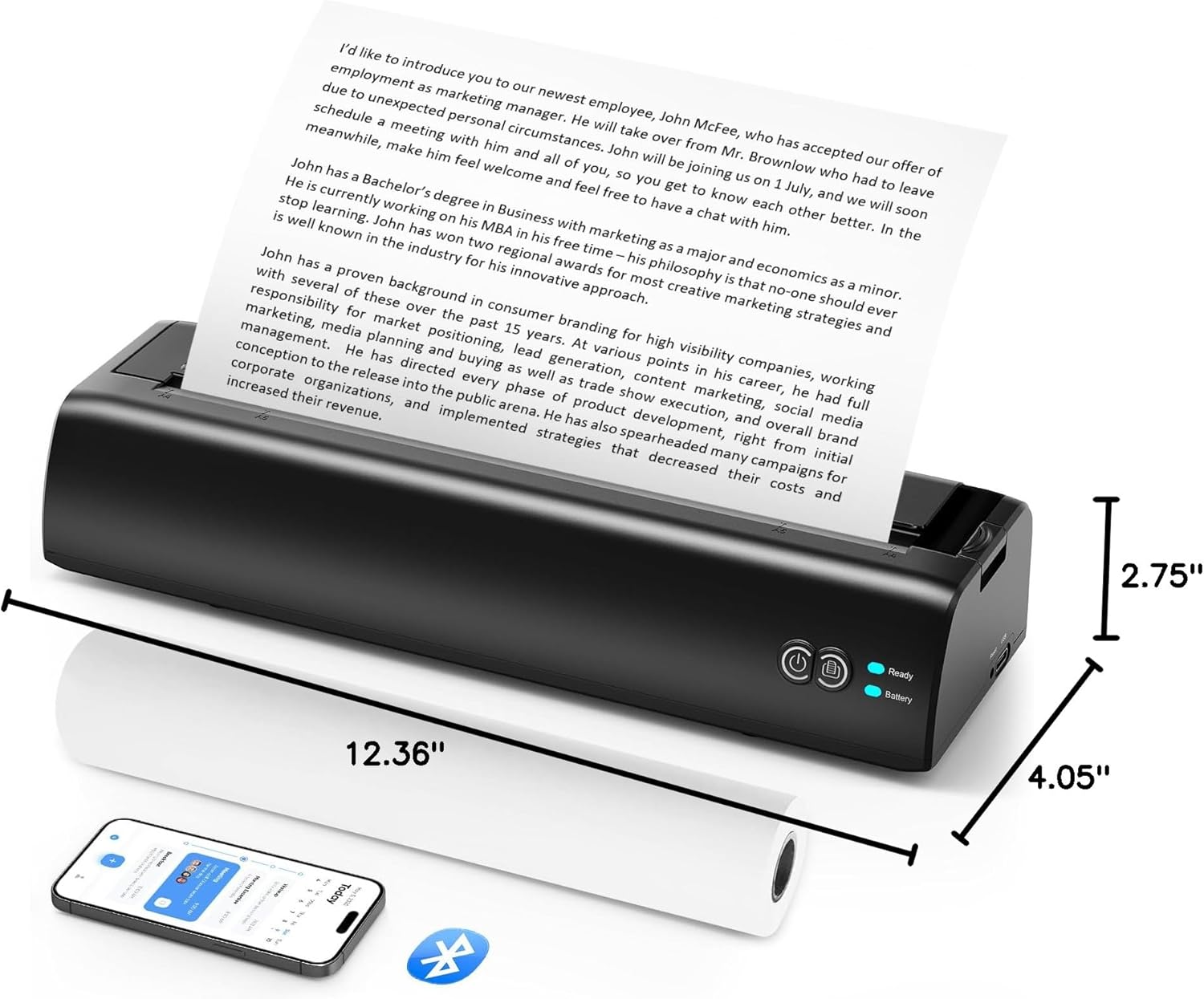
Image: A diagram showing the precise dimensions of the BPXX portable printer, illustrating its compact size.
3.3 Versatile Connectivity
The printer supports both Bluetooth and USB connectivity. Bluetooth allows seamless wireless printing from iOS and Android smartphones and tablets, while the USB connection provides reliable printing from laptops and desktop computers. It is compatible with Windows, macOS, iOS, and Android operating systems.

Image: A visual representation of the printer's compatibility with various operating systems and devices via Bluetooth and USB connections.
3.4 Long-Lasting Battery and Rapid Charging
Equipped with a built-in 1200 mAh battery, the printer can print up to 117 pages on a single full charge. The modern USB-C charging port allows for quick recharging, ensuring the device is ready for extended use, which is particularly beneficial for mobile professionals.

Image: The printer displayed with indicators for its 1200mAh battery capacity and the ability to print up to 117 sheets per charge.

Image: The printer being charged via a USB-C cable connected to a laptop, demonstrating its rapid charging capability.
3.5 High-Quality Output
The printer's innovative thermal print head delivers crisp and clean prints with a resolution of 203 dpi and a print speed of 0.6 ips. This ensures clear and legible documents for various applications, from business reports to personal notes.

Image: A magnified view of a printed document, highlighting the high resolution and clarity of the thermal printing output.
4. Setup Guide
4.1 Initial Charging
- Before first use, fully charge the printer. Connect the provided USB-C cable to the printer's charging port and the other end to a USB power adapter (not included) or a computer's USB port.
- The battery indicator light will show charging status. Once fully charged, the light will change (refer to the printer's LED indicator guide in the included quick start guide for specific light behaviors).
Image: The printer connected to a laptop via USB-C, illustrating the charging process.
4.2 Loading Thermal Paper
- Ensure the printer is powered off.
- Open the paper cover.
- Insert the thermal paper roll into the paper compartment, ensuring the printing side of the paper faces upwards. The paper should feed smoothly into the printer mechanism.
- Pull a small amount of paper out of the exit slot and close the paper cover firmly until it clicks into place.

Image: The main product image showing the printer with thermal paper correctly loaded and extending from the output slot.
Image: The printer alongside a roll of thermal paper, indicating the type of paper required.
4.3 Driver and App Installation
- For Mobile Devices (iOS/Android): Download the official BPXX printing app from your device's app store (e.g., Apple App Store, Google Play Store). Search for "BPXX Printer" or refer to the QR code in the quick start guide.
- For Computers (Windows/macOS): Insert the provided USB stick into your computer. Follow the on-screen instructions to install the necessary printer drivers. If the USB stick is not available or drivers are outdated, visit the official BPXX support website to download the latest drivers.
4.4 Connecting the Printer
4.4.1 Bluetooth Connection (for Mobile Devices)
- Power on the printer. Ensure Bluetooth is enabled on your mobile device.
- Open the BPXX printing app. The app will guide you through the pairing process.
- Select "XP-P81" or a similar device name from the list of available Bluetooth devices in the app or your device's Bluetooth settings.
- Confirm the pairing. Once connected, the Bluetooth indicator light on the printer will illuminate steadily.
4.4.2 USB Connection (for Computers)
- Connect one end of the provided USB cable to the printer's USB port and the other end to an available USB port on your computer.
- Ensure the printer drivers are installed (as per section 4.3).
- Your computer should automatically detect the printer. You may need to set it as the default printer in your operating system's printer settings.
Image: A visual guide to the printer's connectivity options, including Bluetooth and USB, and compatible devices.
5. Operating Instructions
5.1 Printing from Mobile Devices (Bluetooth)
- Ensure the printer is powered on and successfully connected via Bluetooth to your mobile device.
- Open the document, image, or content you wish to print within the BPXX printing app or another compatible application.
- Select the print option (usually represented by a printer icon or "Share" menu).
- Choose the BPXX XP-P81 printer from the list of available printers.
- Adjust print settings such as paper size (US Letter, Legal, A4, A5), orientation, and number of copies as needed.
- Initiate the print job. The printer will begin feeding and printing the document.
Image: A smartphone screen showing a printing application, demonstrating the wireless printing process.
5.2 Printing from Computers (USB)
- Ensure the printer is powered on and connected to your computer via USB.
- Open the document or file you wish to print using your preferred software (e.g., Microsoft Word, Adobe Reader, web browser).
- Go to "File" > "Print" or use the keyboard shortcut (Ctrl+P for Windows, Command+P for macOS).
- In the print dialog box, select "BPXX XP-P81" as your printer.
- Configure print settings such as paper size, layout, and print quality.
- Click "Print" to send the job to the printer.
Image: The printer actively printing a document, connected to a laptop, illustrating its use in a computer setup.
5.3 Supported Paper Sizes
The BPXX XP-P81 printer is designed to accommodate various thermal paper sizes, including:
- US Letter (8.5 x 11 inches)
- Legal (8.5 x 14 inches)
- A4 (8.26 x 11.69 inches)
- A5 (5.8 x 8.26 inches)
Ensure you use only thermal paper compatible with these dimensions for optimal performance and print quality.
Image: A visual representation of the different paper sizes that can be used with the printer.
6. Maintenance
6.1 Cleaning the Print Head
To maintain optimal print quality, periodically clean the thermal print head. Use a lint-free cloth lightly dampened with isopropyl alcohol. Gently wipe the print head surface. Allow it to dry completely before closing the cover or using the printer.
6.2 General Cleaning
Wipe the exterior of the printer with a soft, dry cloth. Do not use abrasive cleaners or solvents, as they may damage the surface.
6.3 Thermal Paper Storage
Store thermal paper in a cool, dry place away from direct sunlight, heat, and humidity. Exposure to these elements can degrade the paper quality and affect print longevity.
7. Troubleshooting
7.1 Printer Not Powering On
- Check Battery: Ensure the printer has sufficient battery charge. Connect it to a power source using the USB-C cable.
- Power Button: Press and hold the power button for a few seconds to ensure it's properly activated.
7.2 Unable to Connect via Bluetooth
- Printer On: Ensure the printer is powered on and its Bluetooth indicator light is blinking (indicating pairing mode).
- Device Bluetooth: Verify Bluetooth is enabled on your mobile device.
- App Connection: Open the BPXX printing app and attempt to connect from within the app.
- Forget Device: If previously paired, try "forgetting" the printer in your device's Bluetooth settings and re-pairing.
- Proximity: Ensure the printer is within the effective range of your device (typically 10 meters/33 feet).
7.3 Poor Print Quality / Blank Prints
- Paper Type: Confirm you are using thermal paper. Regular paper will not work.
- Paper Orientation: Ensure the thermal paper is loaded with the printing side facing upwards.
- Print Head Cleanliness: Clean the thermal print head as described in the Maintenance section.
- Paper Quality: Old or improperly stored thermal paper can degrade. Try a fresh roll.
7.4 Paper Jams
- Power Off: Turn off the printer immediately.
- Clear Obstruction: Gently open the paper cover and carefully remove any jammed paper. Do not pull forcefully to avoid damaging internal components.
- Reload Paper: Reload the paper correctly, ensuring it is aligned and not wrinkled.
8. Specifications
| Feature | Detail |
|---|---|
| Product Model | XP-P81 |
| Product Dimensions | 12.36 x 4.05 x 2.75 inches (31.4 x 10.3 x 7 cm) |
| Item Weight | 1.65 pounds (0.75 kg) |
| Connectivity Technology | Bluetooth, USB |
| Print Resolution | 203 x 203 DPI |
| Print Speed | 0.6 ips (inches per second) |
| Battery Capacity | 1200 mAh Lithium Ion (included) |
| Pages per Full Charge | Up to 117 pages |
| Charging Port | USB-C |
| Maximum Media Size | 8.5 x 14 inches (Legal) |
| Supported Paper Sizes | US Letter (8.5x11in), Legal (8.5x14in), A4 (8.26x11.69in), A5 (5.8x8.26in) |
| Inkless Technology | Thermal Printing |
| Manufacturer | Zhuhai Hengsheng Barcode Equipment Co.,Ltd. |
9. Warranty and Support
For detailed warranty information, please refer to the warranty card or documentation included with your product packaging. BPXX provides customer support for technical assistance and service inquiries.
If you encounter any issues not covered in the troubleshooting section or require further assistance, please contact BPXX customer support through the contact information provided in your product documentation or visit the official BPXX website.