
PROZOR PRR034
Contents
PROZOR UHF Wireless Microphone System User Manual
Model: PRR034
1. Introduction
Thank you for choosing the PROZOR UHF Wireless Microphone System. This system provides high-quality audio transmission with dual handheld dynamic microphones, a rechargeable receiver, and versatile controls for volume, treble, bass, and echo. Designed for various applications including karaoke, DJ events, church services, and weddings, this manual will guide you through the setup, operation, and maintenance of your new wireless microphone system to ensure optimal performance.
2. Package Contents
Please check the package carefully to ensure all items are present and in good condition:
- 2 x PROZOR UHF Wireless Microphones
- 1 x Rechargeable Wireless Receiver (6.35mm Jack)
- 1 x 3.5mm to 6.35mm Adapter
- 1 x USB Charging Cable (Type-C for receiver, dual Type-C for microphones)
- 2 x Windscreen Foams
- 2 x Anti-Slip Rings

Image: Complete package contents of the PROZOR UHF Wireless Microphone System, showing two microphones, the receiver, charging cables, windscreens, and anti-slip rings.
3. Product Features
- Rechargeable UHF Microphones: Long battery life ensures extended use during performances. Features stable signal, no delay, and anti-interference capabilities.
- Durable Metal Construction: Both microphones and the receiver are made of high-quality metal, providing a sturdy and reliable casing that protects internal components and contributes to excellent sound quality.
- Versatile Audio Controls: Microphones feature built-in reverb effects and adjustable tone settings (treble/bass) for precise sound customization.
- Bluetooth Receiver Functionality: The receiver can connect to mobile phones or Bluetooth transmitters to play background music simultaneously. Offers a transmission distance of up to 10 meters. (Note: Does not support output to Bluetooth speakers).
- Extended Microphone Range: Microphones maintain a stable connection up to 30-50 meters from the receiver.

Image: An illustration highlighting the key features of the PROZOR UHF Wireless Microphone, such as UHF wireless technology, adjustable channels, high-quality sound, rechargeable batteries, extended range, and Bluetooth reception.

Image: A close-up view of the microphone's high-quality metal mesh cover, designed to block wind noise and improve audio clarity.

Image: An illustration detailing the high-sensitivity pickups within the microphone, which enhance sound clarity and signal-to-noise performance.
4. Setup Guide
Follow these steps to set up your PROZOR UHF Wireless Microphone System:
- Charge the Devices: Before first use, fully charge both microphones and the receiver using the provided USB charging cable. The indicator lights will show charging status.
- Turn on the Microphone: Press and hold the power button on each microphone until the display illuminates. The microphones will automatically connect to the receiver.
- Turn on the Receiver: Press and hold the power button on the receiver.
- Connect the Receiver to Your Device: Plug the 6.35mm jack of the receiver into the MIC input of your audio device (e.g., karaoke machine, PA system, amplifier, mixer). If your device has a 3.5mm MIC input, use the included 3.5mm adapter.
- Bluetooth Connection (Optional): To play background music via Bluetooth, press the BT button on the receiver. Enable Bluetooth on your mobile phone or audio source and select the receiver from the list of available devices.

Image: A visual guide demonstrating the simple plug-and-play setup: Step 1, switch on the microphone; Step 2, switch on the receiver; Step 3, plug the receiver into your audio device.
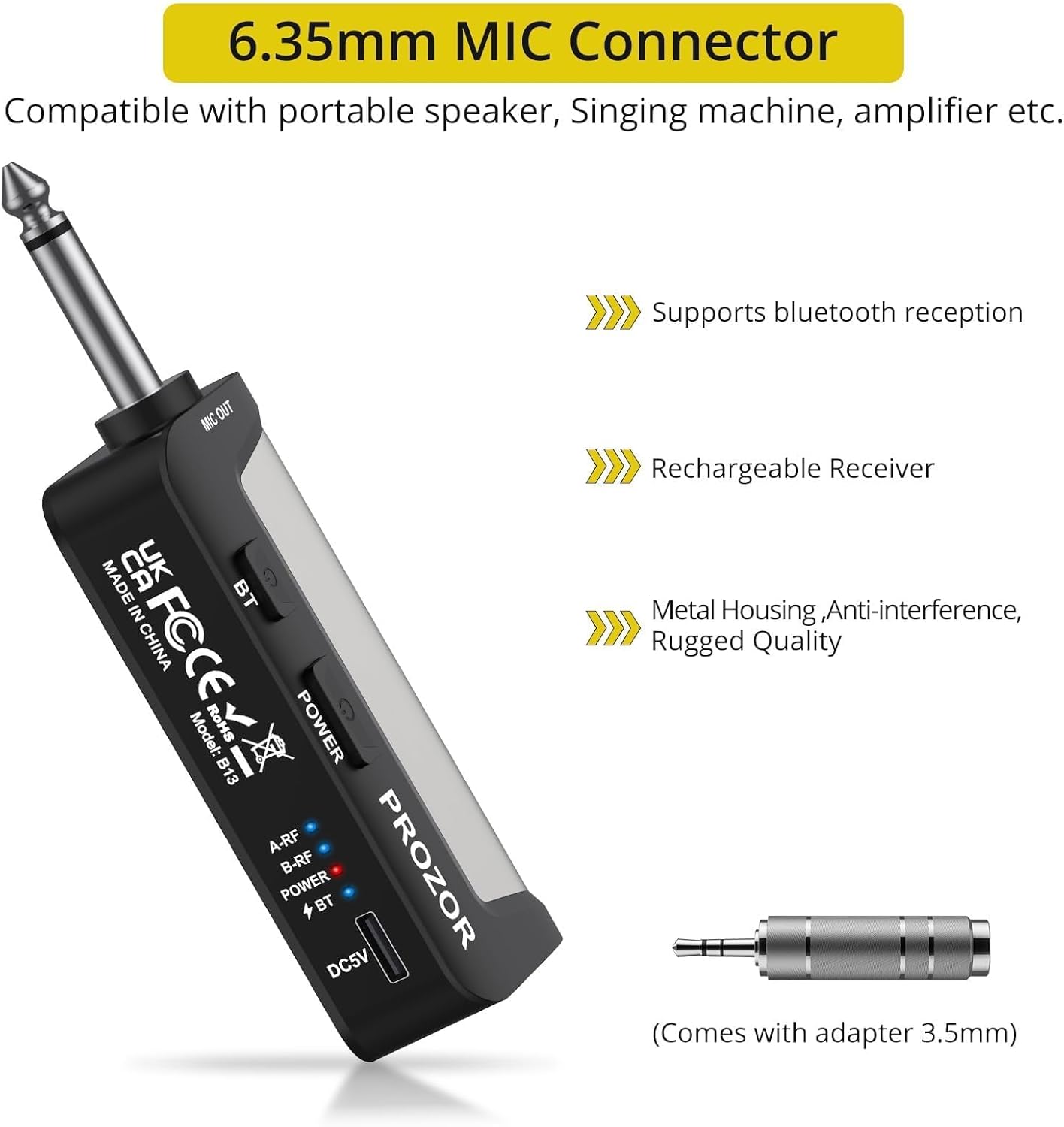
Image: A diagram illustrating the wide compatibility of the microphone system with different audio equipment, including karaoke machines, PA systems, speakers, amplifiers, and mixers, supporting both 6.35mm and 3.5mm interfaces.
Video: This video demonstrates the quick setup process of the PROZOR UHF Wireless Microphone System, including turning on the devices, connecting the receiver to an amplifier, and pairing a mobile phone via Bluetooth for background music. It also shows the microphone's on-board controls for volume, channel, reverb, bass, and treble.
5. Operating Instructions
Once set up, you can control the audio output directly from the microphones:
- Volume Control: Use the "VOL +" and "VOL -" buttons on the microphone to adjust the microphone's output volume.
- Channel Adjustment: Use the "CH +" and "CH -" buttons to change the UHF channel. This can help avoid interference.
- Echo Effect: Adjust the echo level using the "ECHO +" and "ECHO -" buttons to add reverb to your voice.
- Treble Control: Fine-tune the high frequencies with the "TREBLE +" and "TREBLE -" buttons.
- Bass Control: Adjust the low frequencies with the "BASS +" and "BASS -" buttons.

Image: An overview of the PROZOR multi-function wireless microphone and receiver, highlighting its key controls for channel tuning, volume, reverb, and its rechargeable capability.
6. Maintenance
Proper care will extend the life of your PROZOR Wireless Microphone System:
- Cleaning: Wipe the microphones and receiver with a soft, dry cloth. Do not use abrasive cleaners or solvents.
- Storage: Store the system in a cool, dry place away from direct sunlight and extreme temperatures.
- Battery Care: For optimal battery life, avoid fully discharging the devices frequently. Recharge them regularly, even if not in use for extended periods.
- Handling: Handle the microphones and receiver with care to prevent drops or impacts that could damage internal components.
7. Troubleshooting
If you encounter issues with your PROZOR Wireless Microphone System, refer to the following common problems and solutions:
| Problem | Possible Cause | Solution |
|---|---|---|
| No sound from microphone | Microphone or receiver not powered on; Low battery; Incorrect connection; Muted microphone. | Ensure both microphone and receiver are powered on and charged. Check all cable connections. Verify microphone volume is not at zero or muted. |
| Static or intermittent sound | Interference from other devices; Microphone too far from receiver; Obstructions between mic and receiver; Low battery. | Change the microphone channel. Reduce distance between microphone and receiver. Ensure clear line of sight. Recharge devices. Avoid using near strong electromagnetic fields. |
| Bluetooth not connecting | Receiver Bluetooth not activated; Device not in pairing mode; Interference. | Press the BT button on the receiver to activate Bluetooth. Ensure your phone/device Bluetooth is on and searching. Move closer to the receiver. |
| Echo/Treble/Bass controls not working | Incorrect button usage; Software glitch. | Ensure you are pressing the correct +/- buttons for the desired effect. Try restarting the microphone. |
If the problem persists after trying these solutions, please contact PROZOR customer support for further assistance.
8. Specifications
| Specification | Detail |
|---|---|
| Microphone Form Factor | Handheld |
| Power Source | Battery Powered (1 Lithium Metal battery included per mic) |
| Material | Metal |
| Signal-to-Noise Ratio | 80 dB |
| Hardware Platform | Karaoke Machine, Television |
| Number of Channels | 1 (per microphone, system supports dual channels) |
| Frequency Response | 15 KHz |
| Noise Level | 72 dB |
| Item Weight | 1.65 pounds (total package) |
| Package Dimensions | 11.97 x 7.6 x 2.6 inches |
| Connectivity Technology | UHF |
| Connector Type | 3.5 mm Jack, 6.35 mm Jack |
| Recommended Uses | Karaoke |
| Polar Pattern | Unidirectional |
9. Warranty and Support
The PROZOR UHF Wireless Microphone System comes with a standard manufacturer's warranty. For specific warranty details, please refer to the warranty card included in your package or contact PROZOR customer service directly. If you require technical support, have questions about product operation, or need assistance with troubleshooting, please visit the official PROZOR website or contact their customer support team through the contact information provided with your purchase.
You can also visit the PROZOR Store on Amazon for more information and support resources.
Documents and downloads
Ask a question about this manual
Ask about setup, troubleshooting, compatibility, parts, safety, or missing instructions. Manuals+ will review the question and use this page’s manual context to help answer it.