1. Introduction
This manual provides essential information for setting up, operating, maintaining, and troubleshooting your HP Pro Tower 290 G9 Desktop Computer. Designed for efficiency and performance, this system is equipped with a 12th Gen Intel Core i3-12100 processor, integrated Intel UHD Graphics 730, and runs on Windows 11 Pro. It offers robust connectivity and ample storage options to support various computing needs.
2. What's in the Box
Your HP Pro Tower 290 G9 package includes the following items:
- HP Pro Tower 290 G9 Desktop Computer
- HP 125 Wired Keyboard with Numeric Keypad (Black, English layout)
- HP 125 Wired USB Mouse (Black)
- Power Adapter
3. Product Overview
3.1. Front View

This image displays the HP Pro Tower 290 G9 desktop computer from an angled front perspective, highlighting its compact tower design and accessible front ports.
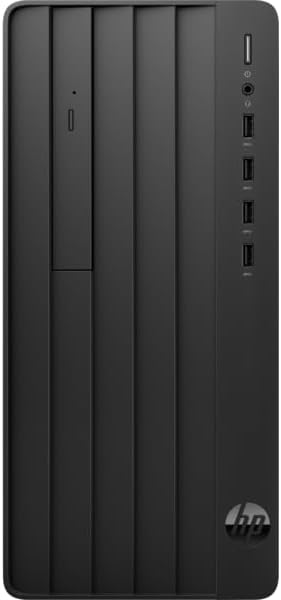
A direct front view of the HP Pro Tower 290 G9, showcasing the slim DVD-Writer drive, power button, headphone/microphone combo jack, and four USB Type-A ports.
3.2. Rear View

The back panel of the HP Pro Tower 290 G9 is displayed, revealing the HDMI, VGA, line in/out, RJ-45 Ethernet, and four USB 2.0 ports, along with the power connector.
3.3. Dimensions

This diagram provides the physical dimensions of the HP Pro Tower 290 G9 (11.97 inches deep, 6.12 inches wide, 13.28 inches high) along with the included HP 125 wired USB keyboard and mouse.
- Dimensions (L x W x H): 11.92 x 6.10 x 13.27 inches
- Weight: Starting at 10.5 lbs
4. Setup Instructions
Follow these steps for initial setup of your HP Pro Tower 290 G9:
- Unpack Components: Carefully remove the desktop, keyboard, mouse, and power adapter from their packaging.
- Connect Peripherals: Connect the wired keyboard and mouse to the available USB ports on the front or rear of the computer.
- Connect Monitor: Connect your monitor to the desktop using an HDMI or VGA cable. Ensure the monitor is also connected to a power source.
- Connect Power: Plug the power adapter into the desktop's power connector and then into a wall outlet.
- Power On: Press the power button on the front of the desktop. The system will boot up, and you will be guided through the Windows 11 Pro initial setup process.
5. Operating Instructions
Your HP Pro Tower 290 G9 comes pre-installed with Windows 11 Pro, offering a secure and efficient operating environment. The 12th Gen Intel Core i3-12100 processor and up to 32GB DDR4 RAM ensure smooth multitasking and responsive performance for daily tasks, business applications, and multimedia consumption.
- Windows 11 Pro: Explore the features of Windows 11 Pro for enhanced productivity and security.
- Connectivity: Utilize Realtek RTL8822CE 802.11a/b/g/n/ac (2x2) Wi-Fi for wireless internet access and Bluetooth 5 for connecting wireless peripherals.
- Optical Drive: The integrated slim DVD-Writer supports reading from and writing to CDs and DVDs.
- Storage: Benefit from fast boot times and application loading with the PCIe M.2 Solid State Drive.
6. Maintenance
Regular maintenance helps ensure the longevity and optimal performance of your desktop computer:
- Keep Clean: Regularly clean the exterior of the computer with a soft, dry cloth. Ensure ventilation openings are free from dust and obstructions.
- Software Updates: Keep your Windows operating system and drivers updated to the latest versions for security and performance improvements.
- Data Backup: Periodically back up important data to an external drive or cloud storage to prevent data loss.
- Proper Shutdown: Always shut down the computer properly through the operating system to prevent potential data corruption.
7. Troubleshooting
If you encounter issues with your HP Pro Tower 290 G9, consider the following common troubleshooting steps:
- No Power: Ensure the power cable is securely connected to both the computer and the wall outlet. Test the outlet with another device.
- No Display: Verify that the monitor is properly connected to the desktop and its power source. Try a different video cable or monitor if available.
- Slow Performance: Close unnecessary applications, check for malware, ensure sufficient free storage space, and verify that Windows and drivers are updated.
- Peripheral Not Working: Ensure USB devices are securely plugged in. Try a different USB port or restart the computer.
- Internet Connectivity Issues: Check your Wi-Fi connection, router, and modem. Restart network devices if necessary.
8. Specifications
| Feature | Specification |
|---|---|
| Processor | 12th Gen Intel Core i3-12100 (up to 4.3 GHz, 4 cores, 8 threads) |
| Graphics | Integrated Intel UHD Graphics 730 |
| Operating System | Windows 11 Pro, 64-bit, English |
| Memory (RAM) | 16 GB DDR4 (Configurable up to 32GB) |
| Storage | 1 TB NVMe SSD (Configurable up to 2TB PCIe M.2 SSD or 1TB HDD) |
| Optical Drive | HP 9.5 mm Slim DVD-Writer |
| Front Ports | 4x USB Type-A 5Gbps, 1x Headphone/Microphone Combo |
| Rear Ports | 1x HDMI, 1x VGA, 1x Line In, 1x Line Out, 1x Power Connector, 1x RJ-45, 4x USB 2.0 |
| Connectivity | Realtek RTL8822CE 802.11a/b/g/n/ac (2x2) Wi-Fi and Bluetooth 5 |
| Color | Black |
| Dimensions (L x W x H) | 11.92 x 6.10 x 13.27 inches |
| Weight | Starts at 10.5 lbs |
9. Warranty and Support
For warranty information, technical support, and additional resources, please visit the official HP support website or contact HP customer service. Keep your product's serial number and model information readily available when seeking support.
HP Support Website: www.hp.com/support