
1. Introduction
Welcome to your Headwolf FPad2 8-inch Android 13 Tablet. This manual provides essential information for setting up, operating, and maintaining your device. Please read it carefully to ensure optimal performance and longevity of your tablet.
2. Safety Information
To ensure safe and proper use of your Headwolf FPad2 tablet, please observe the following safety guidelines:
- Avoid exposing the device to extreme temperatures, direct sunlight, or high humidity.
- Keep the tablet away from water and other liquids.
- Use only original or certified compatible charging accessories to prevent damage and ensure safety.
- Do not attempt to disassemble, repair, or modify the device yourself. Refer to qualified service personnel for assistance.
- Keep the device out of reach of small children to prevent accidental ingestion of small parts.
3. Package Contents
The Headwolf FPad2 package includes the following items:
- Headwolf FPad2 Tablet
- Charging Adapter
- USB Cable
- SIM Card Ejector Tool
- User Manual

Figure 3.1: Headwolf FPad2 tablet and included accessories.
4. Device Overview
Familiarize yourself with the physical components and key features of your FPad2 tablet.
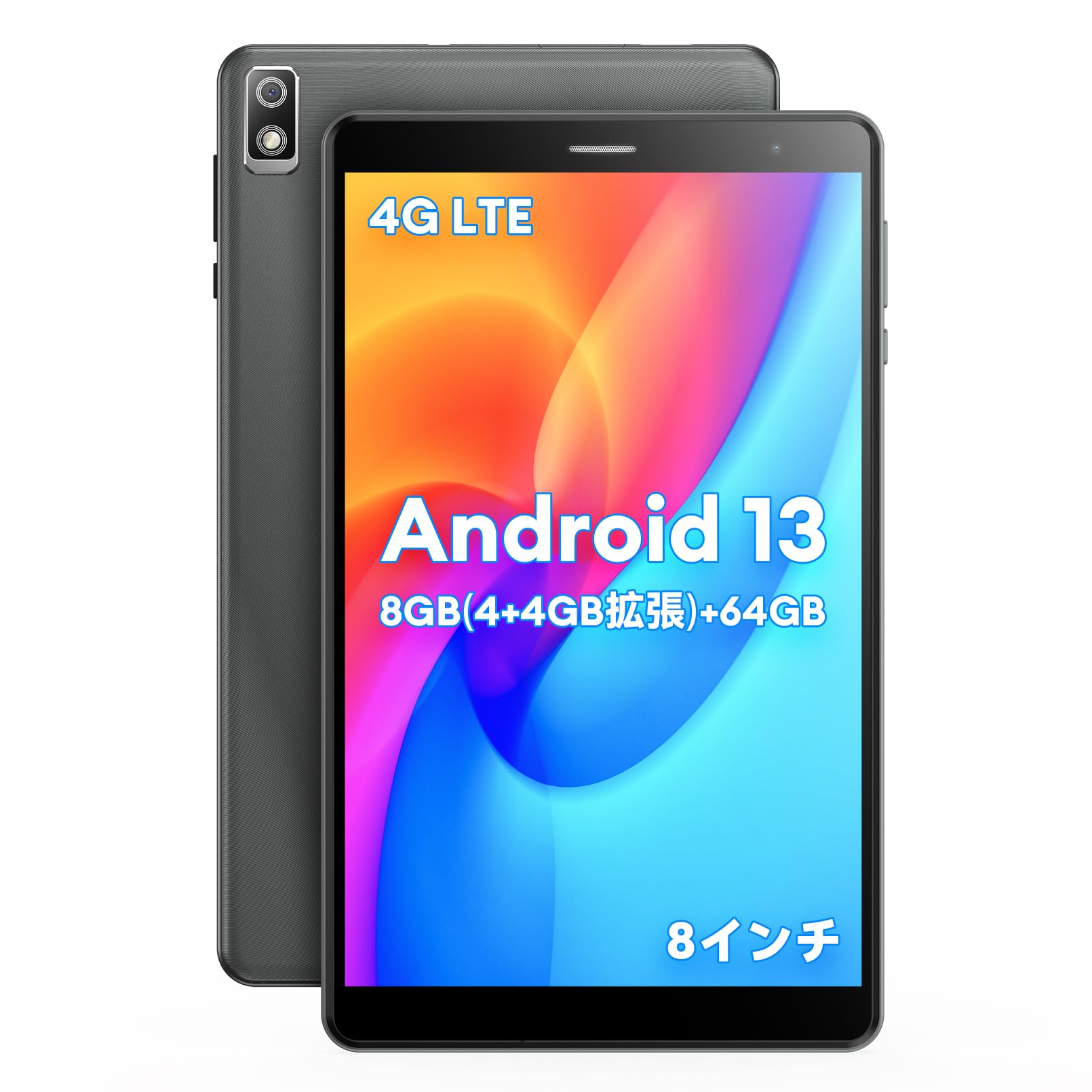
Figure 4.1: Headwolf FPad2 tablet with feature highlights.
The tablet features an 8-inch IPS display, 5MP front and rear cameras, and various ports for connectivity.

Figure 4.2: Headwolf FPad2 connectivity ports.
The device supports 4G LTE, dual-band Wi-Fi (2.4G/5G), and Bluetooth 5.0. It also includes a Type-C port for charging and data transfer, and a 3.5mm headphone jack for audio.
5. Setup
Follow these steps for the initial setup of your Headwolf FPad2 tablet:
- Power On: Press and hold the power button located on the side of the tablet until the Headwolf logo appears on the screen.
- Language Selection: Upon first boot, you will be prompted to select your preferred language. Scroll through the list and tap on your desired language (e.g., English, Japanese).
- Wi-Fi Connection: Connect to a Wi-Fi network to complete the initial setup. Select your network from the list and enter the password. If no Wi-Fi is available, you can choose to proceed offline.
- Google Account: Sign in with your existing Google account or create a new one. This is necessary to access Google Play Store and other Google services.
- Date and Time: Set the correct date, time, and time zone for your region.
Video 5.1: Demonstration of language setup on an Alphawolf tablet. The general steps are similar for Android tablets, including the Headwolf FPad2.
6. Operating Instructions
6.1. Performance and Storage
The FPad2 is powered by a T310 4-core CPU with a main frequency of up to 2.0GHz, ensuring smooth operation while minimizing heat and power consumption. It achieves an AnTuTu score of 160,000 points.

Figure 6.1: T310 4-core CPU performance.
The tablet comes with 8GB RAM (4GB physical + 4GB intelligent allocation from storage) and 64GB internal storage. You can expand the storage up to 512GB by inserting an SD card, allowing you to store a large number of photos, videos, and files without worry.

Figure 6.2: Memory and storage capabilities.
6.2. Display and Camera
The 8-inch IPS screen with 800x1280 resolution perfectly displays image colors and quality effects. It features 5MP front and 5MP rear cameras. The rear camera includes a flash function, making night photography and video recording more convenient and realistic.

Figure 6.3: Tablet display and camera features.
The Android tablet also features wireless projection, allowing you to display videos and photos from your tablet to a TV for a more vivid and impactful visual experience.
6.3. Connectivity and Navigation
The FPad2 tablet supports simultaneous insertion of 1 SIM card and 1 TF card, connecting to 4G LTE, Bluetooth 5.0, and 2.4G/5G WiFi. This ensures stable communication and convenience for travel and business trips.
The triple GPS navigation system (GPS+BDS+GALILEO) covers the entire world without blind spots, making it suitable for use as a car navigation system.
6.4. Parental Control and Face Recognition
The FPad2 includes a secure parental control function, allowing parents to control the time children spend using the tablet, helping to balance study and entertainment. Face recognition unlock enhances device security and protects privacy.
Video 6.4.1: An overview of the FPD tablet, showcasing various usage scenarios and features.
7. Battery Management
The Headwolf FPad2 is equipped with a built-in 5500mAh cobalt acid lithium battery. This large-capacity battery offers excellent durability, high cycle count, strong resistance to degradation, and superior safety compared to ordinary batteries. A charging adapter is included with the tablet.

Figure 7.1: Battery capacity and charging.
To maximize battery life, avoid fully discharging the battery frequently and try to keep the charge level between 20% and 80%.
8. Maintenance
Proper maintenance helps extend the life of your tablet:
- Cleaning: Use a soft, lint-free cloth to clean the screen and body. Avoid using harsh chemicals or abrasive materials.
- Software Updates: Regularly check for and install system updates to ensure optimal performance and security.
- Storage Management: Periodically clear unnecessary files and apps to free up storage space and improve performance.
- Environmental Conditions: Store and operate the tablet within recommended temperature and humidity ranges.
9. Troubleshooting
If you encounter any issues with your Headwolf FPad2, refer to the following common troubleshooting steps:
- Device not powering on: Ensure the battery is charged. Connect the tablet to the charger and try powering it on again.
- Wi-Fi connection issues: Check if Wi-Fi is enabled in settings and that the password is correct. Try restarting your Wi-Fi router and the tablet.
- Slow performance or freezing: Close unnecessary background applications. Clear the cache of frequently used apps. If the issue persists, consider a factory reset after backing up all important data.
- Screen not responding: Try restarting the device by holding down the power button. If the screen remains unresponsive, contact customer support.
- Apps crashing: Ensure your apps are updated to their latest versions. Clear the app's cache or reinstall the app.
10. Technical Specifications
| Feature | Specification |
|---|---|
| Brand | Headwolf |
| Model Name | FPad2 |
| Operating System | Android 13 |
| Screen Size | 8 inches |
| RAM | 4 GB (expandable to 8GB virtual) |
| Storage Capacity | 64 GB (expandable up to 512GB with SD card) |
| Rear Camera Resolution | 5 MP |
| Front Camera Resolution | 5 MP |
| Connectivity | 4G LTE, 2.4GHz/5GHz WIFI, Bluetooth 5.0 |
| Battery | 5500 mAh Lithium Ion |
| Item Weight | 320 g |
| Dimensions | 22.4 x 14 x 4.9 cm |
11. Warranty and Support
Your Headwolf FPad2 tablet comes with a 12-month warranty. For any product incompatibilities or issues, please contact our customer support team. We are committed to providing satisfactory support to our customers.
Contact Procedure:
- Log in to your Amazon account.
- Go to "Order History".
- Select the relevant order for your Headwolf FPad2.
- Click "Contact Seller" to reach our support team.


