
VSDISPLAY K003264
VSDISPLAY 24 Inch 1920x360 IPS Stretched Wide Bar Display Instruction Manual
Model: K003264
1. Introduction
This manual provides detailed instructions for the setup, operation, and maintenance of your VSDISPLAY 24 Inch 1920x360 IPS Stretched Wide Bar Display. Please read this manual thoroughly before using the product to ensure optimal performance and longevity.
The VSDISPLAY 24-inch stretched bar display is designed for various applications, including gaming marquees, supermarket shelf advertising, outdoor kiosks, and digital signage. It features a 1920x360 IPS panel with a 178-degree full viewing angle, USB video input, and support for 180-degree display rotation.

Figure 1.1: Front view of the VSDISPLAY 24-inch stretched display.
2. Setup
2.1 Package Contents
Verify that all items are present in your package:
- 1 x VSDISPLAY 24 Inch 1920x360 IPS LCD Monitor (Model: K003264)
- 1 x 12V 2A Power Adapter
- 1 x Bracket Set

Figure 2.1: Included components: monitor, power adapter, and mounting brackets.
2.2 Physical Connections
The monitor supports USB signal input and requires a 12V DC power supply.
- Power Connection: Connect the 12V 2A Power Adapter to the DC-IN port on the monitor.
- Video Input: Connect your device (e.g., PC, media player) to the monitor using the appropriate USB cable. The monitor supports USB video input.

Figure 2.2: Rear view showing Power Supply, HD-MI, and USB ports, along with control buttons.
2.3 Mounting Options
The monitor offers flexible mounting solutions:
- Using Brackets: The monitor comes with brackets for easy installation. Attach the brackets to the sides of the monitor using the provided screws.
- VESA Mounting: The back of the display features 75x75MM and 100x100MM mounting holes, supporting desk or wall mount stands (stand not included).
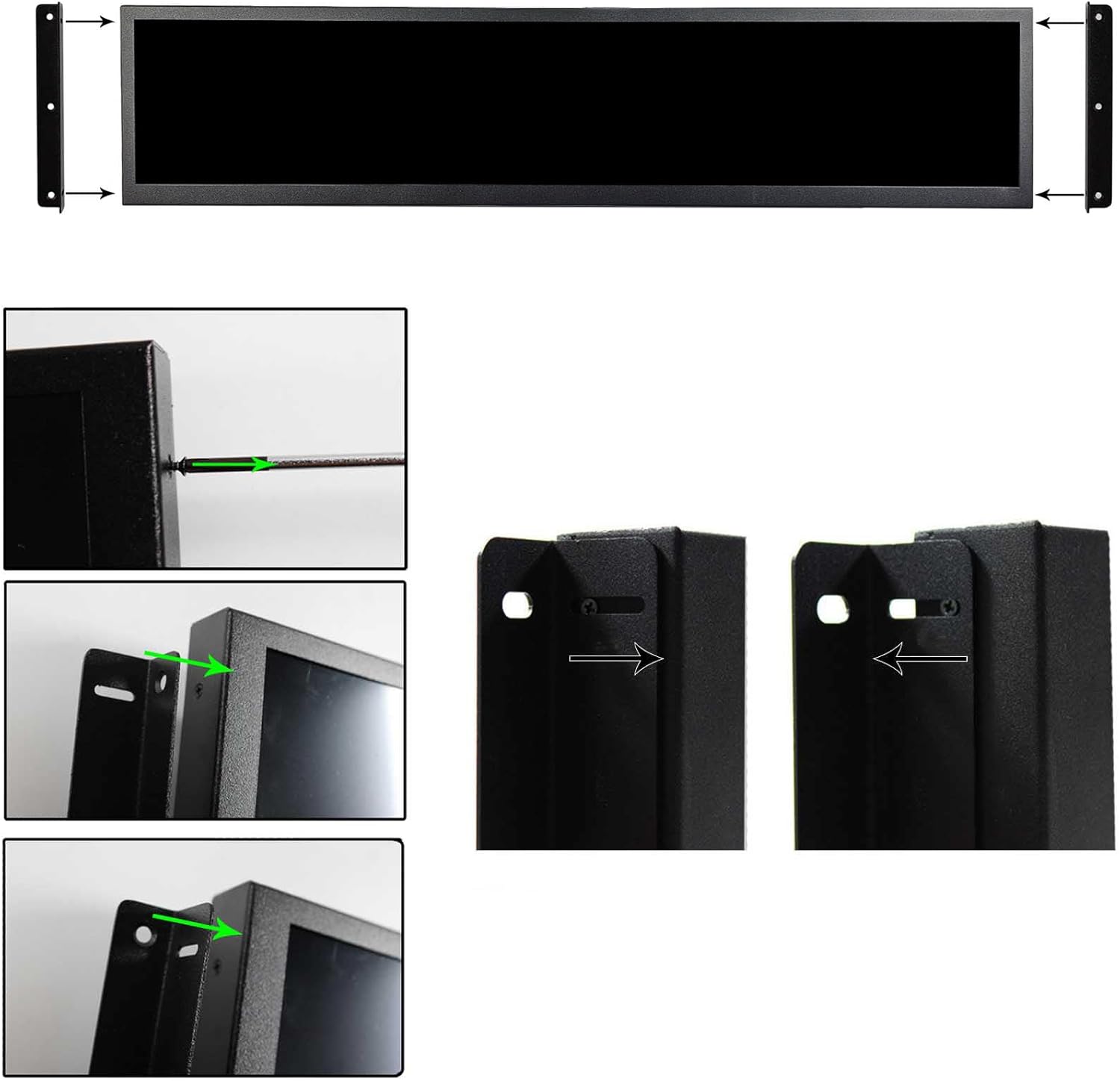
Figure 2.3: Illustration of bracket installation for the monitor.
3. Operating Instructions
3.1 Basic Controls
The monitor features several control buttons, typically located on the rear or side, for power, menu navigation, and selection:
- ON/OFF: Power button to turn the display on or off.
- MENU: Accesses the on-screen display (OSD) menu.
- RIGHT/LEFT: Navigates through menu options or adjusts settings.
- Return: Exits the current menu or confirms a selection.
3.2 USB Autoplay Functionality
The monitor supports automatic playback of videos and pictures when a USB storage device is inserted. Simply plug in a USB card, and the display will automatically play the content. Note that videos with Dolby sound effects are not supported.
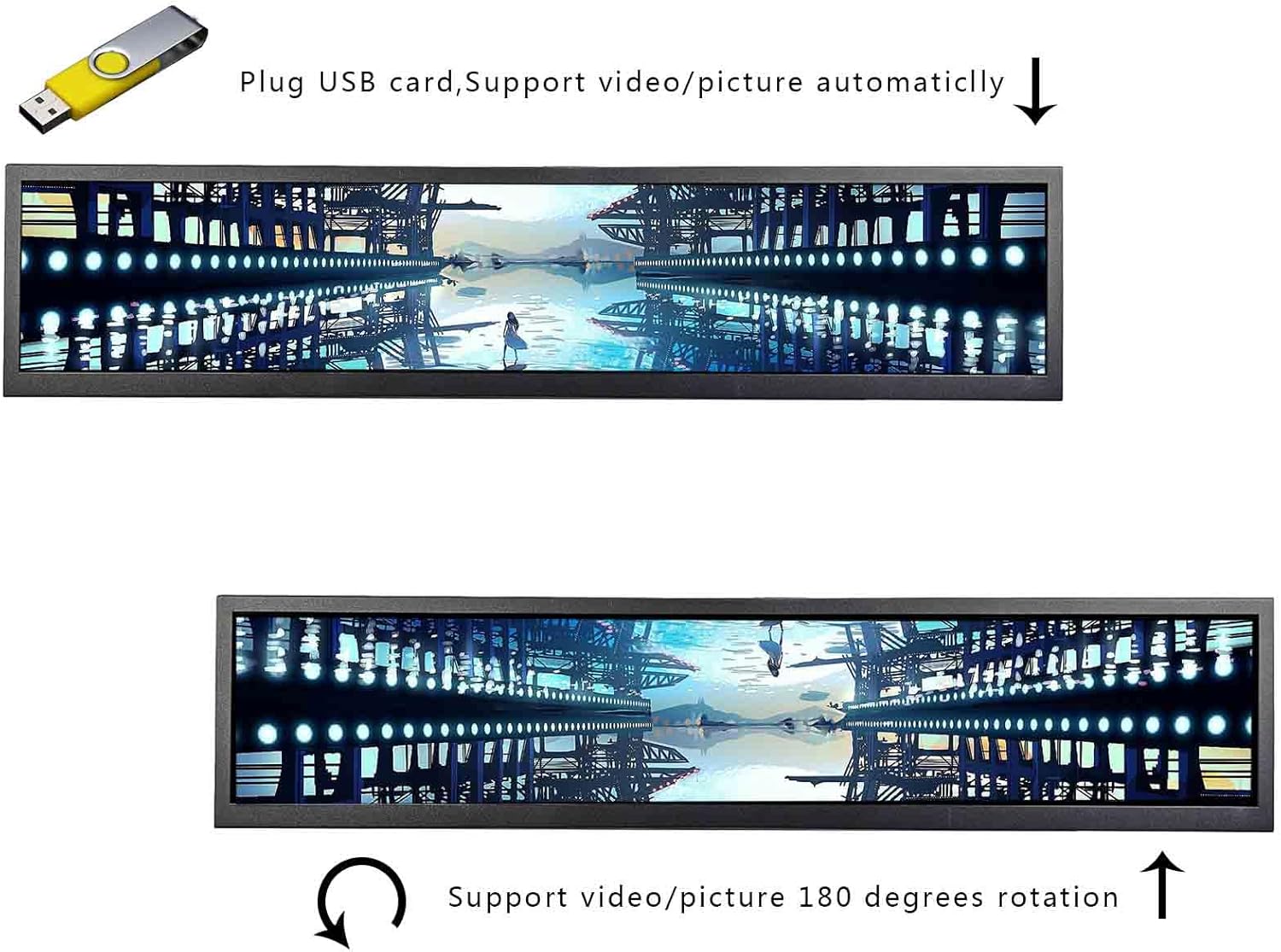
Figure 3.1: USB autoplay feature and 180-degree rotation capability.
3.3 Display Rotation
The 24-inch LCD monitor supports 180-degree rotation for pictures or videos, allowing for flexible content orientation.
3.4 Split Screen Playback (USB Mode)
The monitor supports partitioned playback of any size area by setting up folders on the USB flash drive. This allows for displaying multiple photos or videos simultaneously in different sections of the screen.
Video 3.1: Demonstration of the 1920x360 IPS Stretched Bar LCD Monitor's capabilities, including split-screen functionality and various display modes.
4. Applications
This versatile display is suitable for a wide range of uses:
- Gaming marquee monitor cabinets
- Supermarket shelf advertising monitors
- Outdoor kiosk display panels
- Game cabinet LCDs
- Store shelf advertising display panels
- Digital signage

Figure 4.1: Example of the display used for supermarket shelf advertising.
Video 4.1: Demonstration of a 21.3-inch stretched bar display (similar to the 24-inch model) used for advertising purposes, showcasing its visual capabilities.
5. Troubleshooting
5.1 USB Input Display Issues
If the monitor does not display normally when using USB input, ensure the correct settings are applied on your connected device. Some operating systems may require custom resolution settings for unconventional aspect ratio monitors.
Video 5.1: Guide on USB settings for the VSDISPLAY monitor when auto-display is not functioning correctly, demonstrating resolution adjustments.
5.2 Resolution Settings
For optimal display, ensure your device's video card allows for custom resolutions. You may need to manually set the resolution to 1920x360 or a similar aspect ratio to avoid 'squished' or 'pillar boxed' content. Utilities that can run an EDID report on the monitor may be helpful for advanced configuration.
5.3 Power Management
If the monitor does not turn off when the computer shuts down, check your computer's power management settings. This behavior is typically controlled by the operating system rather than the monitor itself.
6. Specifications
| Feature | Detail |
|---|---|
| Product Dimensions | 1.18 x 24.37 x 5.39 inches |
| Item Weight | 6.84 pounds |
| Screen Size | 24 Inches |
| Resolution | 1920x360 Pixels |
| Aspect Ratio | 16:9 |
| Image Brightness | 300 Candela |
| Total USB Ports | 1 |
| Screen Surface Description | Matte |
| Manufacturer | VSDISPLAY |
| Item Model Number | K003264 |

Figure 6.1: Physical dimensions of the monitor.
7. Maintenance
To ensure the longevity and optimal performance of your VSDISPLAY monitor, follow these maintenance guidelines:
- Cleaning: Use a soft, lint-free cloth to gently wipe the screen. For stubborn smudges, slightly dampen the cloth with water or a screen-safe cleaning solution. Avoid harsh chemicals or abrasive materials.
- Storage: When not in use for extended periods, store the monitor in a cool, dry place, away from direct sunlight and extreme temperatures.
- Handling: Always handle the monitor with care, especially the screen. Avoid applying excessive pressure or dropping the device.
8. Warranty and Support
For any product-related inquiries, technical support, or warranty claims, please contact VSDISPLAY customer service. Refer to the contact information provided with your purchase or visit the official VSDISPLAY store on Amazon for assistance.
VSDISPLAY Store: Visit the VSDISPLAY Store
Related documentsK003264

Ask a question about this manual
Ask about setup, troubleshooting, compatibility, parts, safety, or missing instructions. Manuals+ will review the question and use this page’s manual context to help answer it.