
1. Introduction
The Klauer Multidiag Pro+ TCS Pro+ is a fast and reliable diagnostic tool designed to establish a link between your vehicle and a computer. It is compatible with both older and newer vehicles, offering comprehensive diagnostics for cars, light vans, heavy vehicles, buses, and trailers. This device supports a wide range of vehicle brands and provides various diagnostic functions to assist with vehicle maintenance and repair.

Image 1.1: Klauer Multidiag Pro+ TCS Pro+ diagnostic scanner unit and its packaging.
2. Key Features
- 3-in-1 Diagnostic Capability: Works for Car, Truck, and Generic diagnostics.
- Integrated Bluetooth Module: For wireless connectivity and enhanced usability.
- Flight Recorder Function: Records real-time parameters during vehicle operation, allowing users to mark specific errors for later review.
- Voltage Check: Automatically monitors vehicle battery voltage (12V or 24V) and alerts for abnormal levels.
- VIN Chassis Number Reading: Intelligently reads the vehicle's VIN for automatic model and year selection, including engine code identification.
- Intelligent System Scan (ISS): Scans all vehicle systems to quickly identify and display stored error codes, providing a rapid overview of the vehicle's status.
- Report Function: Allows viewing of adaptations and parameters for specific vehicles without physical presence, aided by help texts.
- Advanced Functions: Includes injector programming, ignition angle correction, DPF maintenance, engine oil/time/brake repair resets, coding, calibration, adaptation, and key encoding.
- Error Code Management: Ability to read and clear error codes.

Image 2.1: Overview of the Klauer Multidiag Pro+ TCS Pro+ diagnostic capabilities.
3. Package Contents
Verify that all items are present in the package:
- 1x Multidiag Main Unit
- 1x OBD2 Cable
- 1x USB Cable
- 1x Software CD

Image 3.1: Contents of the Klauer Multidiag Pro+ TCS Pro+ package.
4. System Requirements
To ensure proper operation of the diagnostic software, your computer must meet the following specifications:
- Supported Operating Systems: Windows 7 (32-bit), Windows XP, Windows 10 (32-bit).
- Software Version: 2020.23 (includes keygen, compatible with some 2020-2023 vehicles).
5. Setup
- Software Installation: Insert the provided Software CD into your computer's CD drive. Follow the on-screen instructions to install the diagnostic software.
- Device Connection (USB): Connect the Multidiag main unit to your computer using the supplied USB cable.
- Device Connection (Bluetooth): Alternatively, enable Bluetooth on your computer and pair it with the Multidiag unit. Refer to your computer's Bluetooth settings for pairing instructions.
- Vehicle Connection: Locate the OBD2 diagnostic port in your vehicle (typically under the dashboard or near the steering column). Connect the OBD2 cable from the Multidiag unit to this port.
- Software Activation: If prompted, activate the 2020.23 software. If you encounter difficulties with activation, please contact the seller for a video guide.
6. Operating Instructions
6.1 Initial Connection and Voltage Check
Once the Multidiag unit is connected to the vehicle, it will automatically check the vehicle's battery voltage and adjust for 12V or 24V systems. If the voltage is too high or too low, the unit will provide an audible and visual alert, and a battery icon will appear in the diagnostic software.
6.2 Software Interface and Vehicle Selection
Launch the diagnostic software on your computer. You will typically be presented with options for 'CARS' or 'TRUCKS'.
- CARS: Select this option for brand-specific diagnostics on cars and light vans manufactured from 1988 onwards (supports 47 different brands).
- TRUCKS: Select this option for brand-specific diagnostics on light and heavy commercial vehicles, buses, and trailers manufactured from 1995 onwards (supports 37 different brands).
- GENERIC: This program is included in both CARS and TRUCKS packages and is designed for legislation-based diagnostics, specifically focusing on emission-related error codes.

Image 6.1: Software interface for selecting CARS or TRUCKS diagnostic modes.
6.3 VIN Chassis Number Reading
The software features an intelligent function to read the vehicle's Chassis Number (VIN). This ensures that the correct model and year are automatically selected for diagnosis. Engine codes for widely available vehicles are also automatically selected.
6.4 Intelligent System Scan (ISS)
The ISS function scans all systems within the vehicle and displays any stored error codes. This saves time and provides a quick overview of the vehicle's overall condition. After the ISS is complete, you can select specific control systems for further analysis of the results.
6.5 Flight Recorder
Utilize the flight recorder function to record real-time parameters while the vehicle is in operation. During recording, you can mark specific errors by pressing a button on the unit, allowing for later examination of detected issues. The Multidiag unit has built-in memory for this purpose (note: a separate memory card is not included).
6.6 Report Function
This function tab allows you to view possible adaptations and parameters for a specific vehicle without needing the vehicle physically present. The integrated help texts serve as a guide, enabling efficient planning and work even in complex situations.
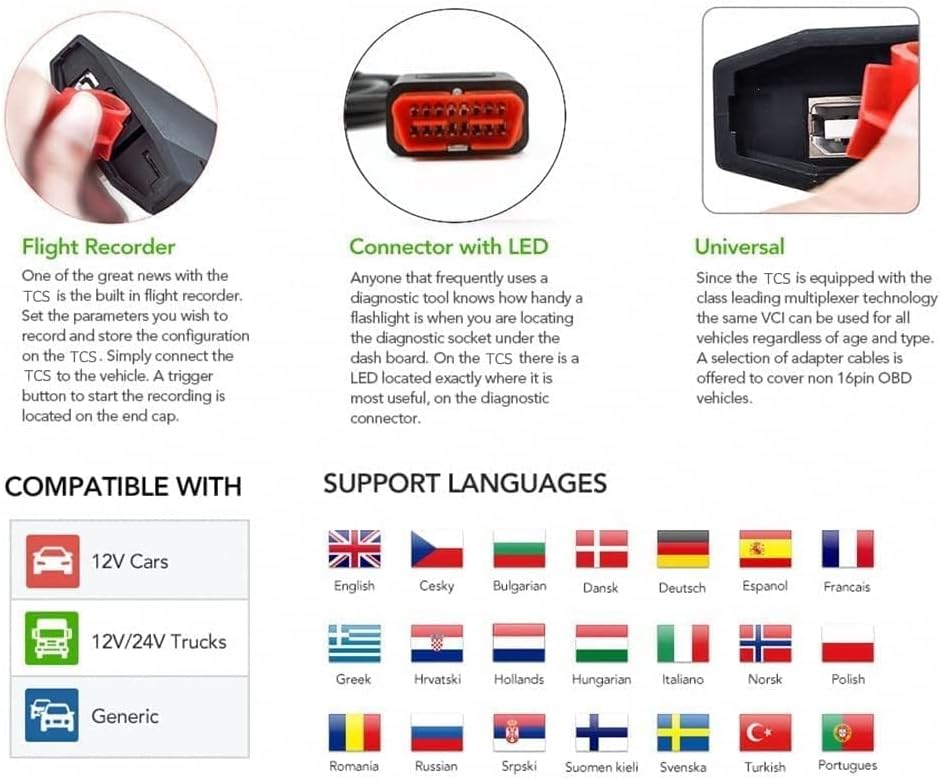
Image 6.2: Details on Flight Recorder, LED-equipped connector, and universal compatibility.
7. Supported Languages
The diagnostic software supports the following languages:
- English
- Czech
- Bulgarian
- Danish
- German
- Spanish
- French
- Greek
- Croatian
- Dutch
- Hungarian
- Italian
- Norwegian
- Polish
- Romanian
- Russian
- Finnish
- Swedish
- Turkish
8. Maintenance
- Keep the device clean and dry. Use a soft, damp cloth for cleaning; do not use harsh chemicals.
- Store the unit in a cool, dry place, away from direct sunlight and extreme temperatures.
- Avoid dropping the device or subjecting it to strong impacts.
- Do not attempt to open or repair the device yourself, as this may void the warranty and cause damage.
9. Troubleshooting
- Software Activation Issues: If you encounter difficulties activating the 2020.23 software, refer to the video guide provided by the seller or contact customer support.
- Connection Problems: Ensure all cables (OBD2, USB) are securely connected to both the vehicle/computer and the Multidiag unit. If using Bluetooth, verify that the device is properly paired and within range.
- Voltage Warnings: If the unit alerts about vehicle voltage being too high or too low, check the vehicle's battery condition and charging system.
- Software Compatibility: Confirm that your computer's operating system is one of the supported versions (Windows 7 32-bit, Windows XP, or Windows 10 32-bit).
- No Communication with Vehicle: Check the vehicle's ignition status (should be on). Ensure the OBD2 cable is correctly inserted into the vehicle's diagnostic port.
10. Specifications
| Feature | Detail |
|---|---|
| Model Number | KJH98990 |
| Brand | Klauer |
| Dimensions (L x W x H) | 19 x 12 x 6 cm |
| Power Source | Wired Electric (via OBD2 or USB) |
| UPC | 723735754467 |
| GTIN | 723735754467 |
| Number of Items | 1 |

Image 10.1: Physical dimensions of the Klauer Multidiag Pro+ TCS Pro+ unit.
11. Warranty and Support
For detailed warranty information, technical support, or assistance with specific diagnostic procedures, please refer to the documentation included with your purchase or contact the seller directly. Keep your purchase receipt for warranty claims.