
1. Introduction
This manual provides detailed instructions for the setup, operation, and maintenance of your summina 4-Channel Digital Audio Mixer. Please read this manual thoroughly before using the device to ensure proper functionality and to maximize your audio experience. This mixing console is designed for various audio applications, including DJ setups, network live broadcasts, and karaoke.

Image 1.1: The summina 4-Channel Digital Audio Mixer with its power adapter and user manual.
2. Key Features
- 4-channel mixing console with two mono channels and a separate stereo tape channel.
- Separate input JACK controls for mic and line inputs on all mono channels.
- XLR mic connectors on all mono channels.
- Low-noise, discrete mic preamplifiers on all microphone inputs.
- Dedicated inserts on all mono channels.
- Built-in 48V Phantom Power for condenser microphones.
- USB function for audio playback and recording.
- Bluetooth connectivity for wireless audio streaming.
- Integrated effects processor with 88 digital effects.

Image 2.1: The mixer features a minimalist, lightweight, and portable design with an impact-resistant powder-coated metal casing.
3. Setup Guide
Follow these steps to set up your summina 4-Channel Digital Audio Mixer:
- Power Connection: Connect the provided power adapter to the mixer's power input and then to a suitable power outlet.
- Microphone Connection: For mono channels (CH1, CH2), use XLR connectors for microphones. The mixer also supports line inputs via 1/4" JACKs. Ensure 48V Phantom Power is activated for condenser microphones by pressing the dedicated button.
- Stereo Input: Use the stereo channels (CH3/4) for connecting stereo audio sources.
- Output Connection: Connect your main speakers or amplifier to the MAIN OUTPUT (RCA or 1/4" JACKs). For monitoring, connect headphones to the PHONES output.
- USB/Bluetooth Setup: For USB playback, insert a USB drive into the USB port. For Bluetooth, select the Bluetooth mode on the mixer and pair with your device.

Image 3.1: The mixer comes with a power adapter suitable for your region (e.g., US or EU plug options).
Setup and Overview Video
Video 3.2: This video provides a visual guide to unboxing, connecting microphones, and basic operation of a similar Riworal Audio Mixer Sound Board Console AG04. Note that the specific model in the video may vary slightly from your summina mixer, but the general setup principles apply.
4. Operating Instructions
Familiarize yourself with the mixer's controls for optimal audio mixing.

Image 4.1: Overview of the mixer's control panel.
4.1 Channel Controls (CH1, CH2, CH3/4)
- GAIN: Adjusts the input sensitivity for each channel. Set to an appropriate level to avoid clipping.
- EQ (HIGH, MID, LOW): Use these knobs to adjust the treble, midrange, and bass frequencies for each channel.
- AUX: Controls the send level to the auxiliary output for external effects or monitoring.
- EFF: Adjusts the send level to the internal effects processor.
- PAN: (Mono channels) Adjusts the stereo position of the channel.
- LEVEL: Controls the overall volume of the channel in the main mix.
- PEAK LED: Illuminates when the input signal is too high, indicating potential clipping. Reduce the GAIN if this light frequently illuminates.
4.2 Master Controls
- MAIN: Controls the overall output volume of the mixer.
- PHONES: Adjusts the volume for the headphone output.
- EFFECTS PRESET/PROGRAM: Use the selector knob to choose from 88 built-in digital effects (e.g., Ambience, Spring, Room, Plate, Hall, Echo, Chorus, Flanger). Press the knob to confirm selection.
- 48V PHANTOM POWER: Activates 48V power for condenser microphones connected to CH1 and CH2.

Image 4.2: The mixer offers 7 built-in music modes (Natural, Pop, Rock, Jazz, Classical, Soft, Bass) and 88 digital effects for enhanced audio.
4.3 USB/Bluetooth Functionality
- USB Playback: Insert a USB flash drive with audio files (MP3, WAV, etc.) into the USB port. The mixer will automatically switch to USB mode. Use the PROGRAM knob to select tracks and press to play/pause.
- Bluetooth Pairing: Select Bluetooth mode. The mixer will appear as an available device on your smartphone or other Bluetooth-enabled audio source. Pair the devices to stream audio wirelessly.
- PC/DC Switch: This switch toggles between different connection modes. When pulled to 'PC', the signal is transmitted between the computer and the console, allowing for recording or playback via USB to a computer.
5. Specifications
| Category | Specification |
|---|---|
| Mic Input | Electronically balanced, discrete input configuration |
| Frequency Response (Mic) | 20Hz~25kHz ±1dB |
| Gain Range (Mic) | 6dB ~60dB |
| SNR (Mic) | 120dB E.I.N. |
| Line Input | Electronically balanced |
| Frequency Response (Line) | 20Hz~25kHz ±1dB |
| Gain Range (Line) | -14dB~40dB |
| SNR (Line) | 95dB |
| Frequency Response (Stereo) | 20Hz~25kHz ±1dB |
| Gain Range (Stereo Line) | -20dB~10dB |
| SNR (Stereo Line) | 96dB |
| EQ Low | 80Hz, ±15dB |
| EQ Mid | 2500Hz, ±15dB |
| EQ High | 12kHz, ±15dB |
| Main Output | +26 dBu balanced / +22 dBu unbalanced |
| AUX Send | +22 dBu unbalanced |
| EFF Send | +22 dBu unbalanced |
| Tape Out | +22 dBu unbalanced |
| Phones Output | 150Ω-600Ω/350mW |
| Input Power | AC110V (US), 50Hz, 18W |
| Output Power | AC18V*2350mA |
| Material | Metal |
| Item Size | 228 * 212 * 48mm / 8.98 * 8.35 * 1.89in |
| Item Weight | 1824g / 4.02lb |
| Number of Channels | 4 |
| Connectivity Technology | USB |
| Audio Input | XLR |
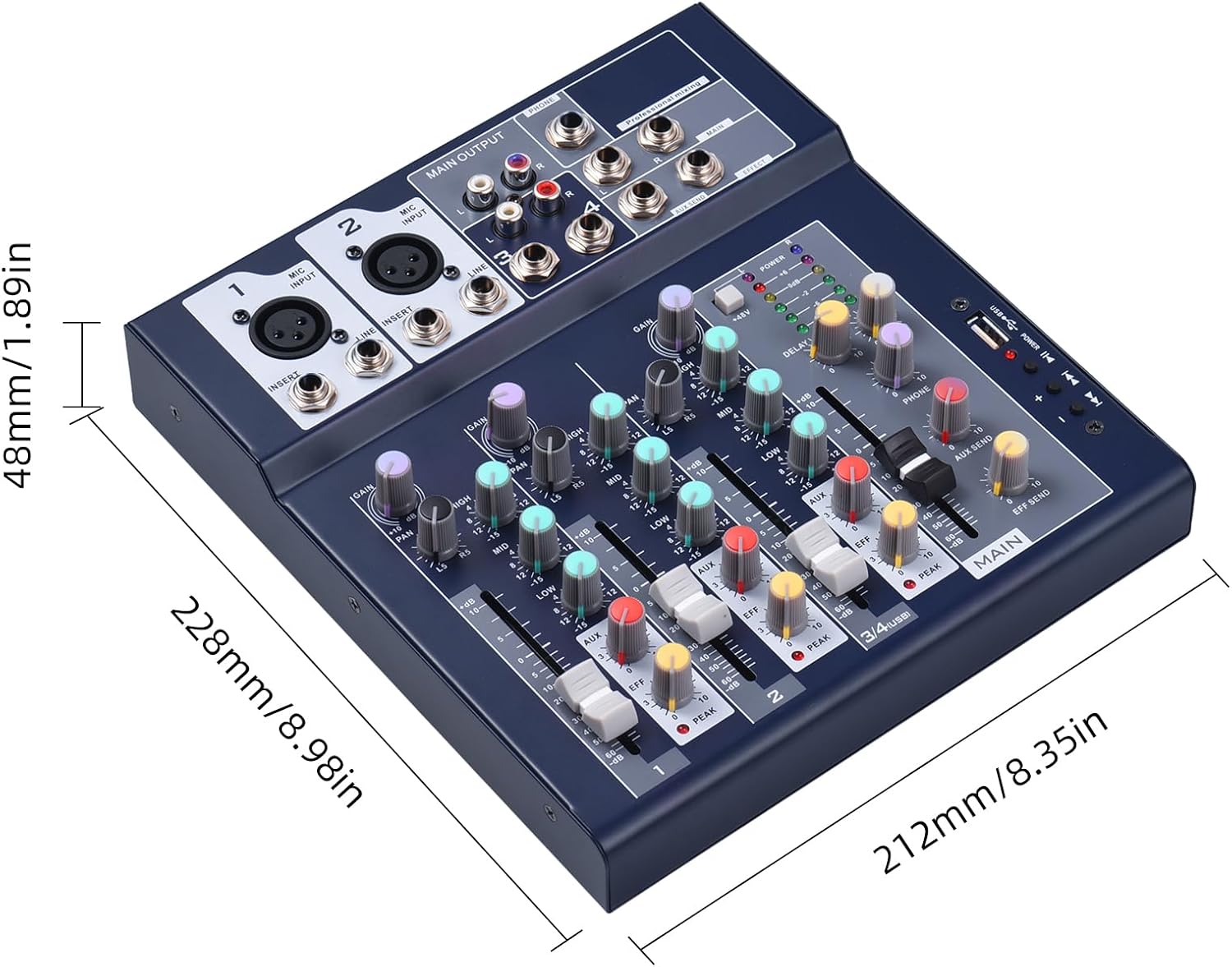
Image 5.1: Physical dimensions of the summina 4-Channel Digital Audio Mixer.
6. Maintenance
To ensure the longevity and optimal performance of your summina 4-Channel Digital Audio Mixer, follow these maintenance guidelines:
- Cleaning: Use a soft, dry cloth to clean the exterior of the mixer. Avoid using abrasive cleaners, solvents, or waxes, as they may damage the finish or internal components.
- Storage: When not in use, store the mixer in a cool, dry place away from direct sunlight, extreme temperatures, and high humidity.
- Ventilation: Ensure proper ventilation around the mixer to prevent overheating. Do not block any ventilation openings.
- Cable Management: Keep cables organized and free from kinks or excessive bending to prevent damage to the cables and connectors.
- Power Off: Always power off the mixer and disconnect it from the power source when not in use or during cleaning.
7. Troubleshooting
If you encounter any issues with your summina 4-Channel Digital Audio Mixer, refer to the following common troubleshooting steps:
- No Power: Ensure the power adapter is securely connected to both the mixer and a working power outlet. Check if the power switch is in the 'ON' position.
- No Sound Output: Verify that all input and output cables are correctly connected. Check the GAIN and LEVEL knobs for each channel and the MAIN output level. Ensure your speakers or headphones are powered on and functioning correctly.
- Distorted Sound: Reduce the GAIN and LEVEL settings if the PEAK LED indicators are frequently lighting up. Check for damaged cables or faulty microphones.
- Microphone Not Working: Ensure the microphone is properly connected. If using a condenser microphone, verify that 48V Phantom Power is activated. Check microphone batteries if applicable.
- USB Playback Issues: Ensure the USB drive is formatted correctly (FAT32 is commonly supported) and contains compatible audio files. Try a different USB drive if issues persist.
- Bluetooth Connection Problems: Ensure the mixer is in Bluetooth pairing mode. Delete the mixer from your device's Bluetooth list and attempt to re-pair. Ensure no other devices are interfering with the Bluetooth signal.
If the problem persists after attempting these steps, please contact customer support.
8. Warranty and Support
Your summina 4-Channel Digital Audio Mixer is covered by a manufacturer's warranty. Please refer to the warranty card included in your product packaging for specific terms and conditions, including the warranty period and coverage details.
For technical support, service, or warranty claims, please contact summina customer service through their official website or the contact information provided in your product documentation. When contacting support, please have your product model and serial number ready.
For additional protection, extended warranty plans may be available for purchase separately. Please check with your retailer for details.