
VIVO MOUNT-PC04L
VIVO X-Large Heavy Duty Adjustable Computer CPU Tower Stand
Model: MOUNT-PC04L
1. Introduction
This manual provides detailed instructions for the installation, operation, and maintenance of your VIVO X-Large Heavy Duty Adjustable Computer CPU Tower Stand, model MOUNT-PC04L. This product is designed to securely mount your computer tower under a desk, optimizing workspace and protecting your equipment.
2. Safety Information
- Weight Capacity: Do not exceed the maximum weight capacity of 66 lbs (30 kg). Ensure your desk can support this weight in addition to the stand and your computer.
- Desk Thickness: For secure installation, your desk surface must have a minimum thickness of 0.75 inches (19 mm).
- Pilot Holes: Always drill pilot holes before inserting screws to prevent damage to your desk and ensure a secure fit.
- Assembly: Follow all assembly steps carefully. Improper installation may result in equipment damage or personal injury.
- Ventilation: Ensure adequate airflow around your computer tower after installation. The open-frame design promotes ventilation.
3. Package Contents
Please verify that all components are present before beginning installation.
- Adjustable CPU Tower Stand Frame (Main Assembly)
- Mounting Hardware (Screws, Washers)
- Protective Padding (Pre-installed or separate)
- Instruction Manual
4. Specifications
| Feature | Detail |
|---|---|
| Model Number | MOUNT-PC04L |
| Weight Capacity | 66 lbs (30 kg) |
| Height Adjustment Range | 17" to 25" (43.2 cm to 63.5 cm) |
| Width Adjustment Range | 9" to 14" (22.9 cm to 35.6 cm) |
| Recommended Desk Thickness | Minimum 0.75" (19 mm) |
| Minimum Under Desk Clearance | 8.5" (21.6 cm) |
| Material | Heavy Duty Steel |
| Color | Black |
5. Installation Instructions
Before installation, ensure your desk meets the minimum thickness and clearance requirements. It is recommended to have assistance for lifting and positioning the computer tower.
- Measure Your PC:
Measure the height and width of your computer tower to ensure it falls within the stand's adjustable ranges (Height: 17"-25", Width: 9"-14").

Image: Diagram illustrating the height (17-25 inches) and width (9-14 inches) adjustment ranges of the MOUNT-PC04L stand, alongside a computer tower for size comparison. It also shows the maximum weight capacity of 66 lbs.
- Check Desk Compatibility:
Verify that your desk has a minimum thickness of 0.75 inches (19 mm) and at least 8.5 inches (21.6 cm) of under-desk clearance for the stand and your PC.
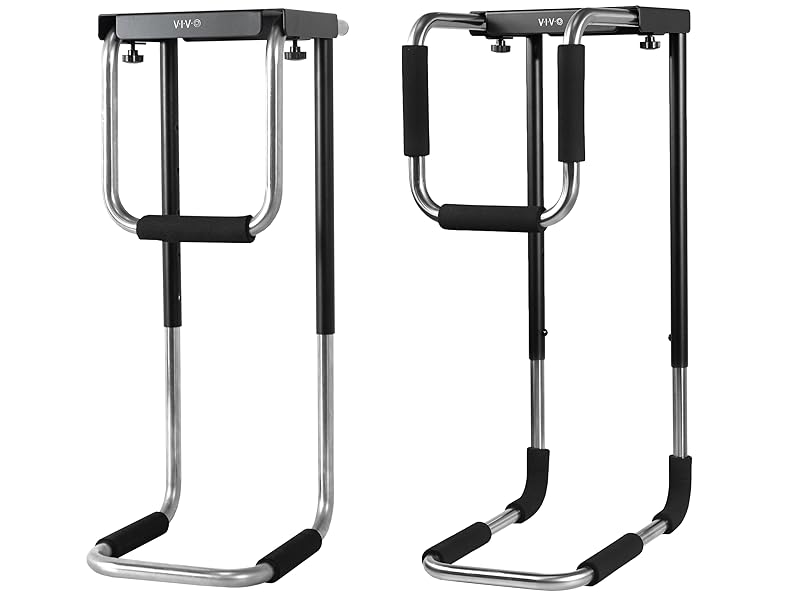
Image: A computer tower mounted under a desk, with annotations indicating the minimum under-desk clearance of 8.5 inches and minimum desktop thickness of 3/4 inch required for installation.
- Adjust Stand to PC Size:
Before mounting, adjust the stand's height and width to fit your PC. Use the adjustment knobs to loosen and slide the frame components. Ensure the protective padding aligns with your PC's surfaces to prevent scratches.

Image: A close-up view of the CPU stand highlighting the adjustment knobs for width and the protective padding. The width range is indicated as 9 to 14 inches.

Image: The adjustable frame of the CPU stand, with insets showing the height adjustment mechanism (multiple holes for pins) and the width adjustment knobs.
- Mark Mounting Holes:
Position the stand under your desk where you intend to mount it. Use a pencil to mark the locations for the mounting screws. Ensure the stand is positioned to allow easy access to your PC's ports and for optimal airflow.
- Drill Pilot Holes:
Using a 5/32 inch (4 mm) drill bit, carefully drill pilot holes at the marked locations. To prevent drilling through your desk, mark the drill bit with tape at 0.6 inches (15 mm) from the tip.
- Secure the Stand:
Align the stand with the pilot holes and use the provided mounting screws (approximately 19 mm long) to secure it firmly to the underside of your desk. Do not overtighten the screws, but ensure they are snug to prevent wobbling.

Image: A detailed view of the CPU stand's top mounting plate attached to the underside of a desk, emphasizing the secure connection.
- Insert PC into Stand:
Carefully lift your computer tower and slide it into the adjusted stand. Ensure it rests securely on the bottom support and is held firmly by the side arms. The protective padding should cushion the PC.

Image: A close-up of a computer tower securely held within the stand, highlighting the protective padding that prevents scratches and ensures a firm grip.

Image: A large computer tower is shown mounted under a desk using the VIVO heavy-duty PC mount, demonstrating its space-saving capability.
6. Operation and Adjustments
The VIVO CPU Tower Stand allows for easy adjustments to accommodate different PC sizes and preferences.
- Height Adjustment: To adjust the height, loosen the hex screws on the vertical bars. Slide the lower section up or down to the desired height and re-tighten the screws. There are multiple pre-drilled holes for precise height settings.
- Width Adjustment: To adjust the width, loosen the adjustment knobs located on the top horizontal bar. Slide the side arms inward or outward to fit your PC snugly, then re-tighten the knobs.

Image: A hand is shown making an adjustment to the CPU stand while a computer tower is mounted, illustrating the ease of modifying the stand's dimensions.
7. Maintenance
- Cleaning: Wipe the stand with a soft, damp cloth. Avoid abrasive cleaners that may damage the finish.
- Check Fasteners: Periodically check all screws and adjustment knobs to ensure they remain tight and secure. Re-tighten if necessary.
- Padding Inspection: Inspect the protective padding for wear and tear. Replace if significantly damaged to ensure continued protection for your PC.
8. Troubleshooting
- Stand feels wobbly: Ensure all mounting screws are securely tightened to the desk. Verify that the height and width adjustment screws/knobs are fully tightened after positioning your PC.
- PC does not fit: Re-measure your PC and compare with the stand's specifications. Ensure the stand's height and width adjustments are set to their maximum range if needed.
- Screws not holding: This indicates insufficient desk thickness or improper pilot hole drilling. Ensure your desk is at least 0.75 inches thick. If issues persist, consider using alternative mounting hardware suitable for your desk material, or consult a professional.
- Lack of airflow: While the stand is designed for optimal airflow, ensure no cables or other objects are obstructing the PC's vents.
9. Warranty and Support
VIVO is committed to providing quality products and customer satisfaction. This product comes with generous product protection. For any questions, concerns, or assistance with your VIVO X-Large Heavy Duty Adjustable Computer CPU Tower Stand, please contact VIVO customer support. Our U.S.-based sales and technical support team members are available to assist you.
For more information or to contact support, please visit the official VIVO website or refer to the contact details provided with your purchase.
Related Documents - MOUNT-PC04L
 |
VIVO MOUNT-PC04L Large Heavy Duty Under Desk PC Mount Instruction Manual Instruction manual for the VIVO MOUNT-PC04L Large Heavy Duty Under Desk PC Mount. Includes assembly steps, package contents, and contact information. |
 |
VIVO Black Under Desk and Wall PC Mount (MOUNT-PC01) - Instruction Manual Instruction manual for the VIVO MOUNT-PC01 Black Under Desk and Wall PC Mount. Includes package contents, tools needed, and detailed assembly instructions for under desk, wood wall, and concrete wall installations. |
 |
VIVO Deskside and Wall Gaming PC Mount (MOUNT-PC07G) Instruction Manual Assembly and installation instructions for the VIVO MOUNT-PC07G Deskside and Wall Gaming PC Mount. Includes instructions for clamp, concrete, wood, and drywall mounting options. |
 |
VIVO Universal VESA Holder for Tablets, Laptops, Monitors - MOUNT-UVM02 Series User Manual Comprehensive user manual and assembly guide for the VIVO MOUNT-UVM02 Series Universal VESA Holder. Learn how to install and remove your tablet, 2-in-1 laptop, or portable monitor safely. Includes hardware details, warnings, and support information. |
 |
VIVO Heavy Duty Under Desk PC Mount (MOUNT-PC04A) Assembly Manual Step-by-step assembly instructions for the VIVO Heavy Duty Under Desk PC Mount (Model: MOUNT-PC04A). Learn how to securely mount your PC tower under your desk. |
 |
VIVO Water Cooler Truck Mount (MOUNT-WCT1) - Assembly Instructions and Product Information Comprehensive assembly instructions and product details for the VIVO Water Cooler Truck Mount (SKU: MOUNT-WCT1). Learn how to safely install and use this truck accessory. |
Ask a question about this manual
Ask about setup, troubleshooting, compatibility, parts, safety, or missing instructions. Manuals+ will review the question and use this page’s manual context to help answer it.