
Cuifati H310 LGA 1151 Micro ATX DDR4 Motherboard
Cuifati H310 LGA 1151 Micro ATX DDR4 Motherboard Instruction Manual
Model: Cuifati H310 LGA 1151 Micro ATX DDR4 Motherboard
Brand: Cuifati
1. Introduction
This manual provides comprehensive instructions for the Cuifati H310 LGA 1151 Micro ATX DDR4 Motherboard, covering installation, operation, maintenance, troubleshooting, and detailed technical specifications. Please read this manual thoroughly before installing or operating your motherboard to ensure proper functionality and longevity.
Key Features:
- Wide CPU Compatibility: Supports 8th and 9th generation Intel Core CPUs (LGA 1151 socket).
- Dual Channel DDR4 Memory: Features two DDR4 DIMM slots, supporting up to 32GB total memory at speeds of 1066, 1333, and 1600MHz.
- Stable Power Supply: Equipped with a three-phase power supply and all solid-state capacitors for reliable power delivery to motherboard components.
- High-Speed Chipset: Utilizes the Intel H310 chipset for stable and efficient performance across various computing tasks.
- Integrated Graphics: Includes an integrated graphics processor with DVI, HDMI, and VGA display ports for multi-monitor setups.

Figure 1: Top-down view of the Cuifati H310 LGA 1151 Micro ATX DDR4 Motherboard.
2. Setup and Installation
Follow these steps carefully to install your Cuifati H310 motherboard and its components.
2.1 Motherboard Layout

Figure 2: Detailed layout of the Cuifati H310 motherboard with key components labeled, including power connectors, memory slots, PCIe slots, and I/O interfaces.
2.2 CPU Installation
- Locate the LGA 1151 CPU socket on the motherboard.
- Gently push down the load lever and pull it away from the socket to open the CPU retention frame.
- Align the triangular mark on your Intel LGA 1151 CPU with the corresponding mark on the socket. Carefully place the CPU into the socket without forcing it.
- Close the retention frame and push the load lever back into its locked position.
- Install your CPU cooler according to its manufacturer's instructions.

Figure 3: Close-up view of the LGA 1151 CPU socket on the motherboard, ready for CPU installation.
2.3 Memory (RAM) Installation
- Locate the two DDR4 DIMM slots.
- Open the clips at both ends of the memory slot.
- Align the notch on the DDR4 memory module with the key in the DIMM slot.
- Insert the memory module firmly into the slot until the clips snap into place. Ensure both clips are fully closed.

Figure 4: Illustration highlighting the DDR4 memory slots, supporting dual-channel architecture.
2.4 Storage Device Installation (SATA)
- Locate the four SATA 3.0 (6Gb/s) ports on the motherboard.
- Connect one end of a SATA data cable to a SATA port on the motherboard.
- Connect the other end of the SATA data cable to your SATA hard drive or SSD.
- Connect a SATA power cable from your power supply unit (PSU) to the storage device.
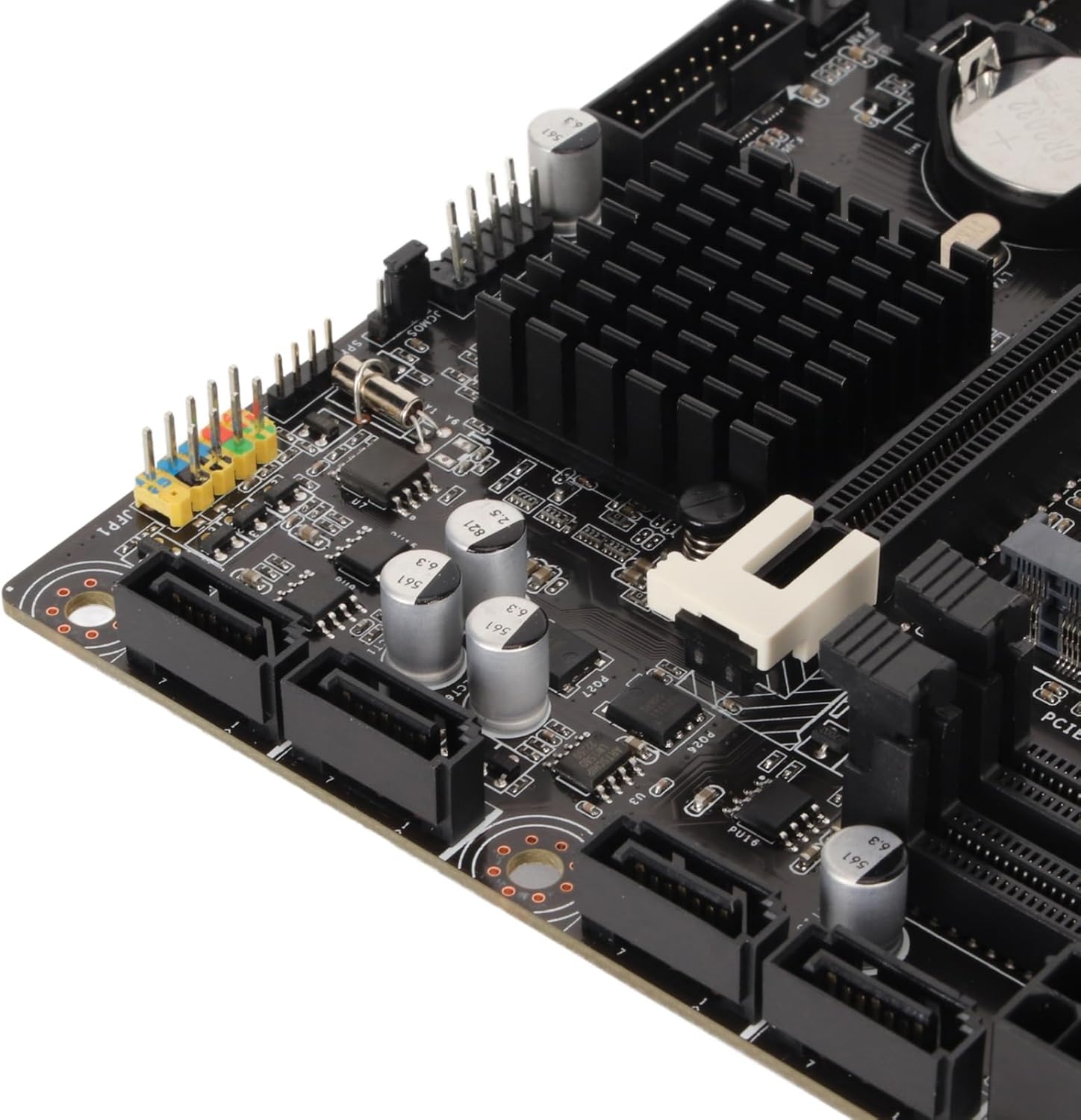
Figure 5: Close-up view of the four SATA 3.0 ports on the motherboard, used for connecting storage devices.
2.5 Graphics Card (PCIe) Installation
- Locate the PCIe x16 slot (the longest PCIe slot).
- Remove the corresponding expansion slot cover from your PC case.
- Align your graphics card with the PCIe x16 slot and press down firmly until it is securely seated and the retention clip locks.
- Secure the graphics card to the PC case with a screw.
- Connect any necessary PCIe power cables from your PSU to the graphics card.
2.6 Connecting Power
- Connect the 24-pin ATX main power connector from your PSU to the motherboard.
- Connect the 8-pin ATX 12V power connector from your PSU to the motherboard.
2.7 I/O Shield Installation
Before mounting the motherboard into your PC case, ensure you install the I/O shield into the case's rear opening. This protects the rear ports and prevents dust ingress.

Figure 6: Rear I/O panel of the Cuifati H310 motherboard, showing various ports including USB, LAN, and audio jacks.
3. Operating Instructions
3.1 First Boot and BIOS Setup
- After assembling your PC, connect a monitor, keyboard, and mouse.
- Power on your system. During startup, repeatedly press the DEL key (or as indicated on screen) to enter the BIOS/UEFI setup.
- In the BIOS, configure settings such as boot order, date/time, and enable XMP for your RAM if applicable. Save changes and exit.
- Install your operating system (e.g., Windows 10) from a bootable USB drive or DVD.
3.2 Driver Installation
After installing your operating system, install the necessary drivers for your motherboard components. These typically include chipset drivers, audio drivers, LAN drivers, and integrated graphics drivers. Drivers can usually be found on the Cuifati support website or on an included driver CD/USB drive.
3.3 Integrated Graphics Output
The motherboard supports multiple display outputs (DVI, HDMI, VGA). You can connect up to three monitors simultaneously using these ports, provided your CPU has integrated graphics capabilities.

Figure 7: Close-up view of the DVI, HDMI, and USB ports on the rear I/O panel.
4. Maintenance
- Keep it Clean: Regularly clean your PC case and motherboard to prevent dust buildup, which can lead to overheating and component failure. Use compressed air to gently remove dust.
- BIOS Updates: Periodically check the Cuifati website for BIOS updates. BIOS updates can improve system stability, compatibility, and performance. Follow the update instructions carefully.
- Driver Updates: Keep your drivers updated to ensure optimal performance and compatibility with new software and hardware.
5. Troubleshooting
If you encounter issues with your motherboard, consider the following common troubleshooting steps:
- No Power/No Boot:
- Ensure all power cables (24-pin ATX, 8-pin ATX 12V) are securely connected.
- Verify your PSU is switched on and functioning correctly.
- Check front panel connections (power button, reset button).
- No Display:
- Confirm your monitor is connected to the correct graphics output (integrated or dedicated GPU).
- Reseat your graphics card and RAM modules.
- If using a dedicated GPU, ensure it is properly powered.
- System Instability/Crashes:
- Check CPU and GPU temperatures.
- Ensure RAM modules are correctly installed and compatible.
- Update BIOS and drivers.
- BIOS Q-Flash Plus Button: The motherboard features a BIOS Q-Flash Plus button on the rear I/O panel, allowing you to update the BIOS without a CPU, RAM, or graphics card installed. Refer to the manufacturer's website for detailed instructions on using this feature.
6. Specifications
| Feature | Detail |
|---|---|
| Brand | Cuifati |
| CPU Socket | LGA 1151 |
| Compatible Processors | Intel Core i3/i5/i7/i9 8th/9th Gen |
| Chipset Type | Intel H310 |
| RAM Memory Technology | DDR4 |
| Memory Clock Speed | 1600 MHz (Supports 1066, 1333, 1600MHz) |
| Max RAM Capacity | Up to 32GB (2 x 16GB DIMM slots) |
| Compatible Devices | Personal Computer |
| Platform | Windows 10 |
| Storage Interfaces | 4 x SATA 3.0 (6Gb/s) ports |
| Display Outputs | DVI, HDMI, VGA |
| USB Ports (Rear) | 4 x USB 2.0, 2 x USB 3.2 Gen 1, 1 x USB 3.2 Gen 2, 1 x USB 3.2 Gen 1 Type-C |
| LAN | 1 x Gigabit Ethernet |
| Audio | Integrated High Definition Audio |
| Item Weight | 1.13 pounds |
| Package Dimensions | 10.24 x 7.87 x 1.97 inches |
| Model Number | Cuifati0ohk6rbtdm |
7. Warranty and Support
For warranty information, technical support, and the latest driver/BIOS downloads, please visit the official Cuifati website. Keep your purchase receipt for warranty claims.
For additional product information and visual guides, please refer to the product overview video below:
Video 1: Official Product Overview for the Cuifati H310 Motherboard. This video provides a visual guide to the motherboard's features and components.
Ask a question about this manual
Ask about setup, troubleshooting, compatibility, parts, safety, or missing instructions. Manuals+ will review the question and use this page’s manual context to help answer it.