
KENRONE KR-KB161
KENRONE Fingerprint Key Lock Box User Manual
Model: KR-KB161
1. Product Overview
The KENRONE Fingerprint Key Lock Box is an advanced security solution designed for convenient and secure key storage and access. It offers multiple unlocking methods including fingerprint, password, and mobile application control, making it ideal for various applications such as home, office, and short-term rentals.

Image: The KENRONE Fingerprint Key Lock Box, showcasing its keypad, fingerprint sensor, and the accompanying mobile app interface with a small gateway device.
2. What's Included
Upon unboxing, please verify that all the following components are present:
- 1 x KENRONE Key Lock Box
- 1 x Electronic Key (for emergency unlocking)
- 1 x USB Charging Cable (Type-C)
- 1 x Instruction Manual (this document)

Image: All components included in the package: the key lock box, electronic key, USB charging cable, and the instruction manual box.
3. Key Features
- Multiple Unlocking Methods: Supports TUYA APP, password, fingerprint, and electronic key for versatile access.
- Enhanced Security: Configurable with up to 50 fingerprints and 100 passwords. Features virtual password anti-snooping, attack protection, and temporary password generation.
- Remote Access: Unlock remotely via the TUYA APP (requires an additional gateway, sold separately).
- Durable Construction: Made from zinc alloy with a 7mm diameter locking arm, resistant to frost, scratches, and violent impacts.
- Weatherproof Design: IP66 protection rating ensures functionality in temperatures from -20℃ to 60℃ (-4℉ to 140℉).
- Long Battery Life: Built-in 1200mAh lithium battery provides up to 12 months of standby time. Rechargeable via Type-C USB.
- Flexible Installation: Removable latch design allows for easy, tool-free installation without permanent fixing.

Image: Illustration of the four unlocking methods: TUYA APP, password, fingerprint, and electronic key.

Image: Details highlighting the sturdy and durable construction, including the 7mm locking arm, zinc alloy material, and anti-corrosion coating.
4. Setup and Installation
4.1 Initial Charging
Before first use, fully charge the key lock box using the provided Type-C USB cable. Connect the cable to the Type-C port on the device and a standard USB power adapter (not included). The blue light will blink during charging and turn solid when fully charged.

Image: Diagram showing the Type-C charging port and explaining the low power alarm indicator (blue light blinking when battery is below 3.6V).
4.2 App Download and Setup (TUYA APP)
- Download the "TUYA Smart" or "Smart Life" app from your smartphone's app store (iOS App Store or Google Play Store).
- Register for a new account or log in if you already have one.
- Follow the in-app instructions to add a new device. Ensure Bluetooth is enabled on your phone.
- The app will guide you through pairing the lock box.
4.3 Physical Installation
The KENRONE Key Lock Box features a removable latch for flexible installation. It can be hung on door handles, fences, or other suitable fixtures without the need for permanent mounting or special tools.
- Open the lock box using one of the unlocking methods (e.g., default password or app).
- Place your keys or other small items inside the compartment.
- Close the lock box securely.
- Hang the lock box on the desired location using its shackle.

Image: Detailed view of the lock box dimensions and its internal key storage compartment.
5. Operating Instructions
5.1 Unlocking Methods
- Fingerprint Unlock: Place a registered finger on the fingerprint sensor. The lock will open if the fingerprint is recognized.
- Password Unlock: Enter a registered password on the keypad, then press the '#' key. The lock will open if the password is correct.
- TUYA APP Unlock: Open the TUYA Smart app on your smartphone. Select the lock box and tap the unlock icon. Ensure your phone is within Bluetooth range or connected via a gateway for remote unlocking.
- Electronic Key Unlock (Emergency): In case of battery depletion or other issues, insert the electronic key into the designated port to provide emergency power and unlock the device.
5.2 Remote Unlocking (Requires Gateway)
To enable remote unlocking functionality via the TUYA APP, an additional gateway device (sold separately) is required. The gateway connects the lock box to your home Wi-Fi network, allowing you to control it from anywhere with an internet connection.
- Purchase and set up the KENRONE gateway device according to its instructions.
- Ensure the gateway is powered on and connected to your Wi-Fi network.
- Pair the lock box with the gateway through the TUYA Smart app.
- Once paired, you can remotely unlock the key box from the app, generate temporary passwords, and view access logs.

Image: Diagram illustrating how the lock box connects to a gateway for remote unlocking via a smartphone app.
5.3 Virtual Passcode Function
The virtual passcode feature enhances security by allowing you to enter random digits before or after your actual password. This prevents others from guessing your password by observing your finger movements on the keypad.
Example: If your correct password is "123456", you can enter "456123456321" and the lock will still recognize the correct sequence.
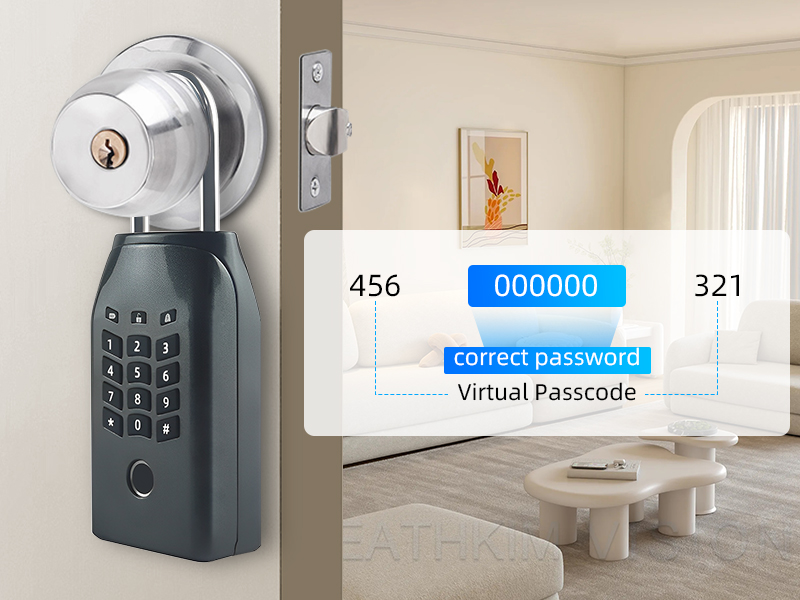
Image: Visual explanation of the virtual passcode feature, showing how random numbers can be added before and after the correct password.
6. Maintenance
- Cleaning: Wipe the lock box with a soft, damp cloth. Avoid using abrasive cleaners or solvents that could damage the finish or electronic components.
- Battery Management: Recharge the built-in lithium battery promptly when the low power alarm (blinking blue light after unlocking) is activated. Regular charging ensures optimal performance and longevity.
- Environmental Protection: While the lock box is IP66 rated for water and dust resistance, avoid prolonged submersion or exposure to extreme conditions beyond its specified operating temperature range (-20℃ to 60℃).

Image: Illustration highlighting the IP66 waterproof and dustproof rating and the wide operating temperature range of the lock box.
7. Troubleshooting
| Problem | Possible Cause | Solution |
|---|---|---|
| Lock box does not respond. | Battery is completely depleted. | Use the electronic key for emergency power to unlock, then charge the device immediately using the Type-C USB cable. |
| Fingerprint not recognized. | Finger is dirty or wet; Fingerprint not properly registered; Sensor is dirty. | Ensure your finger is clean and dry. Try re-registering your fingerprint. Clean the fingerprint sensor with a soft, dry cloth. |
| Password not working. | Incorrect password entered; Virtual passcode used incorrectly. | Double-check the password. Ensure you are entering the correct sequence, especially if using the virtual passcode feature. Try unlocking via the app or fingerprint. |
| App cannot connect to the lock box. | Bluetooth is off; Lock box is out of range; App issue. | Ensure Bluetooth is enabled on your phone. Move closer to the lock box. Restart the app or your phone. If using a gateway, ensure it's powered and connected to Wi-Fi. |
| Remote unlock not working. | No gateway connected; Gateway offline; Poor Wi-Fi signal. | Ensure you have a KENRONE gateway and it is properly set up and online. Check your Wi-Fi connection. |
8. Specifications
| Feature | Detail |
|---|---|
| Model Number | KR-KB161 |
| Dimensions (L x W x H) | 31 x 60 x 166 mm (1.22 x 2.36 x 6.54 inches) |
| Weight | 617 g (1.36 lbs) |
| Material | Zinc Alloy |
| Color | Gun Gray |
| Battery Type | Built-in 1200mAh Lithium Battery |
| Charging Port | Type-C USB |
| Standby Time | Up to 12 months |
| Unlocking Methods | Fingerprint, Password, TUYA APP, Electronic Key |
| Fingerprint Capacity | 50 sets |
| Password Capacity | 100 sets |
| Waterproof Rating | IP66 |
| Operating Temperature | -20℃ to 60℃ (-4℉ to 140℉) |
9. Warranty and Support
KENRONE products are designed for reliability and performance. For specific warranty details and terms, please refer to the warranty card included with your product or visit the official KENRONE website.
If you encounter any issues or have questions regarding your KENRONE Fingerprint Key Lock Box, please contact our customer support team:
- Customer Service: Refer to your purchase platform or included documentation for contact information.
- Online Resources: Visit the KENRONE brand store on Amazon or the manufacturer's website for FAQs and additional support.
Note: Keep your purchase receipt as proof of purchase for warranty claims.
Related Documents - KR-KB161
 |
Fingerprint Padlock Instruction Manual Comprehensive guide on how to set up, operate, and maintain your fingerprint padlock, including fingerprint registration, deletion, and charging instructions. |
 |
SMART LOCK-Key Box User Manual - Tuya Smart Lock Instructions Comprehensive user manual for the Tuya SMART LOCK-Key Box, covering basic information, app download and pairing, function descriptions, adding unlock keys, factory setup, and notes. Includes details for Type 1 and Type 2 models. |
 |
KwikRail Aluminum Cable Tray System Catalog and Specifications Comprehensive catalog for Eaton's KwikRail aluminum cable tray system, detailing features, benefits, specifications, certifications, part numbering, accessories, fittings, and technical data for commercial and industrial cable management applications. |
 |
KERONG KR-K19-FPBT Electronic Key User Manual User manual for the KERONG KR-K19-FPBT Electronic Key, detailing setup, operation via keypad and Bluetooth app, specifications, and FCC compliance. |
 |
KERONG KR-S1090-6560 Smart Lock User Manual Comprehensive user manual for the KERONG KR-S1090-6560 smart lock, detailing its functions, parameters, operation, app integration, electronic key usage, and emergency procedures. |
Ask a question about this manual
Ask about setup, troubleshooting, compatibility, parts, safety, or missing instructions. Manuals+ will review the question and use this page’s manual context to help answer it.