
Beetronics 19VG7M
Beetronics 19VG7M 19-Inch Full HD IPS Monitor User Manual
Professional Industrial-Grade Display
Introduction
This manual provides comprehensive instructions for the installation, operation, and maintenance of your Beetronics 19VG7M 19-Inch Full HD IPS Monitor. Designed for professional and continuous use, this industrial-grade display offers exceptional visual clarity, versatile connectivity, and robust construction. Please read this manual thoroughly before using the monitor to ensure proper setup and optimal performance.

Figure 1: Front view of the Beetronics 19VG7M Monitor.
Package Contents
Before proceeding with the setup, please verify that all components are present in the package:
- Beetronics 19VG7M Monitor
- Power Supply & Cord
- Remote Control
- Flush Mounting Brackets (if applicable)
- Desktop & Surface Mounting Stand
- User Manual (this document)
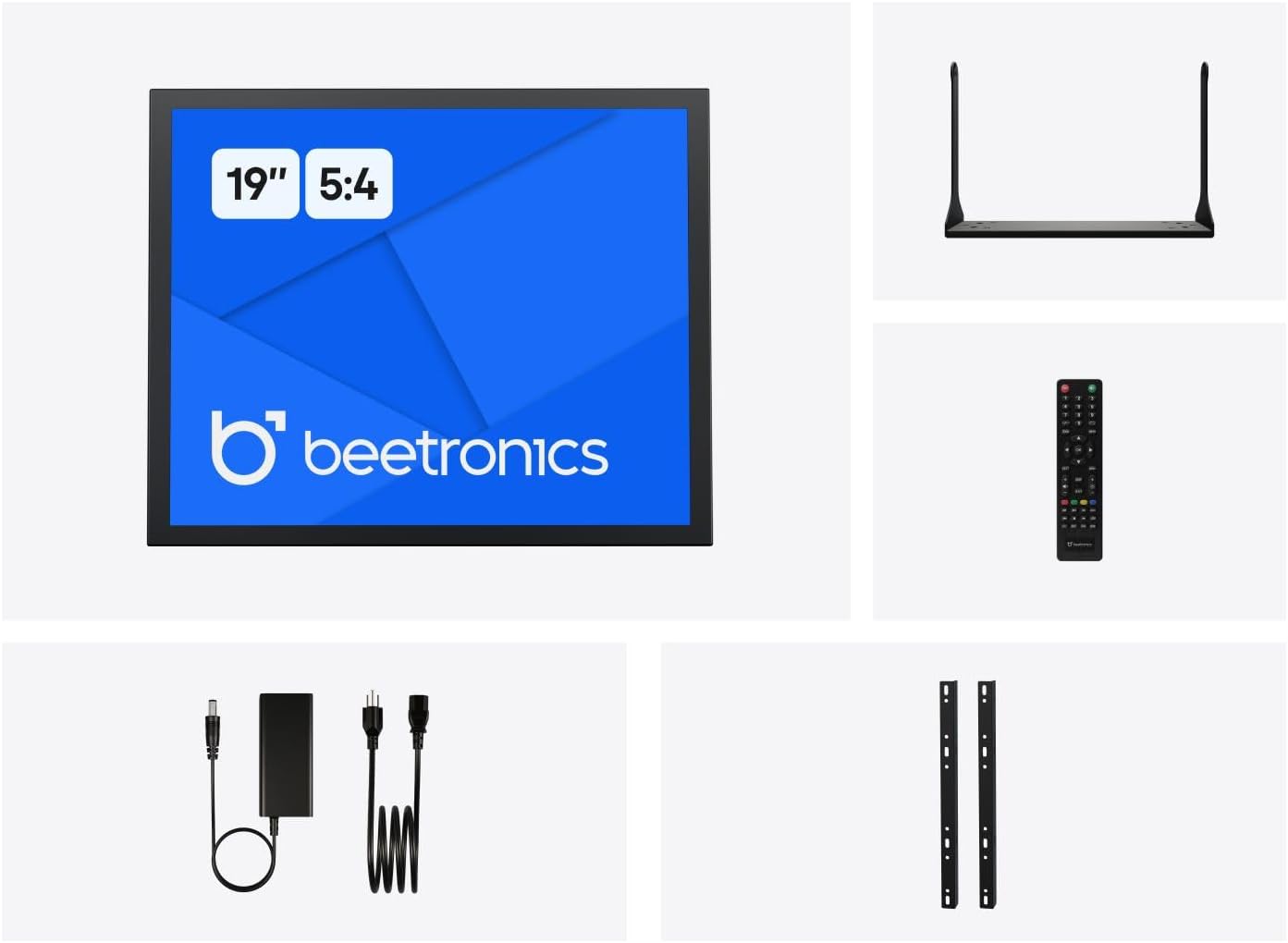
Figure 2: Included accessories with the Beetronics 19VG7M Monitor.
Setup
1. Mounting Options
The 19VG7M monitor offers flexible mounting solutions, including a collapsible desktop stand and VESA 100mm compatibility for wall or arm mounting.
Desktop Stand Installation:
- Carefully place the monitor face down on a soft, clean surface to prevent scratches.
- Attach the desktop stand to the designated mounting points on the rear of the monitor using the provided screws. Ensure it is securely fastened.
- Place the monitor on a stable, flat surface.
VESA Wall/Arm Mounting:
- If the desktop stand is attached, remove it.
- Align the VESA 100mm mounting holes on the back of the monitor with your VESA-compatible wall mount or arm.
- Secure the monitor to the mount using appropriate VESA screws (M4 x 10mm recommended, not always included with monitor).

Figure 3: Monitor dimensions with desktop stand.
2. Connecting Cables
The 19VG7M monitor features a variety of input ports located on the rear, facing downwards for neat cable management. Ensure the monitor and all connected devices are powered off before making connections.

Figure 4: Downward-facing input ports.
- HDMI: Connect an HDMI cable from your source device (e.g., computer, media player) to the HDMI port on the monitor.
- VGA: Connect a VGA cable from your source device to the VGA port on the monitor.
- BNC: For professional video applications, connect a BNC cable to the BNC input.
- RCA (AV): Use RCA cables for composite video and stereo audio input. Connect the yellow plug for video, and red/white for audio.
- USB: (If applicable for touch functionality or specific peripherals, consult product specifications for exact USB function).
- Power: Connect the provided power supply to the DC input port on the monitor, then plug the power cord into a wall outlet. The monitor supports a wide input voltage range of 9-36 Volts.

Figure 5: Rear panel overview with control buttons and ports.
Operating Instructions
1. Powering On/Off
Press the ON/OFF button located on the rear panel or on the remote control to power the monitor on or off. The power indicator light will illuminate when the monitor is on.
2. Input Selection
To switch between different video inputs (HDMI, VGA, BNC, RCA):
- Press the AUTO button on the rear panel or the INPUT button on the remote control.
- Use the + or - buttons to navigate through the available inputs.
- Press the MENU button or wait a few seconds to confirm your selection.
3. On-Screen Display (OSD) Menu
The OSD menu allows you to adjust various display settings. To access and navigate the OSD menu:
- Press the MENU button on the rear panel or remote control to open the OSD menu.
- Use the + or - buttons to navigate through menu options.
- Press the MENU button again to enter a sub-menu or confirm a setting.
- To exit the OSD menu, navigate to the "Exit" option or press the MENU button repeatedly until the menu disappears.
Common OSD Settings:
- Picture: Adjust brightness, contrast, color temperature, and aspect ratio (e.g., 5:4).
- Audio: Control volume and mute settings.
- OSD Settings: Adjust OSD language, transparency, and timeout.
- Reset: Restore factory default settings.
The monitor also supports a fully dimmable backlight, which can be adjusted via the OSD menu or dedicated dimmer controls if available.
Maintenance
Proper maintenance ensures the longevity and optimal performance of your Beetronics monitor.
Cleaning the Monitor:
- Always power off the monitor and unplug it from the power outlet before cleaning.
- Screen: Use a soft, lint-free cloth slightly dampened with water or a non-abrasive, monitor-specific cleaning solution. Do not spray liquid directly onto the screen.
- Casing: Wipe the metal housing with a soft, dry cloth. Avoid using harsh chemicals, abrasives, or solvents, as they may damage the finish.
General Care:
- Avoid placing heavy objects on the monitor or its cables.
- Do not block ventilation openings on the monitor.
- Keep the monitor away from direct sunlight, excessive heat, and high humidity.
- If the monitor will not be used for an extended period, it is recommended to unplug it from the power source.
Troubleshooting
If you encounter issues with your monitor, refer to the following common problems and solutions:
| Problem | Possible Cause | Solution |
|---|---|---|
| No image on screen |
|
|
| Image too dark/bright or colors incorrect |
|
|
| No audio |
|
|
| Monitor flickering or unstable image |
|
|
If the problem persists after trying these solutions, please contact Beetronics customer support.
Specifications
Key technical specifications for the Beetronics 19VG7M 19-Inch Full HD IPS Monitor:
| Model Number | 19VG7M |
| Screen Size | 19 Inches |
| Aspect Ratio | 5:4 |
| Resolution | 1280 x 1024 (Full HD) |
| Panel Type | IPS |
| Viewing Angle | 178° (Horizontal/Vertical) |
| Brightness | 470 Candela |
| Input Voltage | 9-36 Volts (DC) |
| Input Ports | HDMI, VGA, BNC, RCA (AV), USB |
| Product Dimensions (L x W x H) | 1.6 x 16.1 x 15.2 inches (without stand) |
| Item Weight | 3.3 pounds |
| Manufacturer | Beetronics |
| Screen Surface | Matte |

Figure 6: Internal components and key features.
Warranty and Support
Warranty Information
The Beetronics 19VG7M monitor comes with a solid 2-year warranty, ensuring reliability and peace of mind. This warranty covers defects in materials and workmanship under normal use. Please retain your proof of purchase for warranty claims.
For detailed warranty terms and conditions, please refer to the official Beetronics website or contact customer support.
Customer Support
If you require technical assistance, have questions about your product, or need to initiate a warranty claim, please contact Beetronics customer support:
- Website: Visit the official Beetronics website for FAQs, support resources, and contact forms. www.beetronics.com
- Email: Refer to the Beetronics website for the most current support email address.
- Phone: Refer to the Beetronics website for regional support phone numbers.
When contacting support, please have your monitor's model number (19VG7M) and purchase information readily available.
Ask a question about this manual
Ask about setup, troubleshooting, compatibility, parts, safety, or missing instructions. Manuals+ will review the question and use this page’s manual context to help answer it.