
1. Introduction
This manual provides essential information for the proper installation, operation, and maintenance of your Beetronics 12-Inch Full HD IPS Monitor, model 12HD7M. Please read this manual thoroughly before using the product to ensure optimal performance and safety.
Key Features:
- Full HD 1920 x 1080 resolution IPS panel with 178° viewing angles.
- Multiple video inputs: HDMI, VGA, BNC, and RCA.
- Durable metal housing designed for continuous 24/7 operation.
- Wide input voltage range (9-36 Volts) and dimmable backlight.
- Flexible mounting options: Collapsible stand and 75mm VESA mount.
2. Package Contents
Verify that all items listed below are included in your product package. If any items are missing or damaged, please contact Beetronics support.
- Beetronics 12-Inch Full HD IPS Monitor (12HD7M)
- Power Supply & Cord
- Remote Control
- Flush Mounting Brackets
- Collapsible Stand
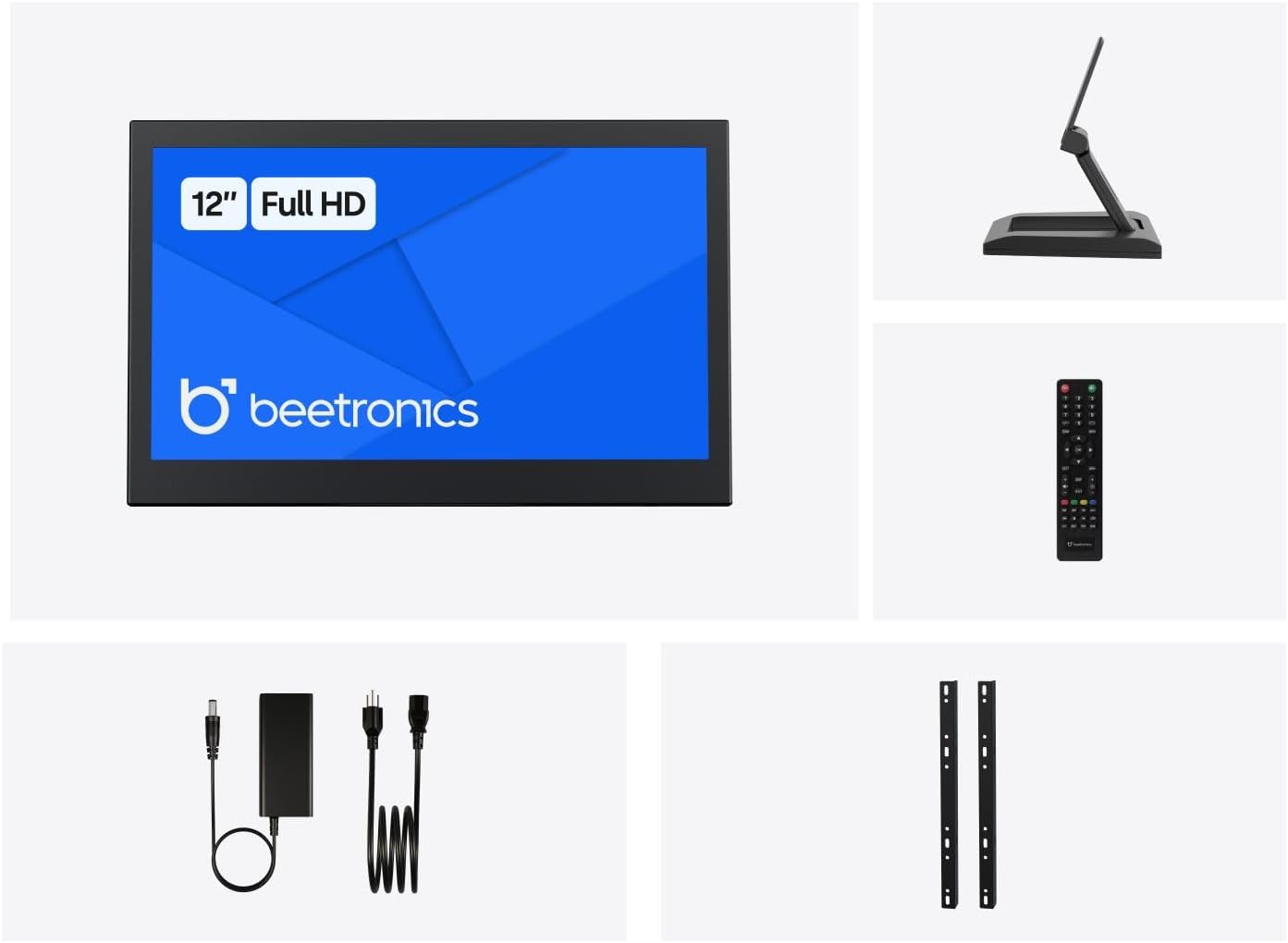
Figure 2.1: Package Contents. This image displays the Beetronics 12HD7M monitor along with its standard accessories, including the power adapter, remote, mounting brackets, and desktop stand.
3. Product Overview
Monitor Dimensions and Design:
The Beetronics 12HD7M monitor features a robust metal housing, designed for industrial environments. Its compact form factor allows for versatile integration.

Figure 3.1: Monitor Dimensions. This image illustrates the physical dimensions of the 12HD7M monitor, including width (279 mm), height (179 mm), and stand height adjustment (50-64 mm).
Input/Output Ports:
The monitor is equipped with a comprehensive set of rear-facing, downward-oriented input ports for easy cable management and installation.

Figure 3.2: Rear I/O Ports. This image provides a clear view of the monitor's rear panel, detailing the DC power input, HDMI, VGA, USB, AV, BNC, and audio input/output ports. Control buttons for power, menu, and volume are also visible.
- DC Power Input: For connecting the included power adapter.
- HDMI: High-Definition Multimedia Interface for digital video and audio.
- VGA: Video Graphics Array for analog video input.
- BNC: Bayonet Neill-Concelman connector, commonly used for professional video applications.
- RCA (AV): Composite video and stereo audio inputs.
- USB: For service or specific peripheral connections.
- Audio In/Out: 3.5mm jacks for audio connectivity.
4. Setup
4.1 Mounting Options
The 12HD7M monitor offers flexible mounting solutions to suit various environments.
Desktop Stand Installation:
The included collapsible stand allows for desktop placement and angle adjustment. Ensure the stand is securely attached to the monitor and placed on a stable, flat surface.
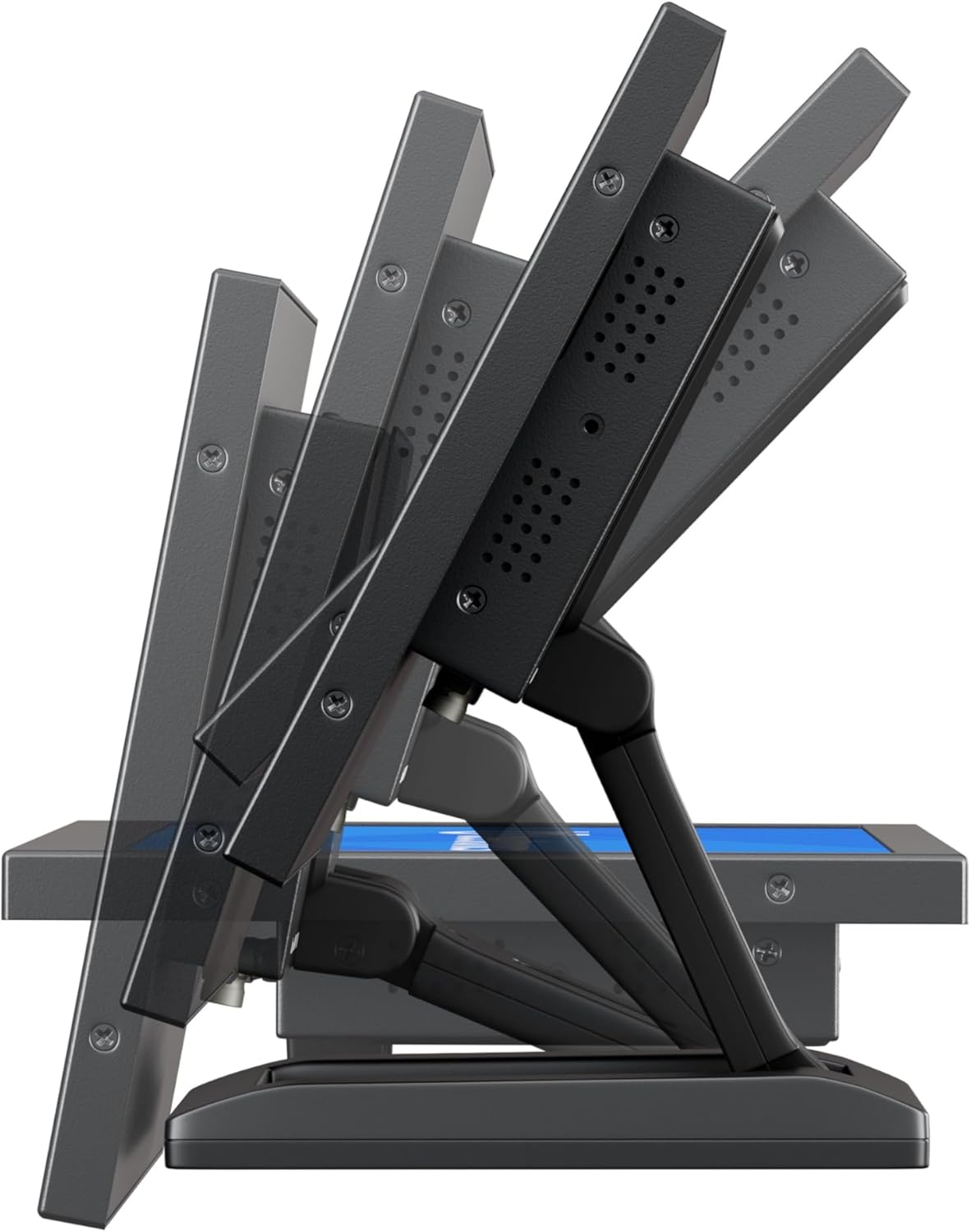
Figure 4.1: Adjustable Stand. This image shows the monitor's side profile, highlighting the flexibility of the collapsible stand to adjust the screen's tilt angle for optimal viewing.
VESA Wall/Panel Mounting:
The monitor features a 75mm VESA mount pattern on the rear, allowing it to be mounted on compatible VESA arms, wall mounts, or integrated into panels using the flush mounting brackets. Ensure appropriate screws (M4) are used and tightened securely.

Figure 4.2: VESA Mount Points. This image displays the back of the monitor, indicating the standard VESA mounting points for secure attachment to compatible brackets or arms.
4.2 Connecting Power
- Connect the power adapter cable to the DC input port on the rear of the monitor.
- Plug the power adapter into a suitable electrical outlet. The monitor supports a wide input voltage range of 9-36V DC.
4.3 Connecting Video Sources
Connect your video source (e.g., computer, camera, media player) to the desired input port on the monitor using appropriate cables.
- HDMI: For high-quality digital video and audio.
- VGA: For analog video connections.
- BNC: For professional video equipment.
- RCA (AV): For composite video and analog audio.
5. Operating Instructions
5.1 Power On/Off
Press the 'ON/OFF' button located on the rear panel or on the remote control to power the monitor on or off.
5.2 Menu Navigation (OSD)
The On-Screen Display (OSD) menu allows you to adjust various monitor settings. Use the 'MENU' button to access the OSD, and the '+', '-', 'AUTO' buttons to navigate and adjust settings. The remote control can also be used for easier navigation.
5.3 Input Selection
To switch between different video input sources, press the 'AUTO' button on the rear panel or the 'Input' button on the remote control. Cycle through HDMI, VGA, BNC, and AV inputs until the desired source is displayed.
5.4 Picture Settings
Access the OSD menu to adjust picture quality settings:
- Brightness: Adjusts the overall luminance of the screen.
- Contrast: Controls the difference between light and dark areas.
- Color Temperature: Selects preset color modes (e.g., Warm, Cool, User).
- Aspect Ratio: Adjusts the display ratio (e.g., 16:9, 4:3).
- Sharpness: Enhances edge definition.
5.5 Audio Settings
If an audio source is connected, adjust the volume using the '+' and '-' buttons on the rear panel or remote control. Further audio settings may be available in the OSD menu.
6. Maintenance
6.1 Cleaning the Monitor
- Always power off and unplug the monitor before cleaning.
- Use a soft, lint-free cloth slightly dampened with water or a mild, non-abrasive screen cleaner.
- Do not spray liquid directly onto the screen or into any openings.
- Avoid using harsh chemicals, solvents, or abrasive materials.
6.2 General Care
- Avoid placing heavy objects on the monitor.
- Do not expose the monitor to extreme temperatures, humidity, or direct sunlight.
- Ensure adequate ventilation around the monitor to prevent overheating.
7. Troubleshooting
If you encounter issues with your monitor, refer to the following common problems and solutions.
| Problem | Possible Cause | Solution |
|---|---|---|
| No Power | Power cable not connected; Power adapter faulty; Power outlet not working. | Check power cable connections; Test power adapter with another device; Try a different power outlet. |
| No Signal | Video cable not connected; Incorrect input source selected; Video source not active. | Ensure video cable is securely connected; Select the correct input source using the 'Input' button; Verify video source is powered on and outputting a signal. |
| Image is distorted or blurry | Incorrect resolution; Loose video cable; Monitor settings. | Set the video source to the monitor's native resolution (1920x1080); Reconnect video cable; Adjust 'Sharpness' or 'Auto' settings in the OSD. |
| No Audio | Audio cable not connected (for VGA/BNC/RCA); Volume too low; Audio source not active. | Ensure audio cable is connected (if not using HDMI); Increase monitor volume; Check audio output from the source device. |
8. Specifications
Detailed technical specifications for the Beetronics 12HD7M monitor.
| Feature | Specification |
|---|---|
| Model Number | 12HD7M |
| Screen Size | 11.6 Inches (diagonal) |
| Resolution | 1920 x 1080 (Full HD) |
| Panel Type | IPS |
| Aspect Ratio | 16:9 |
| Viewing Angle | 178° (Horizontal/Vertical) |
| Image Brightness | 500 Candela |
| Screen Surface | Matte |
| Video Inputs | HDMI, VGA, BNC, RCA (AV) |
| Audio Inputs/Outputs | 3.5mm Audio In, 3.5mm Audio Out |
| Power Input | 9-36 Volts (DC) |
| Product Dimensions | 1.4 x 11 x 9.6 inches (35.6 x 279.4 x 243.8 mm) |
| Item Weight | 3.7 pounds (1.68 kg) |
| Mounting | 75mm VESA, Collapsible Stand |
9. Warranty and Support
9.1 Warranty Information
The Beetronics 12HD7M monitor comes with a solid 2-year warranty, reflecting our commitment to quality and reliability. This warranty covers defects in materials and workmanship under normal use. Please retain your proof of purchase for warranty claims.
9.2 Technical Support
For technical assistance, troubleshooting beyond this manual, or warranty inquiries, please contact Beetronics customer support. Refer to the official Beetronics website for the most current contact information and support resources.
Website: www.beetronics.com