1. Introduction
Thank you for choosing the KVAGO Trackpad Keyboard Case. This product is designed to enhance your iPad experience by providing a protective case, a versatile stand, and a functional wireless keyboard with an integrated trackpad. This manual will guide you through the setup, operation, and maintenance of your new keyboard case.
2. Compatibility
This keyboard case is compatible with the following iPad models:
- New iPad Air 13-inch M3 2025: Models A3268, A3269, A3271
- iPad Air 13-inch M2 2024: Models A2898, A2899, A2900
- iPad Pro 12.9-inch 6th Generation 2022: Models A2436, A2437, A2764, A2766
- iPad Pro 12.9-inch 5th Generation 2021: Models A2378, A2379, A2461, A2462
- iPad Pro 12.9-inch 4th Generation 2020: Models A2229, A2069, A2232, A2233
- iPad Pro 12.9-inch 3rd Generation 2018: Models A1876, A2014, A1895, A1983
Please verify your iPad's model number, typically found on the back of your device, before use.
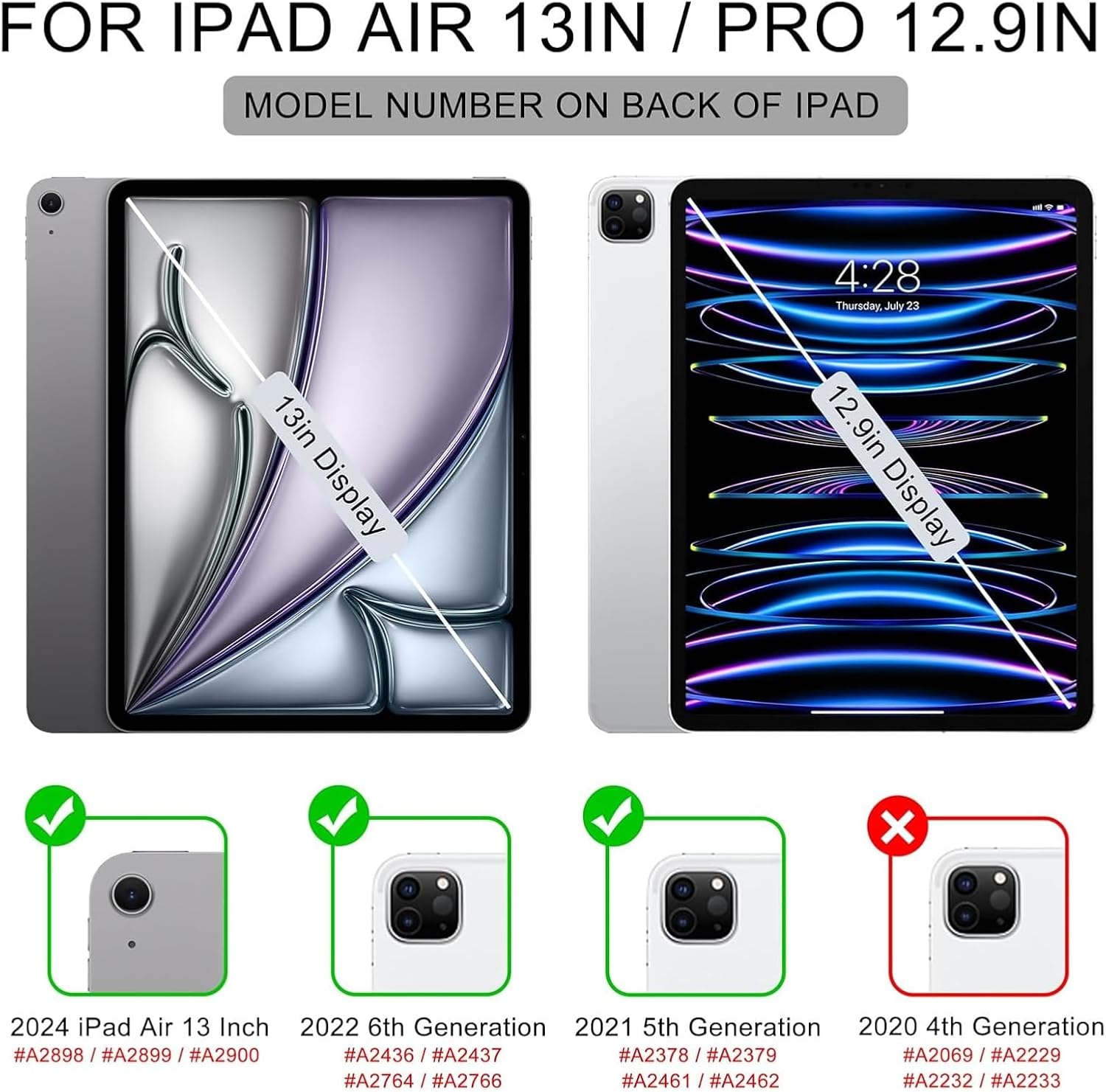
Figure 2.1: Compatibility chart illustrating the specific iPad Air 13-inch and iPad Pro 12.9-inch models supported by this keyboard case, along with visual cues for model identification.
3. Product Overview
The KVAGO Trackpad Keyboard Case consists of a protective tablet case and a magnetically detachable wireless keyboard with an integrated trackpad.
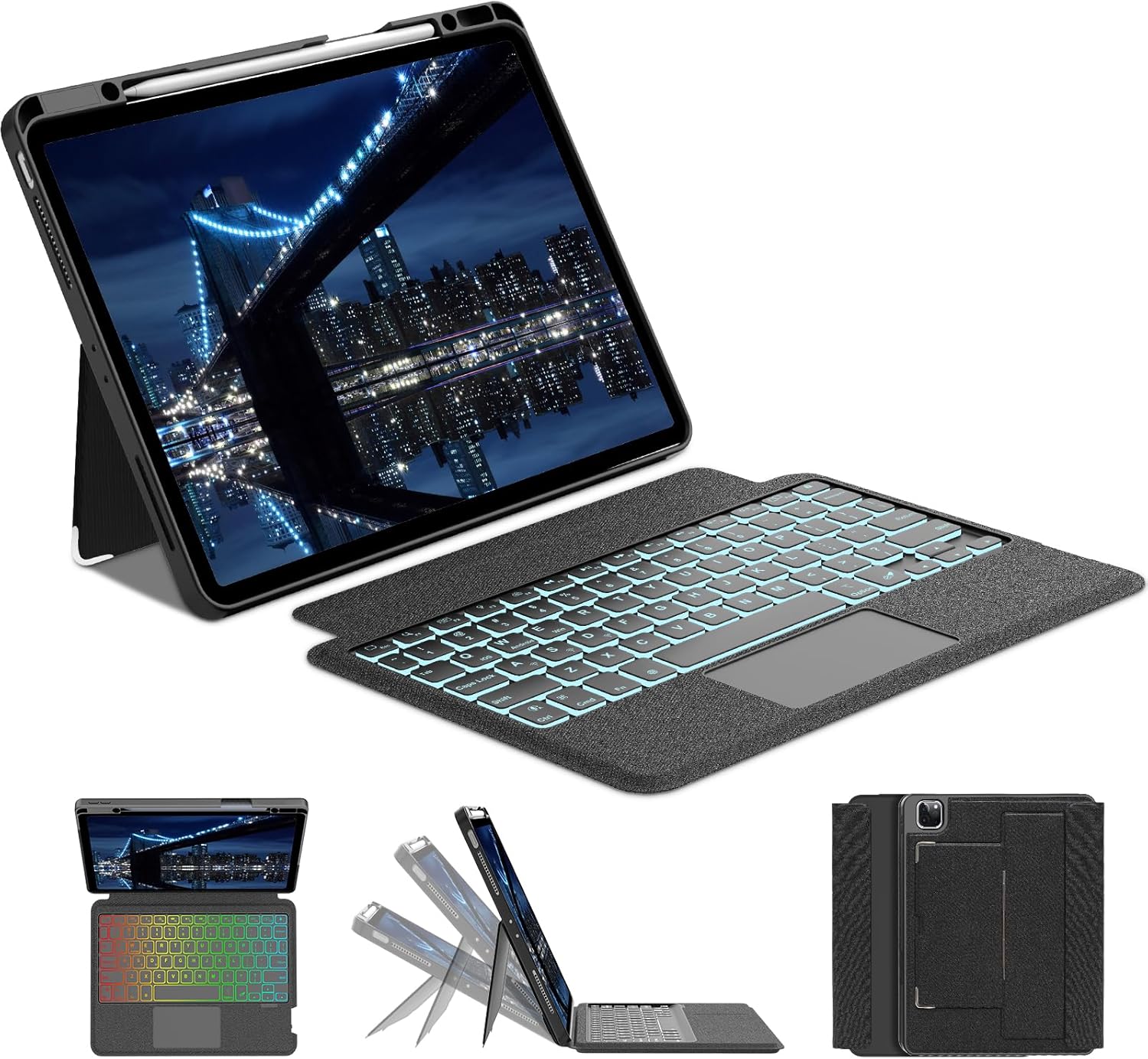
Figure 3.1: An overview of the KVAGO Trackpad Keyboard Case, showcasing the iPad securely housed in the case, the detachable backlit keyboard with integrated trackpad, and different viewing angles.
3.1 Key Features
- Magnetic Detachable Keyboard: Allows for flexible use, separating the keyboard from the case when not needed.
- Integrated Trackpad: Provides precise multi-touch navigation for an enhanced user experience.
- 11-Color Backlit Keyboard: Adjustable backlight with 3 brightness levels for typing in various lighting conditions.
- 7 Usage Modes: Versatile 360° hinge allows for multiple viewing and interaction angles (typing, drawing, watching, browsing).
- Full Protection: Premium hardshell case with oil resistance, dustproof, impact resistance, anti-fingerprint, and scratch-proof properties.
- Built-in Pencil Holder: Securely stores and charges your Apple Pencil (if compatible with your iPad model).
- Auto Sleep/Wake Function: Conserves iPad battery life by automatically turning the screen on/off when the case is opened/closed.

Figure 3.2: An exploded view illustrating the protective features of the case, including oil resistance, dustproof design, impact resistance, anti-fingerprint coating, scratch-proof material, and the built-in Apple Pencil holder. Also shows weight distribution.

Figure 3.3: Illustration of the magnetic detachment feature, allowing the keyboard to be easily separated from the case for flexible use.
4. Setup Instructions
4.1 Charging the Keyboard
- Locate the Micro USB charging port on the side of the keyboard.
- Connect the provided Micro USB charging cable to the keyboard and a USB power source (e.g., computer, wall adapter).
- The charging indicator light will illuminate. Once fully charged, the light will change or turn off.
4.2 Bluetooth Pairing
- Ensure the keyboard is charged.
- Turn on the keyboard by sliding the power switch.
- Press the Fn + C keys simultaneously to enter Bluetooth pairing mode. The Bluetooth indicator light will flash.
- On your iPad, go to Settings > Bluetooth.
- Turn on Bluetooth. Your iPad will search for available devices.
- Select "Bluetooth Keyboard" (or similar name) from the list of devices.
- Follow any on-screen prompts to complete the pairing process. The Bluetooth indicator light on the keyboard will stop flashing once successfully paired.
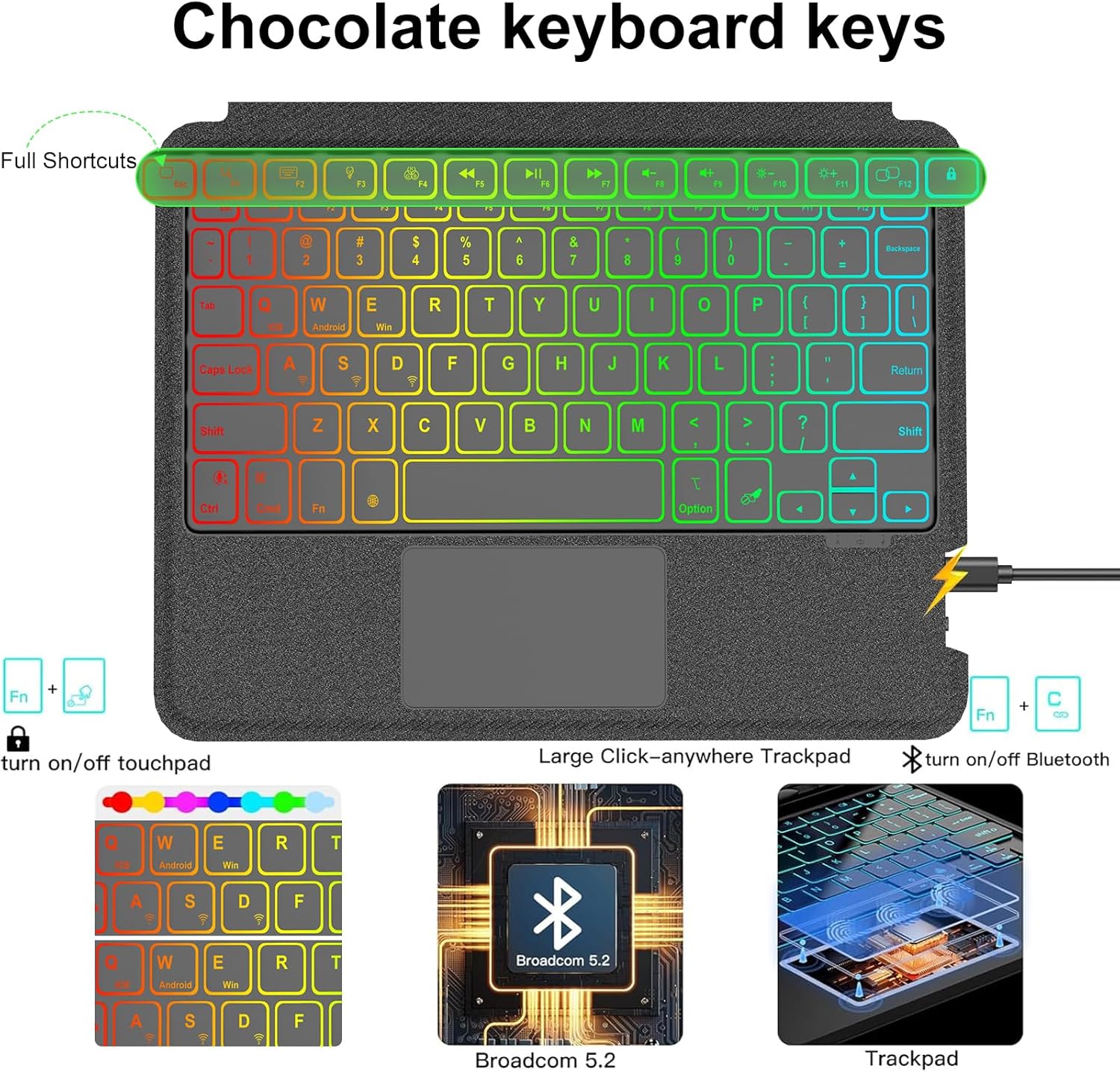
Figure 4.1: Detailed view of the keyboard layout, showcasing the chocolate-style keys, dedicated function row, and the large, precise multi-touch trackpad, including the Bluetooth pairing key combination.
4.3 Attaching Your iPad to the Case
- Gently insert your iPad into the protective case, ensuring all corners are securely fitted.
- The case is designed for a snug fit to provide maximum protection.
- Align the keyboard with the magnetic strip at the bottom edge of the case. The magnets will automatically snap the keyboard into place.
5. Operating Instructions
5.1 Keyboard Functions
- Backlight Control: Press the Light Bulb key to cycle through 11 different backlight colors. Press Fn + Light Bulb to adjust backlight brightness (3 levels).
- iPadOS Shortcuts: The top row of keys provides dedicated iPadOS multimedia and shortcut functions (e.g., Home, Search, Volume, Play/Pause).
- Trackpad On/Off: Press Fn + Spacebar to toggle the trackpad on or off.

Figure 5.1: A user typing on the keyboard case in a low-light setting, highlighting the 11-color adjustable backlight feature for enhanced visibility.
5.2 Trackpad Usage
The integrated multi-touch trackpad supports various gestures for navigation and interaction within iPadOS. Refer to your iPad's settings for a full list of supported gestures.
5.3 Using the Stand and Multiple Modes
The case features a 360° hinge and a magnetic stand, allowing for 7 different usage modes. Adjust the stand to achieve the desired angle for typing, drawing, watching videos, or browsing.

Figure 5.2: A collage demonstrating the four primary usage modes: typing, sketching, viewing, and reading, highlighting the versatility of the keyboard case's design.
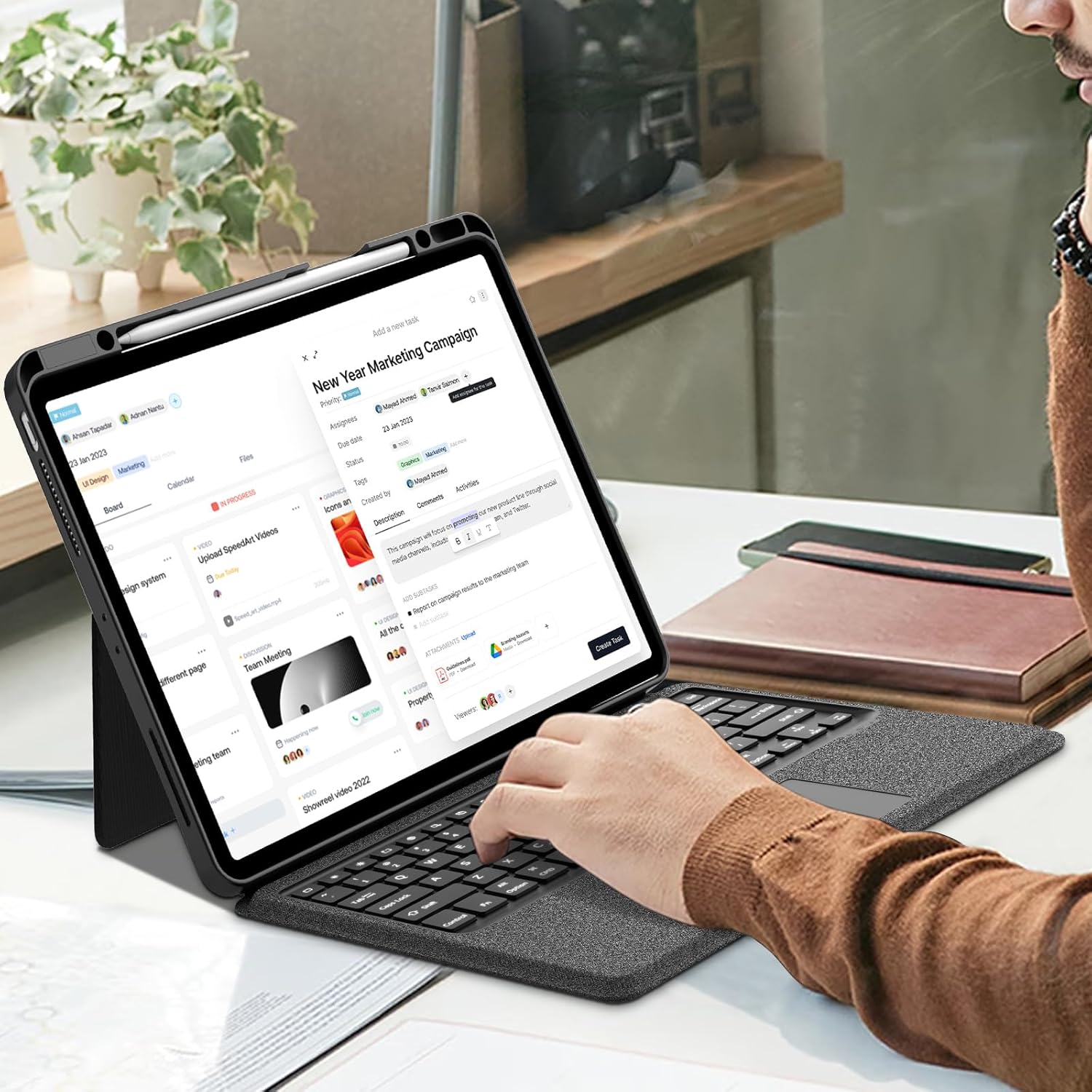
Figure 5.3: A user actively typing on the keyboard case, demonstrating its ergonomic design and laptop-like functionality for productivity.
5.4 Auto Sleep/Wake Function
The case supports the iPad's auto sleep/wake function. When the case is closed, the iPad will go to sleep, and when opened, it will wake up. For optimal performance of this feature, ensure the wireless Bluetooth keyboard is detached from the case, as its magnetic components can interfere with the iPad's sensors.
6. Maintenance
6.1 Cleaning
- To clean the case, wipe it with a soft, damp cloth. Avoid using harsh chemicals or abrasive cleaners.
- For the keyboard, use a soft, dry cloth. A small brush or compressed air can be used to remove debris from between the keys.
6.2 Battery Care
- Charge the keyboard regularly, even if not in frequent use, to maintain battery health.
- Avoid exposing the keyboard to extreme temperatures.
7. Troubleshooting
7.1 Keyboard Not Connecting
- Ensure the keyboard is powered on and fully charged.
- Verify Bluetooth is enabled on your iPad.
- Re-enter pairing mode on the keyboard (Fn + C) and re-pair with your iPad.
- Forget the device in your iPad's Bluetooth settings and attempt to pair again.
7.2 Backlight Not Working
- Ensure the keyboard has sufficient battery charge.
- Press the Light Bulb key to cycle through colors and Fn + Light Bulb to adjust brightness.
7.3 Trackpad Lag or Unresponsiveness
- Ensure the trackpad is enabled (Fn + Spacebar).
- Re-establish the Bluetooth connection.
- Restart your iPad and the keyboard.
- Ensure there are no physical obstructions or debris on the trackpad surface.
8. Specifications
| Feature | Detail |
|---|---|
| Product Dimensions | 12.48 x 9.57 x 1.18 inches |
| Item Weight | 2.05 pounds |
| Manufacturer | KVAGO |
| Compatible Devices | iPad (specific models listed in Section 2) |
| Connectivity Technology | Bluetooth |
| Keyboard Description | Mechanical |
| Special Features | Backlit, Hotkeys and Media Keys, Integrated Stand, Portable |
| Color | Dark Black |
| Number of Keys | 78 |
| Keyboard Backlighting Color Support | RGB (11 colors) |
9. Warranty and Support
KVAGO is committed to providing quality products and customer satisfaction.
- Money-Back Guarantee: We offer a 30-day money-back guarantee.
- Return and Exchange Service: A 30-day return and exchange service is provided for your convenience.
- Customer Support: For any questions regarding product model, function, or assistance, please contact us via email. We provide 24-hour email contact service and are eager to solve your problems.