
YQSAVIOR YQ10S
YQSAVIOR YQ10S Android 14 Tablet User Manual
Model: YQ10S | Brand: YQSAVIOR
1. Introduction
Thank you for choosing the YQSAVIOR YQ10S Android 14 Tablet. This device is designed to offer a versatile computing experience, functioning as both a standalone tablet and a 2-in-1 laptop with its included keyboard and mouse. This manual provides essential information on setting up, operating, maintaining, and troubleshooting your tablet to ensure optimal performance and user satisfaction.
2. What's in the Box
Please check the package contents to ensure all items are present:
- YQSAVIOR Android 14 Tablet
- Bluetooth Keyboard
- Wireless Mouse
- Foldable Protective Case
- Stylus
- Type-C Cable
- Charger (Power Adapter)
- Tempered Film (Screen Protector)
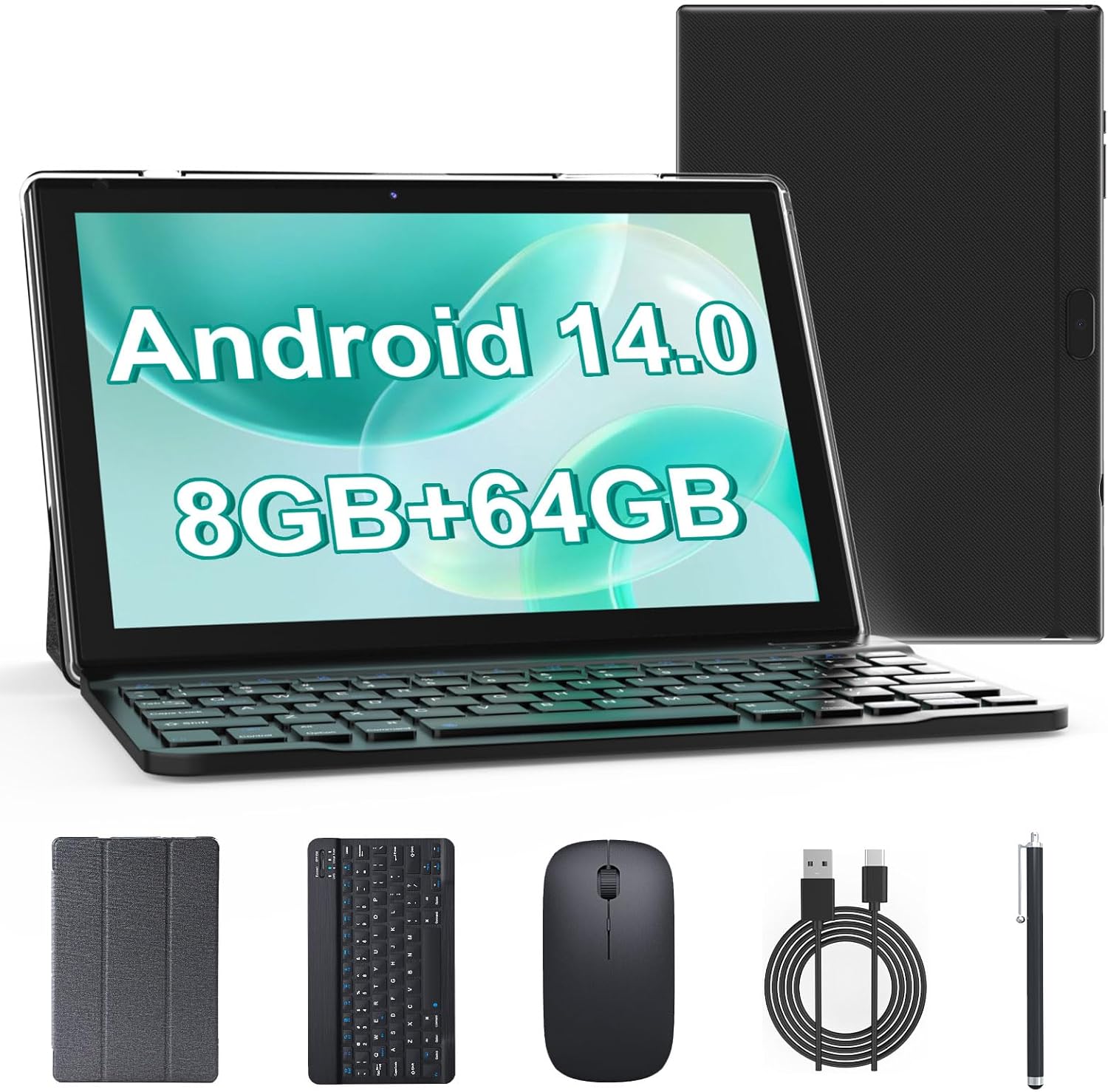
This image displays the YQSAVIOR Android 14 Tablet alongside its complete set of accessories, including the detachable Bluetooth keyboard, wireless mouse, protective foldable case, stylus, Type-C charging cable, and power adapter.
3. Product Overview
The YQSAVIOR YQ10S tablet is engineered for performance and versatility, featuring a robust Android 14 operating system and a powerful Quad-Core processor for smooth multitasking and fast app launches.
Display and Visuals
Experience vibrant visuals on the 10.1-inch IPS touch screen with a resolution of 1280x800 pixels. This eye-protection full screen offers a larger visual area and wider field of view, delivering rich and clear colors for an enjoyable viewing experience whether you're playing games, watching movies, or reading.

This image shows a user participating in a video conference call on the tablet, highlighting the clear visuals provided by its 10.1-inch FHD IPS display with 1280x800 resolution and 360 Nits brightness.
Memory and Storage
Equipped with 8GB of RAM (2GB + 6GB virtual RAM) and 64GB of internal ROM storage, the tablet provides ample space for your applications, music, videos, and pictures. Storage can be further expanded up to 1TB using a Micro SD card (not included).

This visual emphasizes the tablet's substantial memory, showing 8GB of RAM for smooth multitasking, 64GB of internal storage (ROM) for applications and files, and the capability to expand storage up to 1TB using a Micro SD card.
Battery Life
The tablet boasts a long-lasting 6000mAh battery and a low-power CPU, allowing for over 10 hours of continuous use on a single charge. It supports Type-C fast charging for quick power replenishment.
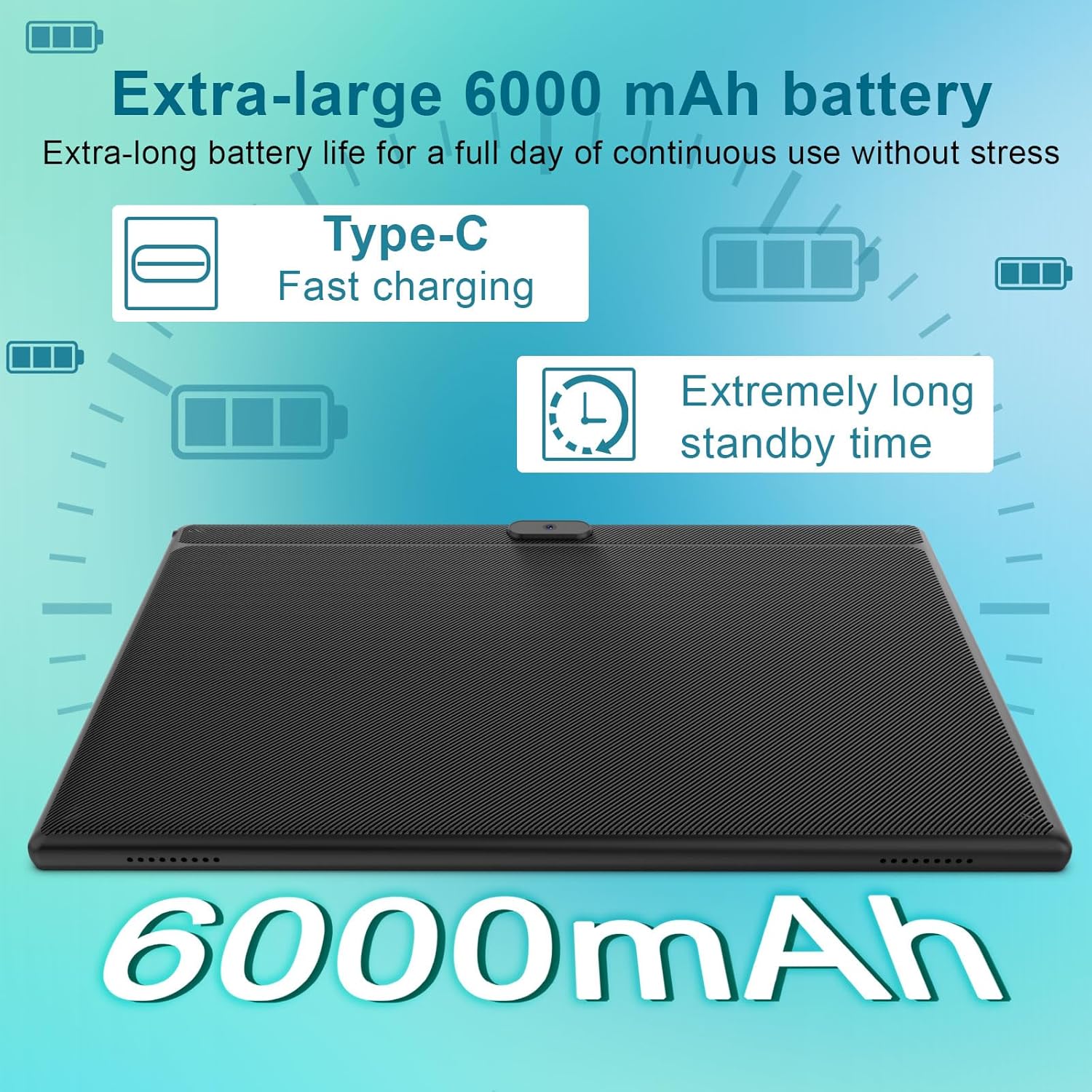
An illustration showcasing the tablet's 6000mAh extra-large battery, emphasizing its Type-C fast charging capability and extended standby time for prolonged usage.
Cameras
Capture moments and engage in video calls with the tablet's dual cameras: a 2MP front camera and an 8MP rear camera.
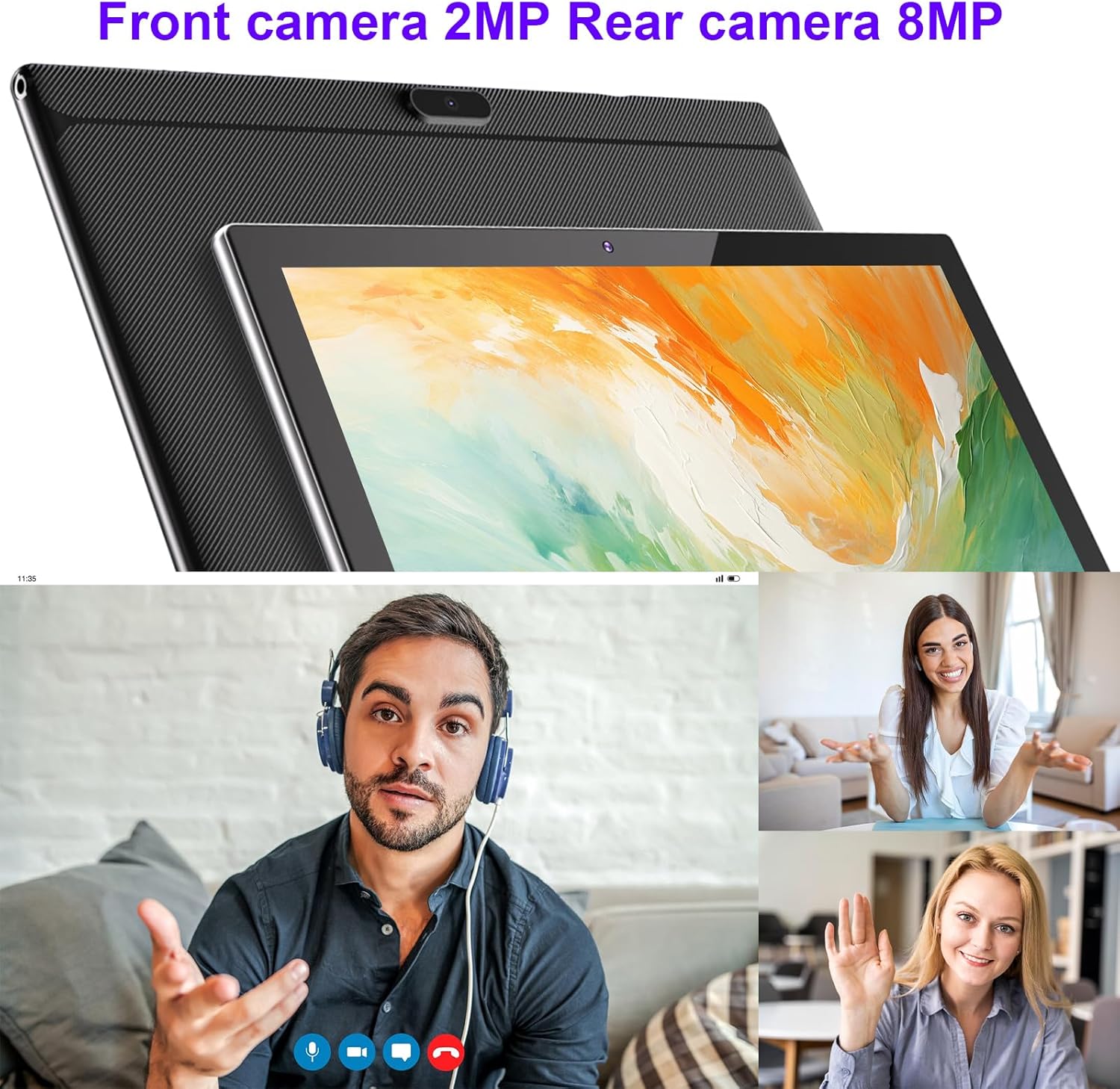
This image focuses on the tablet's dual camera system, showing the 8MP rear camera and providing visual examples of video calls, indicating the functionality of both the 2MP front and 8MP rear cameras for communication and photography.
Connectivity
The tablet supports Wi-Fi (2.4G+5G) and Bluetooth, ensuring fast and smooth internet browsing and seamless connection with other devices.
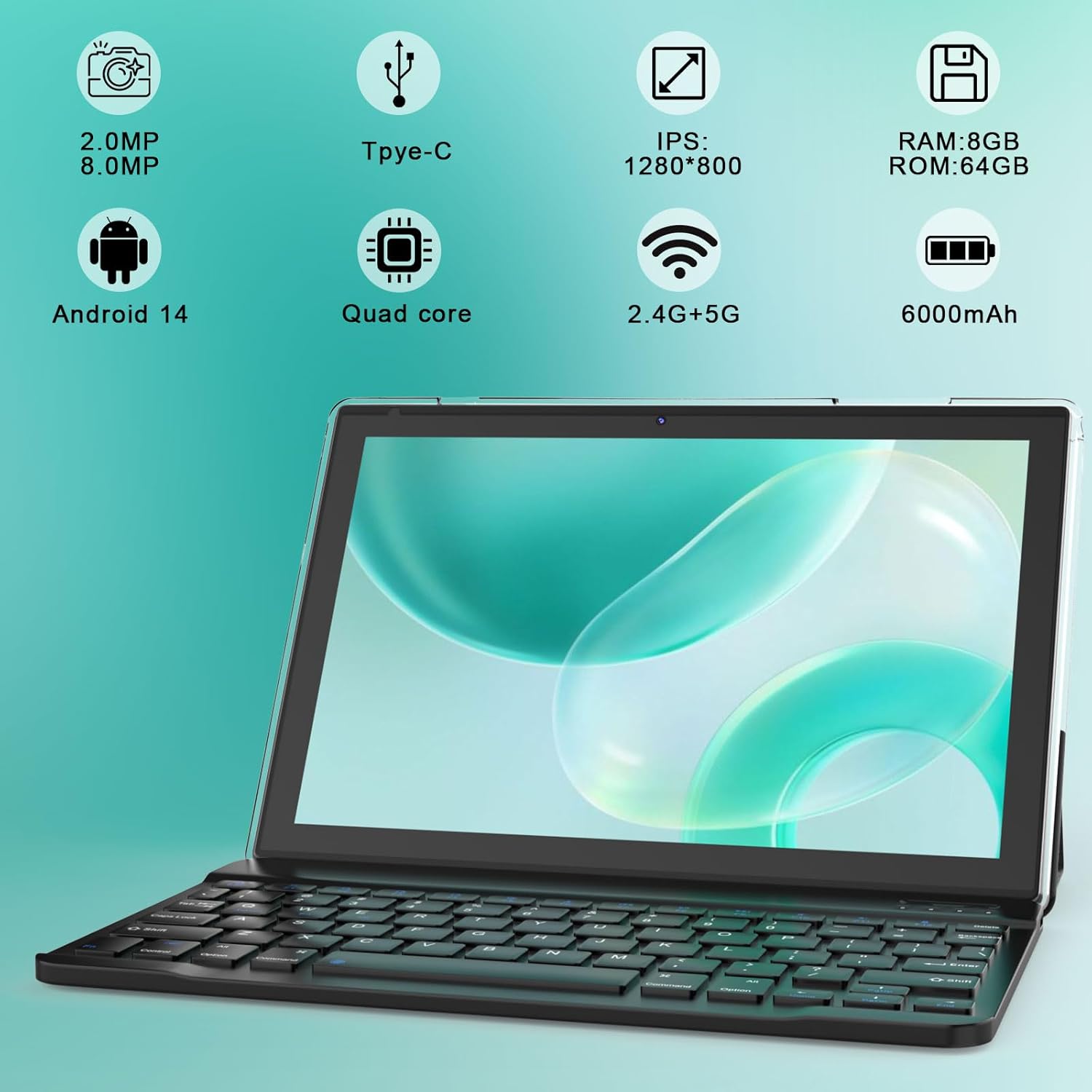
An image highlighting the tablet's core features through graphical icons: 2.0MP front and 8.0MP rear cameras, Type-C charging, 1280x800 IPS display, 8GB RAM, 64GB ROM, Android 14 operating system, Quad-core processor, 2.4G+5G Wi-Fi support, and a 6000mAh battery.
4. Setup Guide
4.1 Initial Charging
Before first use, fully charge your tablet using the provided Type-C cable and charger. Connect the Type-C cable to the tablet's charging port and the other end to the power adapter, then plug the adapter into a wall outlet. The charging indicator will show the charging status.
4.2 Powering On/Off
- To Power On: Press and hold the Power button located on the side of the tablet until the screen lights up.
- To Power Off: Press and hold the Power button until a power menu appears on the screen. Select "Power off" and confirm.
- To Restart: From the power menu, select "Restart" and confirm.
4.3 Initial Setup Wizard
Upon first power-on, the tablet will guide you through an initial setup wizard. Follow the on-screen prompts to:
- Select your language.
- Connect to a Wi-Fi network.
- Sign in with your Google account or create a new one.
- Set up screen lock (PIN, pattern, password).
- Review and accept terms and conditions.
4.4 Connecting Accessories (Keyboard & Mouse)
The included keyboard and mouse connect via Bluetooth.
- Enable Bluetooth: Go to Settings > Connected devices > Bluetooth and turn Bluetooth on.
- Pair Keyboard: Turn on the keyboard. Press the pairing button (often indicated by a Bluetooth symbol) until the indicator light flashes. On your tablet, select the keyboard from the list of available devices and follow any on-screen prompts to complete pairing.
- Pair Mouse: Turn on the mouse. Press the pairing button. On your tablet, select the mouse from the list of available devices.
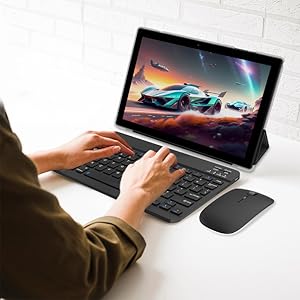
This image illustrates the tablet's 2-in-1 functionality, with a user actively typing on the Bluetooth keyboard while the tablet screen displays a dynamic game, showcasing its versatility for both productivity and entertainment.
4.5 Inserting a Micro SD Card
To expand storage, locate the Micro SD card slot on the side of the tablet. Gently insert the Micro SD card into the slot until it clicks into place. Ensure the card is oriented correctly. The tablet will recognize the new storage, and you may be prompted to format it for internal or portable storage.
5. Operating Instructions
5.1 Basic Navigation
- Tap: Touch the screen once to select an item or open an app.
- Long Press: Touch and hold an item to reveal more options or move it.
- Swipe: Drag your finger across the screen to scroll or navigate between pages.
- Pinch-to-Zoom: Use two fingers to zoom in or out on images or web pages.
5.2 Using the Keyboard and Mouse
Once paired, the Bluetooth keyboard and mouse function similarly to a laptop. The keyboard allows for efficient typing, while the mouse provides precise cursor control, enhancing productivity for tasks like document editing, browsing, and gaming.
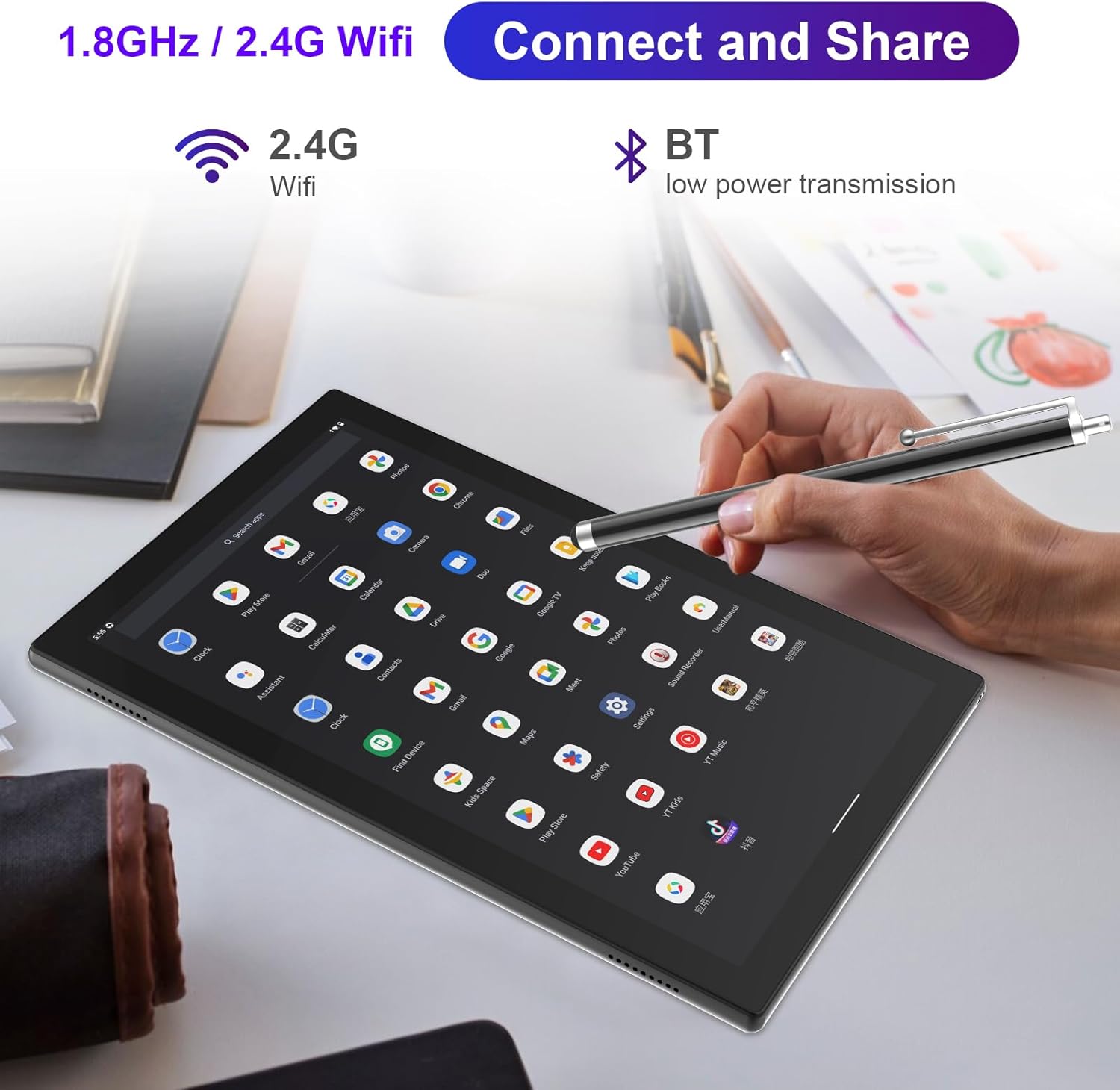
A user is shown interacting with the tablet using the included stylus, demonstrating the device's responsiveness and its ability to connect via 2.4G Wi-Fi and Bluetooth for seamless data transmission and peripheral pairing.
5.3 App Management
- Installing Apps: Access the Google Play Store to download and install a wide variety of applications.
- Uninstalling Apps: Long-press an app icon on the home screen or app drawer, then drag it to the "Uninstall" option, or go to Settings > Apps > See all apps, select the app, and choose "Uninstall".
- Closing Apps: Swipe up from the bottom of the screen (or tap the square navigation button) to view recent apps, then swipe them away to close.
5.4 Camera Usage
Open the Camera app to take photos or record videos. Switch between the 2MP front camera and the 8MP rear camera as needed. Tap the screen to focus and press the shutter button to capture.
5.5 Connectivity
- Wi-Fi: Connect to wireless networks via Settings > Network & internet > Internet. The tablet supports both 2.4G and 5G Wi-Fi bands for faster and more stable connections.
- Bluetooth: Pair with headphones, speakers, or other Bluetooth devices via Settings > Connected devices > Bluetooth.
6. Maintenance
6.1 Cleaning the Device
Use a soft, lint-free cloth to clean the screen and body of the tablet. For stubborn smudges, slightly dampen the cloth with water or a screen cleaner. Avoid using harsh chemicals or abrasive materials.
6.2 Battery Care
- Avoid fully discharging the battery frequently.
- Do not expose the tablet to extreme temperatures.
- Use only the provided charger or a certified compatible charger.
6.3 Software Updates
Regularly check for and install system updates to ensure your tablet has the latest features, security patches, and performance improvements. Go to Settings > System > System update.
6.4 Storage Management
Periodically review your installed apps and files. Uninstall unused apps and delete unnecessary files to free up storage space and maintain optimal performance. You can check storage usage in Settings > Storage.
7. Troubleshooting
If you encounter issues with your tablet, refer to the following common solutions:
7.1 Tablet is Slow or Freezes
- Close Background Apps: Too many apps running simultaneously can slow down the tablet. Close unused apps from the recent apps screen.
- Clear Cache: Go to Settings > Apps > See all apps, select an app, then Storage & cache > Clear cache.
- Free Up Storage: Delete unnecessary files or uninstall unused apps.
- Restart Tablet: A simple restart can resolve many temporary performance issues.
- Factory Reset (Last Resort): If issues persist, consider a factory reset (Settings > System > Reset options > Erase all data (factory reset)). Warning: This will erase all data on your tablet. Back up important data first.
7.2 Tablet Won't Charge
- Check Cable and Charger: Ensure the Type-C cable and charger are securely connected and undamaged. Try a different compatible cable and charger if available.
- Inspect Charging Port: Check the tablet's charging port for any debris or damage.
- Restart Tablet: Sometimes a software glitch can prevent charging.
7.3 Wi-Fi/Bluetooth Connectivity Issues
- Toggle On/Off: Turn Wi-Fi or Bluetooth off and then on again in Quick Settings or Settings.
- Forget Network/Device: For Wi-Fi, forget the network and reconnect. For Bluetooth, unpair the device and pair it again.
- Restart Router/Tablet: Restart your Wi-Fi router and/or the tablet.
7.4 Micro SD Card Not Recognized
- Reinsert Card: Remove and reinsert the Micro SD card to ensure it's properly seated.
- Check Format: Ensure the card is formatted to a compatible file system (e.g., FAT32 or exFAT). If not, back up data and format it using a computer or the tablet's storage settings.
- Test Another Card: Try a different Micro SD card to determine if the issue is with the card or the tablet's slot.
8. Specifications
| Feature | Specification |
|---|---|
| Brand | YQSAVIOR |
| Model Name | YQ10S |
| Operating System | Android 14 |
| Screen Size | 10.1 Inches |
| Screen Resolution | 1280 x 800 Pixels (IPS) |
| Processor | Quad Core, 1.8 GHz |
| RAM | 8GB (2GB + 6GB virtual) |
| Flash Memory Size (ROM) | 64 GB |
| Expandable Storage | Up to 1TB via Micro SD card |
| Rear Webcam Resolution | 8 MP |
| Front Webcam Resolution | 2 MP |
| Wireless Type | 802.11n (Wi-Fi 2.4G+5G) |
| Bluetooth | Yes |
| Average Battery Life | 6-10 Hours (6000mAh) |
| Item Weight | 2.9 pounds |
| Product Dimensions | 10 x 4.6 x 0.3 inches |
| Color | Black 2 in 1 |
9. Warranty and Support
Your YQSAVIOR YQ10S Tablet comes with a standard manufacturer's warranty. Please refer to the warranty card included in your package for specific terms and conditions, including warranty period and coverage details.
For technical support, troubleshooting assistance beyond this manual, or warranty claims, please contact YQSAVIOR customer service through the retailer's platform or the official YQSAVIOR website. Have your product model number (YQ10S) and purchase information ready when contacting support.
Ask a question about this manual
Ask about setup, troubleshooting, compatibility, parts, safety, or missing instructions. Manuals+ will review the question and use this page’s manual context to help answer it.