
Introduction
The HP OfficeJet Pro 8139e is a versatile all-in-one color inkjet printer designed for home and small office environments. It offers printing, scanning, copying, and faxing capabilities, along with wireless connectivity and advanced features to streamline your workflow.
Video: A brief overview of the HP OfficeJet Pro 8100 series printer, showcasing its design and features.
What's in the Box
Verify that all components are present in the packaging before proceeding with setup.
- HP OfficeJet Pro 8139e All-in-One Printer
- HP 923 Setup Black Ink Cartridge
- HP 923 Setup Cyan Ink Cartridge
- HP 923 Setup Magenta Ink Cartridge
- HP 923 Setup Yellow Ink Cartridge
- Power Cord
- Regulatory Flyer
- Ink Caution Flyer
- Setup Poster
- Reference Guide

Image: The HP OfficeJet Pro 8139e printer, original HP 923 ink cartridges (Black, Cyan, Magenta, Yellow), and power cord, as typically found in the product box.
Setup Guide
1. Unpacking and Placement
Carefully remove the printer from its packaging. Choose a stable, level surface for placement, ensuring adequate space around the printer for ventilation and access to paper trays and connections. Consider the printer's dimensions for optimal placement.
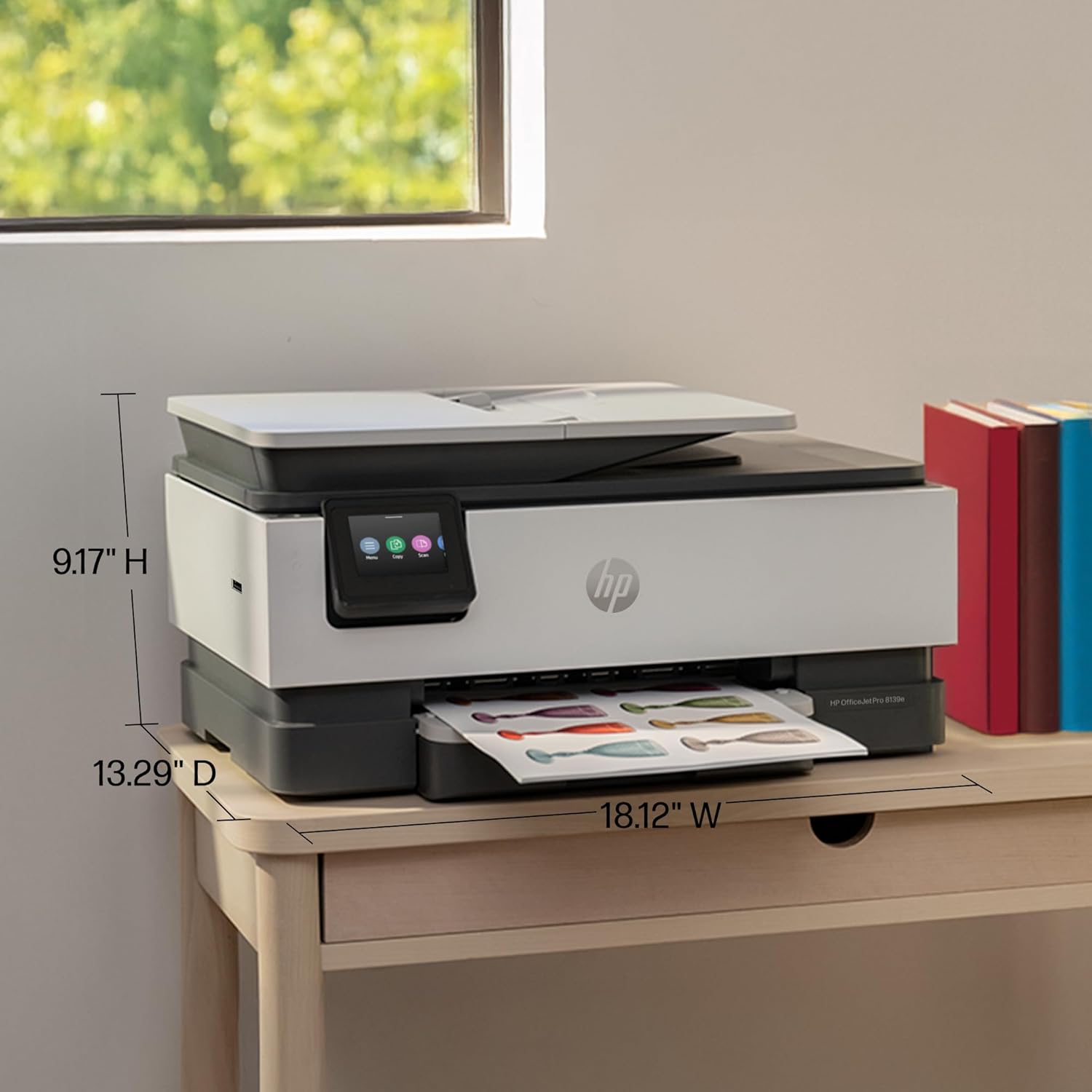
Image: The HP OfficeJet Pro 8139e printer on a desk, with labels indicating its dimensions: 9.17" H, 13.29" D, and 18.12" W.
2. Power Connection
Connect the power cord to the printer and then to a grounded electrical outlet. Do not connect the printer to a surge protector or extension cord during initial setup.
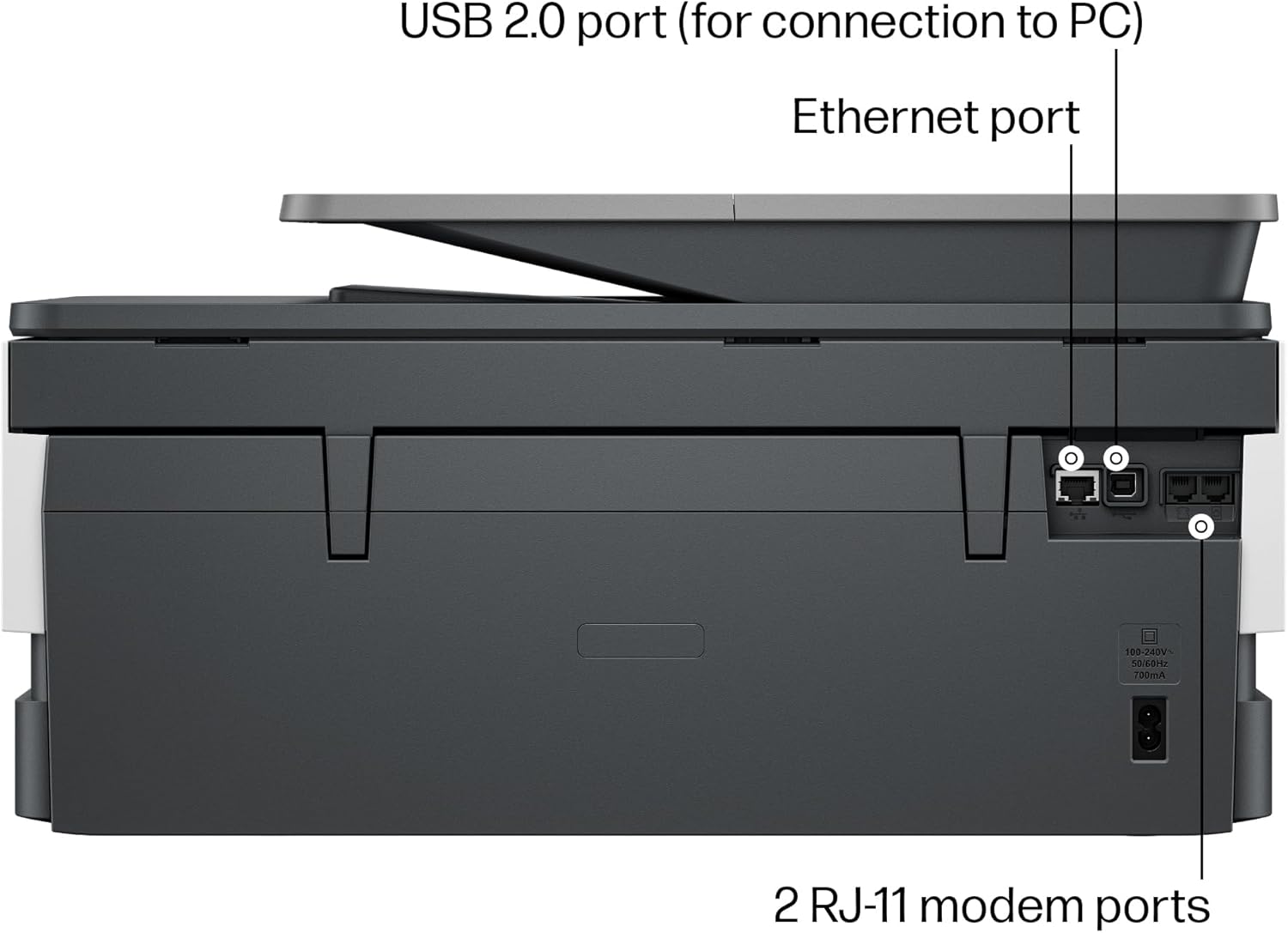
Image: The back of the HP OfficeJet Pro 8139e printer, highlighting the USB 2.0 port, Ethernet port, and two RJ-11 modem ports for fax functionality.
3. Ink Cartridge Installation
Open the ink cartridge access door. Install the HP 923 setup ink cartridges into their corresponding slots. Ensure each cartridge clicks into place. Close the access door.
4. Initial Setup and Connectivity
Follow the on-screen instructions on the 2.7-inch color touchscreen to complete the initial setup, including language selection and network configuration. The printer supports dual-band Wi-Fi, Ethernet, and USB connectivity. For wireless printing, connect the printer to your Wi-Fi network. Download the HP Smart App on your smartphone, PC, or tablet for guided setup and enhanced control.

Image: An overview of the HP OfficeJet Pro 8139e, pointing out the 2.7" color touchscreen, fax in/out, 35-sheet auto document feeder, 225-sheet input tray, and the ability to print from any device via the HP Smart App.

Image: A user interacting with the HP Smart App on a smartphone, demonstrating its capabilities for printing, scanning, copying, and faxing directly from the device.
Operating Instructions
1. Printing Documents
Load paper into the 225-sheet input tray. From your computer or mobile device, select the print option in your application. Choose the HP OfficeJet Pro 8139e from the list of available printers. Adjust print settings such as color, paper size, and duplex (2-sided) printing as needed. The printer offers speeds up to 20 pages per minute (ppm) for black and white and 10 ppm for color documents.
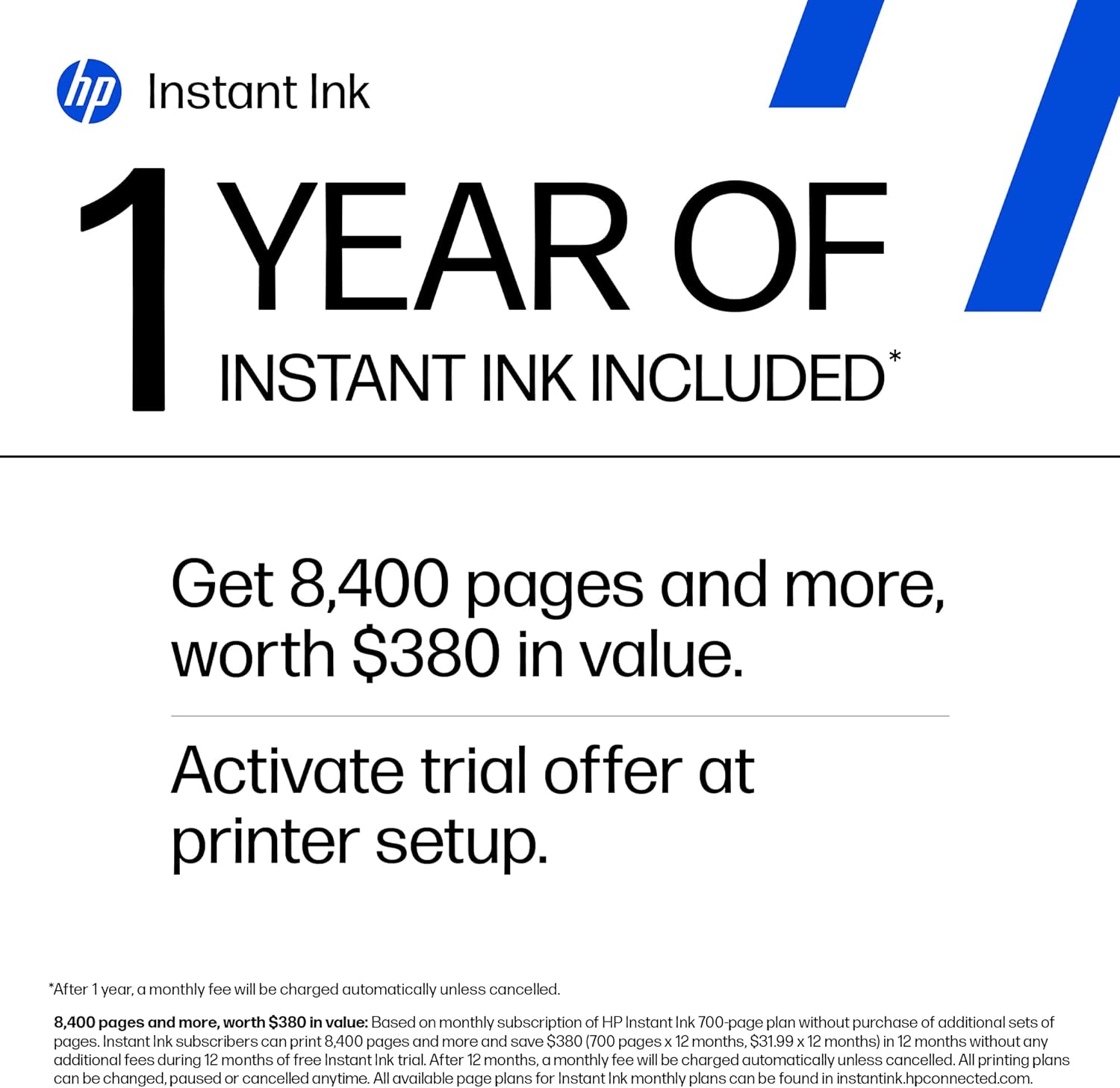
Image: A summary of the HP OfficeJet Pro 8139e's main features, including its print, copy, scan, and fax functions, HP AI enablement, Instant Ink compatibility, print speeds (20 ppm black, 10 ppm color), self-healing Wi-Fi, 225-sheet input tray, auto document feeder, touchscreen display, and HP Wolf Essential Security.
2. Scanning, Copying, and Faxing
Use the 2.7-inch touchscreen to select the desired function (Scan, Copy, or Fax). Place your document on the scanner glass or in the 35-sheet automatic document feeder (ADF) for multi-page documents. Follow the on-screen prompts to adjust settings and initiate the operation.
3. HP AI Features
The HP OfficeJet Pro 8139e utilizes HP AI to optimize printing. This feature helps remove unwanted content from web pages and emails, ensuring that your prints are formatted precisely as desired, reducing wasted pages and ink usage.

Image: A visual demonstration of HP AI's print optimization, illustrating how it transforms a multi-page, cluttered web page into a single, clean, and optimized printout by removing unwanted content and reducing wasted resources.
4. HP Smart App Usage
The HP Smart App provides a convenient way to manage your printer from your smartphone, PC, or tablet. You can print, scan, copy, and fax directly from the app, monitor ink levels, and access troubleshooting tools. The app also facilitates simple setup and allows scanning directly to cloud services.
Maintenance
1. Ink Cartridge Management
The HP OfficeJet Pro 8139e is eligible for HP Instant Ink, a subscription service that delivers ink to your door before you run out. To replace cartridges, open the ink access door, press the tab on the old cartridge to release it, and insert the new cartridge until it clicks into place. Ensure you use genuine HP cartridges for optimal performance.

Image: Information about the HP Instant Ink program, highlighting automatic ink delivery, potential savings, and the absence of contracts.
2. Firmware Updates
Periodic firmware updates are released by HP to maintain printer functionality, enhance security, and improve performance. It is recommended to keep your printer's firmware up to date. You can typically check for and install updates via the printer's touchscreen menu or through the HP Smart App.
Video: Instructions on how to update the firmware for HP OfficeJet Pro 8120, 8130, 9110, 9120, and 9130 series printers, demonstrating the steps on the printer's control panel.
3. Cleaning
Regular cleaning helps maintain print quality and extends the life of your printer. Use a soft, lint-free cloth to wipe the exterior of the printer. For the scanner glass, use a glass cleaner applied to the cloth (not directly to the glass) to avoid streaks. Refer to the HP support website for detailed cleaning instructions for specific components.
Troubleshooting
If you encounter issues with your HP OfficeJet Pro 8139e, consider the following common troubleshooting steps:
- No Power: Ensure the power cord is securely connected to both the printer and a working electrical outlet.
- Connectivity Issues: Check your Wi-Fi connection, router, and printer network settings. Restarting the printer and router can often resolve temporary network problems.
- Print Quality Problems: Perform a print head cleaning or alignment from the printer's maintenance menu. Check ink levels and replace any empty cartridges.
- Paper Jams: Follow the on-screen instructions or consult the HP support website for steps to clear paper jams from various areas of the printer.
- Error Messages: Note any error codes or messages displayed on the touchscreen and refer to the HP support website for specific solutions.
For more detailed troubleshooting guides and solutions, visit the official HP support website.
Specifications
| Feature | Detail |
|---|---|
| Brand | HP |
| Model Name | 8139e |
| Connectivity Technology | Ethernet, USB, Wi-Fi |
| Printing Technology | HP Thermal Inkjet |
| Printer Output | Color |
| Max Print Speed (Color) | 10 pages per minute |
| Max Print Speed (Monochrome) | 20 pages per minute |
| Item Weight | 17.6 pounds |
| Item Dimensions (D x W x H) | 13.29"D x 18.12"W x 9.17"H |
| Scanner Type | Flatbed, 1-sided ADF |
| Max Copy Speed (Black and White) | 12 pages per minute |
| Compatible Devices | Laptops, PC, Smartphones |
| Maximum Copies Per Run | Up to 99 copies |
| Ink Color | Black, Cyan, Magenta, Yellow |
| Display Type | 2.7-inch Touchscreen |
| Maximum Print Resolution (Color) | Up to 4800 x 1200 optimized dpi |
| Maximum Sheet Capacity | 225 |
| Output Sheet Capacity | 60 |
| Duplex | Automatic (standard) |
| Special Features | HP+ eligible, Automatic Document Feeder, Touchscreen, Quiet mode, HP Wolf Essential Security, Made with >45% recycled plastic |
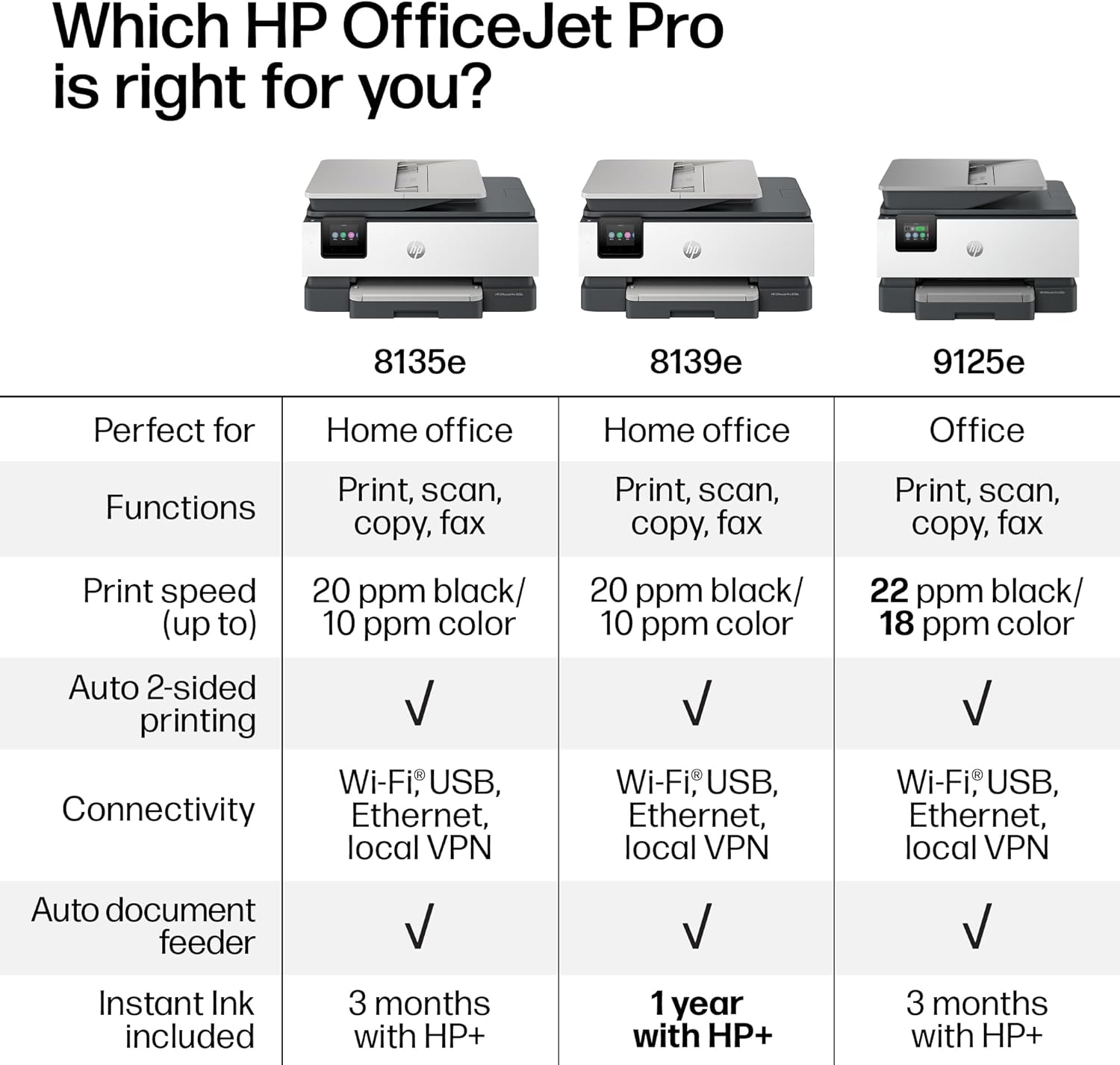
Image: A comparison chart detailing the features of HP OfficeJet Pro models 8135e, 8139e, and 9125e, including functions, print speed, connectivity, auto 2-sided printing, auto document feeder, and Instant Ink inclusion.
Warranty Information
The HP OfficeJet Pro 8139e comes with a one-year limited hardware warranty. This warranty can be extended to two years with the acceptance of the HP+ Offer. For complete details regarding your warranty coverage and terms, please visit the official HP support website at support.hp.com.
Support
For additional assistance, product registration, driver downloads, and further information, please visit the official HP support website:
You can also find helpful resources and community forums on the HP website.