
Brady M511
Brady M511 Portable Wireless Industrial Label Printer
User Manual
Introduction
This manual provides comprehensive instructions for the setup, operation, and maintenance of your Brady M511 Portable Wireless Industrial Label Printer. The M511 is designed for industrial applications, offering robust performance and wireless connectivity for efficient label creation.
Please read this manual thoroughly before using the device to ensure proper functionality and to prevent damage.
What's Included
Upon unboxing, verify that all components listed below are present in your Brady M511 Printer Kit:
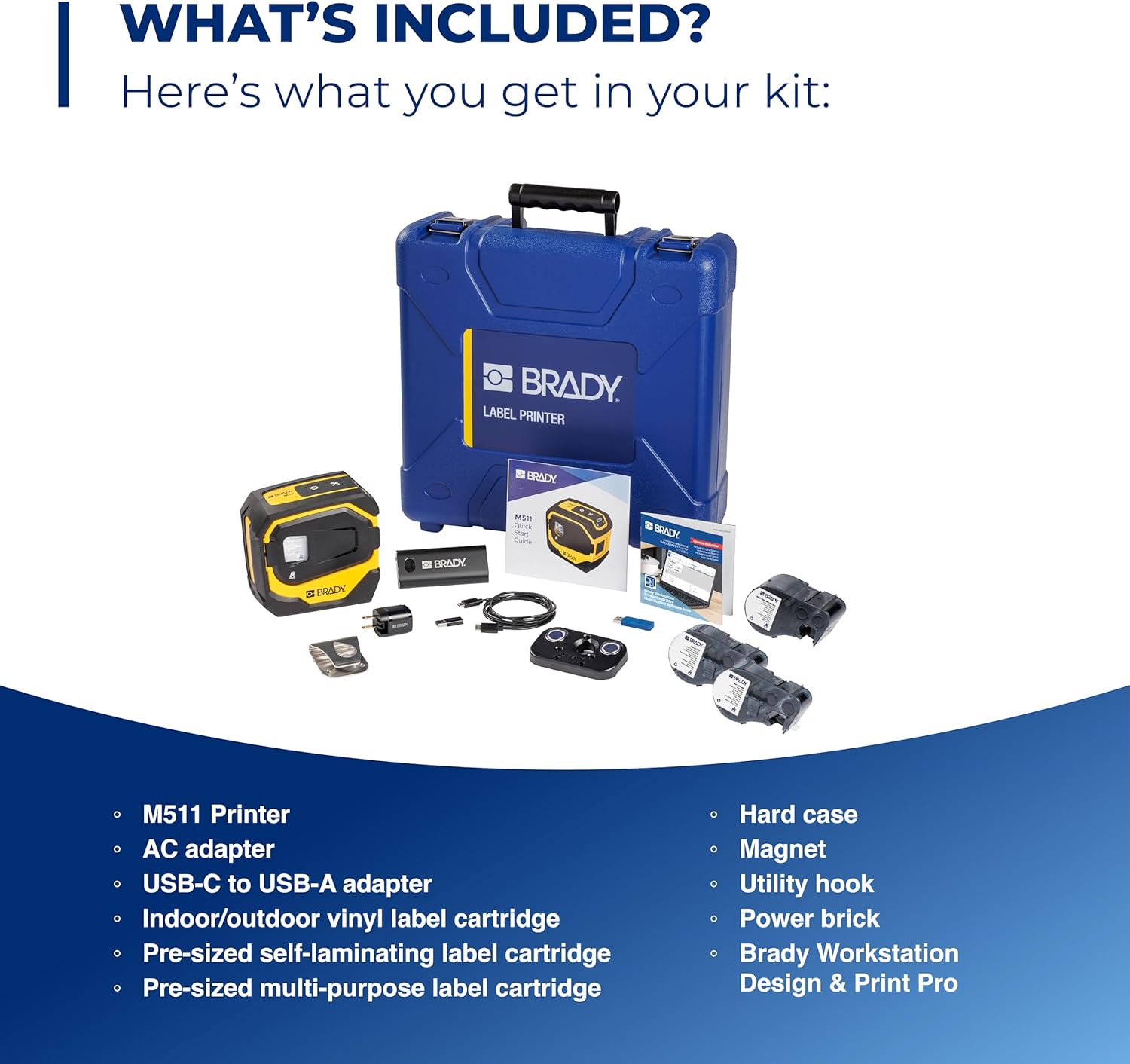
Image: Contents of the Brady M511 Printer Kit. This image displays the M511 printer, a blue hard case, an AC adapter, a USB-C to USB-A adapter, three label cartridges (indoor/outdoor vinyl, self-laminating, multi-purpose), a power brick, a magnet, and a utility hook.
- Brady M511 Printer
- Hard Case
- AC Adapter
- USB-C to USB-A Adapter
- Power Brick
- Indoor/Outdoor Vinyl Label Cartridge
- Pre-sized Self-Laminating Label Cartridge
- Pre-sized Multi-Purpose Label Cartridge
- Magnet
- Utility Hook
- Brady Workstation Design & Print Pro Software (download access)
Key Features
The Brady M511 printer is engineered with features to enhance efficiency and durability in industrial environments:

Image: A detailed diagram of the M511 printer, pointing out its key features including the convenient USB-C charger, internal Li-ION battery for longer life, ability to connect 5 users simultaneously, Bluetooth printing via mobile app or PC, automatic cutter, high-resolution print quality, less label waste, ability to print labels up to 1.5 inches wide, and military-grade shock resistance (withstands 6-foot drops).
- Print Capacity: Ideal for larger applications, capable of printing labels up to 1.5 inches wide.
- Efficient Printing: Designed for less waste, allowing edge-to-edge printing of text, graphics, and barcodes.
- Battery Life: Equipped with an internal Li-ION battery providing over 8 hours of work or 1,000 labels on a single charge.
- Durability: Resists 6-foot drops, 250-pound crushes, and blowing sand and dust (MIL-STD-810G compliant), ensuring military-grade shock resistance.
- Connectivity: Features Bluetooth 5.0 with a 65-foot range, allowing connection for up to 5 users simultaneously.
- Software Compatibility: Utilizes the Express Labels app via Bluetooth on a phone/tablet and Brady Workstation on a PC for label creation.
- Design Efficiency: Includes an auto label cutter and can print upright or on its side, saving time and space.

Image: This image showcases over 250 cartridge options available for the M511 printer, capable of printing labels up to 1.5 inches wide. Examples include self-laminating labels for wire identification, flag labels for cables, cryogenic labels for laboratory use, and multi-purpose labels for general industrial applications.

Image: The Brady M511 printer being used in different jobsite scenarios: for wire and asset identification, in a laboratory setting, for electrical labeling, and for safety and facility marking.
Setup Guide
1. Initial Charging
- Connect the provided AC adapter to the printer's USB-C port.
- Plug the adapter into a power outlet.
- Allow the printer to charge fully before first use. The battery indicator on the printer will show charging status.
2. Software Installation
- For Mobile Devices (Smartphones/Tablets): Download the "Express Labels" app from your device's app store (iOS App Store or Google Play Store).
- For PCs: Install "Brady Workstation" software. Access to this software is included with your printer kit. Follow the instructions provided with your kit for download and installation.
3. Bluetooth Pairing
- Ensure the M511 printer is powered on.
- On your mobile device or PC, enable Bluetooth.
- Open the Express Labels app or Brady Workstation.
- Follow the on-screen prompts to search for and connect to your M511 printer. The printer will typically appear as "Brady M511" or similar in the list of available devices.
- Confirm the pairing on both devices if prompted.
Operating Instructions
1. Loading Label Cartridges
The M511 printer features easy changeovers for label cartridges:

Image: A hand demonstrating the process of inserting a label cartridge into the open compartment of the Brady M511 printer. The image highlights the simplicity of the "Open. Insert. Close. Print." process.
- Open: Gently open the front cover of the printer.
- Insert: Align the label cartridge with the slot and push it firmly until it clicks into place. Ensure the label material feeds correctly into the printer mechanism.
- Close: Close the front cover securely.
- Print: The printer is now ready for printing.
2. Creating and Printing Labels
- Using Express Labels App (Mobile):
- Open the Express Labels app and ensure it's connected to your M511 printer via Bluetooth.
- Select the desired label template or create a new label design.
- Enter your text, add symbols, barcodes, or graphics as needed.
- Preview the label to ensure accuracy.
- Tap the print icon to send the job to the printer.
- Using Brady Workstation (PC):
- Launch Brady Workstation and confirm connection to your M511 printer.
- Choose the appropriate application (e.g., Custom Designer, Wire & Cable ID) for your label needs.
- Design your label using the available tools and features.
- Utilize the print preview function.
- Click the print button to initiate printing.
3. Automatic Cutter
The M511 printer is equipped with an automatic cutter. After each print job, the printer will automatically cut the label, providing a clean and precise finish. No manual cutting is required.
Maintenance
1. Cleaning the Printer
- Periodically wipe the exterior of the printer with a soft, damp cloth. Do not use harsh chemicals or abrasive cleaners.
- For the print head and platen roller, refer to the detailed cleaning instructions within the Brady Workstation software or the Express Labels app, or consult the Brady support website.
- Ensure the printer is powered off and unplugged before cleaning.
2. Battery Care
- To maximize battery life, avoid fully discharging the battery frequently.
- Store the printer in a cool, dry place when not in use for extended periods.
- Recharge the battery regularly, even if the printer is not in active use, to maintain battery health.
3. Storage
When storing the M511 printer, especially for long durations, it is recommended to:
- Remove any label cartridges.
- Store the printer in its hard case to protect it from dust, moisture, and physical impact.
- Keep it away from extreme temperatures.
Troubleshooting
This section addresses common issues you might encounter with your Brady M511 printer. For more complex problems, please refer to the Brady support website or contact customer service.
| Problem | Possible Cause | Solution |
|---|---|---|
| Printer not connecting via Bluetooth | Bluetooth is off on device; printer is off; out of range; interference. | Ensure Bluetooth is enabled. Turn printer off and on. Move closer to printer. Restart app/software. |
| Poor print quality (faded, lines, incomplete) | Low battery; dirty print head; incorrect label type; damaged cartridge. | Charge battery. Clean print head (refer to manual/app). Ensure correct label cartridge is used. Replace cartridge if damaged. |
| Labels not feeding or jamming | Cartridge not inserted correctly; label path obstructed; incorrect label size. | Re-insert cartridge firmly. Check for debris in label path. Ensure label size is compatible with printer. |
| Printer not turning on | Battery fully discharged; power button issue. | Connect to power adapter and charge for at least 30 minutes. If still unresponsive, contact support. |
Specifications
Technical specifications for the Brady M511 Portable Wireless Industrial Label Printer:
| Attribute | Detail |
|---|---|
| Brand | Brady |
| Model Name | M511 |
| Connectivity Technology | Bluetooth 5.0 |
| Printing Technology | Thermal Transfer |
| Special Feature | Portable, Industrial-grade durability |
| Color | Yellow/Black |
| Printer Output | Monochrome |
| Max Print Speed (Monochrome) | 1.33 inches per second |
| Maximum Label Width | 1.5 inches |
| Item Weight | 4 Pounds |
| Battery Type | Internal Li-ION |
| Durability Standards | MIL-STD-810G (6' drop, 250lb crush, blowing sand/dust) |
Warranty and Support
For information regarding product warranty, technical support, or service, please visit the official Brady website or contact Brady customer service directly. Keep your purchase receipt and product serial number handy for any warranty claims or support inquiries.
Note: Specific warranty terms and conditions may vary by region and purchase date.
Related documentsM511


Ask a question about this manual
Ask about setup, troubleshooting, compatibility, parts, safety, or missing instructions. Manuals+ will review the question and use this page’s manual context to help answer it.