
Tenveo TEVO-VHD20UA
Tenveo VHD20UA PTZ Conference Camera User Manual
Model: TEVO-VHD20UA
1. Introduction
This manual provides detailed instructions for the installation, operation, and maintenance of your Tenveo VHD20UA PTZ Conference Camera. Please read this manual thoroughly before using the product to ensure proper setup and optimal performance. Keep this manual for future reference.
2. Product Overview
The Tenveo VHD20UA is a high-definition PTZ (Pan-Tilt-Zoom) camera designed for professional video conferencing, live streaming, and tele-medicine applications. It features a 20x optical zoom, 1080p Full HD resolution at 60 frames per second, and multiple connectivity options including HDMI and USB 3.0.
Key Features
- Full HD 1080p 60fps: Delivers crisp, clear video quality for professional presentations and meetings.
- 20x Optical Zoom & 8x Digital Zoom: Allows for detailed close-ups of participants or objects without loss of clarity.
- AI Auto-Tracking: Intelligent framing and presenter tracking capabilities ensure subjects remain in focus and within the frame automatically.
- Wide Field of View: A 62° wide field of view captures more of the meeting space.
- Multiple Connectivity: Supports HDMI, USB 3.0, RS-232, and RS-485 for versatile integration with various systems.
- Infrared Remote Control: Easy control over pan, tilt, zoom, and preset settings.
- 255 Presets: Store and recall up to 255 camera positions for quick scene changes.
- Universal Compatibility: Works seamlessly with popular video conferencing platforms like Zoom, Webex, Google Meet, Microsoft Teams, and more.

Figure 2.1: Overview of Tenveo VHD20UA PTZ Camera key features, including 20x optical zoom, 8x digital zoom, AI auto-tracking, CMOS sensor, 1080p 60fps video, easy preset settings, USB3.0, HDMI, RS232/485 connectivity, and a 62° wide field of view.
3. Setup
3.1 Unpacking and Inspection
Carefully remove all components from the packaging. Verify that all items listed in the packing list are present and undamaged. If any items are missing or damaged, contact Tenveo support immediately.
3.2 Physical Installation
The Tenveo VHD20UA camera offers flexible installation options to suit various environments. Choose the method that best fits your setup requirements.
- Desktop Placement: Place the camera on a stable, flat surface. Ensure it is positioned to capture the desired area.
- Tripod Mounting: The camera includes a standard tripod mount for use with compatible tripods.
- Wall Mounting: Use the provided wall mount bracket (if included) and appropriate hardware to secure the camera to a wall. Ensure the wall can support the camera's weight.
- Ceiling Mounting: For inverted installation, use a compatible ceiling mount bracket. Remember to adjust the image flip setting in the camera menu if mounted upside down.
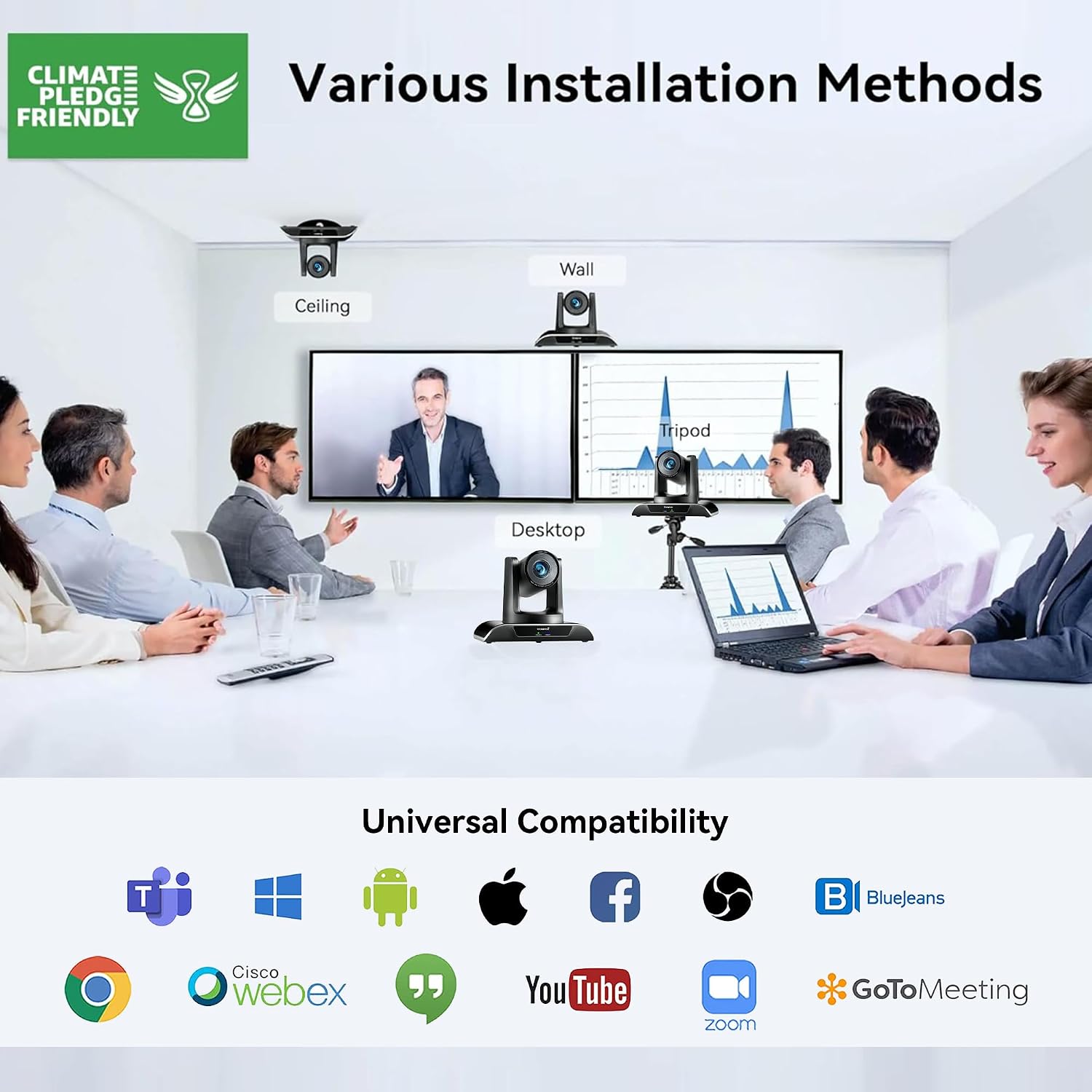
Figure 3.1: Various installation methods for the Tenveo VHD20UA PTZ Camera, including ceiling, wall, desktop, and tripod mounting options, demonstrating its adaptability to different environments.
3.3 Connecting the Camera
The VHD20UA camera supports multiple connection types for video output and control. Refer to the diagram below for connection points.
- Power Supply: Connect the included power adapter to the DC 12V input port on the camera and then to a power outlet.
- USB 3.0 Connection: For direct connection to a computer for video and audio, use a USB 3.0 cable to connect the camera's USB port to your computer's USB 3.0 port. This provides 1080p 60fps video output.
- HDMI Connection: Connect an HDMI cable from the camera's HDMI output port to an HDMI input on a display, video switcher, or capture card.
- RS-232/RS-485 Control: For external control systems (e.g., joystick controllers, automation systems), connect the appropriate control cable to the RS-232 or RS-485 ports.
- RJ45 (LAN) Connection: Connect an Ethernet cable for IP streaming and control (if supported by your specific model and firmware).

Figure 3.2: Detailed view of the Tenveo VHD20UA PTZ Camera's rear panel, illustrating various connection options including power supply, RS232/485, IR, USB 3.0, HDMI, and RJ45 ports, along with examples of connected devices like a PC, smart TV, video switcher, and serial joystick.
4. Operating Instructions
4.1 Basic Camera Control (Remote Control)
Use the included infrared remote control to operate the camera's basic functions.
- Power On/Off: Press the power button to turn the camera on or off.
- Pan/Tilt: Use the directional arrows to move the camera horizontally (pan) and vertically (tilt). The camera supports 350° pan and 180° tilt.
- Zoom: Use the '+' and '-' buttons to zoom in (telephoto) or zoom out (wide-angle). The camera features 20x optical zoom and 8x digital zoom.
- Focus: Adjust focus manually using the dedicated focus buttons, or enable auto-focus.

Figure 4.1: The Tenveo VHD20UA PTZ Camera demonstrating its pan (350°) and tilt (180°) capabilities, along with 20x optical zoom, 8x digital zoom, and a 62° wide angle field of view in a conference room setting.
4.2 Preset Settings
The camera allows you to save and recall up to 255 preset positions, with quick access to 10 presets via the IR remote.
- Setting a Preset:
- Position the camera to the desired pan, tilt, and zoom level.
- Press the SET button on the remote.
- Press a number button (0-9) to assign the current position to that preset number.
- Recalling a Preset:
- Press the desired number button (0-9) on the remote. The camera will move to the saved position.

Figure 4.2: Illustration of the Tenveo VHD20UA PTZ Camera's quick preset settings feature, allowing users to save and recall up to 10 camera positions using the IR remote control, demonstrating pan (350°) and tilt (180°) capabilities.
4.3 AI Auto-Tracking and Framing
The VHD20UA camera features advanced AI capabilities for automatic subject tracking and framing.
- Auto Framing: The camera intelligently adjusts its pan, tilt, and zoom to frame all participants within the view.
- Presenter Tracking: The camera can automatically follow a designated presenter as they move within the defined area, keeping them centered in the frame.
Refer to the camera's on-screen display (OSD) menu or advanced control software for specific settings and activation of AI features.

Figure 4.3: Demonstration of the Tenveo VHD20UA PTZ Camera's AI Auto Tracking feature, showcasing both Auto Framing to include all participants and Presenter Tracking to follow a single speaker.
5. Maintenance
Regular maintenance ensures the longevity and optimal performance of your Tenveo VHD20UA camera.
- Cleaning the Lens: Use a soft, dry microfiber cloth to gently wipe the camera lens. Avoid using harsh chemicals or abrasive materials that could scratch the lens.
- Cleaning the Camera Body: Wipe the camera's exterior with a soft, damp cloth. Do not use liquid cleaners directly on the camera.
- Firmware Updates: Periodically check the Tenveo website for firmware updates. Keeping your camera's firmware up-to-date can improve performance and add new features.
- Storage: When not in use for extended periods, store the camera in a clean, dry environment, away from direct sunlight and extreme temperatures.
6. Troubleshooting
If you encounter issues with your Tenveo VHD20UA camera, refer to the following common problems and solutions.
| Problem | Possible Cause | Solution |
|---|---|---|
| No video output |
|
|
| Remote control not working |
|
|
| Camera movement is jerky or unresponsive |
|
|
| Poor image quality |
|
|
7. Specifications
Below are the technical specifications for the Tenveo VHD20UA PTZ Conference Camera.
| Feature | Detail |
|---|---|
| Model Number | TEVO-VHD20UA |
| Video Resolution | 1080p Full HD (1920x1080) at 60fps |
| Effective Resolution | 2.07 Megapixels |
| Optical Zoom | 20x |
| Digital Zoom | 8x |
| Pan Angle | 350° |
| Tilt Angle | 180° |
| Field of View (FOV) | 62° |
| Max Focal Length | 60.0 mm |
| Min Focal Length | 10.0 mm |
| Max Aperture | f/1.8 |
| Min Aperture | f/3.9 |
| Focus Type | Auto Focus, Manual Focus |
| Video Output | HDMI, USB 3.0 |
| Control Interface | RS-232, RS-485, Infrared Remote |
| Video Capture Format | MP4 |
| Image Stabilization | Yes |
| Weight | 1.37 Kilograms |
| Power Supply | DC 12V (Adapter included) |
8. Support
For technical assistance, warranty inquiries, or any questions regarding your Tenveo VHD20UA camera, please contact Tenveo customer support.
Customer Support Email: tenveo_amazon@tenveo.com
Support is available 24/7 via email.
Related documentsTEVO-VHD20UA


Ask a question about this manual
Ask about setup, troubleshooting, compatibility, parts, safety, or missing instructions. Manuals+ will review the question and use this page’s manual context to help answer it.