
KEFEYA S1
KEFEYA Laptop Screen Extender User Manual
Model: S1
Product Overview
The KEFEYA Laptop Screen Extender is a portable dual monitor designed to enhance productivity by providing additional screen real estate for laptops ranging from 13 to 17 inches. It features a 14-inch FHD 1080P IPS display, offering vibrant colors and wide viewing angles. This device supports multiple display modes and offers flexible connectivity options for various operating systems and devices.

Image: The KEFEYA Laptop Screen Extender in use, demonstrating its dual-screen capability alongside a laptop. Also shown are its compact folded form and a carrying case.
Key Features:
- Enhanced Productivity: Increase work efficiency by up to 200% by extending or mirroring your laptop's content, reducing the need to switch between tasks on a single screen.
- High-Quality Display: Features a 14-inch Full HD (1920x1080P) IPS panel with a 16:9 aspect ratio, 60Hz refresh rate, 300nit brightness, and 72% NTSC color gamut for a clear and vibrant viewing experience.
- Plug & Play Connectivity: Supports direct connection via Type-C, HDMI, and USB-A without requiring additional driver installations.
- Versatile Display Modes: Offers Mirror mode, Extension mode, Landscape, and Portrait modes, along with 180° rotation for flexible viewing and screen sharing.
- Wide Compatibility: Compatible with Windows, macOS, Chrome, Linux, Android, Nintendo Switch, PS4, PS5, and various laptop processors (Intel, AMD, ARM, M1, M2, M3).
- Portable Design: Easy to fold and carry, allowing for a mobile workstation setup anywhere.
Package Contents
Verify that all items are present in the package:
- 1 x KEFEYA Laptop Screen Extender
- 1 x USB-C to USB-C Cable
- 1 x HDMI to USB-C Cable
- 1 x USB-A to USB-C Cable
- 1 x User Guide (Printed)
- 1 x Storage Bag

Image: A visual representation of the KEFEYA Laptop Screen Extender and its accompanying accessories, including cables, user guide, and storage bag.
Setup and Installation
Follow these steps to set up your KEFEYA Laptop Screen Extender:
1. Attaching the Extender to Your Laptop
The screen extender is designed to attach securely to your laptop. Ensure your laptop screen size is between 13 and 17.3 inches for optimal fit.

Image: A user interacting with a laptop that has the KEFEYA Screen Extender attached, highlighting its integrated and portable setup.
2. Connection Methods
The KEFEYA screen extender offers flexible connection options. Choose the method that best suits your laptop's available ports.
Method A: USB-C One-Cable Connection (Recommended)
This method provides both video transmission and power through a single cable.
- Ensure your laptop's USB-C port is full-featured (supports both power delivery and data transmission).
- Connect the provided USB-C to USB-C cable from your laptop's full-featured USB-C port to either the TYPE-C1 or TYPE-C2 port on the KEFEYA screen extender.

Image: A close-up diagram illustrating the single USB-C cable connection from a laptop to the screen extender, emphasizing the full-featured USB-C port requirement.
Method B: HDMI and USB-A Two-Cable Connection
Use this method if your laptop does not have a full-featured USB-C port.
- Connect the provided HDMI to USB-C cable from your laptop's HDMI port to the HDMI port (marked "HDMI") on the bottom of the screen extender. This transmits video.
- Connect the provided USB-A to USB-C cable from your laptop's USB-A port to either the TYPE-C1 or TYPE-C2 port on the screen extender. This provides power to the screen extender.
- Ensure your laptop is active after connecting to power on the screen extender.

Image: A diagram detailing the two-cable connection method, showing separate HDMI and USB-A cables connecting the laptop to the screen extender for video and power.
For detailed port locations on the extender, refer to the Specifications section.
Operating Instructions
Display Modes
The KEFEYA screen extender supports various display modes to suit your needs:
- Extend Mode: Expands your desktop across both screens, allowing for more workspace.
- Mirror Mode: Duplicates your laptop's display on the extender, ideal for presentations or sharing content.
- Landscape Mode: Standard horizontal orientation.
- Portrait Mode: Vertical orientation, useful for documents or coding.
You can typically configure these settings through your operating system's display settings (e.g., Display Settings on Windows, System Preferences > Displays on macOS).

Image: Visual examples of the screen extender in various display configurations, including extended desktop, mirrored display, and portrait orientation.
Adjusting Viewing Angle and Brightness
The screen extender features a 180° rotation capability and an anti-slip kickstand for optimal viewing angles. Brightness and volume controls are also available on the device.
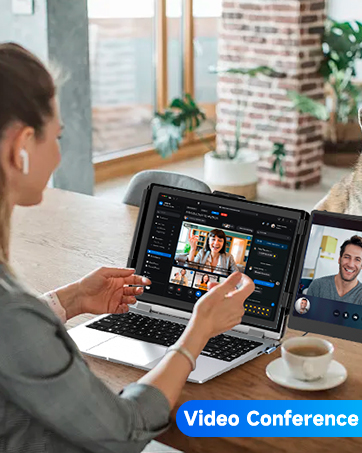
Image: A demonstration of the screen extender's 180-degree rotation and its integrated kickstand for adjustable viewing angles.

Image: Detailed view of the screen extender's side, highlighting the brightness/volume control slider and the speaker, along with labels for the USB-C and HDMI ports.
Maintenance
To ensure the longevity and optimal performance of your KEFEYA Laptop Screen Extender, follow these maintenance guidelines:
- Cleaning: Use a soft, lint-free cloth to gently wipe the screen and exterior surfaces. For stubborn marks, slightly dampen the cloth with water or a screen-safe cleaning solution. Avoid harsh chemicals or abrasive materials.
- Storage: When not in use, store the screen extender in its provided storage bag to protect it from dust, scratches, and impacts. Avoid placing heavy objects on top of the device.
- Handling: Handle the extender with care. Avoid dropping it or subjecting it to strong impacts. Do not apply excessive force when adjusting the screen or kickstand.
- Temperature and Humidity: Operate and store the device in a dry environment within recommended temperature ranges. Avoid extreme temperatures or high humidity, which can damage electronic components.
- Cable Care: Always grasp the plug when disconnecting cables, rather than pulling on the cable itself, to prevent damage to the connectors and wires.
Troubleshooting
If you encounter issues with your KEFEYA Laptop Screen Extender, refer to the common problems and solutions below:
Problem: Screen Displays "No Signal"
Solution:
- USB-C One-Cable Connection: Verify that your laptop's USB-C port is full-featured (supports both charge and data transmit). Ensure the USB-C cable is connected to the correct port (TYPE-C1 or TYPE-C2) on the KEFEYA screen extender.
- HDMI + USB-A Two-Cable Connection: Confirm that the HDMI to USB-C cable is inserted into the HDMI-marked port (BOTTOM port) on the screen extender. Also, ensure the USB-A to USB-C cable is connected to your laptop and the screen extender (TYPE-C1 or TYPE-C2 port) to provide power. Activate your laptop screen after connection.
- Cable Integrity: Check all cables for damage or loose connections. Try using different cables if available.
Problem: Screen Flickers or Goes Black
Solution:
- Insufficient Power: This often indicates low battery on your laptop or insufficient voltage. Use an extra USB-A to USB-C cable to power your laptop or the monitor extender directly from a power adapter (5V/2A recommended).
- Cable Check: Ensure all cables are securely connected and undamaged.
Problem: Screen Does Not Light Up After Connecting
Solution:
- Power Supply: Your laptop may not be providing enough power. Please charge the monitor with an extra power supply that provides 5V/2A.
- Laptop Activation: Ensure your laptop screen is active and not in sleep mode.
- Cable Connection: Double-check all cable connections as described in the Setup section.
Specifications
| Feature | Detail |
|---|---|
| Model Number | S1 |
| Screen Size | 14 Inches (36 cm diagonal) |
| Resolution | 1920 x 1080 Pixels (FHD 1080p) |
| Aspect Ratio | 16:9 |
| Panel Type | IPS |
| Refresh Rate | 60Hz |
| Brightness | 300 candela (nit) |
| Color Gamut | 72% NTSC |
| Screen Surface | Matte |
| Product Dimensions | 13.89 x 8.14 x 0.9 inches |
| Item Weight | 2.3 pounds |
| Total USB Ports | 5 (including Type-C for power/data, HDMI for video) |
| Compatibility | Windows, macOS, Chrome, Linux, Android, Nintendo Switch, PS4, PS5 (for laptops 13-17.3 inches) |
Warranty and Support
KEFEYA is committed to providing reliable products and excellent customer service. For any inquiries, technical assistance, or warranty claims, please contact KEFEYA Direct customer service. Refer to the contact information provided with your product packaging or on the official KEFEYA website for the most up-to-date support details.
For additional resources, you may refer to the official PDF documents:
Related documentsS1


Ask a question about this manual
Ask about setup, troubleshooting, compatibility, parts, safety, or missing instructions. Manuals+ will review the question and use this page’s manual context to help answer it.