
1. Introduction
This manual provides detailed instructions for the setup, operation, maintenance, and troubleshooting of your Montech MKey Mechanical Gaming Keyboard, model MK105FR. This keyboard features Gateron G Red Pro 2.0 pre-lubed switches, premium MDA profile PBT keycaps, customizable RGB LED lighting, and a hot-swappable design for personalized use.
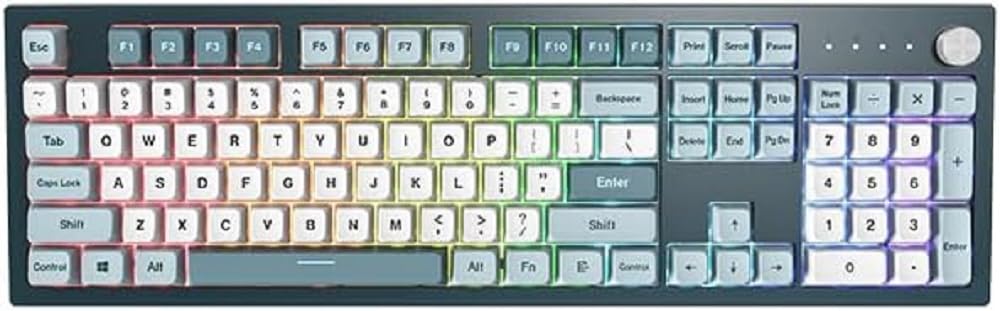
Image 1.1: Front view of the Montech MKey Mechanical Gaming Keyboard.
2. Package Contents
Verify that all items are present in the package:
- Montech MKey Mechanical Gaming Keyboard (MK105FR)
- Detachable USB Type-C Cable
- Keycap Puller
- Switch Puller
- Additional Keycaps (Osaka Castle themed)
3. Setup
3.1 Connecting the Keyboard
- Locate the USB Type-C port on the back of the keyboard.
- Connect the provided USB Type-C cable to the keyboard.
- Connect the other end of the USB cable to an available USB port on your computer.
- The keyboard will automatically be detected by your operating system (Windows 10 or later recommended).
3.2 Software Installation (Optional)
For advanced customization of RGB lighting effects and key functions, download the official Montech MKey software from the Montech website. Follow the on-screen instructions for installation.
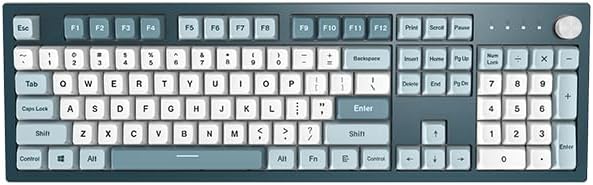
Image 3.1: The Montech MKey keyboard ready for connection.
4. Operating Instructions
4.1 Basic Key Functions
The Montech MKey MK105FR features a full-size layout with standard QWERTY keys, a numeric keypad, and function keys (F1-F12).
4.2 Function Key (Fn) Combinations
Utilize the Fn key (located near the right Alt key) in combination with other keys to access various functions:
- Fn + F1-F12: Multimedia controls (e.g., volume, play/pause, stop, next/previous track). Specific functions may vary.
- Fn + Arrow Keys: Adjust RGB lighting effects (e.g., brightness, speed, direction).
- Fn + Specific Keys: Cycle through different RGB lighting modes. Refer to the keyboard's quick guide or software for exact combinations.
4.3 Rotary Knob Functionality
The rotary knob, located on the top right of the keyboard, offers multi-functional control:
- Rotate: Adjusts volume by default.
- Press: Mutes/unmutes audio by default.
- Press and Hold: Cycles through different modes (e.g., volume, zoom, RGB lighting brightness/mode).
4.4 Hot-Swappable Switches
The Montech MKey keyboard features Kailh's Hot-swap sockets, allowing you to change mechanical switches without soldering. This enables customization of typing feel and sound.
- Removing a Keycap: Use the provided keycap puller to gently lift the keycap straight up.
- Removing a Switch: Use the provided switch puller to grasp the top and bottom clips of the switch. Apply gentle pressure and pull the switch straight up.
- Installing a New Switch: Align the pins of the new switch with the holes on the PCB. Gently press the switch down until it clicks into place. Ensure pins are not bent.
- Installing a Keycap: Place the keycap over the switch stem and press down firmly until it is seated.

Image 4.1: Illustration of hot-swappable switches, keycap puller, and switch puller.

Image 4.2: Detail of a keycap removed, revealing the Gateron G Red Pro 2.0 mechanical switch.
4.5 Keycap Profile: MDA
The keyboard is equipped with premium MDA profile PBT keycaps. The MDA profile is a sculpted keycap profile designed for ergonomic comfort and a unique aesthetic, offering a slightly lower and more uniform height compared to some other profiles, while still providing a comfortable typing angle.
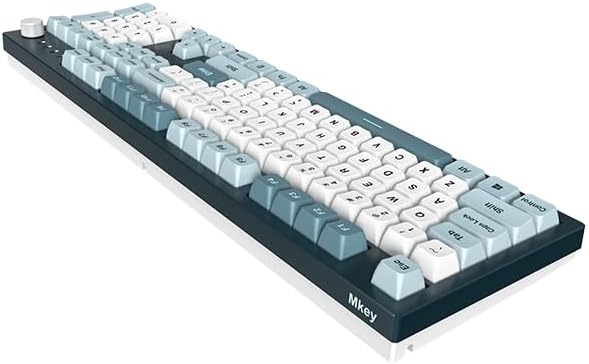
Image 4.3: Comparison diagram illustrating the MDA keycap profile.
5. Maintenance
5.1 Cleaning the Keyboard
To maintain optimal performance and appearance:
- Disconnect the keyboard from your computer before cleaning.
- Use a soft, lint-free cloth dampened with a small amount of water or a mild cleaning solution to wipe the keycaps and chassis.
- For dust and debris between keycaps, use compressed air or a small brush.
- Avoid using harsh chemicals or abrasive materials.
5.2 Keycap and Switch Care
When removing or installing keycaps and switches, always use the provided tools and apply gentle, even pressure to prevent damage to the components or the keyboard PCB.
6. Troubleshooting
If you encounter issues with your Montech MKey keyboard, refer to the following common problems and solutions:
- Keyboard Not Responding: Ensure the USB cable is securely connected to both the keyboard and the computer. Try connecting to a different USB port or using a different USB cable. Restart your computer.
- RGB Lighting Not Working: Check Fn key combinations for lighting control. Ensure the keyboard software is installed and configured correctly if you are using it.
- Specific Keys Not Working: If a specific key is not registering, try removing and re-seating its switch. If the issue persists, consider replacing the switch (refer to Section 4.4).
- Ghosting or Input Lag: Ensure the keyboard is connected directly to a USB port on your computer, avoiding unpowered USB hubs. Update your computer's USB drivers.
For further assistance, please contact Montech customer support.
7. Specifications
| Feature | Detail |
|---|---|
| Brand | Montech |
| Model Number | MK105FR |
| Series | MKey Freedom |
| Connectivity Technology | USB (Detachable Type-C) |
| Keyboard Description | Mechanical |
| Switch Type | Gateron G Red Pro 2.0 (Pre-lubed) |
| Keycap Material | PBT |
| Keycap Profile | MDA |
| Special Feature | Hot-Swappable, RGB Backlighting |
| Operating System | Windows 10 (and later) |
| Product Dimensions (LxWxH) | 17.44 x 5.35 x 1.61 inches |
| Item Weight | 4.49 pounds |
8. Warranty and Support
8.1 Warranty Information
Montech products are covered by a limited warranty. Please refer to the official Montech website or your purchase documentation for specific warranty terms and conditions applicable to your region.
8.2 Customer Support
For technical support, troubleshooting assistance, or warranty claims, please visit the official Montech website and navigate to the support section. You may find FAQs, driver downloads, and contact information for customer service representatives.
Montech Official Website: www.montechpc.com


