Introduction
This manual provides comprehensive instructions for the installation, operation, and maintenance of your BULIST UD01S Smart Lock. Please read this manual thoroughly before installation and use to ensure proper function and safety. Keep this manual for future reference.
Important Safety Information
- Do not attempt to disassemble or repair the lock yourself. Contact customer support for assistance.
- Use only the specified battery type (4 AA Alkaline batteries). Do not mix old and new batteries or different types of batteries.
- Ensure the lock is installed correctly and securely to prevent unauthorized access.
- Regularly check battery levels and replace batteries promptly when the low voltage reminder activates.
- Keep your master code and fingerprints secure and do not share them with unauthorized individuals.
Package Contents
Please verify that all components are present before beginning installation.

Image: Overview of the BULIST UD01S Smart Lock package contents, showing the exterior keypad, interior lock unit, a set of AA batteries, the Wi-Fi gateway, and branding.
- Exterior Keypad Assembly
- Interior Lock Unit
- Mounting Plate
- Deadbolt Latch
- Strike Plate
- Screws and Fasteners
- 4 x AA Alkaline Batteries
- Wi-Fi Gateway
- Emergency Keys (2)
- User Manual (this document)
Product Overview and Features
The BULIST UD01S Smart Lock offers multiple convenient and secure entry methods for your home or office.
- Multiple Unlock Modes: Fingerprint, Passcode, Tuya App, and Physical Key.
- Fingerprint Recognition: Fast 0.3-second recognition with 99.9% accuracy. Stores up to 50 fingerprints.
- Backlit Keypad: Ensures visibility and ease of use in low-light conditions. Stores up to 50 passcodes.
- Tuya App Control: Remote unlock/lock, temporary code generation, member management, and activity logs via Wi-Fi gateway.
- Emergency Power: USB Type-C port for emergency power supply if batteries are depleted.
- Long Battery Life: Approximately 10-12 months of battery life with a low voltage reminder.
- Durable Construction: Tested for keypad life, intensity, temperature resistance, and impact.
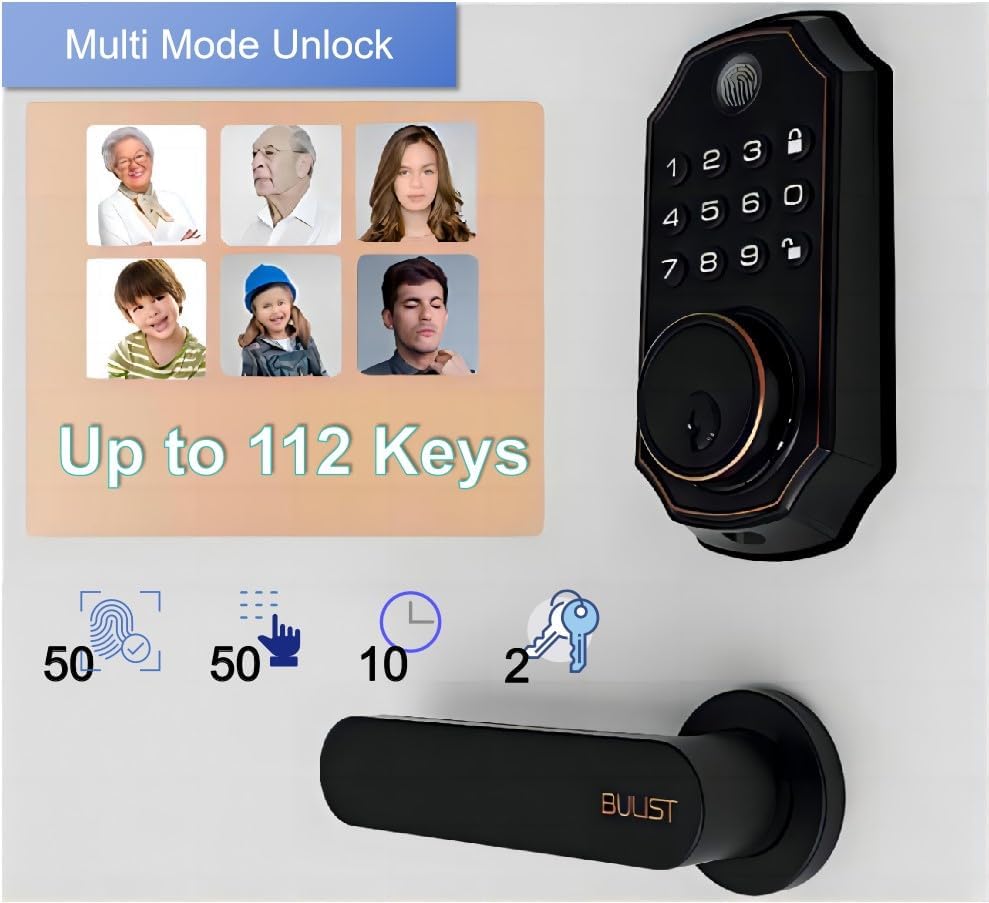
Image: The BULIST UD01S Smart Lock highlighting its multi-mode unlock capabilities, including fingerprint, keypad codes, and traditional keys. It indicates support for up to 50 fingerprints, 50 passcodes, and 2 physical keys.

Image: A child using the fingerprint sensor on the BULIST UD01S Smart Lock, illustrating the ease and speed of fingerprint recognition. Text overlays indicate a 0.3-second recognition time and 99.9% accuracy.

Image: A close-up view of the BULIST UD01S Smart Lock's backlit keypad, demonstrating its visibility and usability in low-light conditions. A finger is shown interacting with the keypad.
Setup and Installation
Installation of the BULIST UD01S Smart Lock is designed to be straightforward. A single screwdriver is typically sufficient for the process.
Tools Required:
- Phillips Head Screwdriver
Installation Steps:
- Prepare the Door: Ensure your door is properly prepped for a standard deadbolt installation. Remove any existing deadbolt hardware.
- Install the Deadbolt Latch: Insert the deadbolt latch into the door edge. Ensure the "UP" arrow on the latch is facing upwards. Secure with screws.
- Install the Exterior Keypad Assembly: Feed the cable from the exterior keypad through the door hole and under the deadbolt latch. Position the exterior keypad flush against the door.
- Install the Mounting Plate: Route the cable through the mounting plate. Secure the mounting plate to the door using screws, ensuring it aligns with the exterior keypad.
- Connect the Cables: Connect the cable from the exterior keypad to the corresponding port on the interior lock unit.
- Install the Interior Lock Unit: Align the interior lock unit with the mounting plate and the deadbolt tailpiece. Secure it with screws.
- Install Batteries: Open the battery cover on the interior unit and insert the 4 AA alkaline batteries, observing polarity.
- Test the Lock: Manually operate the deadbolt to ensure smooth movement. Test with the physical key.
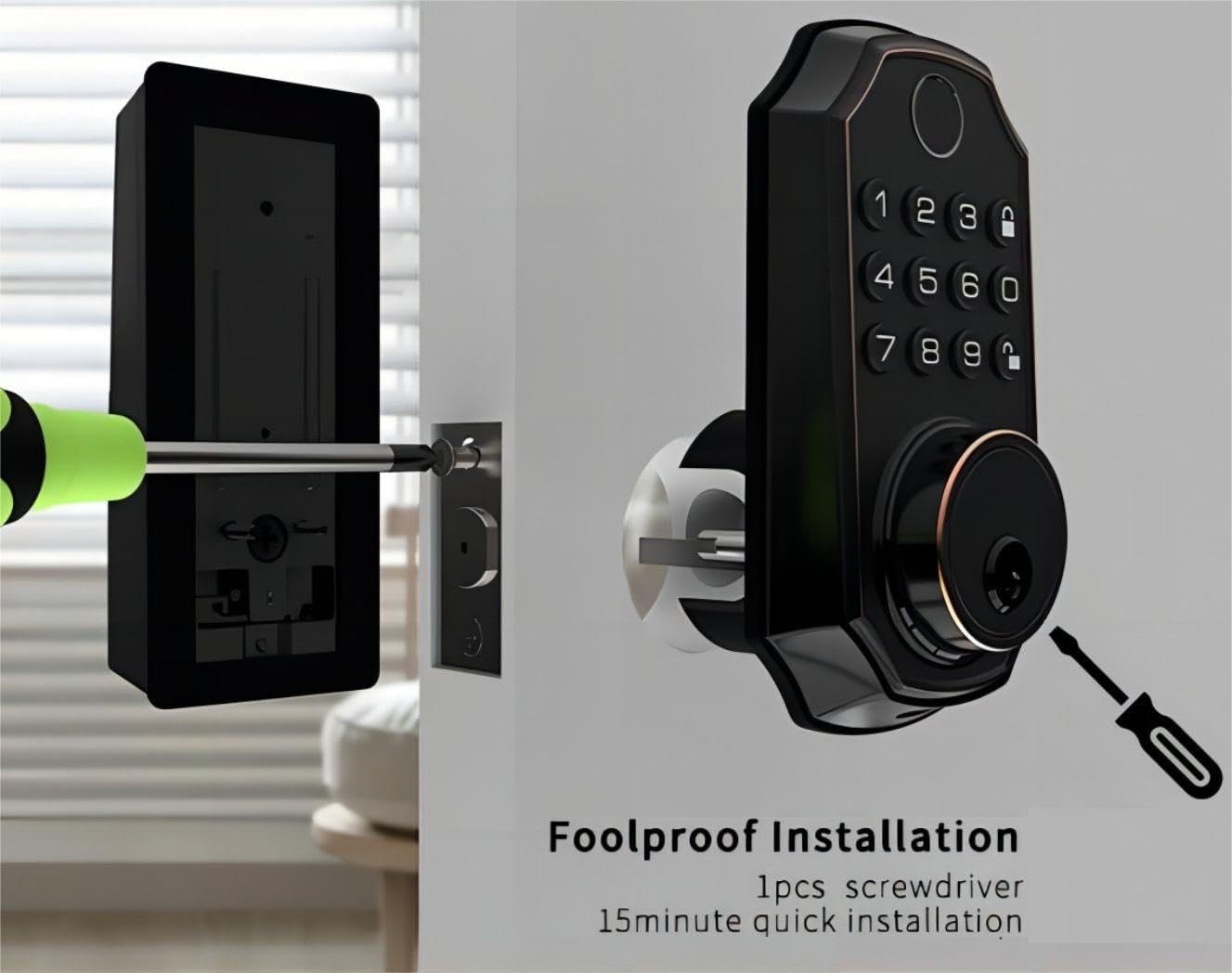
Image: An illustration of the BULIST UD01S Smart Lock installation, depicting a screwdriver being used to secure the exterior keypad assembly to the door. This highlights the "foolproof installation" claim.
Operating Instructions
Initial Setup and Master Code Programming:
Upon first power-up, the lock uses a default master code. It is crucial to change this immediately.
- Enter Programming Mode:
- Enter the default code: 123456
- Press the Unlock button (keypad icon).
- Press the number 1.
- Press the Unlock button again. The lock should indicate it is in "add user mode" or similar.
- Set New Master Code:
- Enter your desired new master code (6-8 digits).
- Press the Unlock button.
- Re-enter your new master code.
- Press the Unlock button. The lock will confirm the new master code.
Important: Remember your new master code. It is required for all subsequent programming.
Adding User Passcodes:
You can add up to 50 user passcodes.
- Enter your Master Code.
- Press the Unlock button.
- Press the number 1.
- Press the Unlock button. The lock will indicate "add user mode".
- Enter the new user passcode (6-8 digits).
- Press the Unlock button.
- Re-enter the new user passcode.
- Press the Unlock button. The lock will confirm the addition.
Adding User Fingerprints:
You can add up to 50 user fingerprints. This can also be done via the app (see App Integration).
- Enter your Master Code.
- Press the Unlock button.
- Press the number 2.
- Press the Unlock button. The lock will prompt for fingerprint scanning.
- Place your finger on the fingerprint sensor. Lift and repeat 5 times, rotating your finger slightly each time for better recognition.
- The lock will confirm successful fingerprint registration.
Unlocking the Door:
- By Fingerprint: Place your registered finger on the sensor. The lock will unlock if recognized.
- By Passcode: Enter your 6-8 digit passcode, then press the Unlock button.
- By Physical Key: Insert the emergency key into the keyhole and turn to unlock.
- Via Tuya App: Use the app's remote unlock function (requires Wi-Fi gateway).
Locking the Door:
- Automatic Lock: The lock will automatically engage after a set period (configurable in the app).
- Manual Lock: Press and hold the Lock button (padlock icon) on the keypad for 2 seconds.
- Via Tuya App: Use the app's remote lock function.
Tuya App Integration
The BULIST UD01S Smart Lock integrates with the Tuya Smart app for enhanced control and monitoring. A Wi-Fi gateway is required for remote functionality.
1. Install the Tuya Smart App:
- Download "Tuya Smart" from your smartphone's app store (iOS or Android).
- Register for an account or log in if you already have one.
2. Set up the Wi-Fi Gateway:
The gateway acts as a bridge between your lock (Bluetooth) and your home Wi-Fi network.
- Plug in the Wi-Fi gateway within 20 feet (approximately 6 meters) of your smart lock.
- In the Tuya Smart app, tap "+" to add a new device.
- Select "Gateway" or "Bridge" from the device list and follow the in-app instructions to connect it to your 2.4GHz Wi-Fi network.
3. Pair the Smart Lock with the Gateway:
- On the smart lock keypad, enter your Master Code.
- Press the Unlock button.
- Press the number 3.
- Press the Unlock button. The lock will enter Bluetooth pairing mode (e.g., "distributing network").
- In the Tuya Smart app, navigate to your connected gateway. Select "Add Device" or "Search for Sub-devices".
- The app should discover your UD01S Smart Lock. Follow the prompts to complete pairing.

Image: A person approaching a door equipped with the BULIST UD01S Smart Lock, while a smartphone screen displays the Tuya app interface, illustrating the "App Full Control" feature for remote management.
4. App Functions:
- Remote Unlock/Lock: Control your door from anywhere.
- Temporary Codes: Generate one-time or time-limited passcodes for guests or service providers. These codes are automatically deleted after use.
- Member Management: Add, edit, or delete user passcodes and fingerprints. You can also grant remote access to other users.
- Activity Logs: View a history of lock/unlock events.
- Settings: Configure auto-lock duration, enable/disable remote unlock, and other preferences.

Image: A woman with groceries looking at her smartphone, which displays the Tuya app interface showing a temporary passcode "159357" for the BULIST UD01S Smart Lock. This illustrates the temporary code sharing feature.
Maintenance
Battery Replacement:
The lock will provide a low voltage reminder when batteries are running low. Replace all four AA batteries promptly to ensure continuous operation.
- Remove the battery cover on the interior lock unit.
- Remove the old batteries.
- Insert 4 new AA alkaline batteries, ensuring correct polarity (+/-).
- Replace the battery cover.
Note: If batteries are completely depleted, you can use a USB Type-C power bank to temporarily power the lock via the emergency power port on the exterior unit.

Image: The BULIST UD01S Smart Lock illustrating its battery features, including 10-12 months of battery life, a low voltage reminder, and the emergency power supply option via a USB Type-C port.
Cleaning:
Wipe the lock's surface with a soft, dry cloth. Avoid using abrasive cleaners or solvents, which can damage the finish or electronic components.
Troubleshooting
| Problem | Possible Cause | Solution |
|---|---|---|
| Lock does not respond. | Dead batteries. | Replace batteries. Use emergency USB Type-C power if needed. |
| Fingerprint not recognized. | Finger not placed correctly; sensor dirty; fingerprint not registered. | Ensure finger is clean and covers the sensor. Try different angles. Re-register fingerprint if necessary. |
| Passcode not working. | Incorrect passcode entered; passcode not registered. | Verify the passcode. Ensure it is 6-8 digits. Re-register passcode if necessary. |
| Cannot connect to Tuya App. | Gateway not powered; gateway too far from lock; incorrect Wi-Fi password; 5GHz Wi-Fi network. | Ensure gateway is powered and within 20 feet of the lock. Verify Wi-Fi credentials. Ensure you are connecting to a 2.4GHz Wi-Fi network. Re-pair the lock with the gateway. |
| Lock jams or does not fully extend/retract. | Misalignment during installation; obstruction in door frame. | Check for obstructions. Re-check installation alignment. Ensure deadbolt moves freely. |
Specifications
| Model Number | UD01S |
| Brand | BULIST |
| Material | Zinc |
| Color | Oil Rubbed Bronze |
| Power Source | 4 x AA Alkaline Batteries (included) |
| Emergency Power | USB Type-C |
| Connectivity | Bluetooth (via Wi-Fi Gateway for remote access) |
| Unlock Methods | Fingerprint, Passcode, Tuya App, Physical Key |
| Fingerprint Capacity | Up to 50 |
| Passcode Capacity | Up to 50 |
| Operating Temperature | -30°F to 151°F (-34°C to 66°C) (based on test data) |
| Package Dimensions | 22.7 x 18.4 x 8.5 cm |
| Item Weight | 1.21 kg |

Image: The BULIST UD01S Smart Lock with text indicating various durability tests it has undergone, such as 200,000 keypad life test, 4400N intensity test, -30°F to 151°F temperature test, and 100J impact test.
Warranty and Support
For warranty information and technical support, please refer to the warranty card included with your product or contact BULIST customer service directly. Contact details can typically be found on the manufacturer's official website or on your purchase receipt.


